
How to Record the Last 30 Seconds on PC (Quick & Easy Methods)
Summary:
This guide will tell us how to record the last 30 seconds on pc, graphics software and other screen video software that comes with the computer. In this way, we will never miss important game clips, conference content, or those unexpected moments.
MenuCLOSE
Have you ever been in a situation where you were playing a game or having an online meeting, and suddenly something wonderful happened — and then you realized you were not recording at all? This is too common. Whether you want to record exciting gameplays or capture unexpected scenes on your screen, learning can greatly reduce those moments of regret.
Method 1: Use Windows Game Bar
The capture gadget of Xbox Game Bar allows us to save the games recently played or activities on the screen, instead of keeping the full video on all the time. It can record up to 1080p and 60 FPS images, and can also record the sound of the system and the sound in the microphone at the same time, which is very suitable for quickly recording wonderful moments or interesting things that suddenly happen.
How to record the last 30 seconds with Xbox Game Bar:
1. Open Settings → Gaming → Captures and enable background recording.
2. Launch your game or application as usual.
3. Press Win + G to open Xbox Game Bar.
4. Click Record last 30 seconds, or press Win + Alt + G.
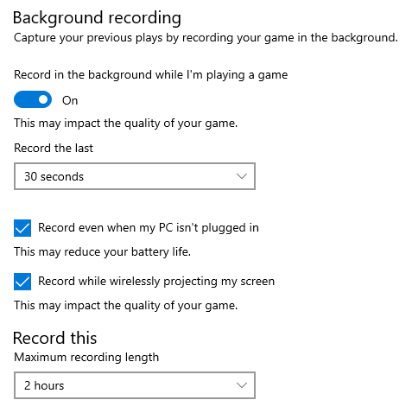
This video will be saved to the Videos – Captures folder immediately, and you can watch or edit it later. For most people, this is the easiest way to learn how to clip last 30 seconds on pc, which comes with Windows-no extra software is needed.
Method 2: Use Graphics Card Software
If you have an NVIDIA graphics card, GeForce Experience will bring a function called ShadowPlay (that is, Share overlay), which has an “Instant Replay” feature. According to NVIDIA, ShadowPlay can “immediately save the 30-second game screen you just played” and has little impact on the computer speed.
To activate it:
1. Press Alt+Z to open the overlay of GeForce Experience.
2. Click “Instant Replay” and then select “Turn On”.
3. When playing a game, press the shortcut key of Instant Replay (or click the button on the screen) to save the game just now.
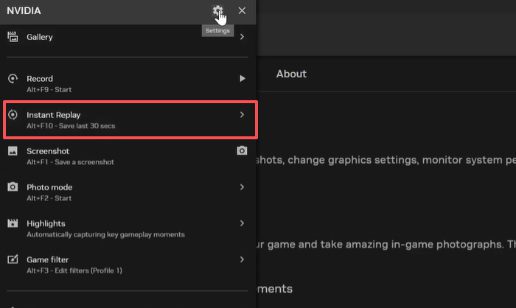
This method is basically like installing an automatic DVR for your game. That Instant Replay buffer will always be recording in the background, so that you can record the content of the PC just after the incident. Because it is part of GeForce Experience, it is one of the best screen recording tools for Windows players.
Method 3: Use Third-Party Screen Recorders
If the built-in tools are not enough, the third-party screen recording software can provide a more flexible recording process, but the goal is the same: to record important times. A simple choice is Leawo Free Screen Recorder, which is a free tool without watermark, supports 4K recording, and can record system sound and microphone input at the same time. The use method is also very simple-record normally first, then cut out the required clips after recording.
Record using Leawo Free Screen Recorder:
1. Open Leawo and choose full screen or a custom area.
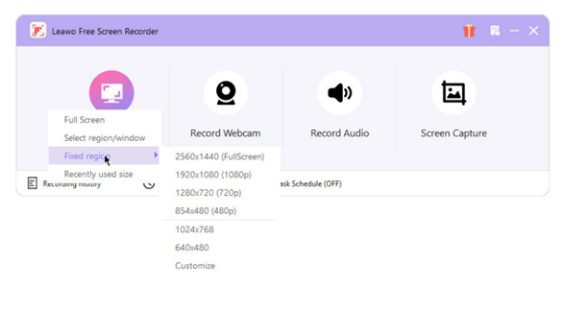
2. Click REC to begin recording.
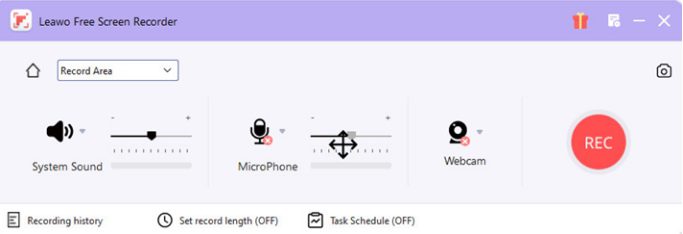
3. Stop recording when finished and save the file.
4. Trim the final 30 seconds using editing tools.
This method is very suitable for users who like simple recording process and don’t want to set background buffers.
For those users who want to edit automatically, OBS Studio provides a Replay Buffer function, which can continuously save the latest videos in memory.
Set up Replay Buffer in OBS Studio:
1. Open Settings → Output.
2. Enable Replay Buffer and set buffer length (10–30 seconds).
3. Assign a shortcut in Hotkeys (e.g.,Ctrl + Shift + S) → Save Replay.
4. Click Start Replay Buffer before your session.
5. Press the hotkey (Ctrl + Shift + S) anytime to save the recent clip.
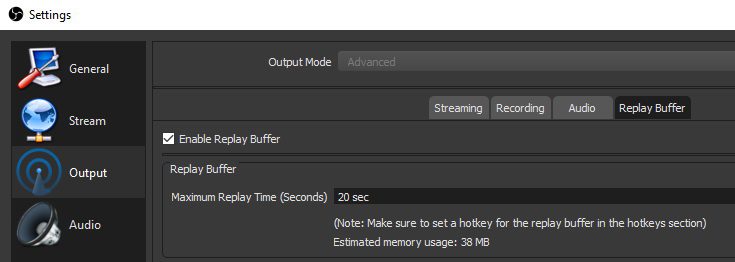
OBS then generates a video containing the last recorded seconds automatically, reducing unnecessary storage usage.
Tips for Avoid Missing Important Moments
Even if you learn to record the past 30 seconds on your computer, some small preparation steps can make the recording more reliable.
Tips
- Try to use a longer recording time. Adjust the recording time to 60 to 120 seconds, and you can record more content.
- Check the storage space frequently. High-definition video will fill the hard disk faster than we thought.
- Turn on background recording before you start. Make sure that the “playback” or “background recording” function is turned on every time.
- Turn off unnecessary software or notifications. The fewer programs running in the background, the more stable the recording.
Conclusion
Generally speaking, Windows provides several simple ways to record last 30 seconds on pc. The Xbox Game Bar and NVIDIA’s Instant Replay function make it easy for you to capture highlights quickly. Alternatively, you can also use third-party recording software such as Leawo or OBS (both of which are free), which can give you complete control-record it in advance and then editing it. If you follow the above steps and set them in advance, you can have one of the best screen recording tools on Windows, so that those memorable moments will never be missed again. Happy recording!
-

ScreenRec Review: Real Performance Test
-
Best Ways to Watch YouTube Videos Offline Without Internet
-
How Many People Can Share a Netflix Account?
-
5 Proven Methods to Watch YouTube Without Ads
-
How Long Do Recordings Stay on YouTube TV? Full Breakdown
-
AnyBurn Review: Is This Free Burner Enough
-
3 Best Ways to Download All Videos from YouTube Channel
-
DVDFab DVD Creator Review: Read Before Buying
-
Windows Media Player Review: Is It Working on Windows 11?
-
6 Best Tools to Download YouTube Playlist Fast










-
Best Twitter Porn Accounts You Shouldn’t Miss
-
How to Download Pornhub Videos? Ways to Download from Pornhub
-
Top 5 OnlyFans Viewer Tools to View OnlyFans Content for Free
-
Full Review of Savethevideo: Is Savethevideo Safe & How to Use it?
-
How to Download MissAV Porn Videos in HD for Offline Viewing?
-
Netflix Download Limit: What it is & How to Avoid
-
Full Guide to YouTube Members Only Videos: Watch, Download
-
How to Import Bookmarks from Safari to Chrome
-
How to Download Videos from Fansly with Fansly Downloader
-
4 Methods to Burn ISO Files to Blu-ray Discs Easily













 العربية
 繁體中文
繁體中文 Dansk
Dansk Nederlands
 Suomi
Suomi Français
 Deutsch
 Italiano
 한국어
한국어 Norsk bokmål
 Português
 Русский
 Español
 Svenska