AnyBurn Review: Is This Free Burner Enough

Summary:
- AnyBurn is a lightweight, free tool that handles basic disc burning, copying, and ISO creation reliably, making it ideal for simple tasks. For advanced features like DVD menus, slideshows, or video editing, Leawo Blu-ray Creator offers a more powerful and customizable alternative.
For anyone who regularly burns files to a CD or DVD, they must have heard of AnyBurn software. This is a small software that can burn your files to discs for your computer. This is a simple tool with a straightforward interface, making it very easy to use. To be honest, this is also one of the reasons for its popularity. The interface is clear, and burning files to disc will just take a few seconds. But this tool has some limitations. In today’s AnyBurn review, we will discuss what AnyBurn features you can get for DVD burning and what main limitations you need to consider. Let’s begin.
Quick AccessCLOSE
Core Features of AnyBurn
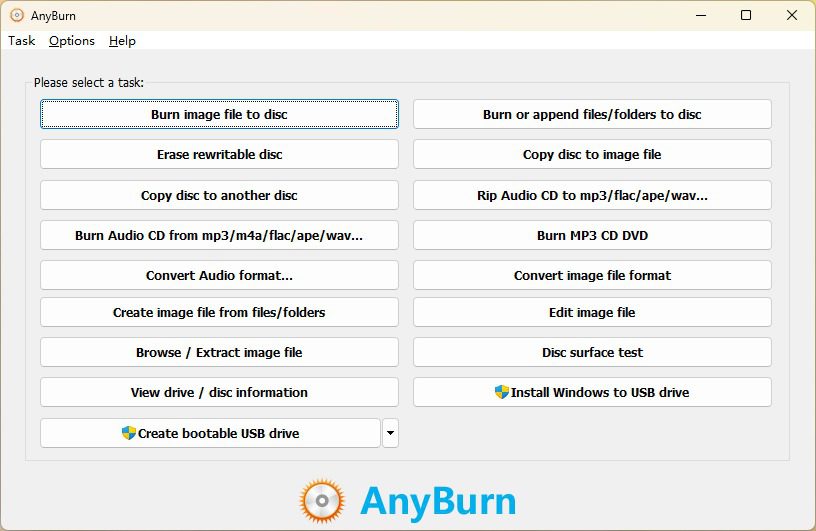
AnyBurn is surprisingly capable with some really nice features. Below, we will discuss some of its main themes.
1. Burn Image Files and Discs
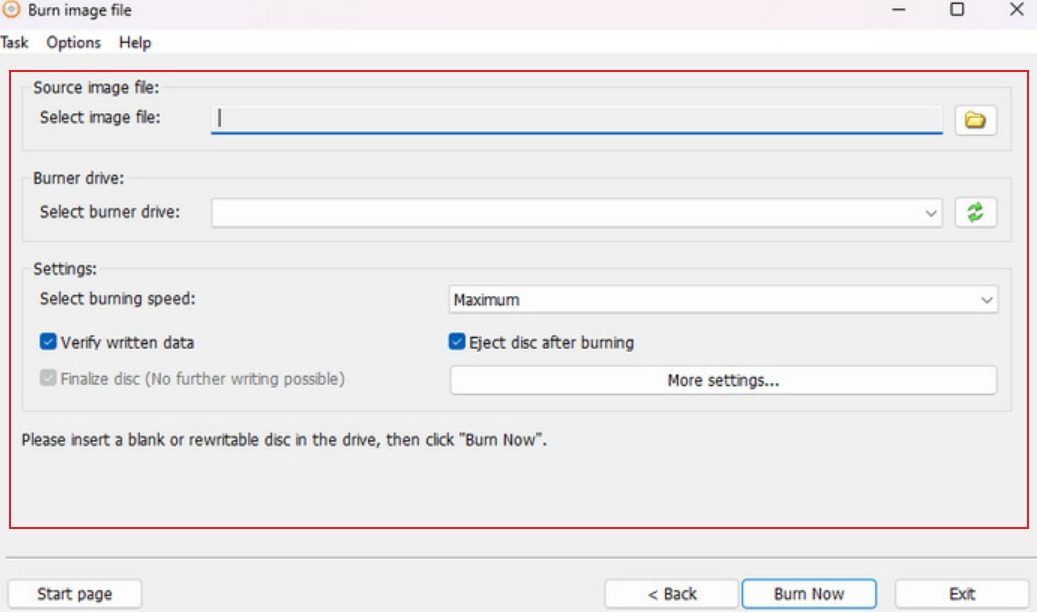
Obviously, one thing that works really well is how fast it can burn image files. No matter if you have an ISO file or a BIN file, you can easily burn it to a CD, DVD, or even a Blu-ray. The tool also has a feature called multisession discs. This feature means you can add more files for burning later without having to start the process from scratch. This is really helpful if you are building a project.
2. Audio and Music Options
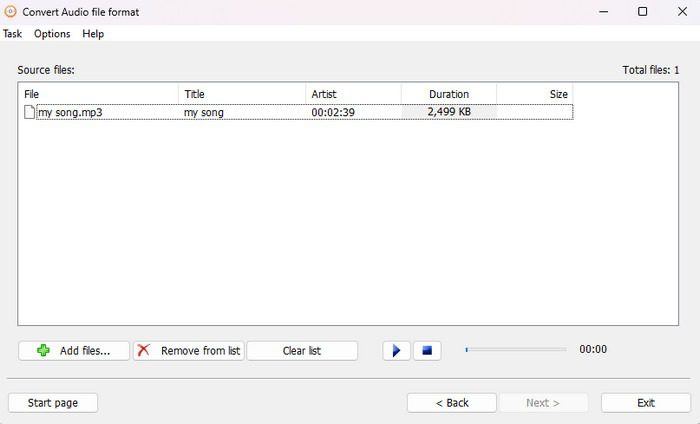
Also, there are so many audio and music options. This means if you have different files in different formats like MP3, FLAC, WAV, WMA, or even OGG files, then you can burn them into an Audio CD that works in any CD player.
3. Copying and Ripping Made Simple
Moving on, AnyBurn can also duplicate DVDs, Blu-ray discs, or CDs directly. Also, you can turn these files into image files for later use, or rip audio CDs into formats like MP3, FLAC, WAV, or OGG. It’s perfect if you want to play your old CDs on your phone or computer.
4. Extra Tools You’ll Actually Use
Above these features, the tool has some extra tools that you can actually use.
- Test disc surfaces to make sure your burn won’t fail.
- View drive and disc info, so you know exactly what hardware and media you’re dealing with.
- Create bootable USB drives, which are great for installing operating systems or troubleshooting PCs.
- Convert audio files between formats without using another app.
Performance and Reliability
So, we’ve seen what AnyBurn can do. The next big question is, does it actually perform well? Even great features don’t help if the software is slow, crashes, or ruins your discs. Let’s break it down. One of the first things you notice is how light it feels. It doesn’t hog your computer’s resources. You can keep working while it burns a disc.
Burning an ISO or a music CD is usually quick. Creating or converting image files doesn’t take forever. It’s not the fastest burner out there. But for everyday jobs, it’s more than enough. AnyBurn rarely crashes. Even with large files or several tasks at once, it stays stable. The on-the-fly burning feature is handy, and you can burn files directly without making a temporary copy first. It works consistently. You also get built-in checks, like testing the disc surface. That helps avoid errors that could ruin a CD or DVD. It handles a lot of formats. MP3, FLAC, and WAV for audio. ISO and BIN for images. No need to hunt for plugins or extra tools. Most formats just work out of the box.
Performance isn’t only speed. It’s also about how easy the program is to use. AnyBurn keeps menus simple and tasks straightforward. If you’ve never burned a disc before, the layout won’t leave you lost. It’s small and lightweight. Installation is quick, and no risky program will be added to your system. For a free tool, AnyBurn gives solid reliability. It doesn’t have flashy graphics or fancy automation. But for day-to-day disc ripping, burning, and copying, it just works. And that matters.
Limitations of AnyBurn
While AnyBurn does a lot for a free tool, it isn’t perfect. Some users ran into serious problems. One reviewer gave it a 3.5 out of 5 TrustScore and left a warning.
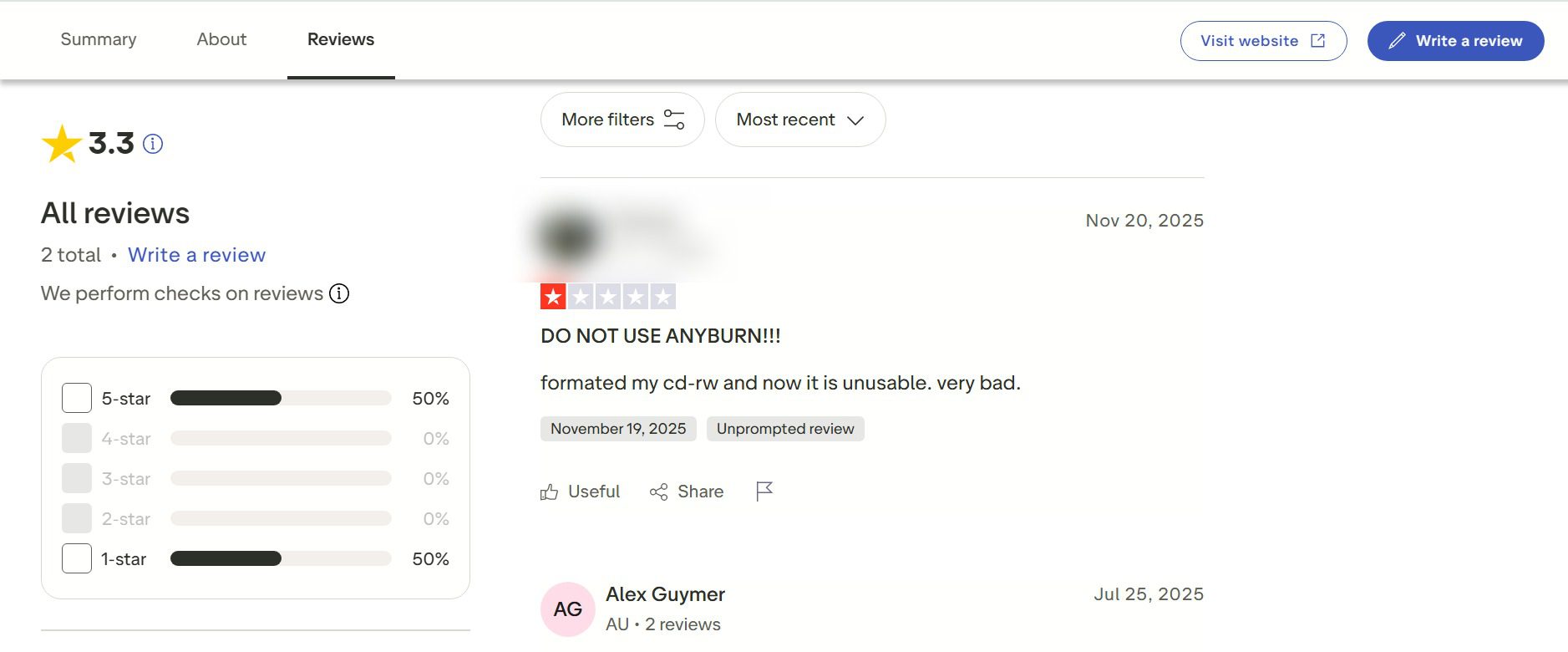
This review points to the biggest risk with AnyBurn. If you format discs or use advanced features that erase data, you can lose things. Be careful. Double-check before you hit “burn” or “format.” AnyBurn keeps things simple. Mostly that’s good. But it also means it’s missing newer stuff. No cloud integration. No batch automation. The interface looks the same as it did years ago. Some people also report trouble with older CD-RWs or odd disc brands. With standard discs, it usually works. Still, test first. Use caution with certain operations.
Best Alternative for Disc Conversion: Leawo Blu-ray Creator
AnyBurn is a good option for mostly basic burning and ripping. However, if you are someone who just wants a more reliable and more powerful option then we recommend you to use an alternative like Leawo Blu-ray Creator. It is a good option for someone who wants to work on home movie projects, photo slideshows, or simply just want to have polished discs.

-
Professional disc authoring software that lets you burn Blu-ray/DVD discs, folders or ISO images from videos/images in 180+ formats. It features a built-in video editor, offers 40+ free disc menu templates for customization, and supports converting 2D videos into 3D Blu-ray/DVDs with 6 different 3D effects available.
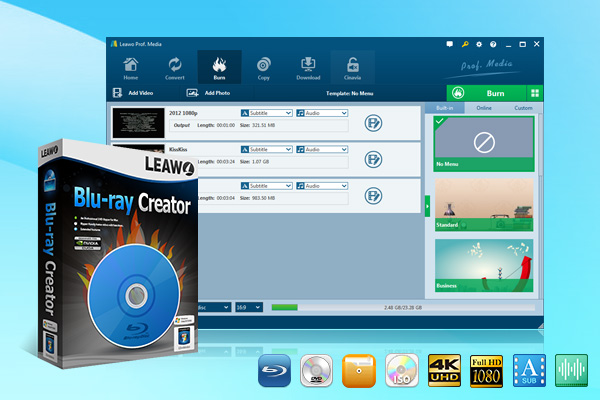
Below are some main features of Leawo Blu-ray creator.
- Burn Videos from Multiple Formats: The first feature of this tool is that it can burn videos from lots of formats. For instance, you can burn videos from recorded files, downloads, and other sources. Also, you can create ISO images, Blu-ray/DVD discs, or folders.
- Customizable Disc Menus: With this tool, you will have the option of over 40 preset templates. According to your liking, you can DIY a menu so it looks like a commercial DVD.
- 2D to 3D Conversion: Another best thing is that you can turn any normal 2D videos into 3D DVD movies. The tool has six different 3D effects.
- Video Editing Before Burning: The tool also has video editing features like trim, watermark, etc. You can also adjust effects.
- Photo Slideshows: Also, you can turn your photos into DVD slideshows. Also, there are features like music, transitions, and customizable effects.
- Fast Burning Technology: Also, it has a fast Intel Quick Sync acceleration to burn DVDs faster than most basic burners.
All these features make Leawo Blu-ray Creator a more powerful option than AnyBurn. Leawo focuses more on creativity and customization. AnyBurn is for simple burning needs. Simply, if you want more than simple burning, like making home DVDs that feel professional, this is the way to go.
Quick Comparison
| Feature | Leawo Blu-ray Creator | AnyBurn |
| Burn files to DVD/CD | YES | YES |
| Burn ISO/Image | YES | YES |
| Copy discs | YES | YES |
| DVD menu templates | YES (40+ options, DIY) | NO |
| Video editing | YES | NO |
| Photo slideshows | YES | NO |
| 2D to 3D conversion | YES | NO |
| Fast burning tech | YES (Intel Quick Sync) | NO |
How to Use Leawo Blu-ray Creator?
Below, I will show you simple steps to burn videos to DVD with Leawo Blu-ray Creator.
Step 1: Load video files
First open Leawo Prof. Media (DVD Creator. It’s a module built in Prof. Media. At home, either click the "DVD Creator" option or just click the "Burn" tab. After that, click at option "Add Video" or just drag your video into the main interface.
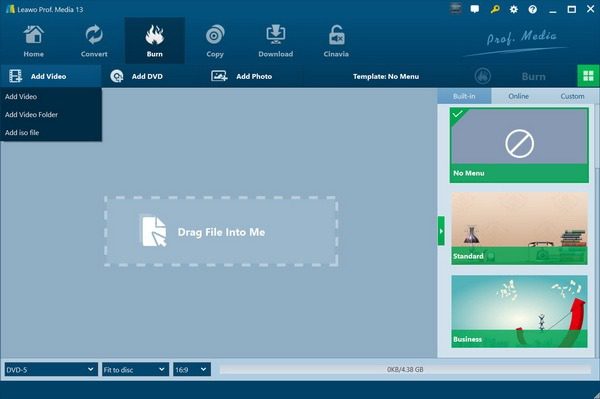
Here you can also select subtitles and audio tracks to save in the output, or even load external subtitles. You can also preview the source video, or select several files or all files to merge into one, etc. When you want to change output disc types, you can find this at the bottom left corner.
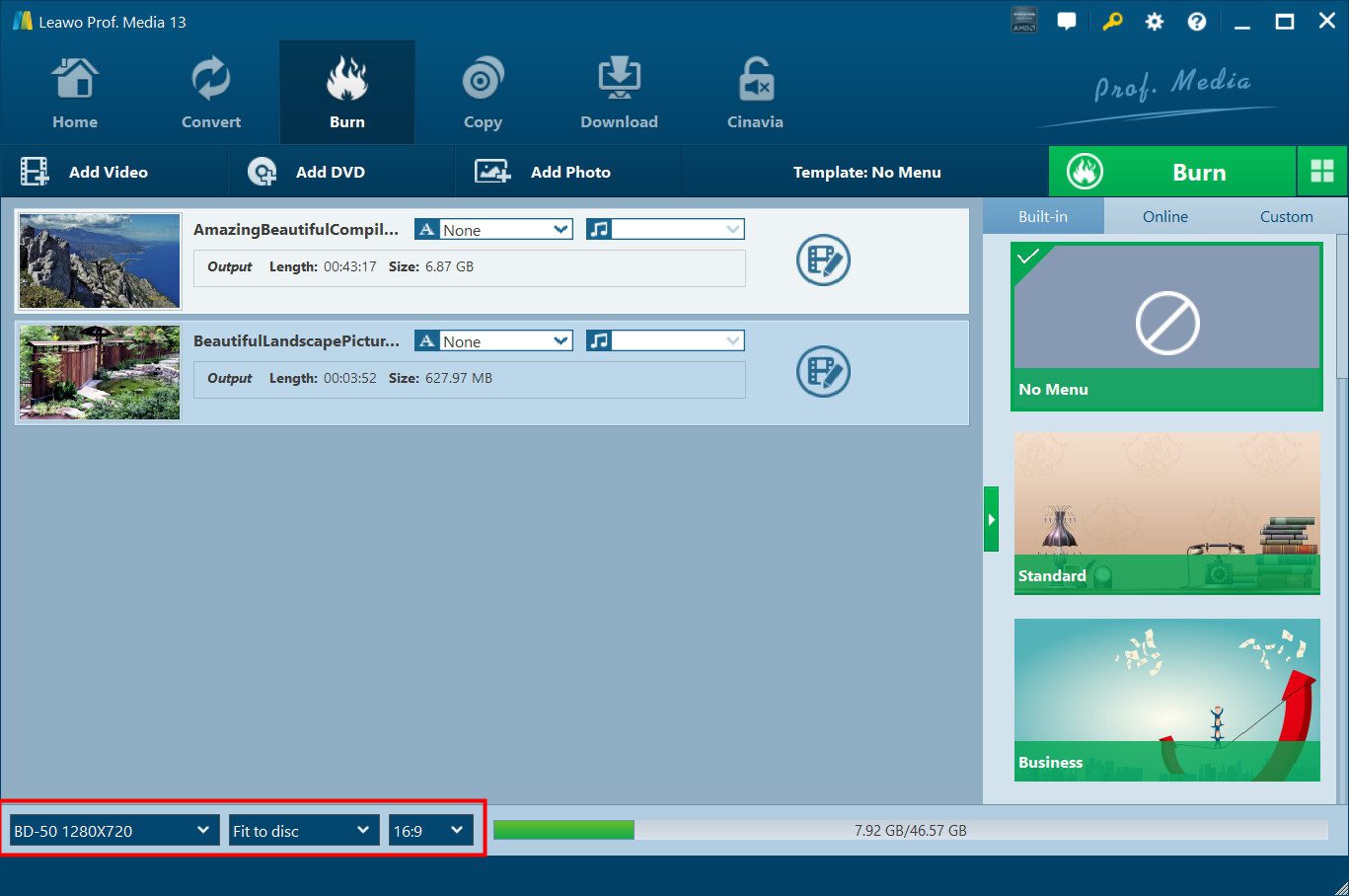
Step 2: Do Burning Settings
Once your video is loaded, click the green "Burn" button. Then you will see a pop-up panel on the right side. Here you can set burning settings, including: Burn to (burn video to DVD disc, ISO File, and/or DVD Folder), Disc Label. Also, you can select where you want to save your file. Next, click the wheel icon on the upper right corner of the program interface and then open the “Burn” option. Here you can select the burn engine and TV standard for DVD burning.
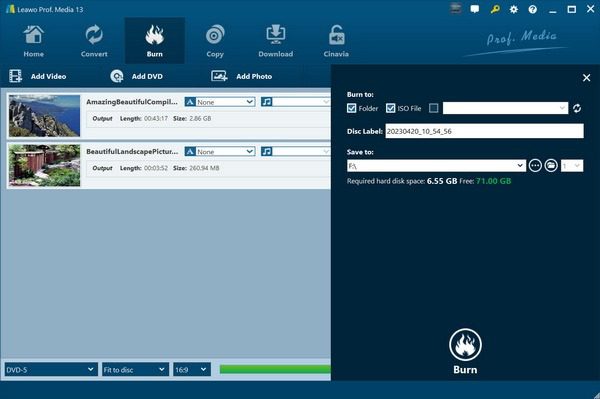
Step 3: Burn video to DVD
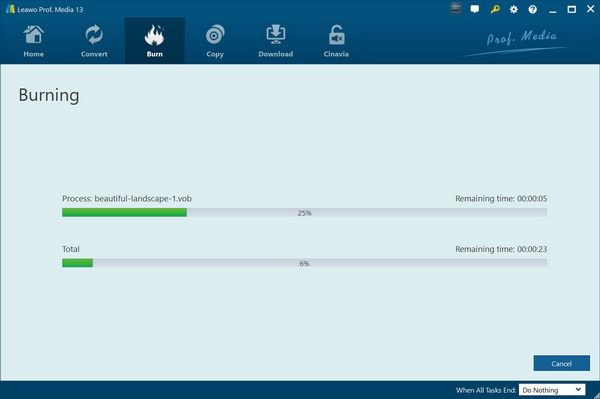
Finally, click the "Burn" button at the bottom of the right-side bar to begin video-to-DVD burning.
FAQs
1. Is AnyBurn really free?
Yes. You can download and use AnyBurn without paying. All the basic features you can use for free.
2. Can I use AnyBurn on Windows 11?
Absolutely. AnyBurn supports all modern Windows versions, including Windows 11, 10, 8, and 7.
3. Can AnyBurn burn Blu-ray discs?
Yes, you can burn CDs, DVDs, and Blu-ray discs. But remember, with this tool you will only get a simple burning option. If you want menus, slideshows, or video editing, you’ll need a better option like Leawo Blu-ray Creator.
Conclusion
AnyBurn is a lightweight, free tool. It’s a capable disc burning software. This tool works well if you want to do basic things like burning files, copying discs, ripping audio, and creating ISO images. The interface is simple and friendly for beginners, but for advanced tasks, there are limits. For example, you will not get advanced features like disc menus, video editing, or slideshows. Also, some users reported issues when formatting discs, so caution is needed. In short, if you just want a simple, free burner, AnyBurn does the job. But if you want to create DVDs with menus, slideshows, or enhanced customization, then a tool like Leawo Blu ray creator is a better choice.
Share this post







 العربية
 繁體中文
繁體中文 Dansk
Dansk Nederlands
 Suomi
Suomi Français
 Deutsch
 Italiano
 한국어
한국어 Norsk bokmål
 Português
 Русский
 Español
 Svenska