BurnAware Review: Pricing, Features & Limits

What covers
- Is BurnAware safe? How much is BurnAware? How to burn a DVD with BurnAware? All you want to know are well explained in this post.
With the increasingly development of online streaming and cloud storage, nowadays DVD seems to be less popular. The fact is that there are still a big number of people who are looking for physical storage of their digital contents, like creating data backup, preserving family precious moments, sharing big days, etc. In the DVD burning field, BurnAware has been frequently mentioned as a reliable DVD authoring software tool. Is BurnAware safe to use? How much is BurnAware? Where to get BurnAware free download installation? How to burn a DVD with BurnAware? This BurnAware review will provide you with a detailed and depth review, so as to let you get full understanding of BurnAware. You could also get a wonderful BurnAware alternative to get more features for various DVD burning needs.
OutlineCLOSE
What Is BurnAware
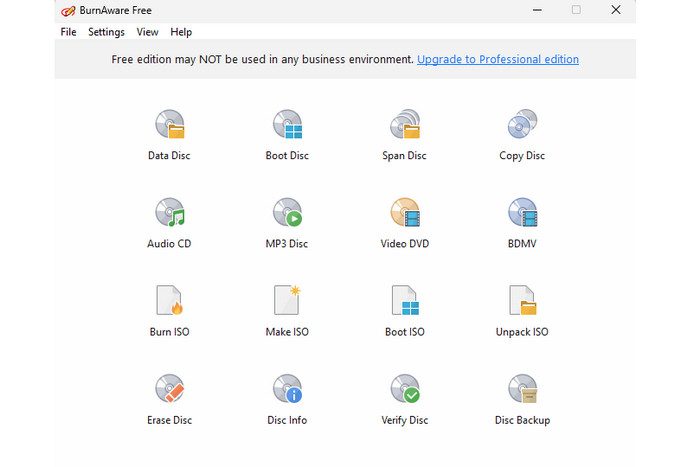
The very first thing you need to make clear is what is BurnAware. Designed for Windows 11/10/8/7 users, BurnAware is a disc burning software tool that could create, copy, and manage CD, DVD, Blu-ray discs. It could help you create both bootable and data discs in simple clicks. Covering nearly all solutions for daily disc burning tasks, BurnAware has been widely praised for its excellent performance and features.
Is BurnAware Safe
The safety of a software program is always the top concern. Is BurnAware safe to use? Yes, BurnAware is generally considered safe to use once you download the installation from the official website or authorized distributors. BurnAware doesn’t contain malware, spyware, virus, and adware. Most security tools and scanners have reported clean and safe use of BurnAware. Meanwhile, BurnAware doesn’t require and collect personal data, and even doesn’t require internet connection, for disc burning. Just remember to download and install BurnAware from its official website, and avoid cracked or modified versions.
BurnAware Plans & Pricing
BurnAware provides different subscription plans for different uses, including: Free, Premium, Professional and Business License. You could refer to the below table to get the differences of these BurnAware plans and prices.
| Plan / License | BurnAware Free | BurnAware Premium | BurnAware Professional |
|---|---|---|---|
| Single-user license with 1-year update | Free | $29.95 | $39.95 |
| Single-user license with lifetime update | Free | $89.95 | $99.95 |
| Features (common & exclusive) | |||
| Burn data/audio/video disc | Yes | Yes | Yes |
| Make & burn ISO images | Yes | Yes | Yes |
| Backup disc to ISO file | Yes | Yes | Yes |
| Video DVD converter | No | Yes | Yes |
| Disc spanning & copying | No | Yes | Yes |
| Data recovery & audio grabber | No | No | Yes |
| Console burner / multiple burn | No | No | Yes |
| Use in business environment | No | No | Yes |
BurnAware official provides Business License plan that provides multi-user license with multiple customizable options, but require you to directly contact with the officials for customization. Therefore, the price of the Business License hasn’t been revealed.
Main Strengths of BurnAware
BurnAware has been a popular disc burning tool not only for its free version, which fulfills nearly all basic disc burning needs, but also for its multiple strengths, as listed below:
Strengths
- Ease of use: No matter you are a novice or veteran, there is no difficulty in burning data/video/audio discs with BurnAware. It comes with a simple, user-friendly and straightforward interface to help you create discs in simple clicks.
- Wide disc support: Whether you are going to burn CD, create DVD or Blu-ray disc, BurnAware gets you. It supports most physical formats in use.
- Solid ISO image tools: BurnAware enables you to create ISO files from folders or discs, burn existing ISO images to media, and even copy discs to ISO image files for backup.
- Preserve audios and subtitles: BurnAware enables you to freely select and preserve audio tracks and subtitles, and even convert between audio types during burning.
- Lightweight and fast disc burning: BurnAware is quick and lightweight to download and install, the entire disc burning tasks could be completed fast, even on older computers.
- Free version available: While most disc burners offer free trial with limited features, the free plan of BurnAware is totally free to use with most basic disc burning features. For those who burn discs occasionally, BurnAware is a top choice.
How to Burn a DVD with BurnAware
BurnAware enables you to burn DVD of various types. You could burn data DVD discs to store your data, or video DVD discs that contains high-quality video files and can be played on standalone DVD players and computers. Here we would like to take burning video DVD disc for example to show you how to burn a DVD with BurnAware in detail:
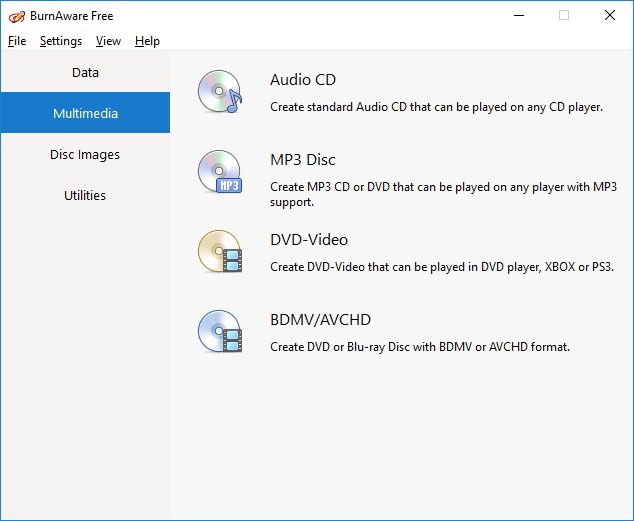
Step 1: Download, install and kick off BurnAware. The Free version will be enough.
Step 2: Open the DVD-Video (or the Video DVD) option on the main interface.
Step 3: Select Convert and burn or Burn VIDEO_TS option.
Step 4: Click the “Add Files” option to browse and add source files (in AVI, MOV, MPG, VOB, MP4, WMV or MKV format).
Step 5: Click the “Burn” button to start burning DVD discs.
Please note that some DVD players can’t play DVD-RW discs. In such case, create DVD-R discs instead.
Limitations for DVD & Blu-ray Video Projects
While BurnAware is convenient and powerful, it still has multiple limitations in full video disc projects, especially compared with those dedicated and professional Blu-ray/DVD disc authoring software tools in the market.
Limitations
- Lack of other advanced disc burning features: BurnAware provide only basic disc burning features. It doesn’t create interactive disc menu, chapters and navigations. If you want to create a polished and professional Blu-ray/DVD disc, BurnAware is actually not sufficient.
- Limited video format conversion: BurnAware burns what you provide to disc, but it can’t handle unsupported formats like MKV to DVD. That means you have to firstly convert your media files to DVD/Blu-ray compatible formats before you can use BurnAware to burn discs from your media files.
- No authoring feature available: BurnAware can burn videos to discs, but it can’t customize subtitle placement, add menu and background music, generate chapters, edit videos, etc.
- No video preview: BurnAware only writes files to disc. It doesn’t let you to preview how the disc will play before burning.
A Better Choice for Blu-ray Burning – Leawo Blu-ray Creator
As mentioned above, BurnAware’s simplicity can become disadvantages for professional disc burning. Leawo Blu-ray Creator stands out as a better choice, especially for those who focus on advanced Blu-ray/DVD burning features (like disc menu and chapter creation), high-quality output and creative control.

-
- Burn videos/images in 180+ formats to Blu-ray/DVD discs, folders or ISO images.
- Burn multiple media files to one Blu-ray/DVD file in batch with 100% quality.
- Provide an internal video editor for personalized Blu-ray/DVD content.
- Offer 40+ selectable disc menu templates.
- Convert 2D video to 3D Blu-ray/DVD.
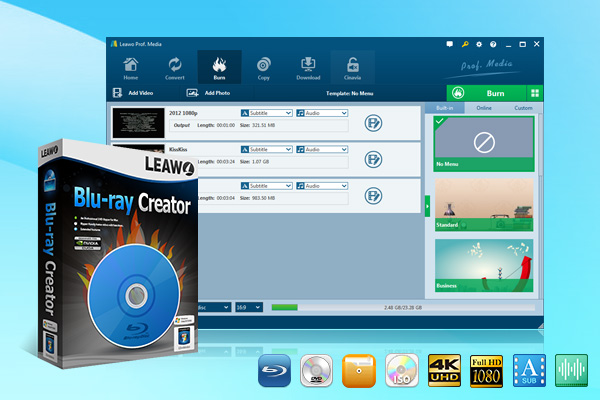
Compared to BurnAware, Leawo Blu-ray Creator gets multiple advantages, as listed below:
Wider file format support: Leawo Blu-ray Creator accepts wider input file formats like MP4, AVI, MKV, MOV, WMV, and 180+ others, as well as photo files like JPEG, JPG, PNG, BMP, etc.
Full Blu-ray/DVD burning authoring features: Besides basic disc burning features, Leawo Blu-ray Creator provides multiple advanced features like disc menu adding, disc menu customization, chapter insertion, video editing (trim, crop, add watermark), 3D effects applying, customize titles/thumbnails/buttons, etc.
Higher quality output: Leawo Blu-ray Creator supports up to 4K video input for FHD video output, allowing multiple subtitles and audio tracks, and even adding external subtitles.
GPU graphics card acceleration: Leawo Blu-ray Creator supports GPU graphics card accelerations to handle disc burning tasks faster, without influencing other on-going tasks.
As to the detailed operation on burning Blu-ray/DVD, Leawo Blu-ray Creator also is simple and straightforward. You can complete Blu-ray/DVD burning from videos/photos in simple clicks, as below:
Step 1: Kick off Leawo Prof. Media and enter the “Burn” module. Step 2: Click the “Add Video” button to add video files or video folder.
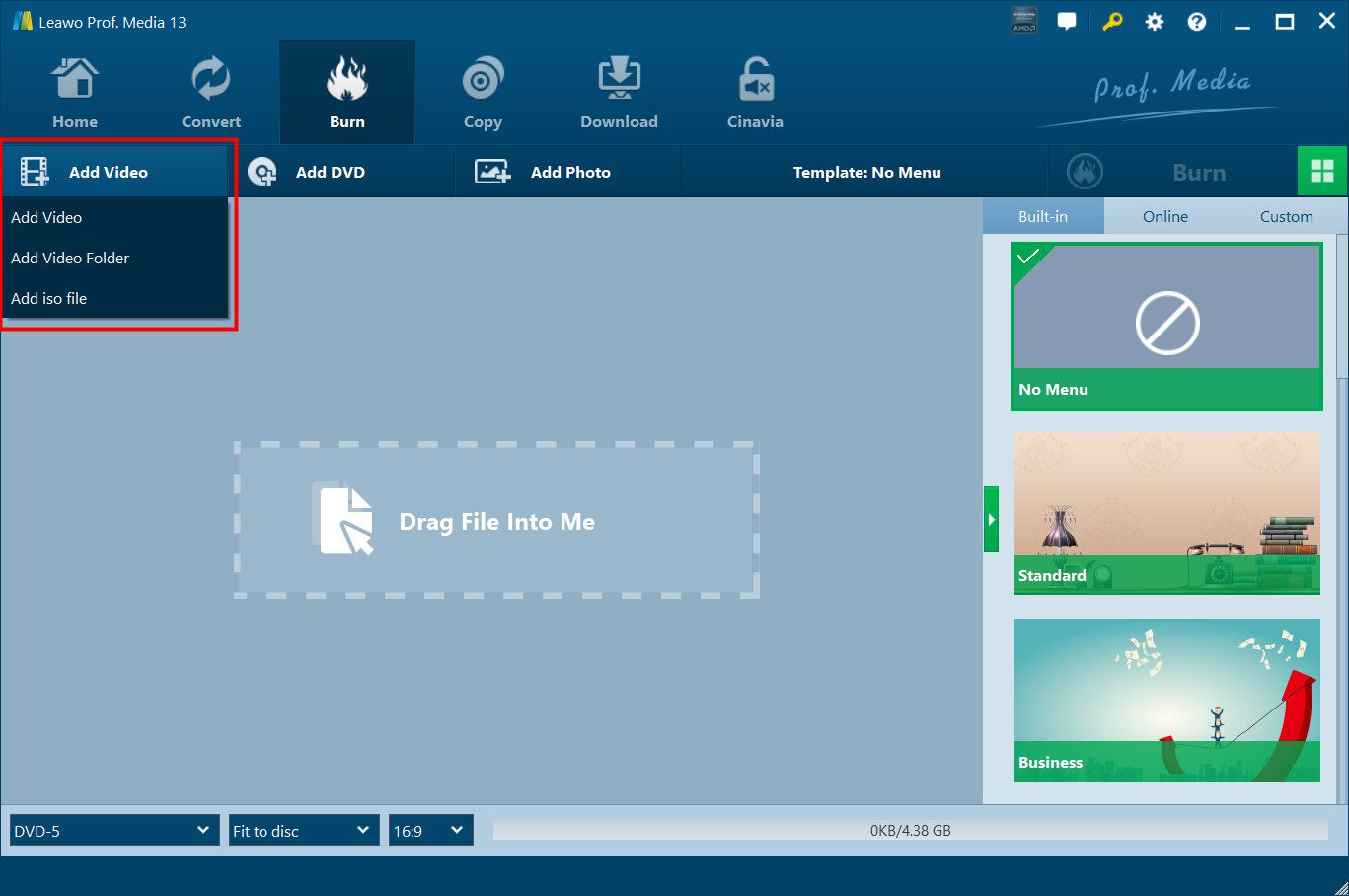
Step 3: Choose subtitles and audio tracks, or add external subtitles. Step 4: Choose output disc type at the bottom left corner according to your disc types in hand. Step 5: Edit videos (optional): click the Edit icon in each loaded video title to trim, crop, add watermark, adjust effect, apply 3D effect, create chapter, etc. Step 6: Customize disc menu: Choose a menu template form the sidebar and customize it like adding background music/photo/video, changing title position/content, setting text color/size/font, etc. Step 7: Complete burning settings by clicking the green “Burn” button, including: Burn to (folder, ISO image file, and/or disc), Save to, Disc Label, etc. Step 8: Finally, click the “Burn” button at the bottom of the sidebar to start burning DVD/Blu-ray discs from videos.
By following the above steps, you could easily burn Blu-ray/DVD discs with customized disc menu and chapters by using Leawo Blu-ray Creator. You will get totally different Blu-ray/DVD discs from that burned with BurnAware.
Conclusion
This BurnAware review has learned about BurnAware in multiple aspects, including its prices, plans, strengths, limitations, etc. BurnAware is suitable for those people who only require basic disc burning features to complete basic Blu-ray/DVD/CD disc burning tasks. For those people who require advanced and professional disc burning features like menu and chapter creations, BurnAware is not what qualifies. A more professional disc burning software tool, like Leawo Blu-ray Creator, is required then.
Share this post







 العربية
 繁體中文
繁體中文 Dansk
Dansk Nederlands
 Suomi
Suomi Français
 Deutsch
 Italiano
 한국어
한국어 Norsk bokmål
 Português
 Русский
 Español
 Svenska