Best Ways to Watch YouTube Videos Offline Without Internet

Summary:
Want to watch YouTube videos offline? If so, don’t miss this article—it guarantees you’ll find the perfect offline viewing method tailored to your needs.
MenuCLOSE
As an experienced YouTube user, I deeply understand the frustration of not being able to access YouTube when the network is unstable or unavailable. I’m sure, like me, you have also wished you could watch videos offline while commuting on the subway, during flights, or in areas with limited internet access! To address this issue, I have collected and tested some reliable methods for watching YouTube offline. I will share them with you to tell you how to watch YouTube offline. At the same time, I will analyze the pros and cons of these methods to help you make a choice that suits you.

Method 1: Use YouTube Offline Feature [Official Way]
YouTube Premium is a paid membership service launched by YouTube. It offers several privileges such as ad-free viewing, background playback, offline downloading, YouTube-Music, and exclusive original content. Using it is the safest method as it provides an official download function. Compared to before, the subscription plan of YouTube Premium has undergone some new adjustments. Previously, only YouTube Premium members could use the download function, but now it has been expanded to Premium Lite. Users of Premium Lite can also download most non-music videos to their mobile devices for offline viewing. The price is much cheaper than the YouTube Premium, being only $7.99 per month in the United States, while the YouTube Premium costs $13.99.
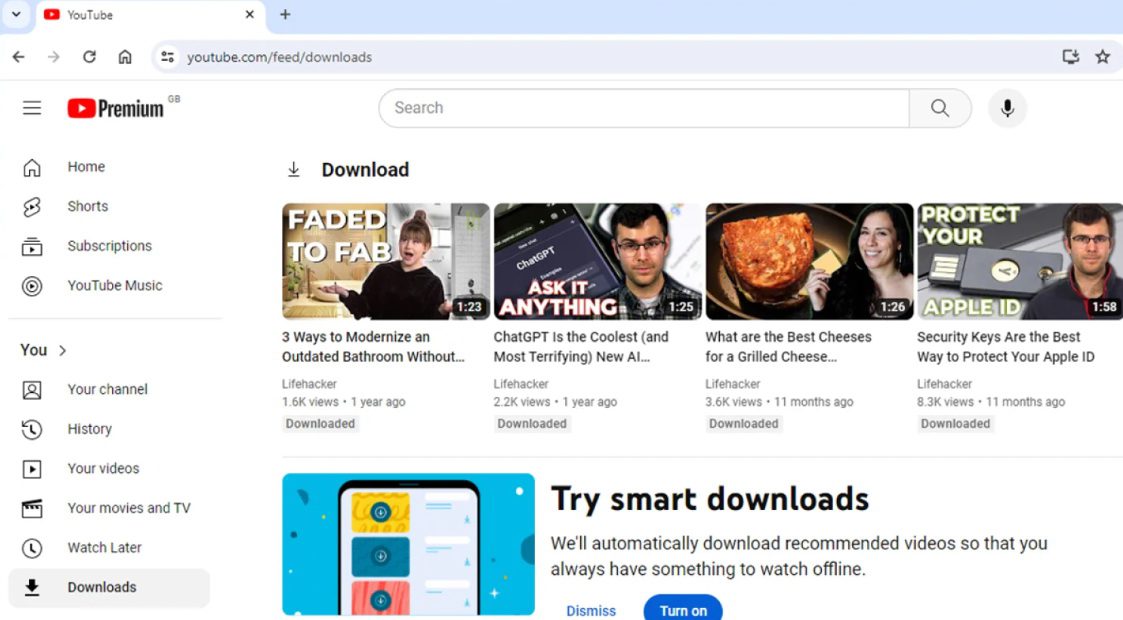
Here are the specific usage steps (for PC):
1. Open YouTube Premium and search for the video you want to download.
2. Click on the Download icon below the video.
3. You can find the downloaded videos in the “Download” section.
By the way, although it is the safest method provided by the authorities, there are still several limitations that cannot be ignored:
Limits:
- The downloaded videos can only be viewed within the YouTube app and cannot be transferred to a computer or other players.
- The downloaded videos have an expiration date. If the video is not re-verified through the internet within 30 days, or if the creator removes the offline viewing permission, the download will expire.
- If the video itself is set to do not allow downloading, even Premium members will not be able to save it.
Method 2: Download Videos with Desktop Software
If the restrictions of YouTube Premium are unacceptable to you, you might consider using a third-party desktop software instead. I know that there are numerous download software available in the current market, and their functions and prices vary significantly. It’s really difficult to make a choice. However, after long-term use, I can recommend a tool to you, which is CleverGet YouTube Downloader. It is an intelligent online video downloader that can help users download videos, live streams, and paid content from over 1000 websites, including DRM-protected content. It supports up to 8K resolution and 320kbps audio, and supports batch downloads and obtaining entire seasons of TV series at once. The most important thing is that the videos downloaded using CleverGet YouTube Downloader have no expiration date limit and can be permanently saved on all your devices.

-
Professional video downloader to download on-demand videos and live streaming videos from 1000+ streaming services like YouTube, Facebook, Instagram, TikTok, etc.
- Batch download online video to MP4/MKV files.
- Download up to 8K video and 320kbps audio.
- Detect and remove ads during video download.
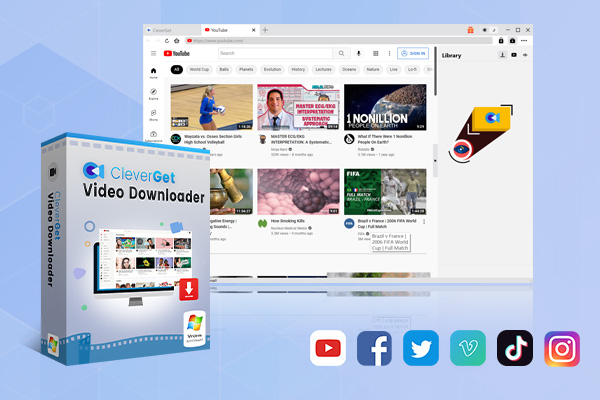
Here are the specific operation steps:
1. Download and install the CleverGet YouTube Downloader from the official website.
2. Open the software, then open the built-in browser and go to YouTube to find the video you want to download.
3. When playing the video, the software will automatically detect it and display the download option.
4. Click the download button and wait for the download to complete. Then you can find the saved video in the local folder.
It is worth noting that CleverGet YouTube Downloader also supports batch downloading YouTube playlist. All you need to do is paste the playlist link and you can obtain all the videos at once. This is suitable for users who want to systematically collect a series of tutorials or playlists.
Method 3: Use Online Downloaders
Can you download YouTube videos to watch offline without installing any software or paying for a subscription? Yes, you can choose online downloaders. Among the many online downloaders, I recommend using SSYouTube. I have used it for a long time, and the experience is quite good. It is a completely browser-based online service, so you don’t need to register an account or install any software or plugins.
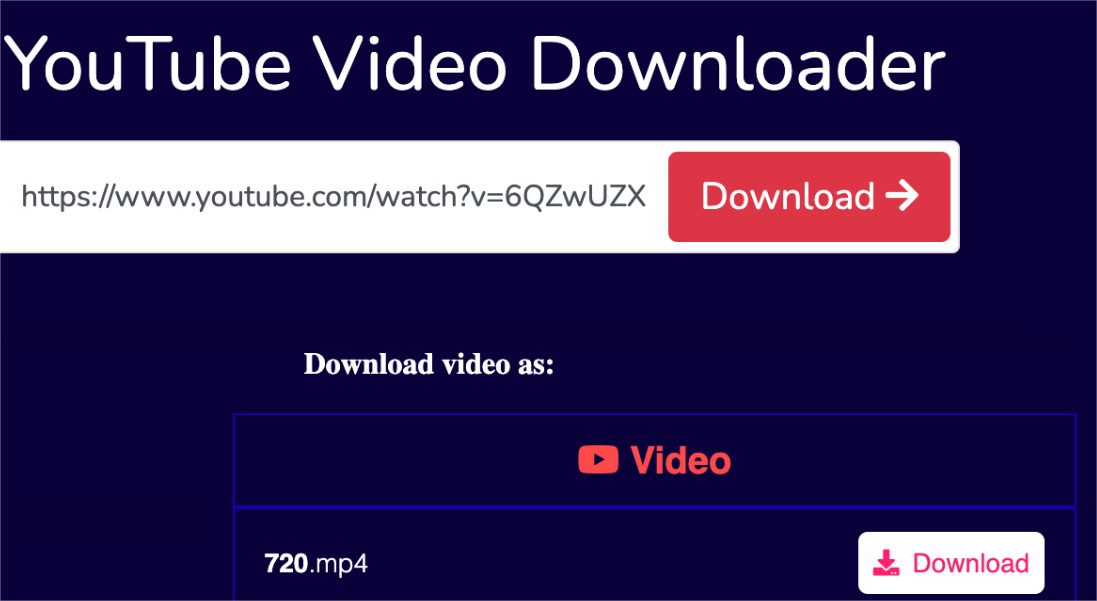
Here are the specific steps:
1. Find the video you want to download on YouTube, click the “Share” button, and copy the video link.
2. Directly add “ss” before “YouTube” in the video link.
3. Paste the link into the search box and click the download button.
4. From the pop-up format list, choose the format you need.
5. Click download, and the video will be saved to your device.
However, there are also some obvious cons that I need to clarify:
Limits:
- Online downloaders usually rely on ads to operate, so you may encounter pop-up ads or redirections.
- The selectable download resolutions are usually limited.
- The stability and availability cannot be guaranteed.
Method 4: Use a Browser Extension
This method does not require switching websites, making it relatively convenient and feasible. It is suitable for users who want to quickly download a single video without pursuing high quality. Extensions still exist in the Chrome Web Store and Firefox Add-ons Store, but many of them are regularly removed for violating Google’s policies. However, there is one called “YouTube Video Downloader” that is relatively stable.
Here are the specific steps:
1. Search for and install it from the official extension store.
2. When visiting a YouTube video page, the extension will add a download button below the player.
3. Choose the quality and format, then download directly to the browser’s default folder.
Similarly, you should be aware of some limitations of this method:
Limits:
- The extension needs to be kept updated because every time YouTube changes, it may stop working.
- The free version usually has quality restrictions or daily download limits.
- Extension permissions may raise privacy concerns.
If you plan to try it, make sure to install extensions only from official extension stores or trusted sources, and avoid installing unknown plugins.
Method 5: Record YouTube Videos
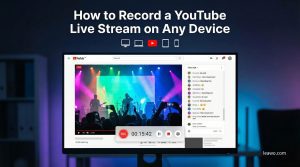
I know that if all the above methods fail to meet your requirements, or if you prefer to record content over downloading it, then I suggest you use CleverGet Recorder. It enables you to capture online videos from most streaming services, including DRM-protected streaming videos, for offline viewing. As a constantly updated streaming recording software, it has very comprehensive functions. It can record pointcast content and live streams in their original quality, supporting up to 4K resolution and 60FPS, and can save as MP4 or MKV files. It also provides an ad skipping function. The biggest difference between this screen recorder software and traditional screen recording software is that it doesn’t record the entire screen, but directly captures the video stream itself. This means it won’t record desktop pop-ups, system alerts, or be affected by your operating other windows, and it can run in the background without interfering with your normal computer usage.
-
Free streaming video recorder to record online on-demand video and live streaming video without quality loss and cost.
- 100% free to use.
- Record movies, TV shows, game streams, lectures, live concerts, etc.
- Record up to 4K video with 60FPS in MP4 or MKV.
- Schedule recording upon preset recording length.
- No watermark, no time limit, and ad-skipping (beta).
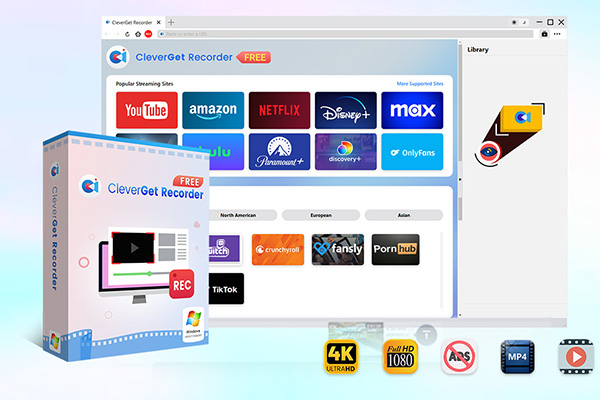
So how to watch YouTube videos offline by CleverGet Recorder? Here are the specific operation steps:
1. Download and install the CleverGet Recorder.
2. In the built-in browser of CleverGet Recorder, open the YouTube video you want to record and start playing it.
3. Click on the “REC” button in the top left corner, select the area you want to record, and then click the “REC” button at the bottom to start the recording.
4. After the recording is completed, you can find the video in the “Library”.
FAQs
1. Can you watch YouTube offline without Premium?
Sure. You can download YouTube videos to your computer or phone for offline viewing without a Premium subscription through desktop software, online download websites, browser extensions, and so on.
2. Do downloads expire?
It depends on which download method you are using. Videos downloaded through YouTube Premium are valid for about 30 days, and the download will expire if the device is not connected to the internet for re-verification. On the other hand, MP4 files downloaded locally using CleverGet YouTube Downloader are permanently saved on your hard drive and will not expire.
3. Is it legal to download YouTube videos?
Using the download feature officially provided by YouTube is completely legal, while other download methods, although they may pose legal risks, are not entirely impossible, as long as you can obtain the content creator’s consent and use the downloaded content only for personal offline viewing, not for distribution or commercial purposes.
4. Can I transfer downloaded YouTube videos to another device?
Videos downloaded through the official YouTube are encrypted and restricted to the device and account used during the download, making them unable to be copied, transferred, or played outside the YouTube. However, content downloaded through CleverGet YouTube Downloader can be freely copied to other devices for playback.
5. Can I watch offline videos without ads?
Yes. Videos saved through YouTube Premium, CleverGet YouTube Downloader, or screen record YouTube videos by CleverGet Recorder all have no ads.
Share this post












 العربية
 繁體中文
繁體中文 Dansk
Dansk Nederlands
 Suomi
Suomi Français
 Deutsch
 Italiano
 한국어
한국어 Norsk bokmål
 Português
 Русский
 Español
 Svenska