

How to Record a YouTube Live Stream on Any Device (Step-by-Step Guide)

Summary:
This article introduces methods for saving YouTube live videos on different devices. Its aim is to help readers choose the most suitable solution based on their devices and needs, in order to save YouTube live stream.
MenuCLOSE
As the digitalization of entertainment for people, social platforms such as YouTube have become the limelight. Users can find abundant video content resources on YouTube, and its live streaming feature provides a more interactive way for users to connect with the content creators. Streaming media is connecting content creators and viewers in an unconventional way. However, the real-time nature of live content also brings limitations with it: missing the live broadcast time may mean you can’t watch it again. Therefore, many users wish to have a way to keep YouTube live streams so that they can watch them offline at any time, or use them for personal study. This article will provide you with ways to save and record YouTube live stream on various devices.
Part 1: How to Save Your Own YouTube Live Stream?
YouTube offers an official live-stream download feature. Once your YouTube live stream ends, YouTube will automatically save it for you, you can download the live-stream through the steps below.
1) Open YouTube Studio and log in to your account.
2) In the left menu of YouTube Studio, click on “Content”, and the pop-up page will display all the videos and live content that you have uploaded.
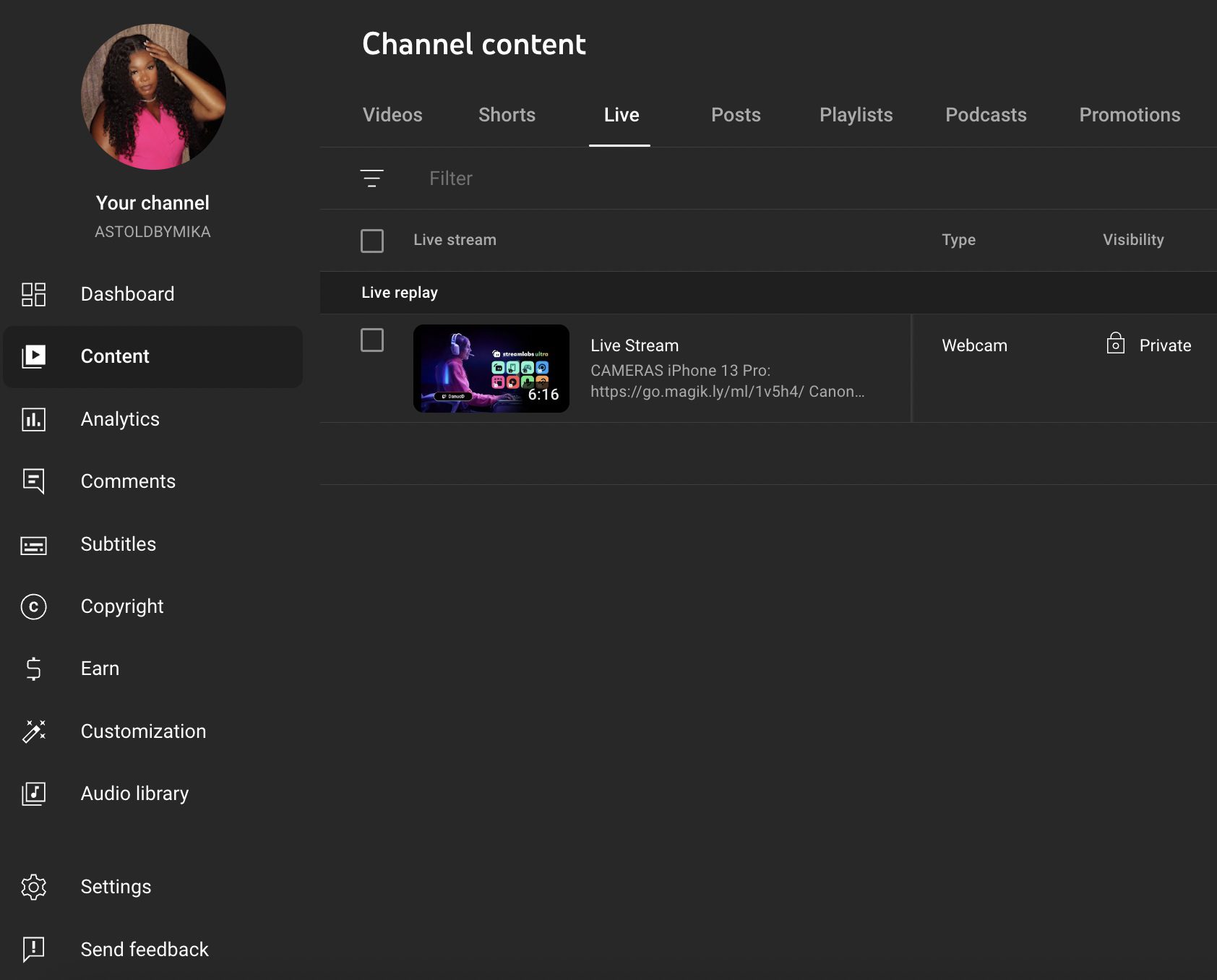
3) Find the live stream you wish to save, then select “Download” and the video will start downloading to your computer in MP4 format.
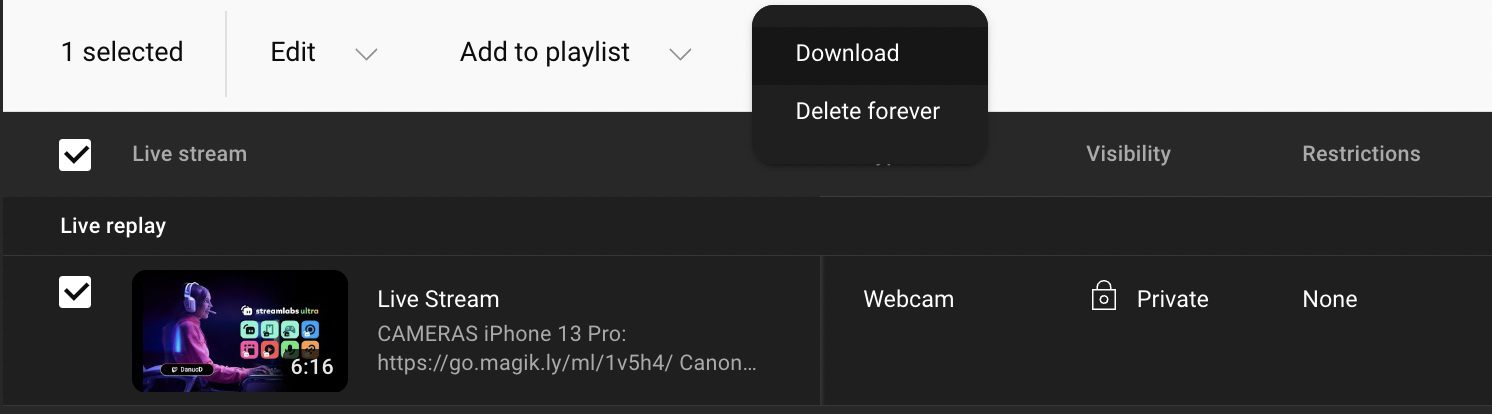
However, please note that you can only download the live content of your own channel. You cannot download the YouTube Live broadcast videos of other creators. Moreover, YouTube only keeps live streams up to 12 hours.
Part 2: How to Record YouTube Live on Windows & Mac?
1. Use Built-in Recording Tools
If you are watching a YouTube live stream on your computer, you can record the stream through the built-in screen recording tools. Although these built-in recording tools don’t have advanced features, they can meet the basic recording requirements and help you save the YouTube live stream video in a short time.
Record on Windows
Xbox Game Bar is a built-in recording tool of the Windows system. It can not only record the game clips, but also capture YouTube live streams. Here are steps on how to record YouTube live stream through this feature:
1) Open the YouTube live stream you want to record, and press “Windows + G” shortcut key to enable the Xbox Game Bar toolbar.
2) Click on the camera icon at the top and select “Capture”. If you want to add your own commentary, you can enable the microphone option.
3) Click the “Record” button, or press the shortcut key “Win + Alt + R” to start recording the YouTube live stream.
4) After the recording is completed, the content will be automatically saved in MP4 format to your computer.
Record on MacOS
MacOS also has a built-in screen capture feature. The following are steps on how to record a YouTube live stream through this feature:
1) Open the YouTube live stream on the screen, and press “Command + Shift + 5” to open the recording toolbar.
2) You can choose the recording area, or record in full screen. If you want to add microphone sound, you can also click “Options” to enable it.
3) Click the “Record” button on the toolbar to start the recording. After the recording is completed, the content will be saved to your computer.
2. Use Third-Party Tool
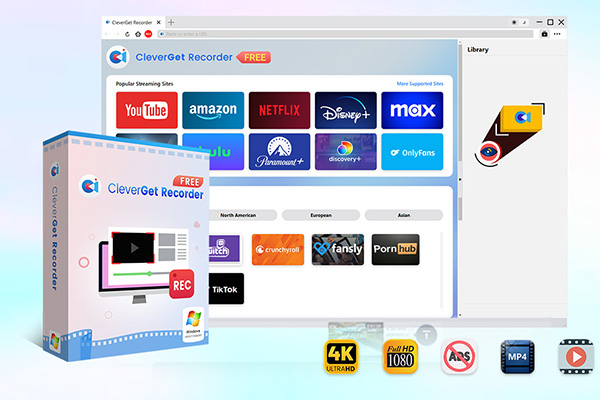
Although the built-in recording tools offer a quick fix, they have certain limitations in terms of functions and recording duration. If you want a more professional and higher-quality recording experience, free professional recording software like CleverGet Recorder is a better choice. It’s one of the best screen recorders for pc and is a powerful free streaming video recording tool. You can record YouTube live content with high quality with it. Here are the steps on how to record YouTube live stream through it:
1) Install and Open CleverGet Recorder. Before starting the recording, you can set the recording parameters according to your preferences.

-
Free streaming video recorder to record online on-demand video and live streaming video without quality loss and cost.
- 100% free to use.
- Record movies, TV shows, game streams, lectures, live concerts, etc.
- Record up to 4K video with 60FPS in MP4 or MKV.
- Schedule recording upon preset recording length.
- No watermark, no time limit, and ad-skipping (beta).
2) Use the built-in browser of CleverGet Recorder to visit YouTube, log into your account, and find the live stream you want to record.
3) When you play the stream, the system will automatically detect the player interface. After confirming the recording area, click the “REC” button to start the recording.
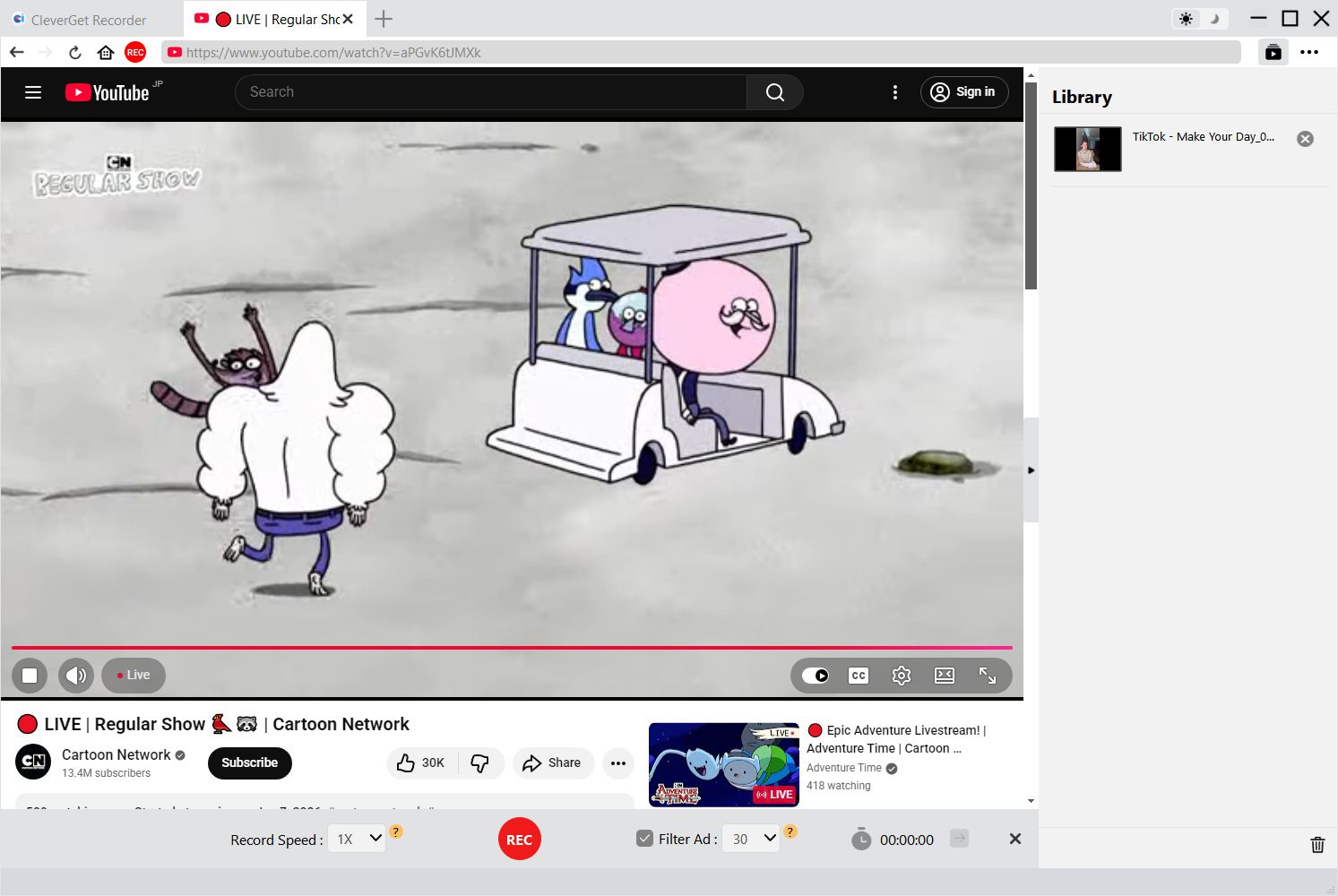
4) After the recording is completed, click the button again to stop. The video will be saved to the designated folder.
Part 3: How to Record YouTube Live on iPhone & iPad?
iOS devices (iPhone and iPad) offer users a built-in screen recording feature. Users can capture YouTube live content without any third-party applications. Here are steps on how to record a YouTube live stream through this tool:
1) Find the live stream you want to record, then slide down from the top right corner of the screen to open the “Control Center”. Click the “Screen Recording” button.
2) After the live is over, click the “Record” button again to finish the recording. The recorded content will be saved in the device Photos.
Part 4: How to Record YouTube Live on Android?
1. Use Built-in Screen Recorder (Most Devices)
The Android operating system also offers users a built-in screen recording feature to record YouTube live stream.
1) Open YouTube, then go to “LIVE” and find the live stream you want to record.
2) Then, scroll down to expand the taskbar and click the screen recording button. It will start recording your screen.
3) After the recording is completed, click the recording button again to end the recording. Afterwards, the recorded video will be saved in your photo album.
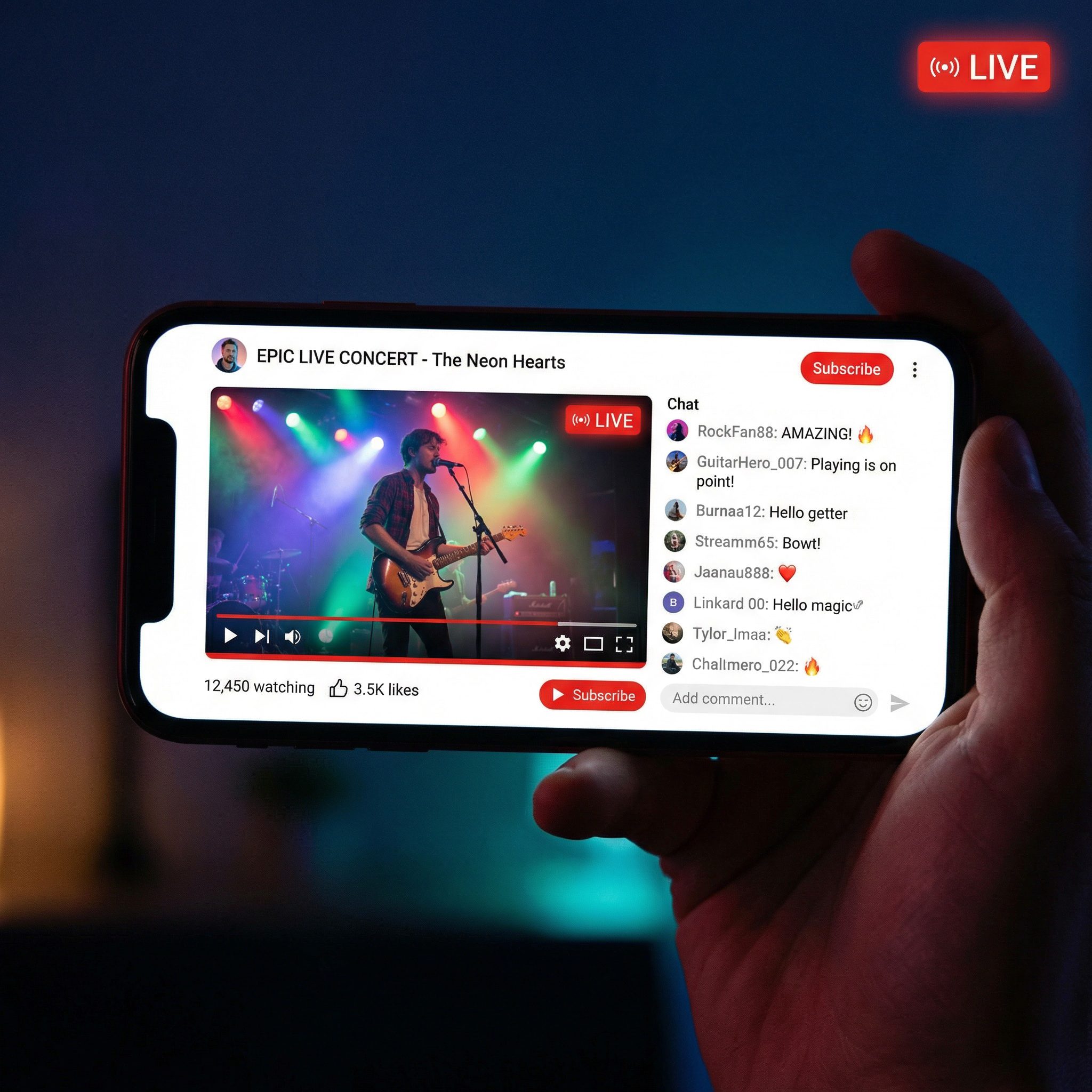
Use Third-Party Android Recorder Apps
Although most modern Android devices have a built-in screen recording feature, some older models may not support this feature, or users may need more advanced recording functions. In such cases, third-party screen recording software is the ideal solution. There are many excellent screen recorders available on the market, and here we recommend XRecorder. It is a professional Android screen recording application and does not require Root permissions. Users can record YouTube videos without any limits, making it an excellent tool for recording YouTube live content.
Part 5: Conclusion
No matter what devices you have in hand, you can find a solution that best suits you to record YouTube live stream. However, while using these tools, please be sure to pay attention to the copyright issue. Live content on YouTube is protected by the law. Do not distribute or use the recorded content for commercial purposes without authorization.
Share this post










 العربية
 繁體中文
繁體中文 Dansk
Dansk Nederlands
 Suomi
Suomi Français
 Deutsch
 Italiano
 한국어
한국어 Norsk bokmål
 Português
 Русский
 Español
 Svenska