Wondershare UniConverter Review: Answers to All Your Doubts

Summary:
Wondershare UniConverter is an all-in-one multimedia tool that supports video conversion, downloading, editing, recording, and more, while alternatives may be cheaper for specific tasks.
When you type a video converter, the name that keeps popping up is Wondershare UniConverter. What is a real question? Is it well-liked or worth your while and money? UniConverter has a lot to offer on paper. Convert videos to any format. Compression without major quality loss. DVD burning. Screen recording. It positions itself as an all-in-one media toolbox.
Sounds good to me. But does it deliver when put to use? Can a beginner do it easily? Is it speedy? Are there any concealed limits? Is it more effective than the options available? In this review we’ll cover everything you need to know. Keep reading.
Outline
Part 1: What Is Wondershare UniConverter?
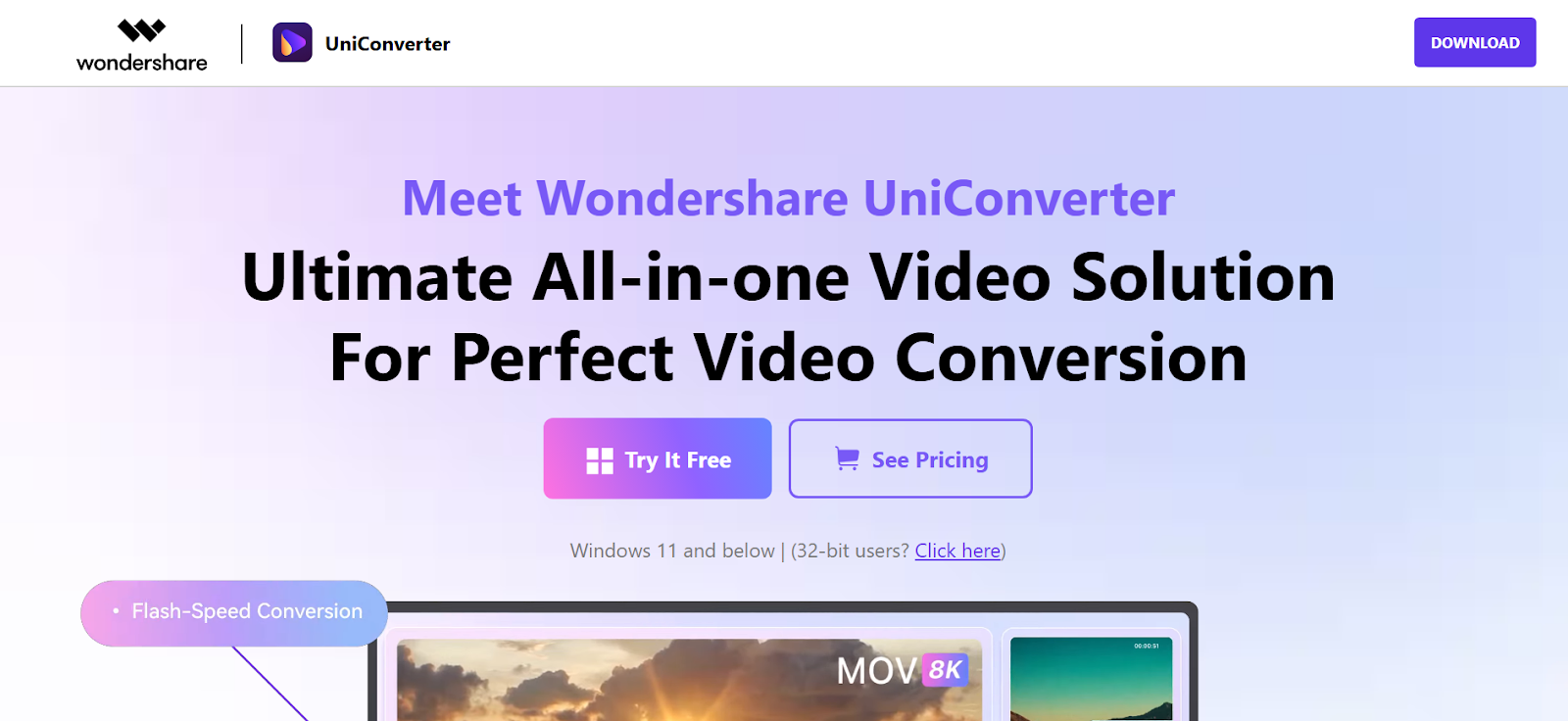
The Wondershare uniConverter is basically meant for converting videos and it does a decent job of it. This tool can also convert various types of audio files easily. Formats like MP3 and WMA can be used. This is perfect to save space or use a specific player or application if you need to use multiple audio formats.
With UniConverter, you can also convert multiple media files to a specific format simultaneously. The tool can extract audio streams, edit videos by trimming and cropping, and download videos for sharing. The goal is to provide you a single application that does most media tasks you’d otherwise need several programs for.
Part 2: What’s so Good about Wondershare UniConverter?
Let’s break this down properly. Wondershare UniConverter is not just a converter, a media toolkit all on one window. Here are some important features to note.
Conversion and Format Support
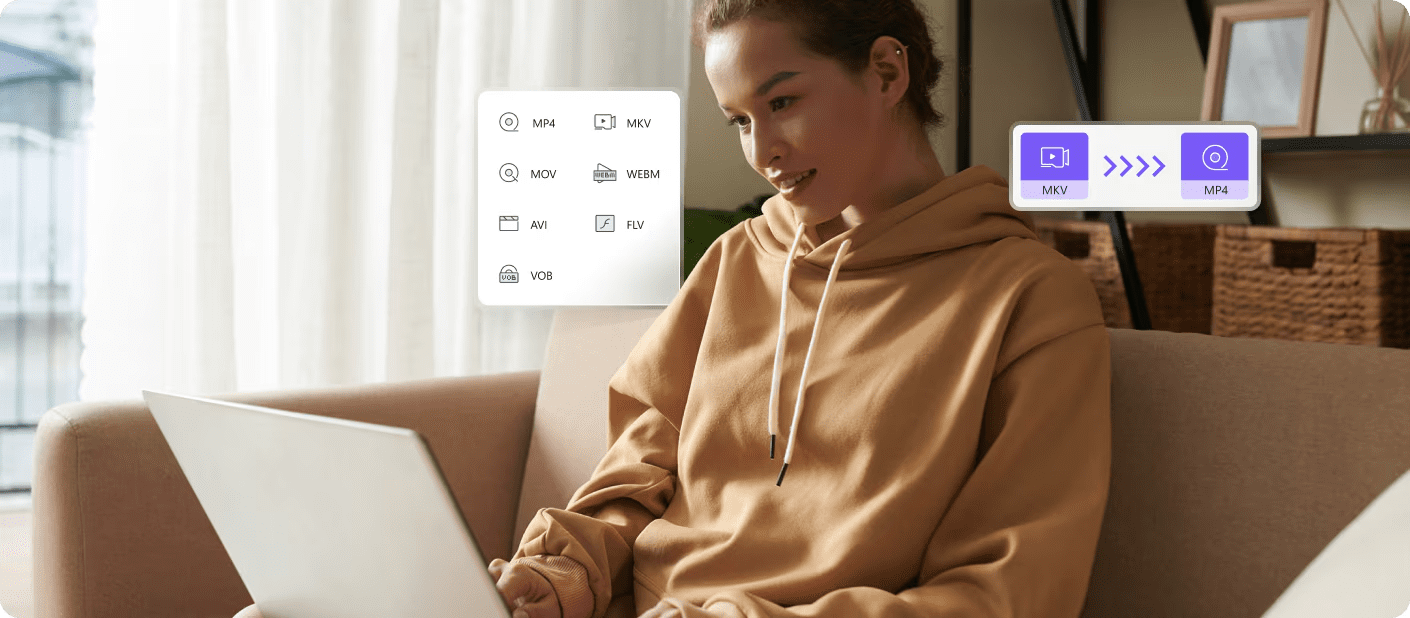
UniConverter can handle more than 1000 formats of audio and video. These include famous formats such as MP4, MOV, AVI, MKV, MP3, WAV, and many more. In summary, this means that no matter what media you throw at it. Be it footage from a DSLR, a video you want to upload to YouTube or a file you want to watch on your TV, chances are UniConverter supports it. With its batch conversion it is also possible to convert multiple videos at once, hence no need to convert videos one-by-one.
Video Download
UniConverter can download videos from online sources, simply by pasting a URL into the program. No need for browser add-ons or third-party websites just copy the link, paste it, select the quality and the format.
Compression Tools
Huge videos eat up space quickly. The compression options on UniConverter compress videos to reduce their size, while still keeping the picture quality as high as possible. There are manual settings to change the resolution and a bunch of preset compression options, and in addition you can batch compress videos, just what people with dozens of large files on the go need.
Video Editing
It’s not a full professional editing suite. But it does the basics well. You can trim clips; cut out sections, crop the frames, rotate shots, alter brightness and contrast, add subtitles or watermarks.
Screen Recording
UniConverter includes a built-in screen recorder. You can capture your entire screen or a selected area, record streaming videos, online meetings, tutorials, or gameplay. You can also record system audio and microphone input at the same time.
File Merging
Want to join several clips into one? With UniConverter you can easily do that. Simply select them one by one, choose the arrangement and press merge. That’s all!
Built-In Video Player
The other feature I think is under-appreciated is the integrated video player. The player works with a lot of formats, including 4K as well as 8K. So you can watch your videos easily without using a media player. I think this is helpful when testing out converted files or quality.
DVD Burning
Yes, they are still useful too. There’s an option to burn videos to CD or DVD with various customizable DVD or CD menus/templates.
Toolbox Features
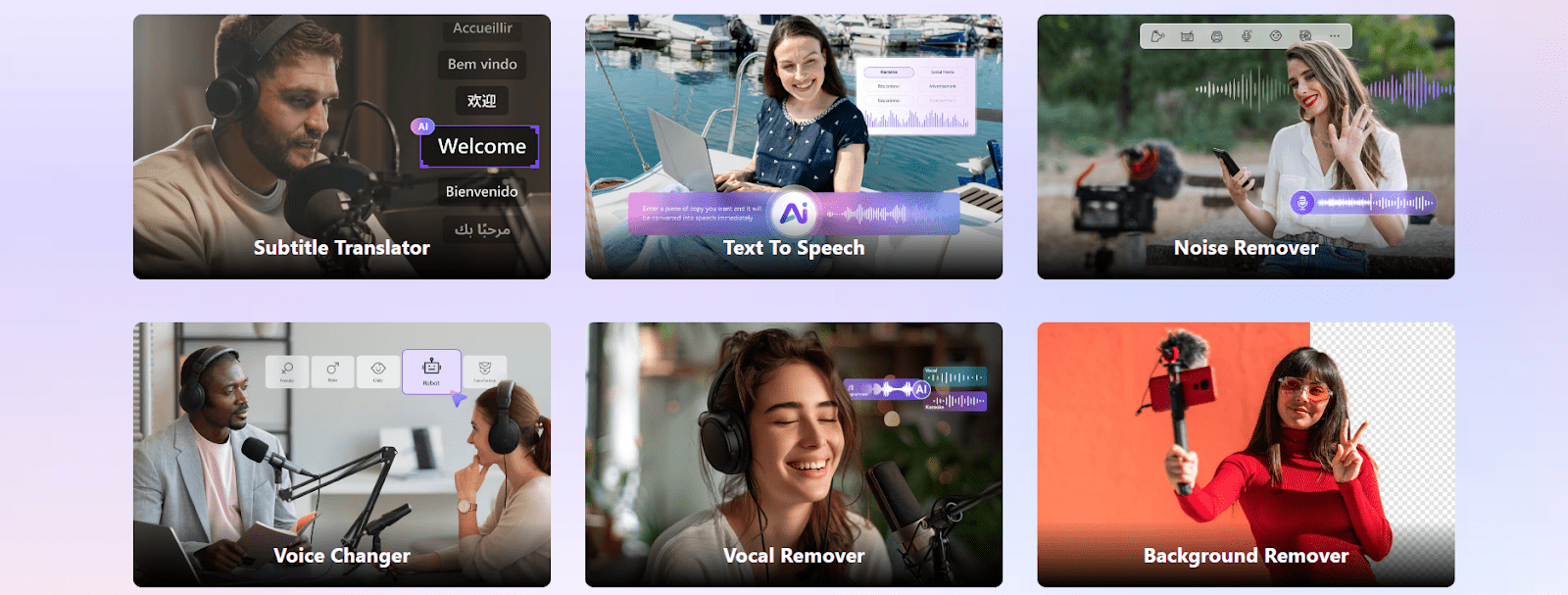
Next, the toolbox. This is an area the company tries to stand out a bit. It has some. Auto reframe for social media, Text to Speech, background remover, noise remover, subtitle translator, voice changer, and Vocal remover These are not sophisticated enough to always be a replacement for a dedicated piece of software, but they can be useful for a quick job. And that is the story here. Easy.
Part 3: What’s Not So Good About Wondershare Uniconverter?
Here’s the truth. UniConverter does a lot, but it isn’t perfect. Some limitations matter depending on how you plan to use it. Let’s go through the two biggest downsides.
Payment for All Functions Is Mandatory
UniConverter is not a free program. You can download and install it, but nearly all of the features are behind a paywall and you’ll need to buy a license to use them. There is not a free tier that allows you to convert, edit, download, or screen record for free in any real sense. Trial versions exist, but they often limit output quality or leave watermarks on the final file. For casual users or anyone on a tight budget, the cost can be hard to justify when there are free or cheaper alternatives out there for specific tasks like basic conversion or screen recording.
Download Function Is Weak
The UniConverter online video downloader sounds promising, but honestly, it doesn’t always deliver. Sometimes it works fine for certain sites and video formats, but don’t expect it to grab videos from every site you visit. Big names like Netflix, Hulu, Prime Video, or any anime streaming platform aren’t going to let you just copy-paste a link and walk away with the file. UniConverter won’t bypass those restrictions and really, it shouldn’t. Even when you stick to supported sites, things aren’t always smooth. You might get stuck with lower quality videos or hit errors, especially if the website changes something on their end.
Part 4: Alternatives to UniConverter
Wondershare UniConverter is good and powerful but truth be told for most people they don’t need all its tools. In many situations simple is best so if for example you just want one tool to do one thing well I highly recommend you look around at the alternatives listed below.
Best Alternative to Its Download Feature: CleverGet All-In-One Downloader
If your main goal is downloading online videos, CleverGet All-in-One Downloader is a strong alternative. With support for downloading and recording video and audio content from over 1000 websites like streaming services, Facebook, YouTube, and more, download quality up to 8K, live stream recording and other batch download services, this downloader also eliminates ads automatically from supported sources and preserves metadata for better file management.

-
An all-in-one video downloader toolkit that can save online videos including live streams and premium OTT content from over 1,000 sites at up to 8K resolution with an ad filter.
- Batch download movies, TV episodes of certain or all seasons, playlists, etc.
- Support multiple subtitle and audio tracks download selection.
- Record videos in the background at up to 5× speed and 4K resolution.
- Convert videos to MP4, MKV, MP3 or other formats.
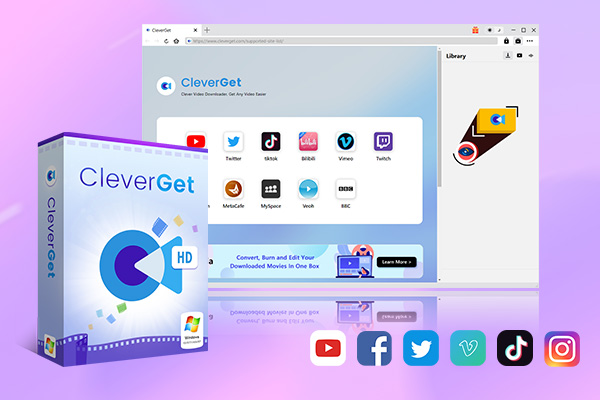
What makes it unique is the versatility. You may either download videos or record at 4 K when the direct downloads are unavailable. When you require a more dependable tool for streaming video saving, this is frequently more straightforward and reliable than UniConverter ‘s download module.
Best Alternative for Video Converting: Leawo Video Converter
If you only need conversion tools, then Leawo Video Converter is a good option. It features conversion between over 180+ video as well as audio types, for example MOV, MP4, 3GP, AVI, MKV, MP3, and so on. The program is fairly simple for people to use so beginners typically usually don’t feel overwhelmed when converting files.
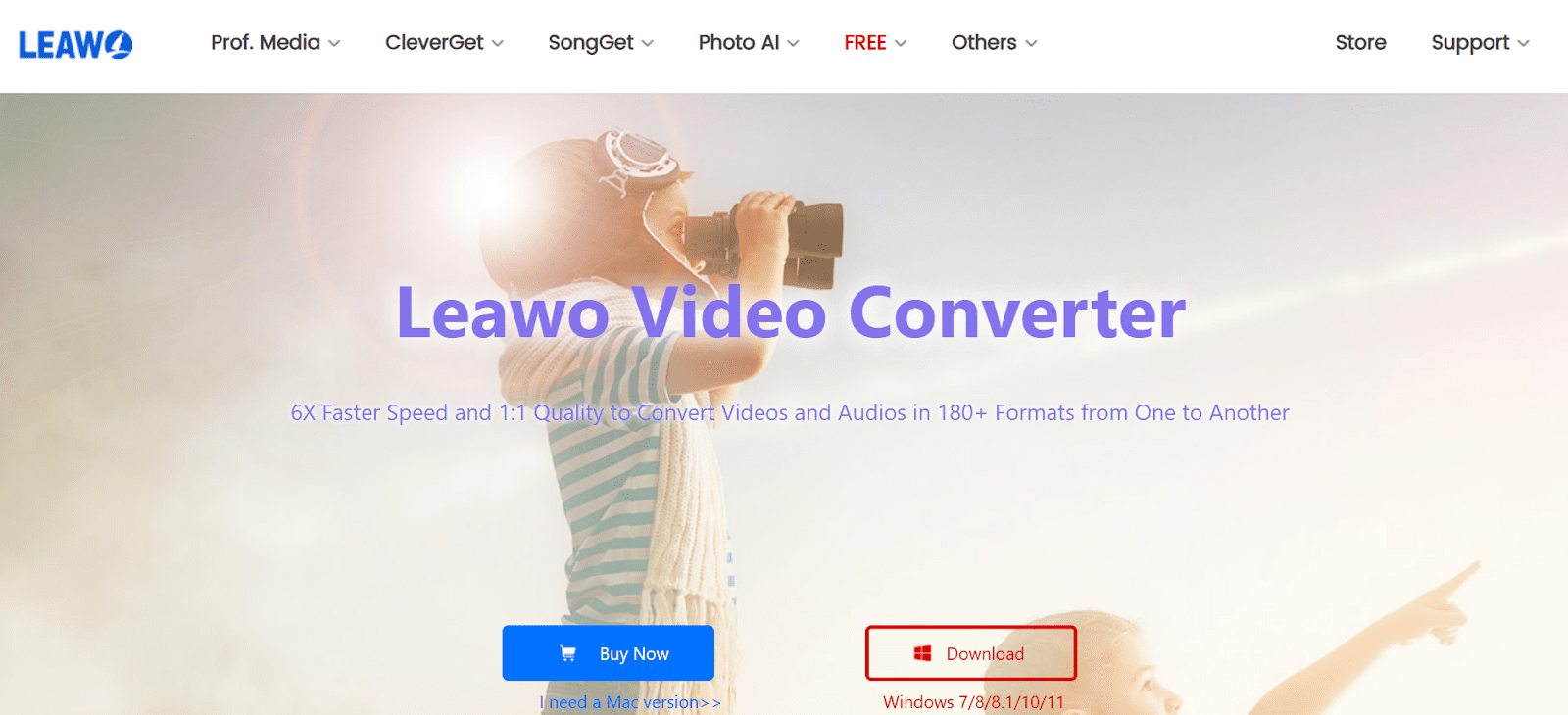
That’s the major benefit here: speed and quality holding up. Also, it promises faster conversion speeds but without sacrificing near original quality. A good option if you have a large library of video files to convert. If you are one of those people not requiring the additional tools with UniConverter, this is more streamlined.
Best Alternative for Video Recording: Leawo Free Screen Recorder
For screen capture needs, Leawo Free Screen Recorder is a practical free alternative. You can record your screen, webcam, system sound or microphone 4K screen capture is available in the Program. It also provides screenshot capture for tutorials, presentations, or game recordings.
-
4-in-1 free screen recorder suite to record window, browser tab, entire screen or custom screen area online or offline for totally free. Record screen activities and webcam video at up to 4K quality and save in MP4 file for free. Record audio from computer system or microphone to MP3 file for free. Snap screenshots of selected screen area to JPF file.

Most attractive to me is, it’s free and can record in multiple ways. For simple recording, there’s no need for extra editing or converting, this free record tool totally beats UniConverter’s record feature.
Part 5: FAQs
Q. Is Wondershare UniConverter Safe to Use?
Yes. UniConverter is completely safe. But as with any program ensure you keep the software up-to-date and don’t download cracks or pirated copies.
Q. How Much is Wondershare UniConverter?
UniConverter is a paid product. Pricing varies based on plan and region, but generally, there are yearly subscriptions and lifetime licenses.
Q. Does Wondershare UniConverter Offer a Free Trial?
Yes, there is a free trial. You can download and install the trial version to test the interface and some basic features. However, a paid version is required for its full functionality.
Share this post








 العربية
 繁體中文
繁體中文 Dansk
Dansk Nederlands
 Suomi
Suomi Français
 Deutsch
 Italiano
 한국어
한국어 Norsk bokmål
 Português
 Русский
 Español
 Svenska