How to Fix OBS Not Capturing Game on Windows

Summary:
It’s really annoying when OBS can’t record games on Windows, especially when you just want to record a game or save highlights. This tutorial will teach you reliable solutions step by step.
MenuCLOSE
OBS Studio, which is one of the most popular game recording software, can be used to record games, broadcast live, and save wonderful moments with instant replay. function. Because of its powerful functions, it is often recommended as one of the best free screen recorders for pc.
But even if it is so easy to use, sometimes it will encounter the problem of OBS game capture not working. Some of the symptoms I have seen include:
1. The game screen turns black or the preview is blank.
2. Sound was recorded, but there was no picture.
3. The game window doesn’t appear in the source list at all.
4. Some games can be recorded, while others cannot.
Quick Checklist Before Fix 1
|
Common Problem |
Possible Cause |
Quick Solution |
|
OBS shows black screen |
Permission conflict |
Run as administrator |
|
Game detected but no video |
GPU mismatch |
Match GPU settings |
|
Capture works for some games only |
Wrong capture mode |
Change Game Capture mode |
|
OBS records audio only |
Overlay conflicts |
Disable background tools |
|
Random capture failure |
Windows Game Mode |
Adjust graphics settings |
Fix 1: Run OBS as Administrator
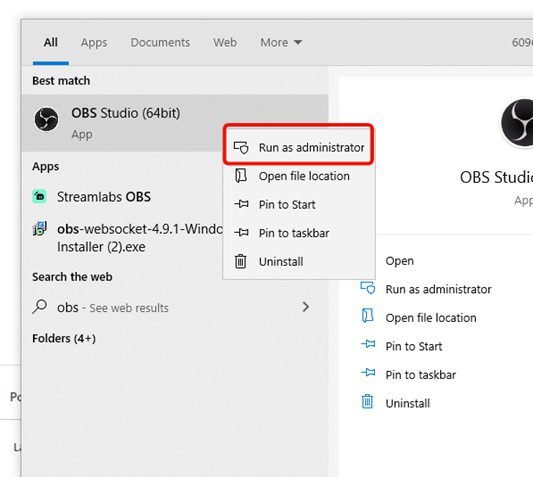
Many users have provided feedback that this can immediately solve the problem that OBS game recording screen does not work, simple and effective. One of the fastest ways to solve the problem that OBS game capture doesn’t work is to ensure that OBS runs at the correct permission level. On Windows, many modern games will be started with administrator privileges. If OBS does not have the same permissions, it may not be able to capture the game’s rendering process, resulting in a blank preview window.
Steps:
1. Close OBS completely.
2. Right-click the OBS shortcut.
3. Select Run as administrator.
4. Launch your game again.
5. Test record gameplay.
Fix 2: Match GPU Between OBS and Game
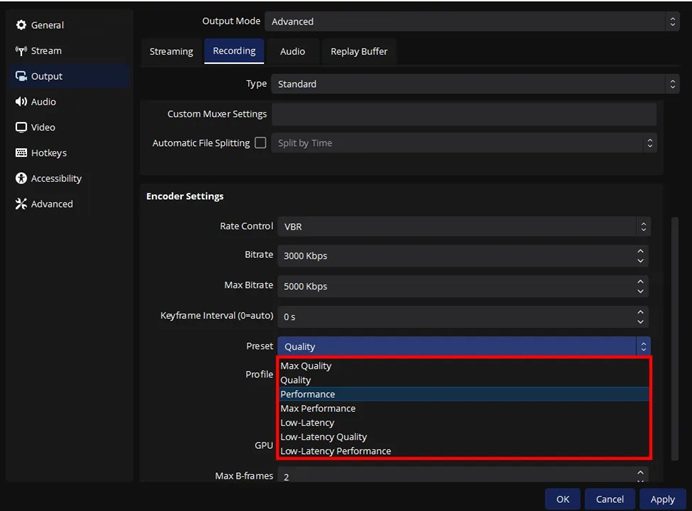
As long as OBS and the game use the same graphics card, many problems that cannot catch the picture will be solved immediately. On computers with multiple GPUs (such as many laptops), Windows may assign OBS and your game to different graphics cards. At this time, there will be a common problem of game capture not working obs.
Steps:
1. Open Settings → System → Display.
2. Slide down to find Graphics settings.
3. Add OBS Studio to the list.
4. Click Options, and then select High Performance (discrete graphics card).
5. Restart OBS and record again.
Fix 3: Change Capture Mode
OBS has several ways to record gameplay, but the default mode may not be suitable for all games. If you encounter the problem that OBS Game Capture doesn’t work, you can try another mode.
Steps:
1. Open the Sources in OBS.
2. Click the “+” button and select Game Capture.
3. Open the Properties of this source.
4. Try changing the Mode to: Capture specific window/Capture any full screen application/Manually select your game.
Fix 4: Disable Conflicting Software
Sometimes OBS game capture will go wrong because there is other software in the background. Programs such as GPU overlay (such as NVIDIA or AMD tools), performance monitoring software (MSI Afterburner) and game launcher often interfere with OBS capturing game images. These superimposed layers will make it impossible for OBS to capture the game screen, and the result will either be a black screen or not be recorded at all.
To solve this problem, you should turn off or quit the software that may conflict before opening OBS and games. This includes turning off the overlay layer in NVIDIA/AMD graphics tools, turning off the overlay function of Discord or Steam, and quitting other capture or monitoring software that may run in the background. After all this is done, OBS can usually capture the game screen normally, and the error “game capture not working OBS” is unlikely to appear.
Fix 5: Check Windows Graphics & Game Mode Settings
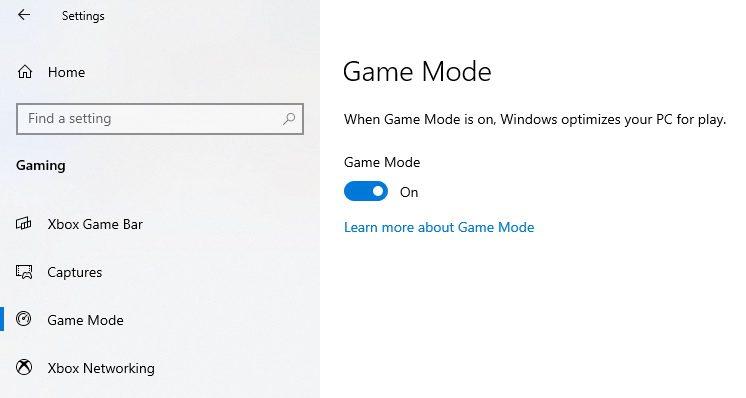
Windows game optimization sometimes takes care of the game too much, making OBS unable to grab resources. And game Mode will give priority to GPU resources for games, which may affect screen recording.
Steps:
1. Open Settings → Gaming → Game Mode.
2. Turn Game Mode Off.
3. Restart your PC.
4. Relaunch OBS and record gameplay again.
Fix 6: Try an OBS Alternative for Game Capture
Many creators will prepare backup screen recording software in case they miss important moments. Sometimes the problem is not your settings, but compatibility. Although OBS is very powerful, not all systems or games can match its capture method. If you still encounter OBS game capture not working after trying various methods, you can save time and worry by trying other screen recording software.
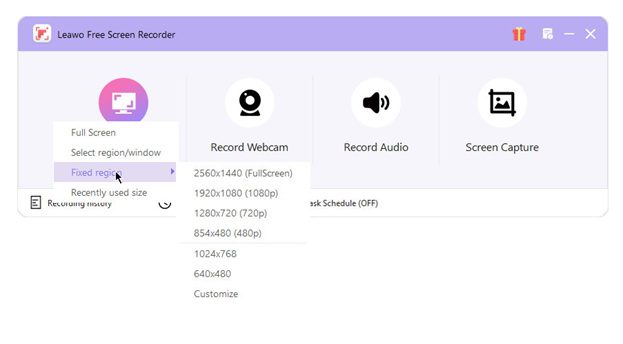
A lightweight tool that I often use is Leawo Free Screen Recorder, which can stably record full-screen games without complicated settings, and can successfully capture the game screen when OBS fails.

-
4-in-1 screen recorder suite to record gameplay, tutorial, training video, lecture, reaction video, webninar video, etc.
- Free online recorder to record window, browser tab or entire screen online.
- Free screen recorder to record screen in full-screen or custom area at up to 4K to MP4.
- Free webcam recorder to record webcam video.
- Free audio recorder to record audio from microphone or computer to MP3.
- Free screenshot snapper to snap screenshot to JPG.

Why Try an Alternative?
Less hook conflict
Faster setup
Self-contained timed recording
Self-contained timed recording
Steps:
1. Install Leawo Free Screen Recorder.
2. Launch the software.
3. Select recording region or full screen.
4. Turn on the system sound + microphone.
5. Start recording to record gameplay instantly.
FAQs
1. Does anti-cheat block OBS?
Yes. Some games (such as Valorant, League of Legends, and Fortnite) have anti-cheating systems. They will restrict some program hooks for security reasons, which may lead to the game screen not being captured. In this case, you can try switching modes or tools.
2. Why Does OBS Capture Audio but Not Video?
This is usually because the graphics card is set incorrectly or the capture mode is selected incorrectly. Check whether OBS has the correct access rights and whether the appropriate capture settings are used.
3. Does Updating OBS Fix Capture Problems?
Usually. Updating can improve compatibility with modern graphics API and drivers, and reduce the situation of black screen or capture failure.
Share this post












 العربية
 繁體中文
繁體中文 Dansk
Dansk Nederlands
 Suomi
Suomi Français
 Deutsch
 Italiano
 한국어
한국어 Norsk bokmål
 Português
 Русский
 Español
 Svenska