How to Record Your Screen Using PowerPoint

Summary:
You might already be quite skilled at using PowerPoint, but did you know it can also record your screen? This article will show you how to record your screen with PowerPoint!
MenuCLOSE
PowerPoint is a presentation software developed by Microsoft, mainly used for creating presentation slides. It supports the integration of various elements such as text, images, charts, animations, and videos, making the presentation of information more intuitive and vivid. It has become an indispensable tool in modern workplaces, education, business presentations, and other fields. With continuous development in recent years, its functions have become more diverse, and it no longer merely focuses on slide creation.
This article will mainly discuss its screen recording function. It allows users to directly capture screen activities within PowerPoint and seamlessly integrate them into the presentation process, providing great convenience for creating software tutorials, process explanations, or reporting content. This article can help you gain a deeper understanding of this presentation tool.
Can PowerPoint Record Your Screen?
You can screen record PowerPoint completely. Starting from Microsoft Office 2013 and later versions, PowerPoint has integrated a fully-featured screen recording module. This tool is located in the “Insert” tab and allows users to record any area of the screen, including the entire screen or a custom region, and embed the recording directly into the slides as video media. This means you don’t need to pre-install or switch to third-party software to quickly create a PPT with screen operation demonstrations, significantly enhancing the clarity and impact of your content.
How to Record Your Screen Using PowerPoint?
Then, I will guide you step by step on how to screen record on Windows using PowerPoint.
Step 1: Open PowerPoint and create a new presentation.
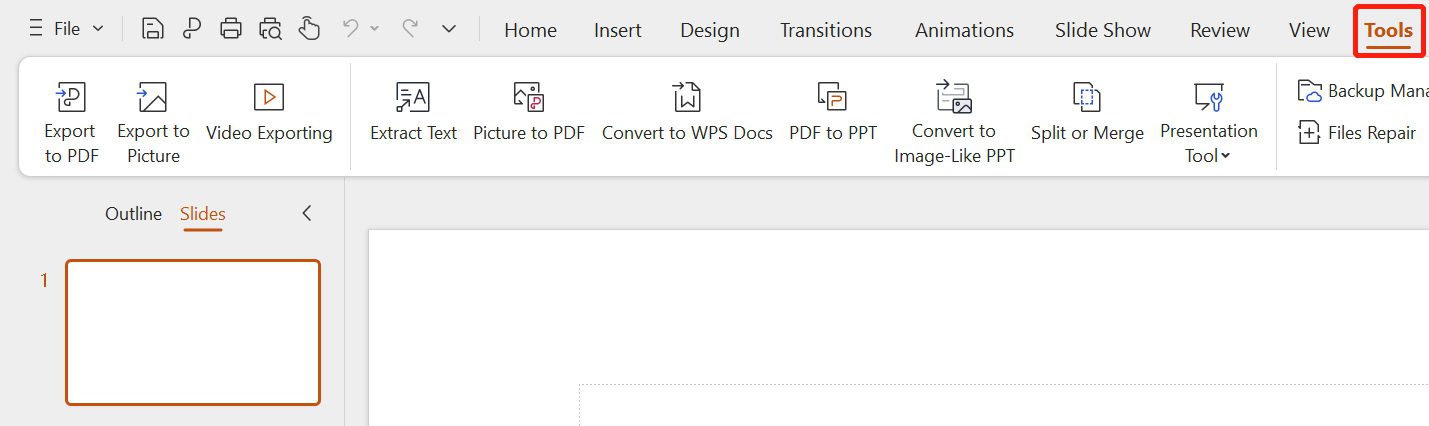
Step 2: Click on the “Tools” option in the top menu bar.
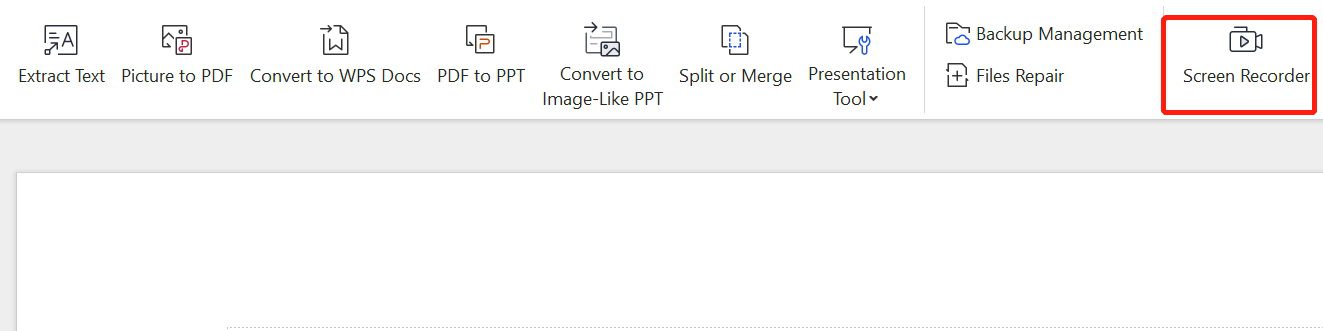
Step 3: Then click on the “Screen Recorder” in the top right corner of the interface.
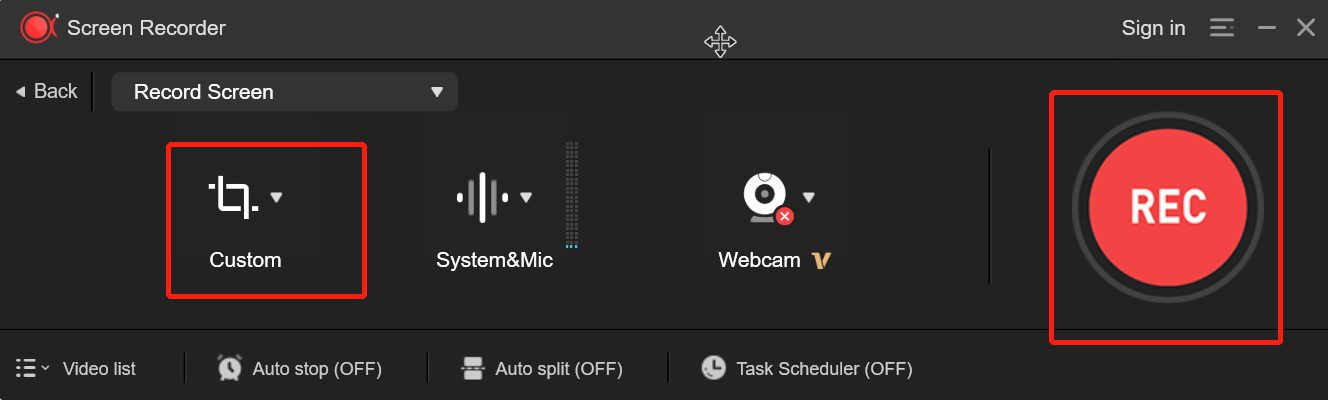
Step 4: Select the area that needs to be recorded, and then click “REC”.
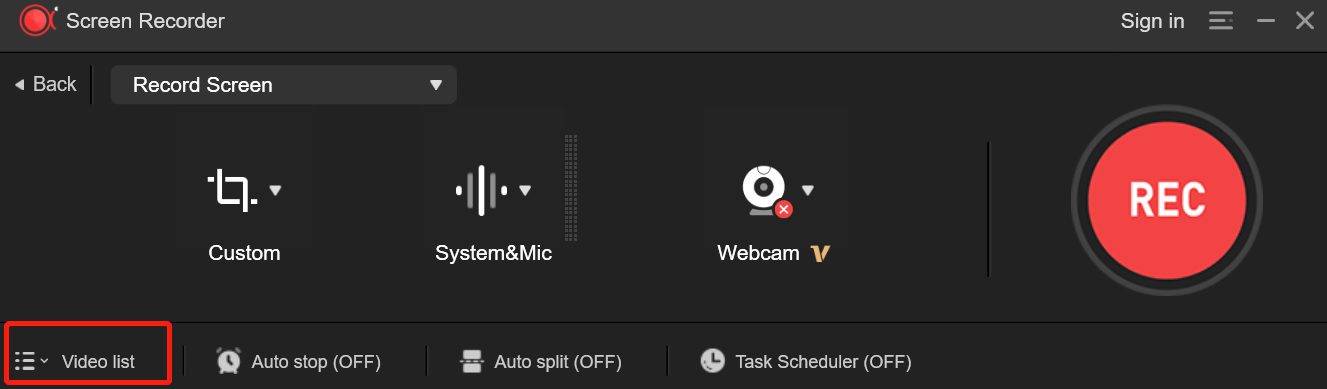
Step 5: The recording can be found in the “Video list” upon its completion.
Limitations of PowerPoint Screen Recording
Although it is very convenient, the recording feature is, after all just one of PowerPoint’s functions. PowerPoint is not a dedicated screen recorder, so there are unavoidable limitations of PowerPoint screen recording.
· Cannot record system internal audio, such as background music in videos or software notification sounds; it only supports recording external narration via a microphone. This makes it unusable for tutorials or game recordings that require simultaneous computer audio.
· It does not support embedding webcam footage into the screen recording, so you cannot show yourself while demonstrating on-screen.
· It only provides the most basic video trimming functions and does not allow editing, adding annotations, subtitles, transitions, or more detailed audio adjustments, which means any modifications require professional video editing software.
· Not suitable for long or high-quality recordings.It is not designed for recording long-duration, high-resolution, or high-frame-rate videos, so the output quality and performance may not meet professional video creation needs, and long recordings could cause the PowerPoint file to become too large.
Best Alternative to PowerPoint Screen Recording
Considering that you may not be able to accept the limitations mentioned above, I would like to introduce another option, which is to choose professional screen recording software. Based on my personal experience, I recommend using Leawo Free Screen Recorder. It is completely free screen recording software that can record anything that PowerPoint can, and it is also a screen recorder for Windows systems.

-
4-in-1 free screen recorder suite to record window, browser tab, entire screen or custom screen area online or offline for totally free. Record screen activities and webcam video at up to 4K quality and save in MP4 file for free. Record audio from computer system or microphone to MP3 file for free. Snap screenshots of the selected screen area to JPF file.

Features
- Real-time drawing, you can draw on the screen and add arrows, text, and other annotations while recording.
- Add background music.
- Set recording duration and also supports scheduled recording.
- Record system sound and microphone sound either simultaneously or separately.
- Add and adjust the webcam feed in real time during screen recording.
- Offers a variety of output formats and quality options, supporting up to 4K recording.
- Supports watermark-free recording.
When PowerPoint Is a Good Choice and When It’s Not
After reading the above content, you probably have a basic understanding of PowerPoint’s recording features. However, you might still be unsure whether to choose PowerPoint or not. Don’t worry, I will provide a detailed analysis of different situations below.
Ideal situations for using PowerPoint screen recording:
– When the screen video you need to record is directly used for a PPT presentation.
– When you only need to record simple, short operation demonstrations.
– When there are no high requirements for audio and editing, and no need for advanced post-editing.
Situations to avoid using PowerPoint:
– Recording content that requires system sound, such as online courses, music software operations, or gameplay videos.
– Creating high-quality tutorial videos or product demonstrations that require professional features like picture-in-picture, multi-track, subtitles, special effects, etc.
– Long-duration recordings, such as webinars, online meetings, or long gameplay sessions.
– When extensive post-editing is needed, such as cutting, merging, color correction, and other detailed processing of recorded material.
Final Words
Although PowerPoint is not a dedicated screen recorder, PowerPoint record screen still offers considerable convenience. In terms of simple, embedded recording requirements within a PPT, it is the most efficient solution. However, if you are a user who seeks higher quality, more comprehensive functions, or more complex recording scenarios, I still recommend that you choose a professional tool like Leawo Free Screen Recorder. In summary, the choice depends on your personal needs.
Share this post










 العربية
 繁體中文
繁體中文 Dansk
Dansk Nederlands
 Suomi
Suomi Français
 Deutsch
 Italiano
 한국어
한국어 Norsk bokmål
 Português
 Русский
 Español
 Svenska