Best Ways to Screenshot Facebook Stories on Any Device

Summary:
This article discusses whether screen capturing Facebook Stories is safe and teaches you how to screenshot Facebook content on computers and mobile phones.
MenuCLOSE
Facebook Stories has become one of the most commonly used ways for us to share fragments of daily life. Photos, short videos, and new things will appear at the top of the app and disappear after 24 hours. Sometimes a Story is interesting, sometimes it is meaningful, so you want to keep it. Can you take a screenshot of Facebook Stories? Will it be notified? Keep reading, and you will find the answer and simple ways to screen record Facebook Stories on PC, Mac, and mobile phone step by step.
Part 1: Can You Screenshot Facebook Stories?
The answer is yes, you can take a Facebook Story screenshot. Many users are worried that Facebook will notify them when they take a screenshot. There’s no need to worry. Unlike other platforms like Snapchat, Facebook won’t remind users that someone has intercepted their stories. In other words, you can intercept Facebook Story posts at will and save them yourself. Of course, the screenshots should also be used appropriately. It’s usually okay to take a look at the screenshot yourself. But saving and sharing Facebook Stories will reveal the creators’ privacy and cause moral and legal problems.
Part 2: Screenshot Facebook Story on Desktop
1. Built-In Keyboard Shortcuts
For many of our users, the fastest way to take a screenshot of a Facebook story is to use the shortcut keys of the computer directly.
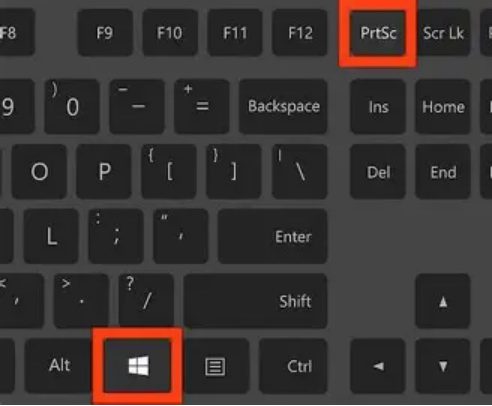
On Windows
Win + Shift + S: open the snipping tool to select the area.Print Screen (PrtScn): capture the whole screen to the clipboard, and then you can paste it into a drawing software such as Paint to save it.
Win + PrtScn: capture the whole screen and automatically saves to your computer (Picture > Screenshots).
On Mac
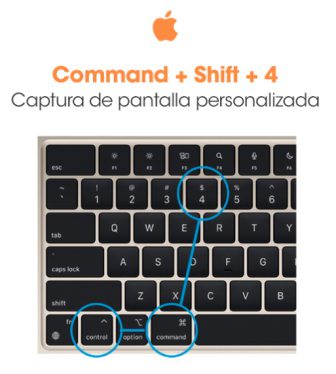
Command + Shift + 3: take a picture of the whole screen.
Command + Shift + 4: select a part of the screen by ourselves. The captured screenshots will be automatically saved to the desktop.
2. CleverGet Recorder
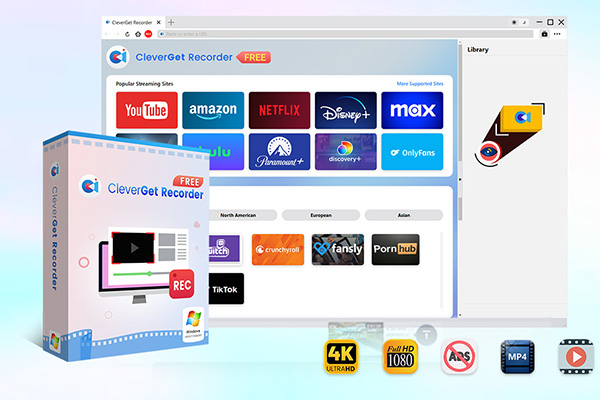
If you want to save a moving story instead of a still picture, then screen recording is a better choice. CleverGet Recorder is a tool that can record online video content directly from the browser. It supports high-quality recording, including high-definition or even 4K quality. Screen recording tools such as CleverGet Recorder are used to capture dynamic screen content. In other words, you can use it to record Facebook story videos, just like other applications or videos played on the screen.

-
Free streaming video recorder to record online on-demand video and live streaming video without quality loss and cost.
- 100% free to use.
- Record movies, TV shows, game streams, lectures, live concerts, etc.
- Record up to 4K video with 60FPS in MP4 or MKV.
- Schedule recording upon preset recording length.
- No watermark, no time limit, and ad-skipping (beta).
Here are the specific steps:
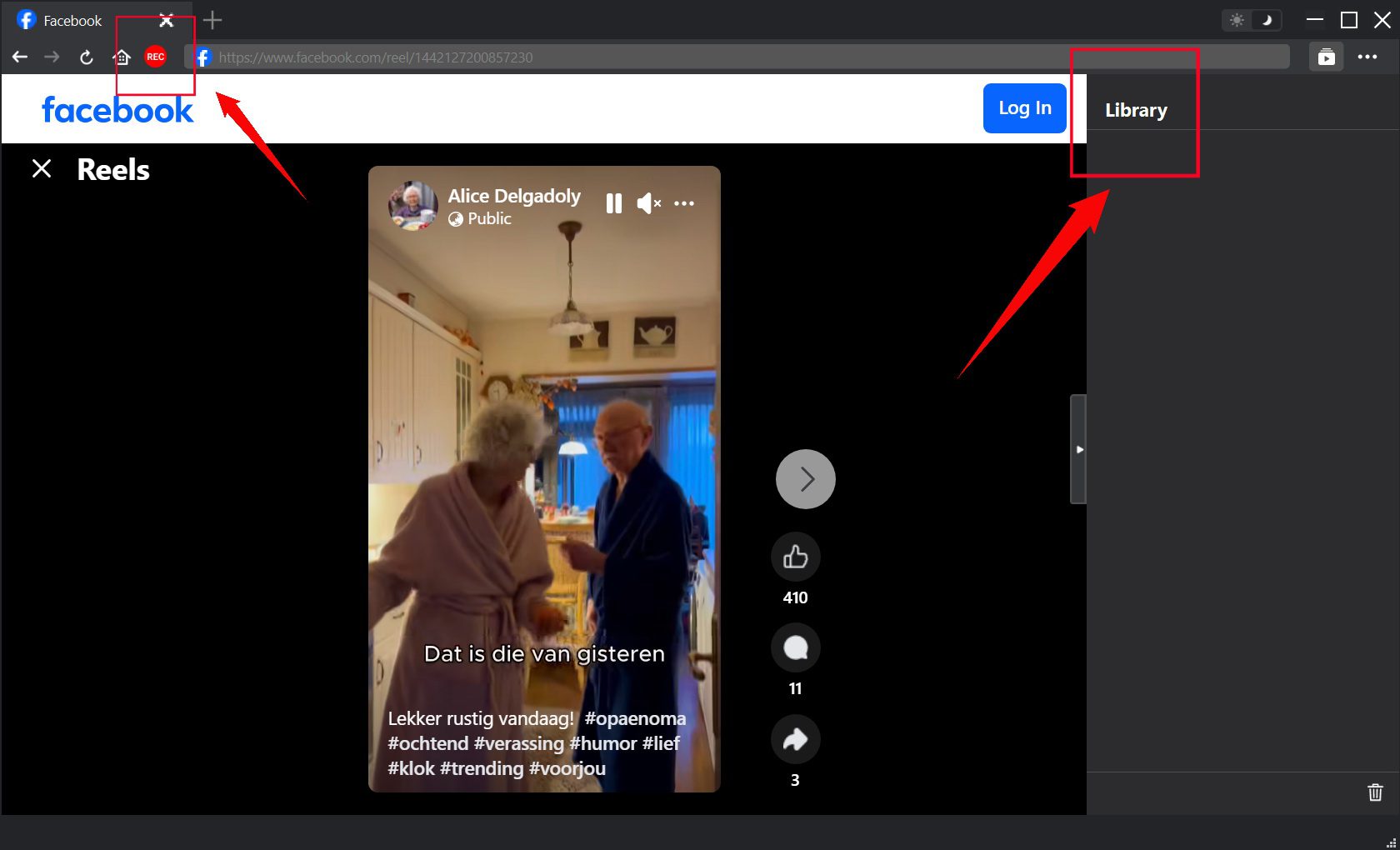
1. Download and install CleverGet Recorder.
2. Open the software’s built-in browser and log in to your Facebook account.
3. Find the target video using the search box and start playing it.
4. Click the record button (REC) to start recording.
5. Click stop after playback ends. The video will be automatically saved to your computer.
After recording, the video can be stored in a common format, such as MP4 or MKV. This method is especially suitable if there are animations, sounds, or long videos in your story. Tools like Leawo free screen recorder can record the screen and save the Story as a video file, and the operation is not complicated. There are many other free screen recorders for PC and online screen recording tools, all of which have similar screen recording and screenshot functions.
Part 3: Screenshot Facebook Story on Mobile Devices
1. Built-In Screenshot Buttons
On smartphones and tablets, it is easier for us to record stories. If you use an iPhone and iPad, just hold down the Power key and the Volume Up key at the same time; the screen will flash, and the screenshot will be saved in Photos. If you use an Android device and hold down the Power key and the Volume Down key at the same time, the screenshot will be saved in the photo album. These buttons are especially suitable for quick snapshots, no need to install any app, and there is no delay at all. However, it should be noted that this method is only suitable for taking pictures. If you want to record a story video, you’d better shoot it directly.
2. ScreenPal
ScreenPal is a very popular screen recording tool, which we can use on computers and mobile phones. Its interface is simple and clean, and it can also take screenshots and record screens. To record a Facebook story with ScreenPal:
1. Open Facebook on your device.
2. Launch ScreenPal.
3. Select screen recording mode.
4. Play the story and start recording.
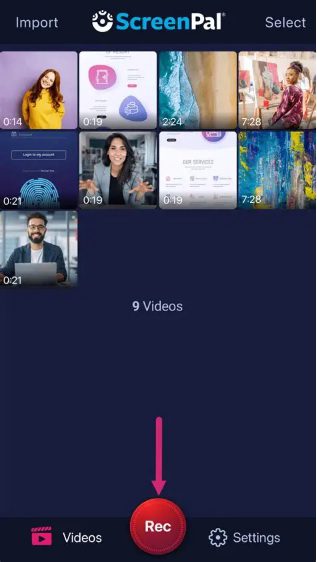
ScreenPal also allows us to save high-quality videos and even do some simple editing. If you prefer to use web tools, ScreenPal also provides browser plug-ins, which makes it one of the most flexible online screen recorders.
Part 4: Quick Tips for Better Story Screenshots
To get the best results when capturing Facebook Stories, keep these tips in mind:
Use a Dedicated Screenshot Tool: The tools you bring with you are quick to use. Third-party software usually gives us more control. We can cut, mark, and adjust the quality of pictures more conveniently.
Check Your Device Settings: Before taking a screenshot or recording, increase screen brightness. Clear display means clearer captures.Save in High Quality: For pictures, try to choose PNG or HD format. For video, it is best to record in HD mode. MP4 format is usually the most suitable in terms of image quality and file size.
Part 5: Conclusion
So can you take a screenshot of Facebook Stories? Sure, and Facebook won’t notify the person who sent the Story. If you want to save a picture, you can quickly grab it with the screenshot shortcut key that comes with Windows, Mac, iPhone or Android devices. If you want to save video content, it’s best to record the content directly from your screen with a screen recording tool, such as CleverGet Recorder or ScreenPal. Every device has the most suitable method; just choose the one that meets your needs. Quick screenshots are suitable for simple moments, while smooth screen recording can completely save the Story content. Now you know how to intercept Facebook Story on any device. It’s super easy to save your favorite Story! Always remember to keep the screenshots or recorded content for personal use.
Share this post












 العربية
 繁體中文
繁體中文 Dansk
Dansk Nederlands
 Suomi
Suomi Français
 Deutsch
 Italiano
 한국어
한국어 Norsk bokmål
 Português
 Русский
 Español
 Svenska