Is Snagit Worth Buying? Price, Features & Alternatives

Summary:
If you’re hesitating about whether to buy Snagit, you definitely shouldn’t miss this article! This is a comprehensive review of Snagit, covering its price, features, and other alternatives. After reading it, you’ll know whether you should buy Snagit.
MenuCLOSE
Snagit is a screen capture and recording software developed by TechSmith. It integrates powerful screenshot functions, basic screen recording capabilities, and convenient editing tools. Due to its numerous features, it has become a preferred choice for many users. However, there are still many users who frequently create tutorials, documents, or engage in visual communication. One of the core concerns for them is: Can Snagit meet their needs? Is it worth purchasing? If you are one of them, please continue reading this Snagit review.
Part 1: What Is Snagit?
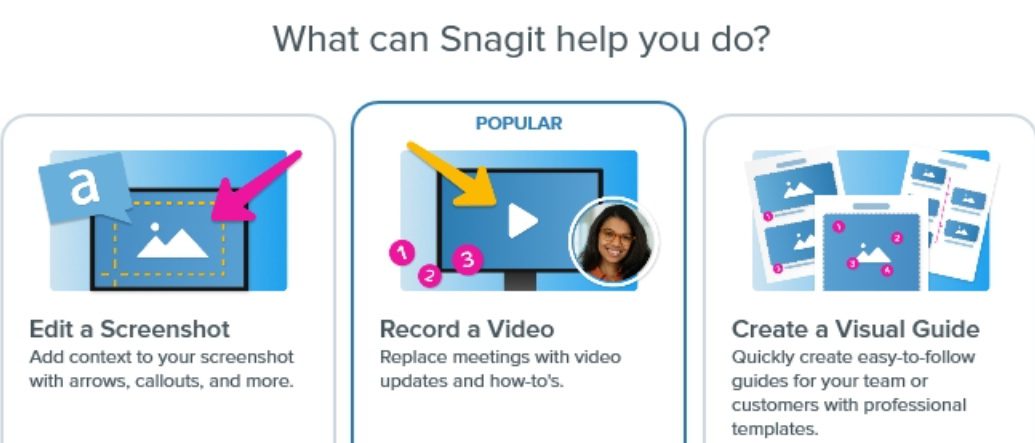
Snagit is a paid software for capturing, editing, and converting screens, texts, and videos. Its core design concept is to help users quickly screen record on Windows, scrolling pages, and record gameplay scenes, and immediately annotate, edit, and share them. It also supports saving images in formats such as BMP, PCX, TIF, GIF, PNG, or JPEG. Compared with the built-in screenshot tools of the operating system, Snagit offers professional control, accuracy, and rich post-processing capabilities. Its built-in editor can add watermarks, adjust image size, and provide a direct text conversion function (limited to specific areas), supports embedding in Office documents and web browsers, and, more importantly, it also supports both Windows and macOS platforms, significantly improving the efficiency of processing screen content.
Part 2: Key Features of Snagit
Snagit has a lot of features, and here I will only give a detailed description of its four core functions.
1. Screenshot Capabilities
Snagit’s screenshot feature is known for being comprehensive and intelligent, going far beyond basic screenshots. Here are the features of the screenshot feature:
· Capture Method: It can capture full screen, specific windows, arbitrary rectangular areas, and even irregularly shaped areas.
· Scrolling Screenshots: Automatically scroll and capture entire web pages, long documents, or chat history to generate a seamless long image.
· Text Capture: Built-in OCR technology, you can directly extract text from pictures or screenshots, paste it into other documents for editing.
· Intelligent Recognition: It can intelligently detect window boundaries to avoid errors during manual cropping.
2. Screen Recording Capabilities
Besides taking pictures, Snagit can also record screen videos. Its screen recording feature has the following features:
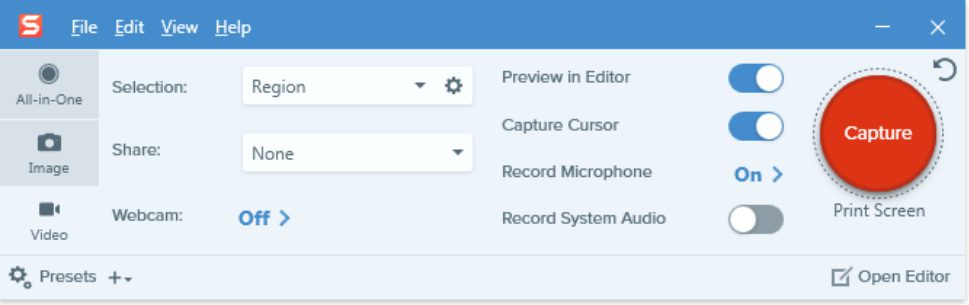
· Multi-source Recording: Support recording screen activities, system sound, and microphone.
· Picture-in-Picture: You can record the camera screen at the same time, and overlay the camera video on the screen recording in the form of picture-in-picture.
· Video Format: The recorded video can be saved as MP4 or animated GIF, which is convenient for different scenarios.
3. Built-In Editing Tools
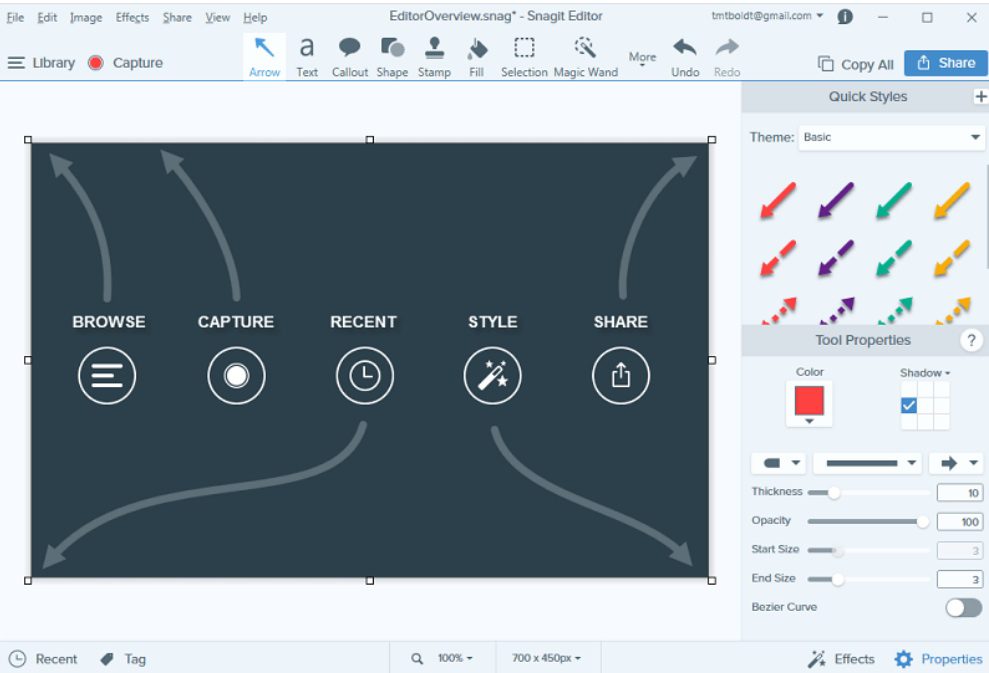
The advantage of Snagit is that you can do most of your editing within the Snagit editor without having to open additional software after capturing content. Its editing features include:
· Annotation Tools: Provide rich annotation tools such as arrows, shapes, highlights, mosaics, text boxes, etc.
· Simplified Operation: Sensitive information or cluttered elements can be removed or replaced in the screenshot with one click.
· Text Replacement: Directly identify and edit the text content in the screenshot without redesigning the entire image.
· Image Processing: Support resizing, cropping, applying color filters and shadow effects, etc.
· Basic Editing: Provides a simple video trimming feature to cut out unwanted parts at the beginning, middle, or end.
4. Sharing & Export
Compared to most similar software, Snagit greatly simplifies the sharing and export process.
· One-click Sharing: After editing, the content can be directly emailed or uploaded to cloud services such as Google Drive, Dropbox, OneDrive, etc.
· Multi-format Export: Support exporting to more than 23 file formats such as PNG, JPG, PDF, PSD, etc., and insert screenshots directly into Microsoft Word, PowerPoint, or Outlook emails you are editing.
Part 3: Snagit Price Breakdown
|
|
Individual |
Teams and Business |
Educator |
Free Trial |
|
Price |
$39 |
$48 |
$48 |
$0 |
|
Service |
No keys needed; |
No end-user accounts required; |
Unlocks with software key; |
15-day full-feature trial, refundable at any time during the trial period |
Part 4: Alternatives to Snagit
After the detailed introduction to Snagit above, you probably already have a preliminary judgment on whether it’s worth buying for yourself. If you feel that Snagit isn’t quite right for you, then keep reading. I’ll introduce three screen recorders that can serve as alternatives to Snagit, including Mac screen recorder, Windows screen recorder, and a recorder compatible with both systems, each with different feature focuses. You can make a comparison on your own.
|
|
Movavi Screen Recorder |
ScreenFlow |
|
|
Supported OS |
Windows, macOS |
macOS |
Windows |
|
Price |
One-time payment, $69 |
One-time payment, $169 |
Free |
|
Editing Features |
Real-time annotations; Basic editing features; Support for scrolling screenshots; Display keyboard keys and mouse actions |
Built-in timeline editor; Supports multi-track editing; Provides a library of over 500,000 royalty-free assets |
Real-time drawing; Custom watermarks; Adding audio narration and background music |
|
Recording Quality |
Full HD or 4K |
Up to 5k, 60 fps |
Up to 4K |
|
Export Formats |
AVI and MP4 and other formats |
MOV, MP4, FLV, GIF, PNG and other formats |
Video MP4, Audio MP3, Screenshots JPG |
So how should you choose among these three software options? The most important thing is to consider your own needs, such as whether you need a screen recorders for Windows or Mac, whether your budget is sufficient, and what your requirements are for export formats, and so on. Personally, I highly recommend Leawo Free Screen Recorder. It is not only free but also very comprehensive in functionality, basically meeting all your screen recording needs.

-
4-in-1 screen recorder suite to record gameplay, tutorial, training video, lecture, reaction video, webinar video, etc.
- Free online recorder to record window, browser tab or entire screen online.
- Free screen recorder to record screen in full-screen or custom area at up to 4K to MP4.
- Free webcam recorder to record webcam video.
- Free audio recorder to record audio from microphone or computer to MP3.
- Free screenshot snapper to snap screenshot to JPG.

Part 5: Final Verdict
Snagit integrates screenshot, screen recording and editing functions, and its one-time purchase model also has high cost-effectiveness in the long run. Therefore, if you need to frequently create documents and have strict requirements for scrolling screenshots and text extraction, hoping to complete editing and sharing quickly after capturing, and have high demands for efficiency and presentation quality, then Snagit is definitely worth purchasing for you. However, if you want to go for free, don’t miss Leawo Free Screen Recorder,which is a Snagit free alternative, and can screen record on Windows conveniently. In summary, you can first make full use of Snagit’s 15-day free trial period to see if it suits you.
Share this post









 العربية
 繁體中文
繁體中文 Dansk
Dansk Nederlands
 Suomi
Suomi Français
 Deutsch
 Italiano
 한국어
한국어 Norsk bokmål
 Português
 Русский
 Español
 Svenska