How to Screen Record on Instagram: Step-by-Step Guide

Summary:
No longer need to worry about being unable to efficiently record content on Instagram! This article will gradually explain how to screen record Instagram and answer some related questions. Don’t miss this guide!
MenuCLOSE
Instagram is a globally renowned social media application that enables users to share photos, videos, reels, and stories. It also allows users to interact with others through likes, comments, and private messages. Since its establishment, Instagram has rapidly grown into an important platform connecting individuals, brands, and creators. As the world’s leading visual social platform, Instagram has gathered a vast amount of stories, live streams, and has attracted an increasingly large user base. Users have an increasing demand for recording Instagram content for various purposes, such as saving memorable moments, collecting tutorials, sharing content that cannot be downloaded, or documenting “time-limited stories”. So can you screen record Instagram stories? If you are looking for better methods for recording Instagram, then you might want to take a look at this guide, which tells you how to screen record on Instagram, covering everything from essential tips to practical steps.
Part 1: Instagram Screen Recording: What You Need to Know
Before introducing how to record Instagram, there are some things you need to know about screen recording.
Instagram screenshot notifications: Instagram itself does not send a notification when someone screenshots the stories or records the post. However, in private interaction scenarios such as “video calls” or “watching videos one-on-one,” the other party may receive a prompt if a screenshot or recording is taken.
Recordable content: Generally, any public content you can see within the app can be recorded. But the content you record can only be used for personal enjoyment, learning, or fair use. Without explicit permission from the original creator, it is strictly forbidden to use recorded videos for commercial dissemination, reposting, or claiming them as your own. Doing so not only violates Instagram’s community guidelines but is also a serious infringement. So if you need to create derivative works from the recorded content, be sure to obtain the original creator’s permission in advance.
Part 2: How to Screen Record Instagram on PC & Mac
Considering that Instagram’s official download feature has many limitations, such as the desktop version not supporting downloads, download permissions set by creators being restricted, and the platform automatically compressing videos, which reduces quality, I believe screen recording is a more suitable option, especially for desktop Instagram users. So how do you choose the right screen recorder among the many available options? Here, I recommend two free screen recorders for PC and Mac.
1. CleverGet Recorder
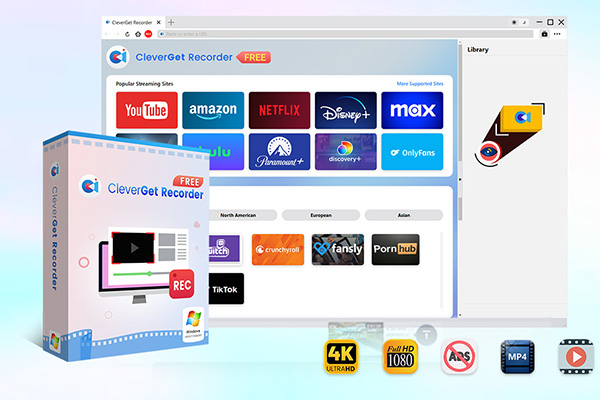
CleverGet Recorder is a free streaming media recording software for Windows and Mac. It enables you to capture online videos from most streaming platforms, including Instagram, among others. It can record both on-demand content and live streams in their original quality, supporting up to 4K resolution and 60 FPS. It can also save as MP4 or MKV files. Although it is free, it is extremely powerful with features such as preset recording time, support for live recording, skipping ads, and automatic saving upon completion. Moreover, you don’t need to worry about any limitations. It requires a series of complex steps to start a smooth recording. What’s more, CleverGet Recorder can screen record Instagram story protected by DRM. So if you are someone who wants to start recording your computer screen easily, I recommend you give it a try.

-
Free streaming video recorder to record online on-demand video and live streaming video without quality loss and cost.
- 100% free to use.
- Record movies, TV shows, game streams, lectures, live concerts, etc.
- Record up to 4K video with 60FPS in MP4 or MKV.
- Schedule recording upon preset recording length.
- No watermark, no time limit, and ad-skipping (beta).
Operation steps:
Step 1: Download and install CleverGet Recorder.
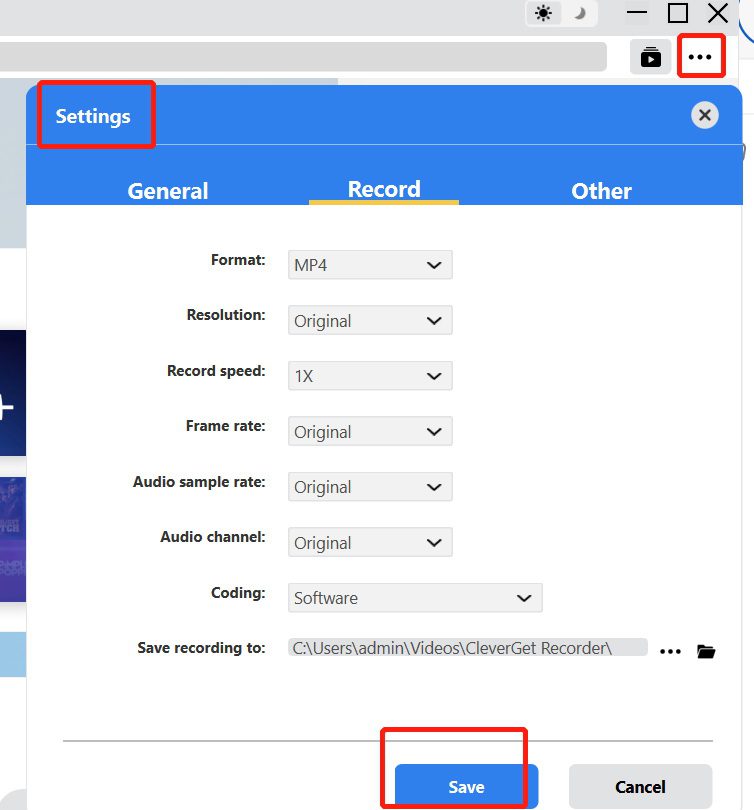
Step 2: Click on the three-dot menu at the top right of the interface and make the settings according to your personal preferences.
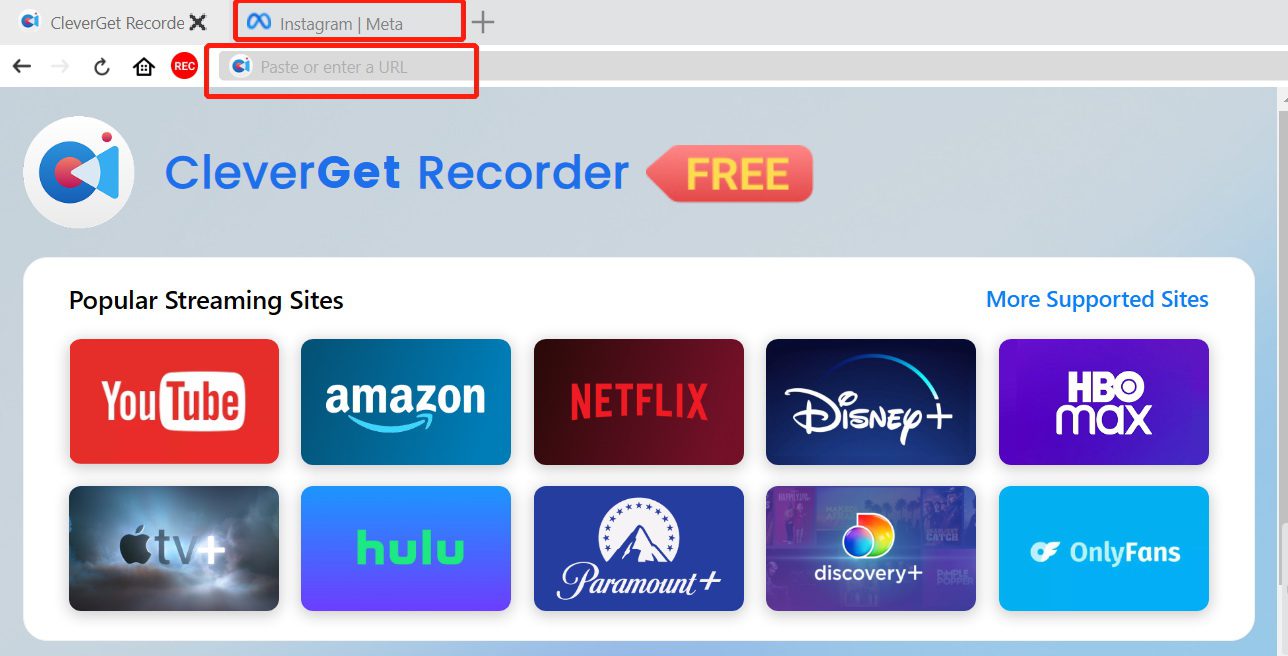
Step 3: Enter the Instagram website at the top of the interface and open it. Then, locate the content that needs to be recorded.
Step 4: First, click on the “REC” button in the top left corner to set the recording speed. Then, click the “REC” button at the bottom to start the recording.
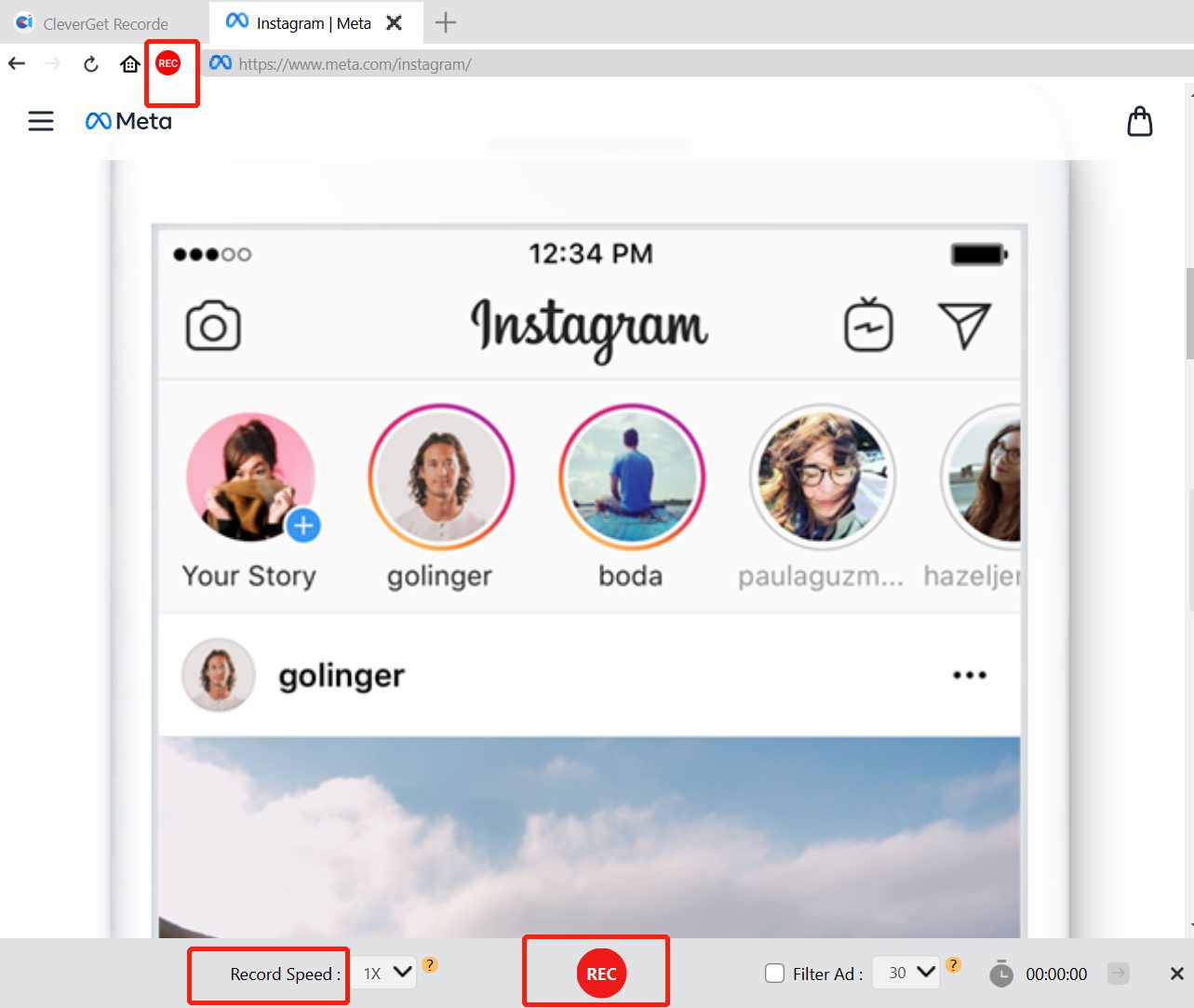
Step 5: The recorded content can be found in the “Library”.
2. Leawo Free Screen Recorder
Leawo Free Screen Recorder is a free screen recording software that is also highly suitable for recording on Instagram. It supports both full-screen and customizable area recording modes, and can record MP4 videos with a maximum resolution of 4K. It can simultaneously record system sounds and microphone voices, and includes simple editing functions. Additionally, it also supports recording of webcam content. Therefore, if you frequently need online meetings and live broadcasts, you can give this software a try. It is worth noting that all the content recorded using Leawo Free Screen Recorder is watermark-free, making it suitable for users who have high requirements for watermarks.
-
4-in-1 screen recorder suite to record gameplay, tutorial, training video, lecture, reaction video, webninar video, etc.
- Free online recorder to record window, browser tab or entire screen online.
- Free screen recorder to record screen in full-screen or custom area at up to 4K to MP4.
- Free webcam recorder to record webcam video.
- Free audio recorder to record audio from microphone or computer to MP3.
- Free screenshot snapper to snap screenshot to JPG.

Operation steps:
Step 1: Open the Leawo software and click the “Record Screen” to adjust the recording area to the window where Instagram is being played in the browser.
Step 2: Adjust the “System Sound”, “MicroPhone”, and “Webcam”, then click “REC” to start recording.
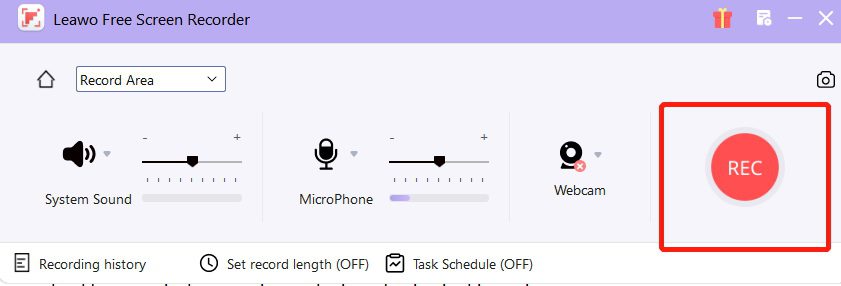
Step 3: The completed file can be found in “Recording history”.
Part3: How to Screen Record Instagram on Mobile Devices
Can you screen record on Instagram through your mobile device? If you are a mobile phone user, then you should pay particular attention to the introduction in this section.
1. Built-in iOS/Android Screen Recorder
Whether you are an iOS or Android user, your phone usually has a built-in screen recorder, but there are some minor differences between the two.
iOS devices: Make sure the “Screen Recording” function is added to the Control Center. Open an Instagram video, slide down from the top right corner to open the Control Center, long press the recording button, ensure that “Microphone” is turned off, and then click “Start Recording”.
Android devices: Although the operation may vary depending on different brands of phones, you can generally find the “Screen Recording” icon by pulling down the quick settings panel from the top. Some models support recording system sounds, and you need to enable it in the settings in advance.
2. Screen Recorder Apps
If you think the built-in recording function of your phone is too simple and doesn’t meet your needs, you can choose a third-party tool. Compared with the built-in tool, third-party tools have more functions, such as brushes, picture-in-picture on the camera, etc. Moreover, the clarity or quality of the recording is higher, and there are fewer restrictions on the recording duration or speed. However, it should be noted that if you choose a third-party tool, please make sure to download it from the official app store and authorize it carefully to prevent privacy leakage.
Reminder:
Although third-party tools have stronger functions, they may contain advertisements or require payment to unlock advanced functions. I hope you make your choice based on your own situation.
FAQs
1. Is it legal to screen record Instagram videos?
Generally speaking, recording content for personal and non-commercial purposes is legal and falls under the “fair use” provisions of copyright law. However, without the permission of the copyright holder, any form of secondary public dissemination, commercial exploitation, or other actions that infringe upon the rights of the original author are illegal.
2. Can I screen record private Instagram accounts?
Some online screen recorders can be used to record private Instagram accounts. However, such behavior is illegal. Recording and disseminating content from private accounts seriously infringes upon others’ privacy, violates relevant privacy protection laws and Instagram user agreements, and may result in your account being banned.
3. Can you screen record Instagram live videos?
You can use the built-in functions of your mobile phone or the aforementioned CleverGet Recorder for real-time recording. If you want to save high-quality live videos and don’t want to operate in real time, then it’s best to choose CleverGet Recorder. The built-in tools of the mobile phone cannot efficiently record live videos.
4. Does screen recording reduce Instagram video quality?
To some extent, this will reduce video quality because screen recording is a “secondary capture” process, and its quality is limited by your device’s screen resolution, recording software settings, and the quality of the network streaming. However, using CleverGet can help you get the best possible quality to the greatest extent, because it captures the original data stream transmitted by the platform.
5. Can I Download Instagram Screen Recordings in MP4 Format?
Absolutely, and the MP4 format is usually the default recording format for most devices. However, to get the best download results, I recommend using professional software like CleverGet Video Downloader.
Share this post










 العربية
 繁體中文
繁體中文 Dansk
Dansk Nederlands
 Suomi
Suomi Français
 Deutsch
 Italiano
 한국어
한국어 Norsk bokmål
 Português
 Русский
 Español
 Svenska