Top 10 Screen Recorders for Mac in 2026

Summary:
How to choose the best Mac screen recorder? This article will tell you the answer. I will share the top 10 Screen Recorders for Mac in 2026 to help you make a choice.
In the Internet era, screen recording has become indispensable for remote meetings, course recording, game creation, and product demonstrations. Due to its excellent hardware design and functionality, Mac has become the device of choice for most people. Therefore, it is not surprising that the demand for recording among Mac users continues to grow. An efficient Mac screen recorder can meet our personalized needs, but the wide variety of recorders makes it difficult to choose one that perfectly suits us. So this article is to showcase the top 10 Mac screen recorders to watch in 2026 from different perspectives, helping you make a clear decision.
MenuCLOSE
Part 1: Features to Look for in a Mac Screen Recorder
If you need to screen recorder on Mac, it’s best to choose a recorder based on the following five dimensions. This is based on my experience using several different recorders.
1. Video Options
The clarity and smoothness of a video can greatly affect the viewing experience. Common resolution is 1080p, which is generally considered the basic standard, while 4K can show more detailed images. As for frame rate, the standard 30fps is suitable for most tutorials and demonstrations, while 60fps or higher can present extremely smooth animations or game recordings.
2. Audio Recording
Clear audio tracks can demonstrate the professionalism of a screen recording tool. Most recording software supports high-quality system audio capture, allowing you to record sound played by applications while also supporting microphone recording, making it easy to add commentary simultaneously. More advanced screen recording tools provide separate audio source control and noise reduction to prevent interference from environmental noise.
3. Recording Mode
It’s best not to choose screen recorders that cannot provide multiple recording modes. A good recorder should support full-screen recording, window, custom and webcam. These different recording modes allow you to flexibly handle various recording scenarios.
4. Editing Tools
A complete set of editing tools is key to improving recording efficiency. Most recorders have basic trimming, cropping, and segment-splitting functions, while more advanced recorders also offer editing features such as adding annotations, panning effects, transitions and independent audio track editing. These tools help you quickly process your content without needing to switch to other professional editing software.
5. Free or Free Trial Version
Price is inevitably a factor we must consider when choosing a screen recorder mac. Free recorders or free trial versions of recorders can directly save your budget. More importantly, through the free trial version, you can fully verify whether the software meets your needs before paying.
Part 2: Top 10 Screen Recorders for Mac in 2026
Based on the above five dimensions, I have listed the top 10 recorders. Please continue reading.
1. QuickTime Player
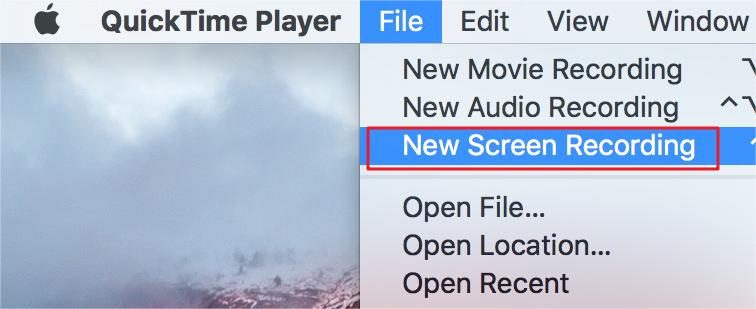
QuickTime Player is a free built-in recording tool on macOS, offering only basic features such as trimming, splitting clips, and rotating videos. It provides two quality options: H.264 and ProRes, and offers recording modes including full screen, custom, and direct recording from the camera. It supports recording system audio and microphone sound, and allows users to select the audio source separately. It is suitable for people who need to quickly complete simple recording tasks.
2. OBS
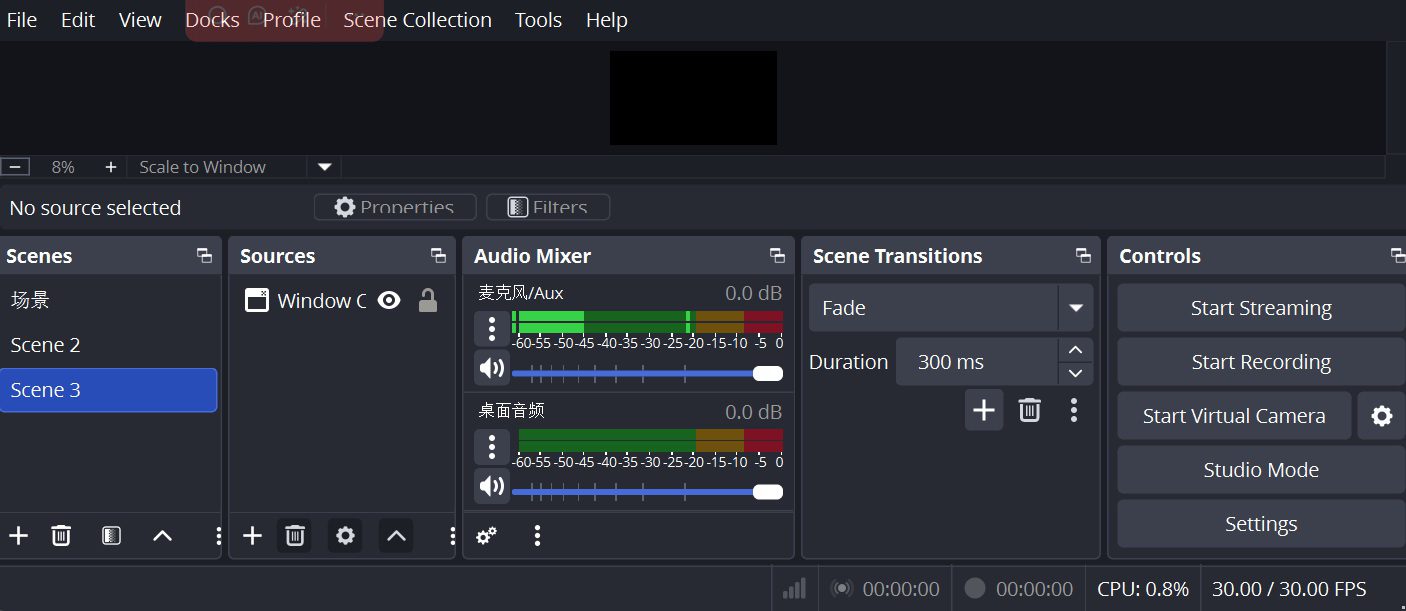
OBS is a free software that allows users to freely adjust resolution, frame rate, encoder, and bitrate. It supports independent multi-track recording and includes advanced audio filters such as mixers and noise reduction. The recording modes are extremely flexible, allowing for recording of full screen, windows, webcam and more. Its editing features are mainly focused on scene transitions and filters, does not have particularly professional editing capabilities.
3. Camtasia
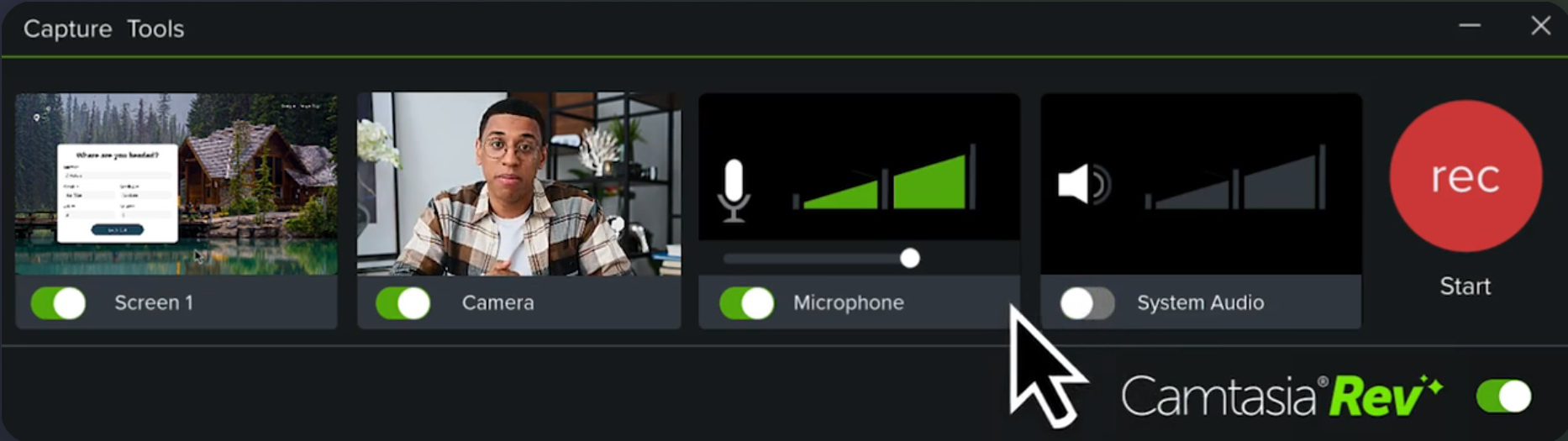
Camtasia supports high-definition recording and can export to various formats, such as MP4, MOV, and GIF. It can record system audio, microphone, and camera audio simultaneously, including audio enhancement and noise reduction features. It offers full-screen and custom, as well as support for capturing camera footage at the same time. The software comes with a powerful multi-track timeline editor and provides features such as transitions, annotations, and subtitle generation. Although it is not free software, the official version offers a fully functional free trial.
4. ScreenFlow
ScreenFlow is a Mac screen recording software that can simultaneously record system audio, microphone, and camera audio, and allows narration and application audio to be recorded as separate tracks. It includes a powerful built-in video editor with tools such as a magnetic timeline, dynamic camera effects, and graphic annotations. The software does not have a free version but offers a fully functional trial. It is especially suitable for users who enjoy the native macOS experience.
5. Snagit
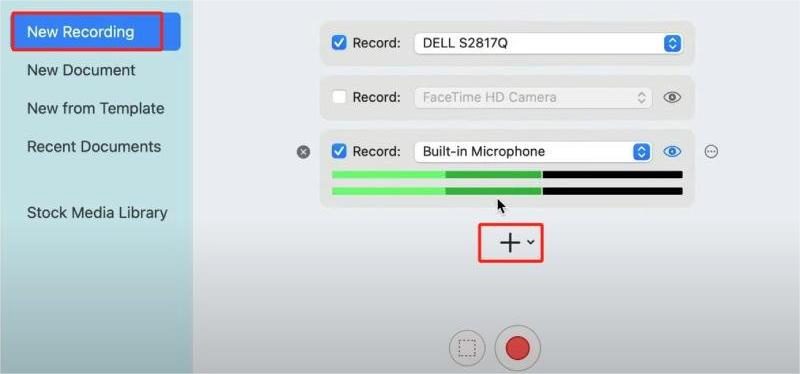
Snagit is perfect for creating tutorials and presentations. It supports 4K screen recording and allows you to export recordings as GIF or MP4. You can record system audio and microphone simultaneously, or individually. Its recording modes are very flexible, supporting full screen, window, custom, scrolling capture, and picture-in-picture. The software has a built-in editor offering quick editing features like adding text annotations and creating GIFs. The official version provides a 30-day free trial.
6. Capto
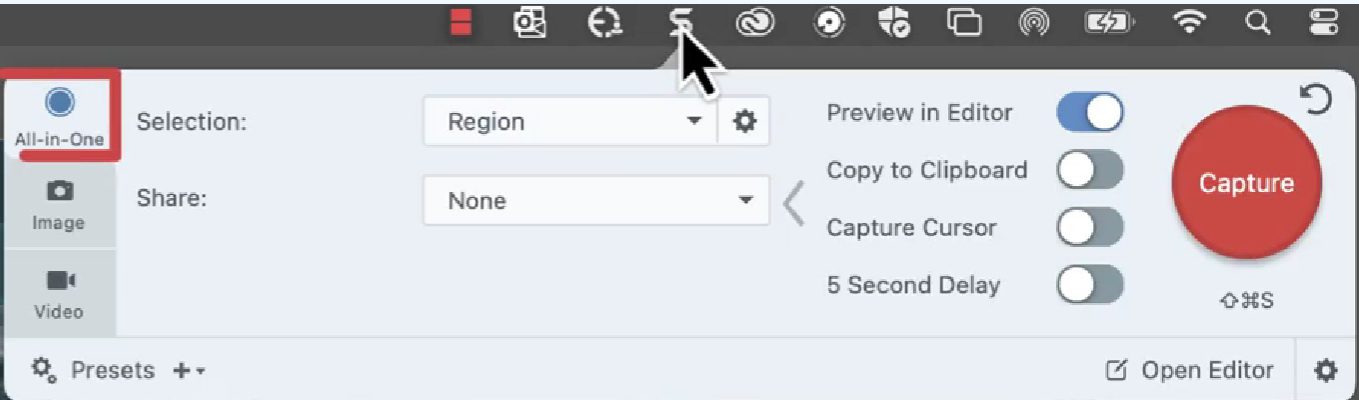
Capto is a screen recorder for Mac. The video options support full-screen or region recording and can capture the screen of iOS devices. Audio recording can capture system or microphone sound, with separate control over audio tracks. The recording modes are comprehensive and the editing tools are rich, particularly good at arranging clips. It’s standard version requires a paid purchase, priced at 188 RMB, but it offers a 15-day free trial.
7. Filmora Screen
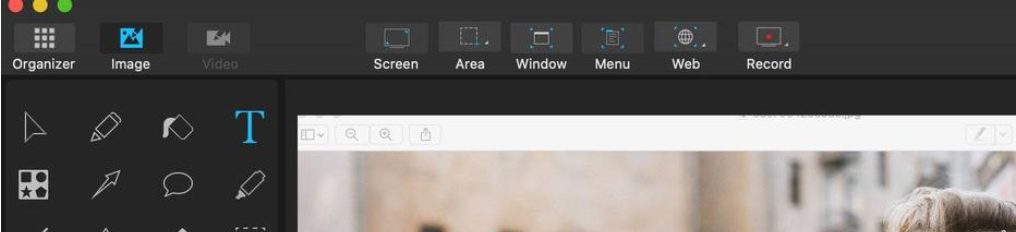
Filmora Screen also supports full screen or custom and various resolutions and frame rates. It can record system audio, microphone audio, or both simultaneously. In addition, its editing tools are comprehensive, allowing you to merge videos, add effects, and edit on multiple tracks. The software does not have a permanently free version, but there is a trial version that lets users try some of its features.
8. Loom
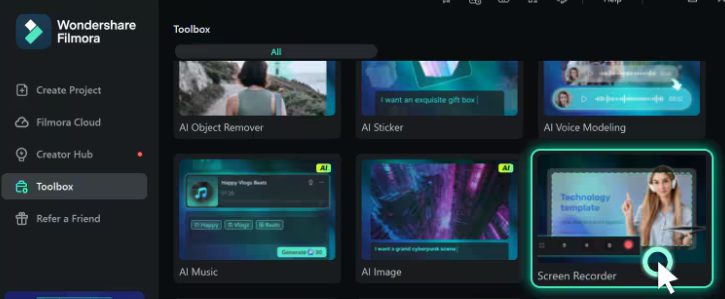
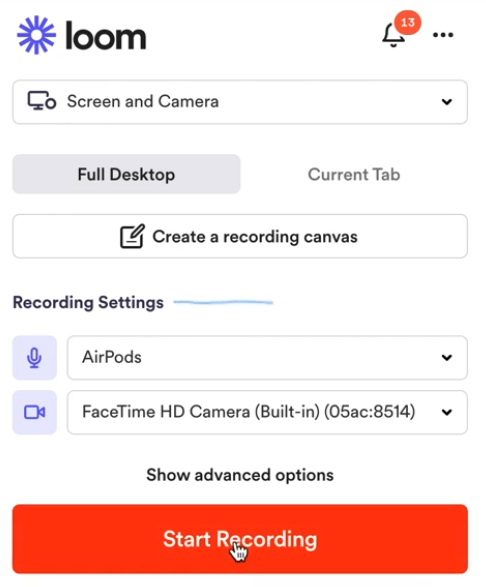
Loom supports “Screen and Camera”, “Screen”, and “Camera”. It can simultaneously record system sounds and microphones, with a maximum resolution of 4K. It also offers full screen, window, and custom area. After recording, it allows downloading in MP4 format. Additionally, it includes editing functions such as adding subtitles, chapter division, and word silence filling. A free version is available, but it has limitations of 25 videos, 5 minutes per video, and 720p.
9. CapCut
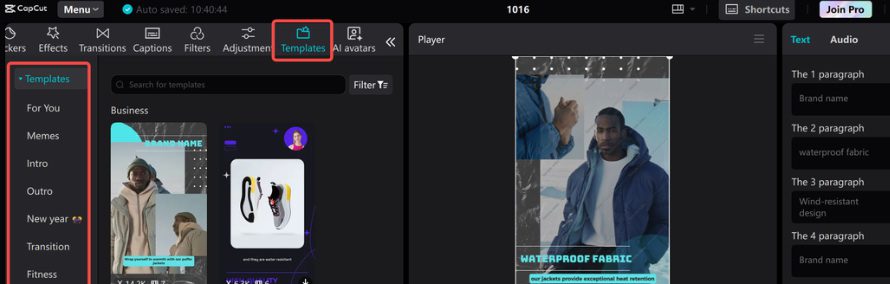
This is the built-in screen recording feature in the video editing app CapCut, which supports full screen, window, and browser tab recording. During recording, you can enable the microphone to capture ambient sounds or narration. Its biggest highlight is that after recording, you can seamlessly enter CapCut’s powerful video editing interface and directly use its professional tools. CapCut is free to use, but some advanced effects or materials require payment.
10. CleverGet Recorder(For Streaming Videos Recording)
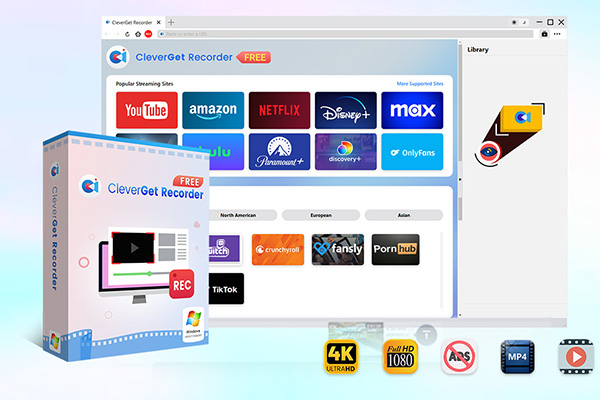
CleverGet Recorder is a free tool specifically designed for recording online streaming videos. Its prominent advantage is that it can record videos protected by DRM as well as live broadcasts. For instance, it can record Facebook live streams directly. It not only can record videos from over 1000 websites at a maximum resolution of 4K and a frame rate of 60FPS, but also supports synchronous or separate recording of system sounds and microphone sounds. Users can independently adjust the volume of each audio source.

-
Free streaming video recorder to record online on-demand video and live streaming video without quality loss and cost.
- 100% free to use.
- Record movies, TV shows, game streams, lectures, live concerts, etc.
- Record up to 4K video with 60FPS in MP4 or MKV.
- Schedule recording upon preset recording length.
- No watermark, no time limit, and ad-skipping (beta).
Part 3: Conclusion
Each of these 10 tools that I introduced above have their own unique features, so it’s hard for me to say which one is absolutely the best. However, you can choose the one that suits you best based on your main use. For example, if you need to record online streaming, then CleverGet Recorder is the best screen recorder for Mac. Finally, I suggest that you take advantage of the free trial offered by each software to try them out in practice, so you can better determine if they are easy to use.
Share this post







 العربية
 繁體中文
繁體中文 Dansk
Dansk Nederlands
 Suomi
Suomi Français
 Deutsch
 Italiano
 한국어
한국어 Norsk bokmål
 Português
 Русский
 Español
 Svenska