


Summary:
- You can watch Netflix on Apple CarPlay while parked using screen mirroring, compatible adapters, or by downloading videos to MP4 for USB playback. Since Netflix isn’t officially supported on CarPlay, these workarounds let you stream safely without breaking driving laws.
We do not recommend watching Netflix while driving. And also, this article is not about any tips to watch Netflix shows while driving. However, if you’ve gotten stuck in a parking lot for any reason, you have the option to watch Netflix on Apple CarPlay and spend your waiting time more productively. As we know, Apple CarPlay can make it easy to bring apps from your iPhone to your car’s display. It’s true for the Netflix app as well. So now, how can you watch Netflix on Apple CarPlay while it’s parked? In this article, we’ll show you exactly how to set up Netflix on Apple CarPlay without breaking the rules. Let’s find out.
Quick AccessCLOSE
Can You Watch Netflix on Apple CarPlay?
Yes, you can. But remember, the main aim of Apple CarPlay is for driving convenience, not for entertainment. It’s built for drivers to think about navigation, calls, music, and messages without taking their eyes off the road. Watching the screen while driving is a real risk, and that’s why you will not see the Netflix option visible in CarPlay. But don’t worry. There are still safe ways to enjoy shows when your car is parked.
1. What Apple CarPlay Supports Officially
As we just discussed, the main aim of CarPlay is to keep driving simple and safe. For this reason, here you will only find apps for navigation, audio streaming, and communication. You can enjoy music apps, podcast platforms, and voice-controlled messaging. These things do not require long visual attention. However, video streaming apps like Netflix are not intentionally included. We can say Apple CarPlay acts more like a smart assistant. It’s not a sort of entertainment center. So, to watch video content, you usually need to use screen mirroring, third-party hardware solutions, or watch directly on your phone while the car is safely parked and turned off.
2. Legal and Safe Considerations
Remember, while driving, safety is a big deal. It’s illegal to watch videos on car displays while driving. The general rule is simple. If your car is moving, don’t watch videos. But if your car is parked with the engine off, you can, but still stay aware of local traffic laws. To be honest, we recommend that you only watch Netflix when the vehicle is fully parked in a secure location, like a parking lot or rest stop. Also, it’s good to keep the volume low so you remain aware of your surroundings. We can say that we should only have entertainment with considerations and rules in mind, without compromising safety or breaking regulations.
Workarounds to Watch Netflix on CarPlay
Now let’s come to the main part, how to watch Netflix on CarPlay. As we know, you will not find Netflix natively on CarPlay, so it’s all about relying on smart tricks. For example, you can share your phone screen or extend your system’s capabilities. This works like you’re borrowing your phone’s display and sending its display to your car screen. Let’s discuss it in more detail below.
1. Screen Mirror Netflix to CarPlay
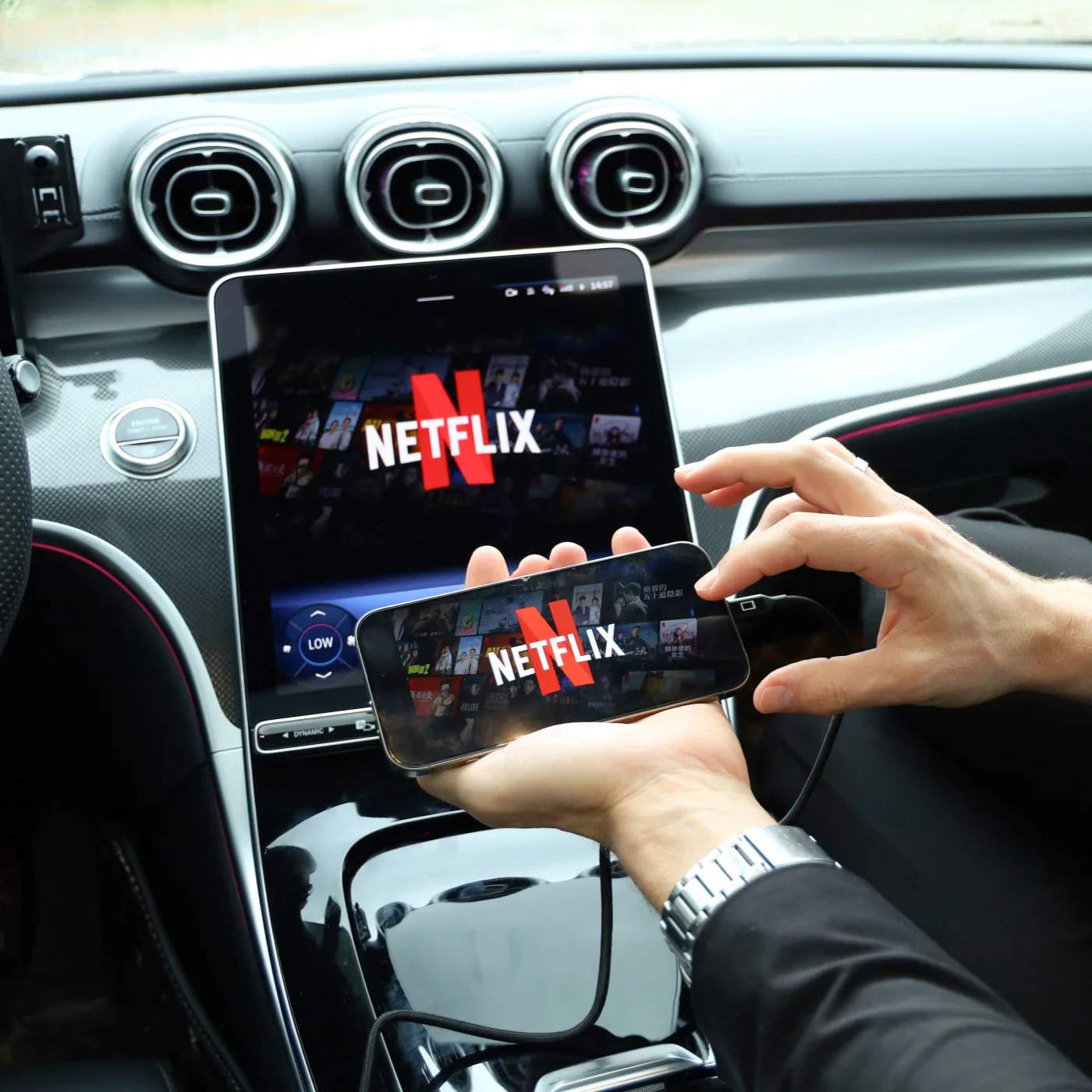
The first option for you is Screen mirroring. It’s probably the easiest and most popular option. You just need to duplicate your iPhone screen onto the car display. But this can only happen with the help of third-party tools like LetsView or WheelPal. These apps will work like a bridge between your phone and your car system.
Step 1: To make it work, you just need to connect your iPhone to your car’s CarPlay system. You can do this by using a USB cable or a wireless connection.
Step 2: Next, on your phone, open the screen mirroring app, and follow the app instructions to link it with your car display.
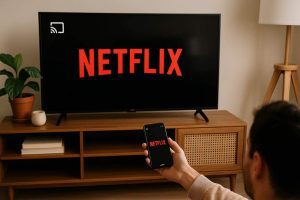
Step 3: Once connected, open Netflix on your phone and play whatever you want to watch. The audio will come through the car speaker, and the video will appear on the car screen. Looks simple, right? It is.
However, just be aware of a few simple things. You constantly need to keep your phone unlocked during playback because most mirroring apps stop working if the screen locks. And again, only watch in the parking lot.
2. Use CarPlay-Compatible Adapters
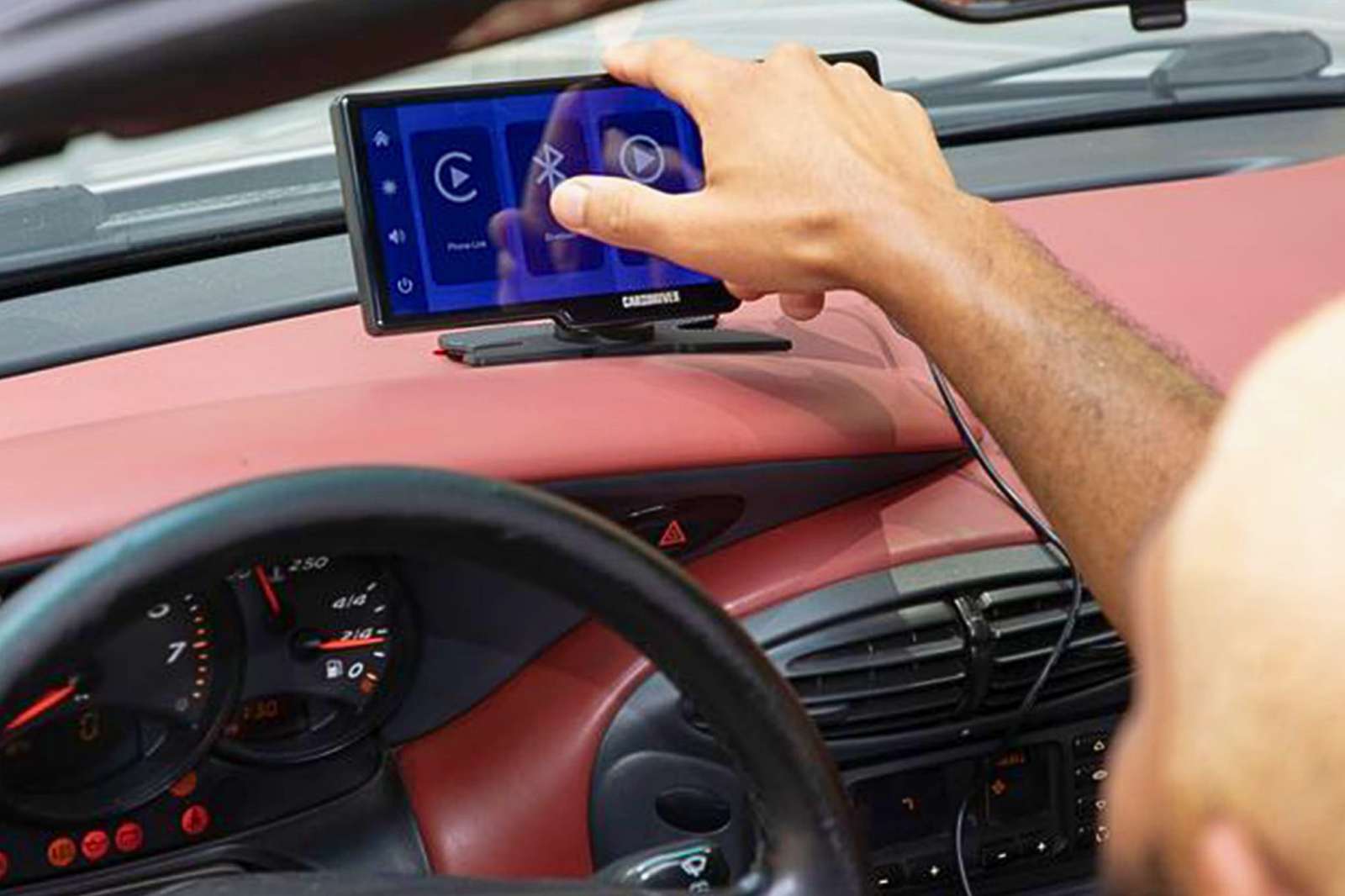
The second option is to use car adapters. This solution is a more hardware-focused solution. Here, your devices will plug into your car’s USB port and help bypass some of CarPlay’s built-in restrictions. Basically, this workaround will create a connection layer that allows video output from your phone to the car’s infotainment system. Its setup is easy too.
Step 1: First, you need to plug the adapter into your car’s USB port.
Step 2: Once done, connect your phone to the adapter via cable or wireless pairing. Once paired, you need to follow the adapter’s setup instructions.
Step 3: After following everything, you can open Netflix on your phone, and you will be able to see the display in the car.
This option sometimes offers more stable playback than the first option, screen mirroring. The reason is that with adapters, there will be less lag and fewer connection drops. But this method also has some downsides. For instance, the problem you can face is that not every car model works with every adapter. So, it’s a good idea to check compatibility before buying.
Both of the above options are good to consider. Just know that screen mirroring is cheaper and easier. On the other hand, adapters are more reliable but a little costly.
Alternative Method: Download Netflix to MP4 for Car Viewing
If you want a more reliable workaround that works every time, then instead of streaming Netflix videos to your car screen, you can download its content. You can download Netflix movies and shows with a third-party downloader first and play them later like a regular video file. This way, you will have complete control of playback. No internet issues. One reliable tool for this purpose is CleverGet Netflix Downloader. This tool works by saving Netflix movies and TV shows into MP4 or MKV formats. This format is compatible with almost all car entertainment systems. Once the video is downloaded, you can transfer it to a USB drive and plug it directly into your car’s media player.

-
- Download Netflix movies and shows at up to 1080P without ads.
- Convert Netflix video to MP4/MKV file with original quality.
- Download Netflix episodes across seasons in batch.
- Reserve multiple subtitles and audio tracks.
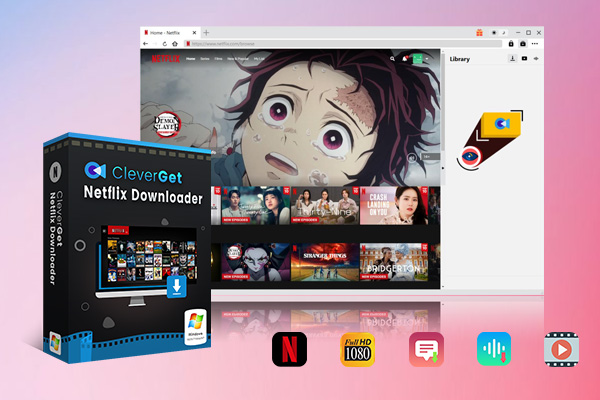
Here is how to download shows with CleverGet Netflix Downloader.
Step 1: First, download and install CleverGet Netflix Downloader. Now open the tool and tap at the Netflix icon and sign in. Next you will see your Netflix library here inside the CleverGet built-in browser.
Step 2: Now you need to search for the Netflix movie and play it. When the video plays, the tool will analyze the video.
Step 3: After analysis, the tool will show different quality options and subtitles and audio options. You can choose according to your preference.
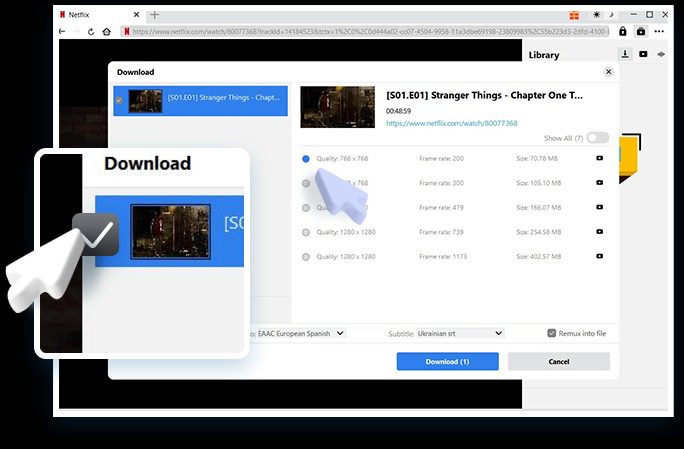
Step 4: Once done, just click the Download button. CleverGet will start saving the Netflix movie or episode to your device.
And that’s all. Once downloaded, transfer it to your USB and play in your car. This is the simplest workaround overall.
Final Thoughts
In short, you can watch Netflix on Apple CarPlay with some workarounds, as it isn’t officially supported. You have 3 different options. You can use Screen mirroring, or you can use CarPlay-compatible adapters that offer more stable playback but cost more. If not, then the best option is just downloading Netflix videos to MP4 for offline viewing with CleverGet Netflix Downloader. This option will avoid streaming issues altogether. No matter which method you choose, the key rule is simple: only watch videos when your car is safely parked.
-
Cyberlink PowerDVD Review: Best Paid Media Player?
-
ScreenRec Review: Real Performance Test
-
Best Ways to Watch YouTube Videos Offline Without Internet
-
How Many People Can Share a Netflix Account?
-
5 Proven Methods to Watch YouTube Without Ads
-
How Long Do Recordings Stay on YouTube TV? Full Breakdown
-
AnyBurn Review: Is This Free Burner Enough
-
3 Best Ways to Download All Videos from YouTube Channel
-
DVDFab DVD Creator Review: Read Before Buying
-
Windows Media Player Review: Is It Working on Windows 11?



-
Best Twitter Porn Accounts You Shouldn’t Miss
-
How to Download Pornhub Videos? Ways to Download from Pornhub
-
Top 5 OnlyFans Viewer Tools to View OnlyFans Content for Free
-
Full Review of Savethevideo: Is Savethevideo Safe & How to Use it?
-
How to Download MissAV Porn Videos in HD for Offline Viewing?
-
Netflix Download Limit: What it is & How to Avoid
-
Full Guide to YouTube Members Only Videos: Watch, Download
-
How to Import Bookmarks from Safari to Chrome
-
How to Download Videos from Fansly with Fansly Downloader
-
4 Methods to Burn ISO Files to Blu-ray Discs Easily









 العربية
 繁體中文
繁體中文 Dansk
Dansk Nederlands
 Suomi
Suomi Français
 Deutsch
 Italiano
 한국어
한국어 Norsk bokmål
 Português
 Русский
 Español
 Svenska