2 Methods to Get Clips from Netflix Easily

Summary:
- This post will show you 2 ways to get clips from Netflix for rewatching, sharing or enriching personal library. You will know about Netflix Moments feature and workarounds to bypass its restrictions.
While Netflix offers an extensive media library of movies, TV shows and its originals, there are always times you may need to get a Netflix clip for rewatching or sharing with others. Quite a few Netflix users have been looking for methods on how to download clips from Netflix for editing. To fulfill the Netflix clip need, Netflix moments was released and then updated to help its customers get Netflix short clips. In this post, we would like to show you how to get clips from Netflix via Netflix Moments and other methods.
OutlineCLOSE
Method 1: Get Clips from Netflix with Netflix Moments Feature
The first solution to help you solve how to record clips from Netflix is without doubt the Netflix Moments feature. What is Netflix Moments? The Netflix Moments is a mobile app-based feature to help ad-free Netflix subscribers record, save and share clips of Netflix on-demand video (movies, TV shows and originals). The recorded Netflix short clips will be saved in the “My Netflix” tab for rewatching or sharing.
How does Netflix Moments work to record clips from Netflix? The below steps would show you the detailed guide:
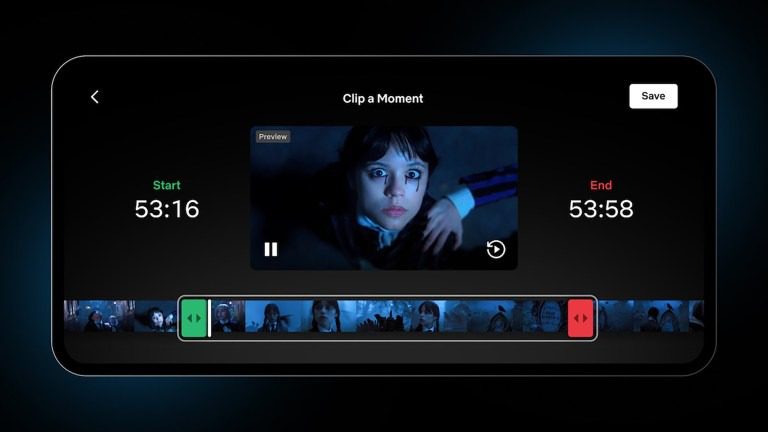
Step 1: Kick off the Netflix app on your mobile device and then log into your account.
Step 2: Play back the video you want to get Netflix short clips.
Step 3: During playback, tap the Netflix playback screen to call out the control panel.
Step 4: Select the “Clip” icon, and then set the start and end time of the Netflix short clip.
Step 5: Then click the “Save” button.
By following the above steps, you have successfully saved the Netflix short clips to “My Netflix” tab. You could then view all your Netflix short clips there. Though Netflix Moments makes it extremely easy to get clips from Netflix, it has multiple limitations, as listed below:
Limitations of Netflix’s Moment feature
- The Netflix short clip is limited to be from 15 seconds to 120 seconds in length.
- Netflix Moments feature requires ad-free Netflix subscription.
- The Netflix Moments feature works on mobile apps only (Android phones and tablets, iPhone and iPad).
- Netflix Moments feature only helps you get clips from Netflix on-demand contents. You can’t clip from live events, trailers, downloads and Netflix games.
- The Netflix short clips are saved into the “My Netflix”, not as standalone files, which means you couldn’t use them on other places.
- When you share Netflix short clips to others, the recipients must be an active Netflix subscriber to view the shared Netflix clip.
Method 2: Record Clips from Netflix with Free CleverGet Recorder
As mentioned above, there are quite a few limitations upon Netflix short clips you get via the Netflix Moments feature on your mobile devices. That’s why we would like to recommend you 3rd-party Netflix clip recorder tools. CleverGet Recorder is the right Netflix clip recorder you need.
The below guide would show you how to record clips from Netflix in detail:
Step 1: Download, install and kick off CleverGet Recorder.

-
Free streaming video recorder to record online on-demand video and live streaming video without quality loss and cost.
- 100% free to use.
- Record movies, TV shows, game streams, lectures, live concerts, etc.
- Record up to 4K video with 60FPS in MP4 or MKV.
- Schedule recording upon preset recording length.
- No watermark, no time limit, and ad-skipping (beta).
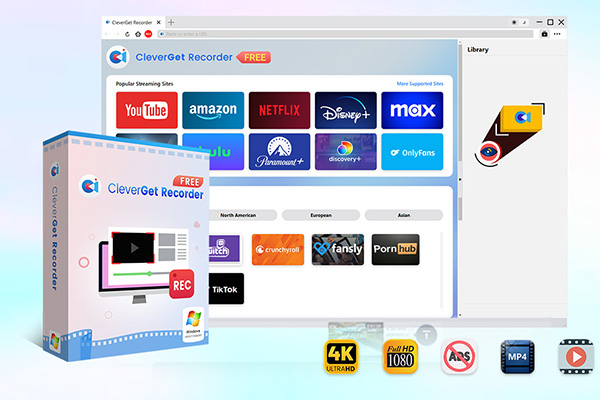
Step 2: Specify recording settings by clicking “More” icon at the top-right corner, and then “Settings > Record” tab.
Step 3: Open Netflix website within CleverGet Recorder and log in with your Netflix account info.
Step 4: Play back the target Netflix video you want to get clip from.
Step 5: Upon the recording start time, click the red REC button to call out the recording toolbar.
Step 6: Confirm the recording settings and then click the red “REC” button on the toolbar to start recording.
Step 7: Click the red “Stop” button to stop recording anytime you want.
You could then find the Netflix clips from the file folder you have set in the “Settings” panel. By following the above steps, you could easily record any Netflix video of any length to MP4/MKV file for offline playback, editing or sharing. There is no limit upon the recorded Netflix clips.
Comparison of Two Methods for Netflix Short Clips Sharing
Both methods mentioned above could help you get clips from Netflix. Which one meets your needs better? The below comparison table might show you their differences.
| Netflix Moments | CleverGet Recorder | |
| Maximum clip length | 120 seconds | No Limit |
| Minimum clip length | 15 seconds | No Limit |
| Netflix subscription | Ad-free plan required | Works with any plan |
| Device compatibility | Android smartphones and tablets, iPhone, iPad | Windows and Mac computers. Recorded Netflix clips could be played on all media players and devices. |
| Content availability | Only on-demand movies, TV shows and originals. | Both on-demand videos and live events, and even Netflix games recording. |
| DRM restriction upon Netflix clips | Yes. Could only be viewed within Netflix app. | No. Recorded Netflix clips are standalone MP4/MKV files without DRM restriction. |
| Sharing limitation upon Netflix clips | Yes. Shared content might not be available due to content regional restriction, and recipients should be active Netflix subscriber. | No. Could be easily shared to anyone in the world without geographic limitation. |
Alternative Option: Download Full Netflix Videos for Edits
Far more than simple Netflix clip recording, you could also directly download full Netflix videos for editing offline. CleverGet Netflix Downloader is an ideal Netflix video downloader that could help you download Netflix on-demand movies, TV shows and originals in batch to MP4/MKV files at up to 1080P resolution with all ads removed automatically. Other than recording one Netflix video at one time, CleverGet Netflix Downloader could help you download multiple videos at the same time for offline editing, which delivers great convenience. Once you have downloaded Netflix videos, you could then freely edit the Netflix video downloads by clipping/trimming, cropping, adjusting effect, etc.
FAQs
1. How many clips can I get from Netflix with Moments feature?
There is no limit on the number of Netflix clips you could get via the Moments feature. As long as your device gets enough storage, you could get as many Netflix clips as you like.
2. Can I clip live events from Netflix by using Moments feature?
No, you can’t. Netflix Moments feature won’t create clips from Netflix live events, trailers, downloads, Netflix games.
3. Can I get clips from Netflix via Moments feature on Windows?
No, Netflix Moments feature is only available on Android smartphones and tablets, iPhone and iPad.
4. What are the account requirements for Moments?
You need to be an ad-free subscriber, and if you share the Netflix clip to others, they should be active Netflix subscribers as well.
Conclusion
While Netflix Moments is a built-in feature for you to get clips from Netflix, it has multiple limitations, which without doubt decreases the digital entertainment experience. By switching to CleverGet Recorder, you could freely record any clip from Netflix video, be it on-demand or live streaming, without any limitation. CleverGet Recorder is obvious a better choice. What’s more, it is totally free to use.
Share this post








 العربية
 繁體中文
繁體中文 Dansk
Dansk Nederlands
 Suomi
Suomi Français
 Deutsch
 Italiano
 한국어
한국어 Norsk bokmål
 Português
 Русский
 Español
 Svenska