How to convert WMV to iPhone for Mac?
How to convert WMV to iPhone for Mac that I can appreciate WMV video on iPhone? Maybe Leawo Mac WMV to iPhone Converter is your best choice. It is one of the best Mac iPhone converters in the market. This Mac WMV to iPhone Converter is a professional and practical tool that enables you easily to finish your WMV to iPhone for Mac conversion. Moreover, its poweful functions such as trimming, cropping, and watermarking can provides you with excellent output quality and high-definition video so that you can have a better enjoyment in spare time.
What is WMV?
Windows Media Video or WMV is a file format developed by Microsoft to store video content in a compressed format so that movies and other video files can be watched on a personal computer. Streaming video content over the Internet is popularized by RealVideo and WMV is Microsoft's version with the same technology.
Tutorial of converting WMV to iPhone for Mac with Mac WMV to iPhone Converter
Note: Before this tutorial, please download and install Leawo Mac iPhone Converter first!
Step 1Do the essential settings
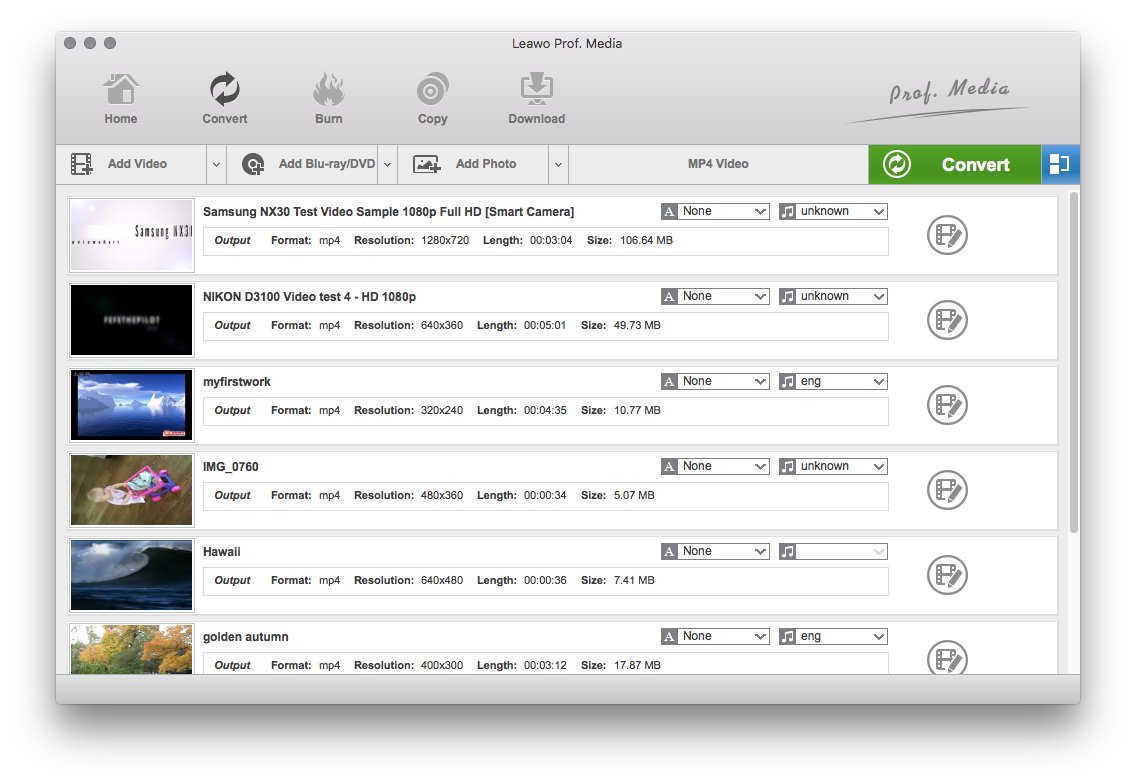
Click "Add " button to load WMV files you want.
Select each file and choose the output format like iPhone MP4 in "Profile".
Select video and audio quality that you need.
Set an output folder by "Output" for the destination files.
Step 2 Video Effect Settings
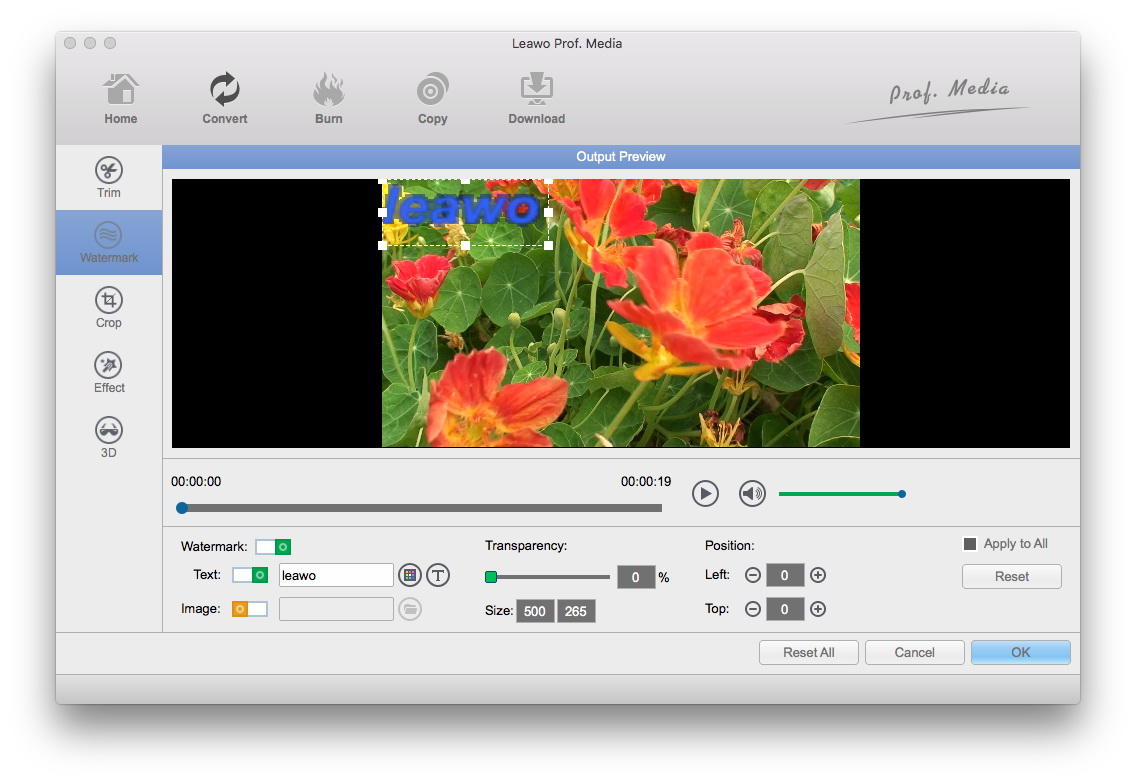
Click “Edit” button to crop, trim, adjust and watermark video to satisfy your needs.
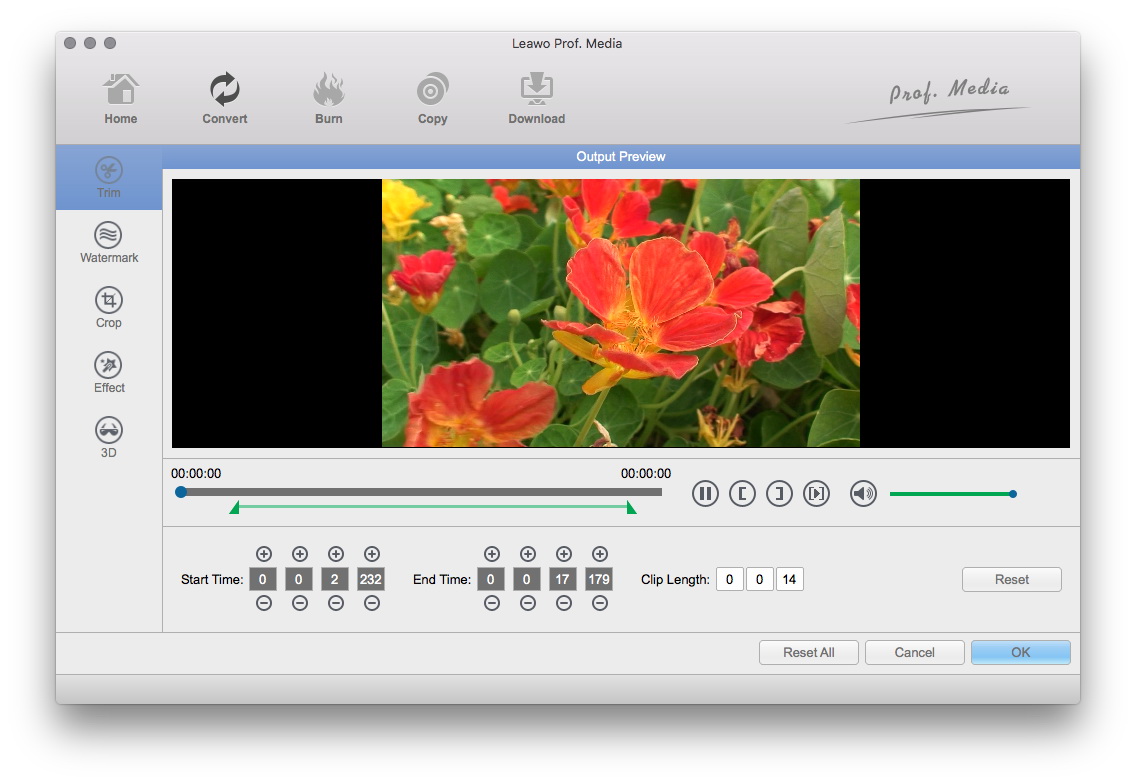
Trim: Click "Trim" button. Now trim video duration by setting start time and end time to keep the segment you want.
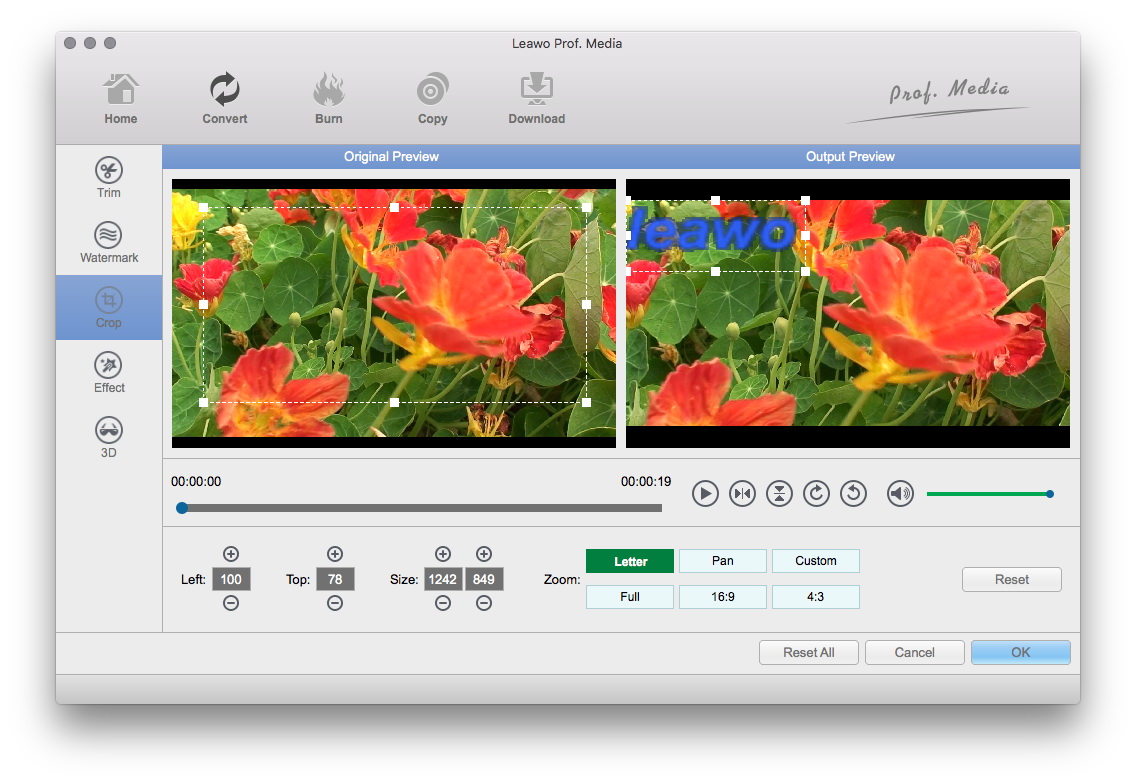
Crop: Click "Crop" to crop the video file to extract the black sides or unnecessary segment from the original video file.
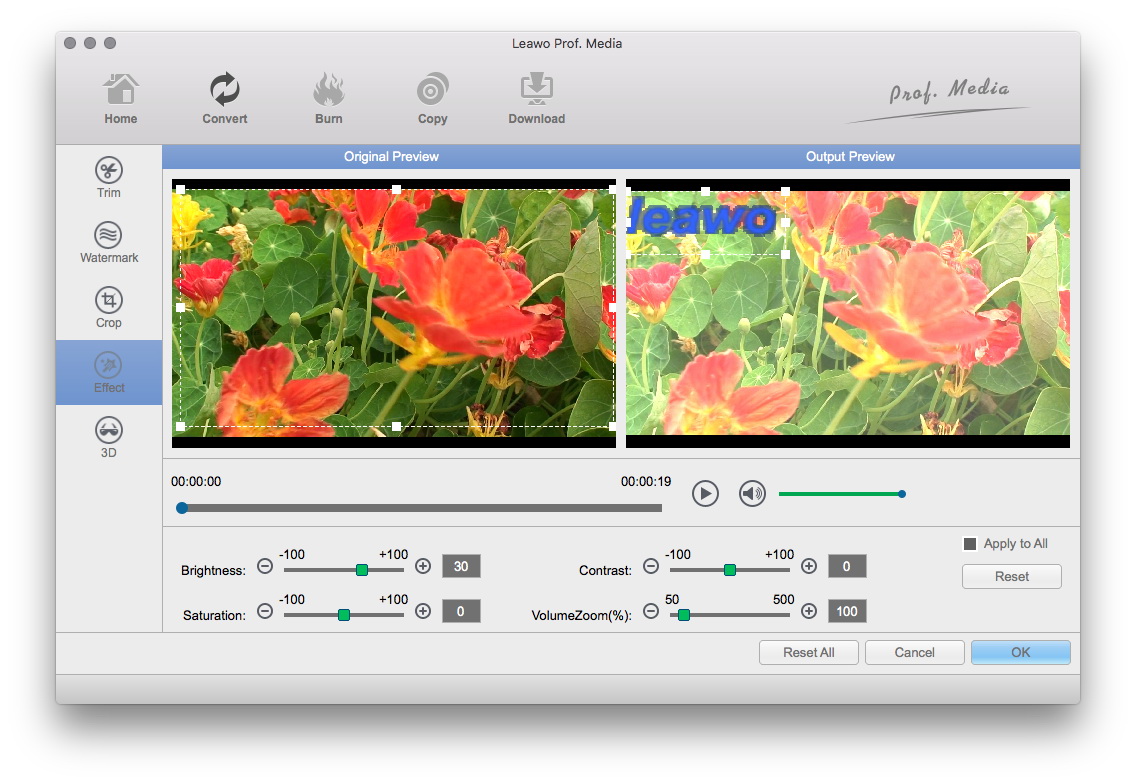
Effect: Click "Effect" button to set video brightness, contrast, and saturation for better output quality.
Watermark: Check "Enable Watermark", and click "Image Watermark" or "Text Watermark" to add watermark to the video, then adjust the Transparency, Margin, and Watermark Size.
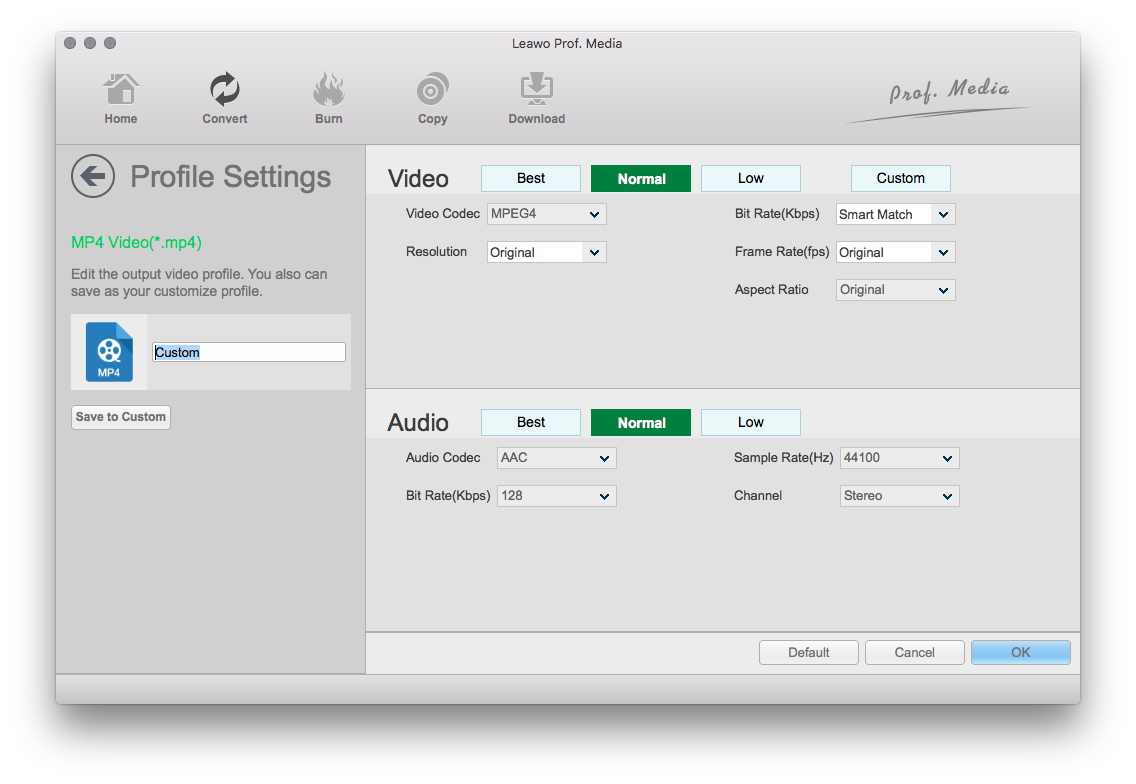
Besides, you can set detailed parameters: Choose the file and go to "Settings" button at the bottom of the main interface to set detailed parameters for the video as you like. Such as Codec, Video Size, Bit Rate, Aspect Ratio, Frame Rate, etc.
Step 3 Convert Videos
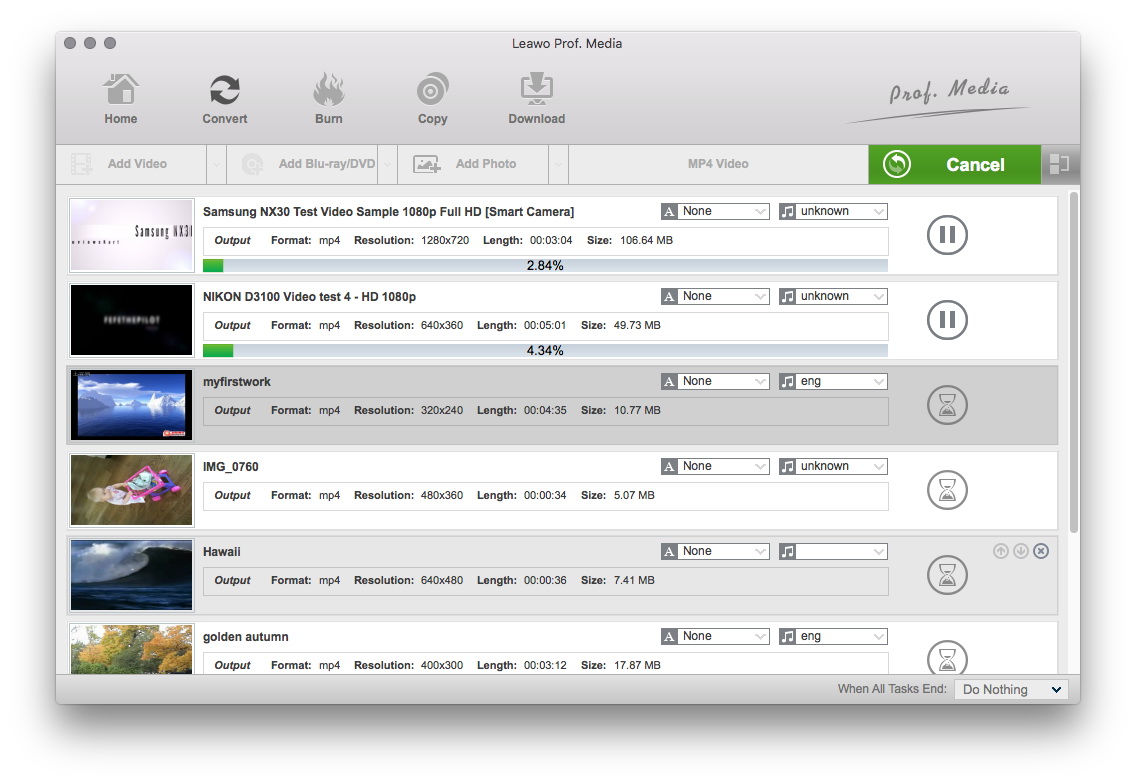
When you have got ready for the settings for the added videos in the video converter program, you can click "Convert" button to start conversion. Just for a while, the conversion will be finished and you can enjoy it freely.
Learn More about Leawo Mac iPhone Converter at once!
Hot Tips
- Blu Ray to MKV with subtitle
- Copy and Backup Blu-ray DVD
- Transfer Photos from iPhone 5
- Compress DVD-9 to DVD-5