How to convert VOB to AVI video with Leawo Video Converter?

Many people want to edit videos, or some video clips of their DVD/VCD discs, or just rip some scenes of the video in Windows Moive Maker. However, the WMM doesn’t accept the VOB videos, so they have to convert the VOB to AVI, WMV, etc. Leawo Video Converter, the best VOB to AVI Converter may be a good choice, as it not only can be used as VOB to AVI Converter to convert VOB to AVI, WMV, etc. quickly, but with many powerful functions, like video trimming, and cropping, which are much easier to use than that of WMM in converting VOB to AVI file.
Download Leawo VOB to AVI Converter first!
Full Guide
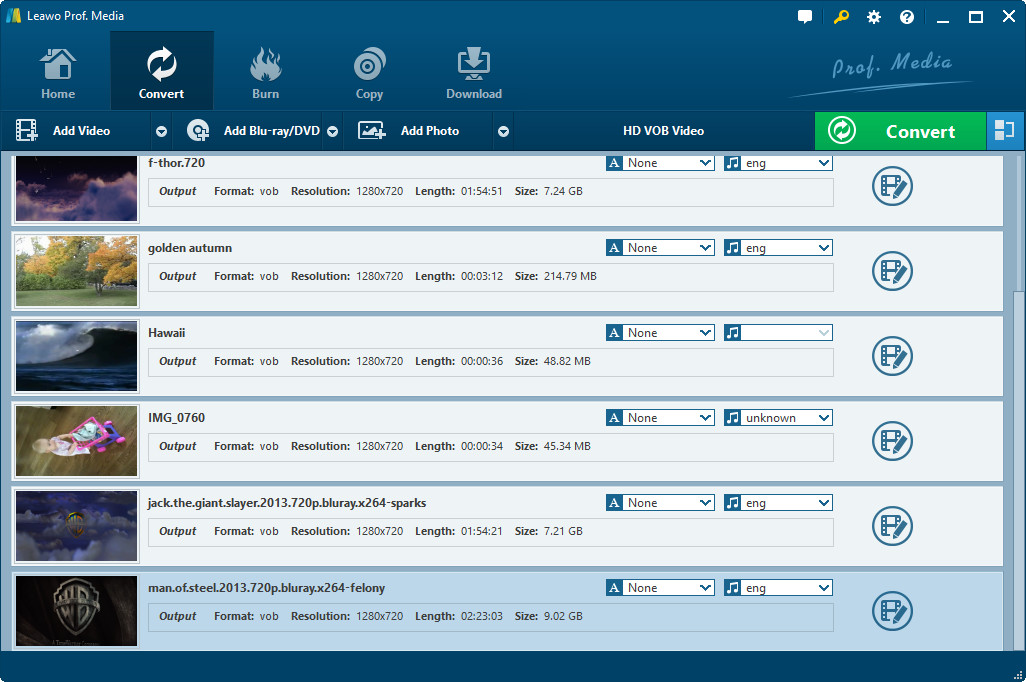
Add Video Source
Drag your VOB files to the program, or click add icon to browse in your VOBs. Double click the file name to have a preview. Choose "AVI(*.avi)" in "Profile".
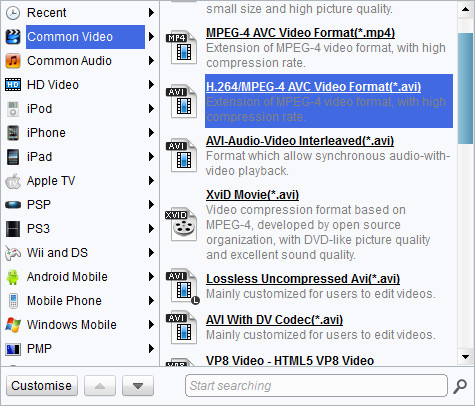
Settings
(1) Click drop-down button next to "Profile" on the main interface to find the suitable quality for your output.
(2) Click "Settings" to open the "Settings" interface to make detail settings for output audio and video, such as audio and video codec, quality, bit rate, video frame rate, video size, audio sample rate, etc.
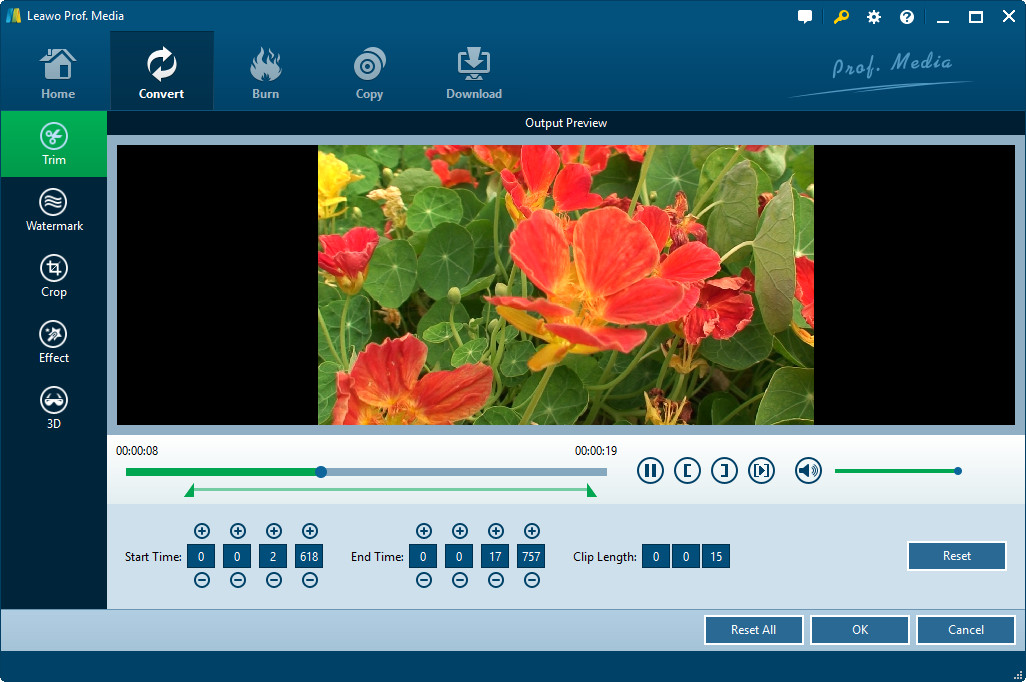
Edit video
Click "Edit" to adjust the video effects, trim a video clip you like, and crop for a video dimension to your screen.
- Under "Trim", set the "Start Time" and "End Time" points for a video length.
- In the droplist of "Letter Box", select a "Crop" style, or adjust the offset values for a precise cropping.
- Under "Effect", drag the slides of "Brightness", "Contrast" and "Saturation" for a better visual effect. Drag "Volume" slide to adjust the volume.
- The "Watermark" part offers functions to give image watermark or text watermark on the video.
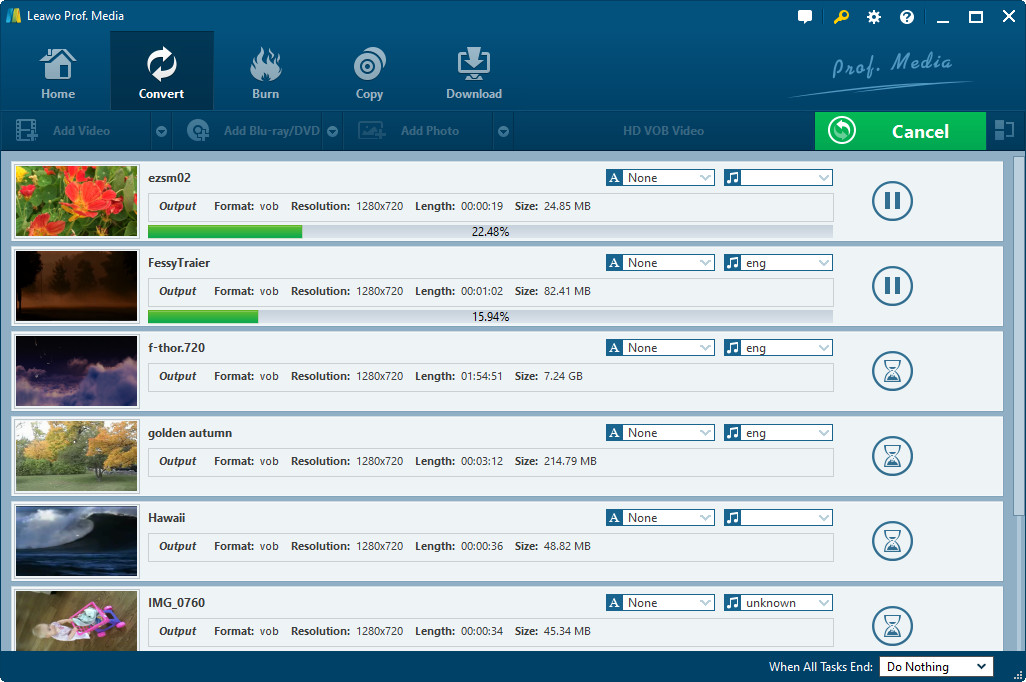
Start the VOB to AVI Conversion
Click "Convert" in the bottom right to start the conversion, and DONE. Fast conversion speed!
Extended Knowledge

VOB (Video Object) is a container format in DVD-Video media. VOB can contain video, audio, subtitle, menu and navigation contents multiplexed together into a stream form. VOB is based on the MPEG program stream format, but with additional limitations and specifications in the private streams. The MPEG program stream has provisions for non-standard data (as used in VOB files) in the form of so-called private streams. VOB files are a very strict subset of the MPEG program stream standard. While all VOB files are MPEG program streams, not all MPEG program streams comply with the definition for a VOB file.
AVI (Audio Video Interleaved) file is a sound and motion picture file that conforms to the Microsoft Windows Resource Interchange File Format (RIFF) specification. AVI files (which end with an .avi extension) require a special player that may be included with your Web browser or may require downloading.
Share this post








 العربية
 繁體中文
繁體中文 Dansk
Dansk Nederlands
 Suomi
Suomi Français
 Deutsch
 Italiano
 한국어
한국어 Norsk bokmål
 Português
 Русский
 Español
 Svenska