


Although YouTube videos are great, they are not playable on all portable devices. For example, some mobile devices support AVI video playback, you have to convert YouTube to AVI format for video enjoying on these video players. Leawo Free YouTube Downloader—YouTube to AVI converter is the most useful YouTube conversion tool in the multimedia market, which can convert YouTube to AVI video format easily. Converting YouTube to AVI with this excellent and user-friendly program will be quite a fantastic experience. There is also a Mac version YouTube to AVI converter—Leawo YouTube Downloader for Mac, Mac users can resort to it to convert YouTube to AVI on Mac OS.
Download this program to convert YouTube to AVI free by following the steps below. With accelerated speed, this software will download and convert YouTube videos for you with the super fast speed.
Full Guide

Position the wanted videos on YouTube
Once you have installed and run this software on your computer, add YouTube video URL to the address bar and go to the video page. And you can also search for video by using keywords. Then when you have entered the video page, you will see a pup-up window soon with which you can conduct YouTube video download order.
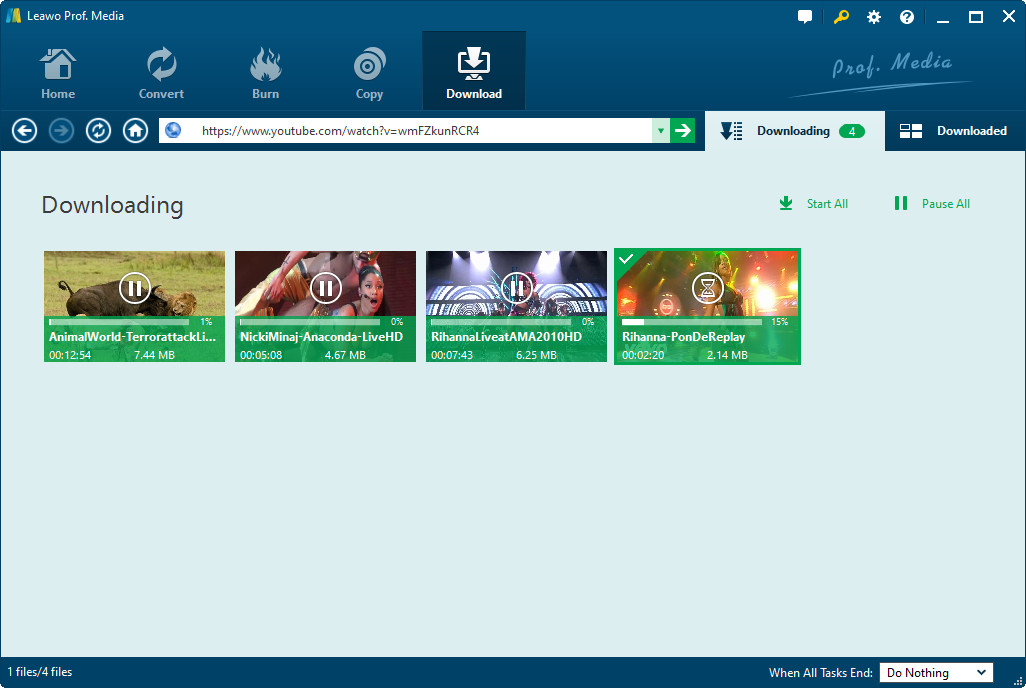
YouTube to AVI conversion
You may able to download videos from YouTube with many other programs, but few of them have the function to convert the downloaded videos at the same time. And Leawo Free YouTube Downloader can successfully do this for you. Click on the "Video" button and go to the following section. You are allowed to have a preview of the video with the embedded player. Click on the "Convert" button, and you can choose AVI as the output file format for conversion. Confirm the YouTube to AVI conversion.

Access to AVI conversion status
You can get to the YouTube to AVI conversion status within the "Convert" section. The video conversion process will be finished within the shortest time, so you can get the converted AVI videos immediately.
Extended Knowledge

YouTube is a video-sharing website, created by three former PayPal employees in February 2005, on which users can upload, share and view videos. The company is based in San Bruno, California, and uses Adobe Flash Video and HTML5 technology to display a wide variety of user-generated video content, including movie clips, TV clips, and music videos, as well as amateur content such as video blogging and short original videos. Most of the content on YouTube has been uploaded by individuals, although media corporations including CBS, BBC, VEVO, Hulu, and other organizations offer some of their material via the site, as part of the YouTube partnership program.
Related Articles
-

MovPilot Review: Reliable Video Downloader or Not?
-
Easy Guide: How to Watch Amazon Prime on Chromecast?
-
YT Saver Video Downloader Review: All That You Should Know
-
QuickTime Player Review: Is It Still the Best for Mac?
-
WinX DVD Copy Pro Review: All Details Explianed
-
7 Best TikTok MP3 Converters for High-Quality Audio
-
MakeMKV Review (2026): Pros, Cons, Features
-
The Ultimate Guide to Extract Audio from DVD
-
Best Ways to Screenshot Facebook Stories on Any Device
-
How to Convert TikTok Audio to MP3 in Seconds?











-
Best Twitter Porn Accounts You Shouldn’t Miss
-
How to Download Pornhub Videos? Ways to Download from Pornhub
-
Full Review of Savethevideo: Is Savethevideo Safe & How to Use it?
-
Top 5 OnlyFans Viewer Tools to View OnlyFans Content for Free
-
Netflix Download Limit: What it is & How to Avoid
-
How to Import Bookmarks from Safari to Chrome
-
Full Guide to YouTube Members Only Videos: Watch, Download
-
How to Download MissAV Porn Videos in HD for Offline Viewing?
-
4 Methods to Burn ISO Files to Blu-ray Discs Easily
-
How to Download Videos from Fansly with Fansly Downloader
















 العربية
 繁體中文
繁體中文 Dansk
Dansk Nederlands
 Suomi
Suomi Français
 Deutsch
 Italiano
 한국어
한국어 Norsk bokmål
 Português
 Русский
 Español
 Svenska