QuickTime Player Review: Is It Still the Best for Mac?

Summary:
QuickTime Player is fine for simple playback and quick edits on Mac, but it struggles with formats and lacks Blu-ray or DVD support. If you want 4K, broader file support, and real controls, Leawo Blu-ray Player is the smarter pick.
Owning a Mac means you have seen QuickTime Player before. This player is pre-loaded on Mac, and it plays standard video files without fuss. Most of the time, it runs unseen, doing what it needs to do. Yet one thing stands out now: what role does it play in 2026? Does it hold up, or has it faded behind better tools? And, as we know, so many modern media players play 4K, handle Blu-rays, that puts pressure on QuickTime. In this review, we’ll look at what QuickTime Player really brings to the table. File types it accepts? Covered here. We will also discuss its pros and cons and whether switching to a QuickTime alternative makes sense or not.
1. Overview of QuickTime
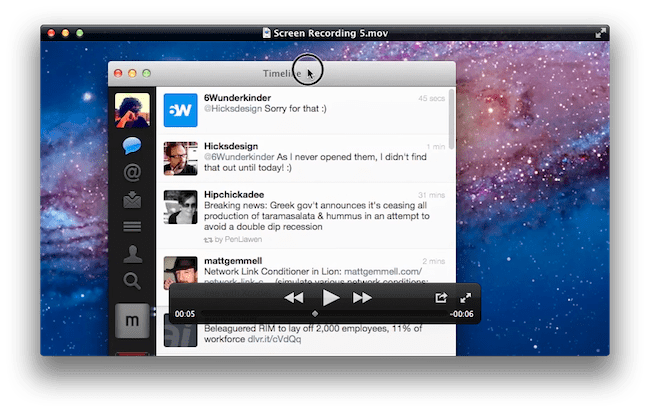
Apple made QuickTime Player for Mac computers, and since 1991, it has continued to be part of how people watch videos on their Macs. The software is simple and doesn’t require much from users. Hit play after opening a clip; no extra steps are needed. Files stored on your device can be played as easily as those transmitted over links. Built-in features let you shorten clips, change the speed at which they run, or capture what’s happening on the screen, including sound.
It relies on H.264 compression. It helps with smooth HD playback. The file sizes are smaller. The main format it supports is MOV. Other media types can also open without issue. The ability to work with macOS is its main strength. Installation isn’t needed. So nothing to figure out, open a file and see results. These were all the reasons behind the popularity.
2. Review of QuickTime Player
Now that we’ve explored QuickTime Player’s role in Apple’s world, let’s examine its actual performance. We’ll analyze system requirements, file support, advantages, disadvantages, determining if it remains useful for daily tasks.
OS Compatibility
QuickTime Player works only on Mac. Preloaded on recent macOS releases, no download needed. That’s convenient. The downside, however: discontinued for Windows in 2016. Cross-platform users must look elsewhere.
Supported Formats
So a common question is which files are compatible with QuickTime Player, and QuickTime handles Apple formats. It supports MP4, MOV, 3GP, AVCHD, MPEG-1, and MiniDV for video. It works with MP3, AAC, WAV, and AIFF for audio. It also supports popular codecs such as H.264 and H.263, which broadens its compatibility with various media types. Formats like MKV and AVI are not supported by default. Opening them requires converting the files first. QuickTime covers most formats that Mac users encounter. Its compatibility is still more limited than many third-party players.
Pros:
- Comes free with every Mac
- Clean, beginner-friendly interface
- Smooth HD playback
- Basic editing (trim clips)
- Built in screen and audio recording
- Tight integration with macOS
Cons:
- This is for macOS users
- No Blu-ray or DVD support
- Limited format compatibility
- Very basic editing tools
- It can take up a lot of resources
- No advanced playback controls
QuickTime is perfect for casual viewing, but it quickly shows its limits once you step outside Apple’s ecosystem.
How to Use QuickTime Player (Step-by-Step)
Using QuickTime Player is straightforward. Here’s how to get started:
- Step 1: So open QuickTime Player & select the video or audio file you want to play on your Mac by using File Open or just double-clicking a compatible file.
- Step 2: Move the progress pointer along the timeline. Jump to any point in the video or audio. This lets you jump ahead or continue from a certain point.
- Step 3: Change the playback speed with the Fast Forward or Rewind buttons. Several speed options can be chosen. 2×, 5×, 10×, 30×, & 60× are included.
- Step 4 (Optional): Use the on-screen controls or the spacebar to pause as well as resume playback. Trim clips. Record your screen. Use the File menu options.

3. Alternative to QuickTime Player
For Mac users who want more than QuickTime’s basic playback, Leawo Blu ray Player is an alternative option. This player can play 4K Blu-ray/Blu-ray/DVD discs, folders, or ISO on Mac & Windows without extra software. Its powerful hardware acceleration helps with smooth operation. Extra controls let you change video settings. Audio tracks can be adjusted. Subtitles are available. Playlists can be made. It is a modern tool with all the best functionality and features available. Overall, we can say that it combines QuickTime simplicity with Blu-ray and DVD support. It makes a powerful all-in-one media player for Mac users.
Conclusion
So QuickTime Player is a media player built into Mac that plays videos and audio without hassle & supports HD and basic editing for free, which makes it useful for casual users who just want to watch or listen. Its format compatibility is limited. It cannot play Blu-ray or DVDs. Its advanced features are minimal. For those who need wide format support, 4K playback, more control over video and audio settings, Leawo Blu-ray Player is an alternative. QuickTime works for use, but power users benefit from exploring alternatives like Leawo Blu-ray Player.
Share this post












 العربية
 繁體中文
繁體中文 Dansk
Dansk Nederlands
 Suomi
Suomi Français
 Deutsch
 Italiano
 한국어
한국어 Norsk bokmål
 Português
 Русский
 Español
 Svenska