Best ISO Mounting Software for Windows & Mac

Summary:
Having trouble mounting ISO files on your computer? Discover the 5 best ISO mounting software for Windows and Mac systems to access ISO images with ease.
Opening an ISO file on a computer requires an ISO mount software. While Windows and Mac have this built-in feature, sometimes it doesn’t work. This article will introduce the top 5 ISO mount software for both OS that can access ISO images easily and provide detailed steps on mounting and playing ISO files.
OutlineCLOSE
1. Does Windows Have a Built-in ISO Mounting Feature?
Microsoft first introduced the ISO mounting feature with Windows 8. If you are using Windows 8 or later versions, you can access ISO files by simply clicking on them, just as you would open a normal file. For older versions such as Windows 7 and Vista, you will need third-party ISO mount software otherwise.
Take Windows 11 as an example to show how to mount ISO files using its native feature.
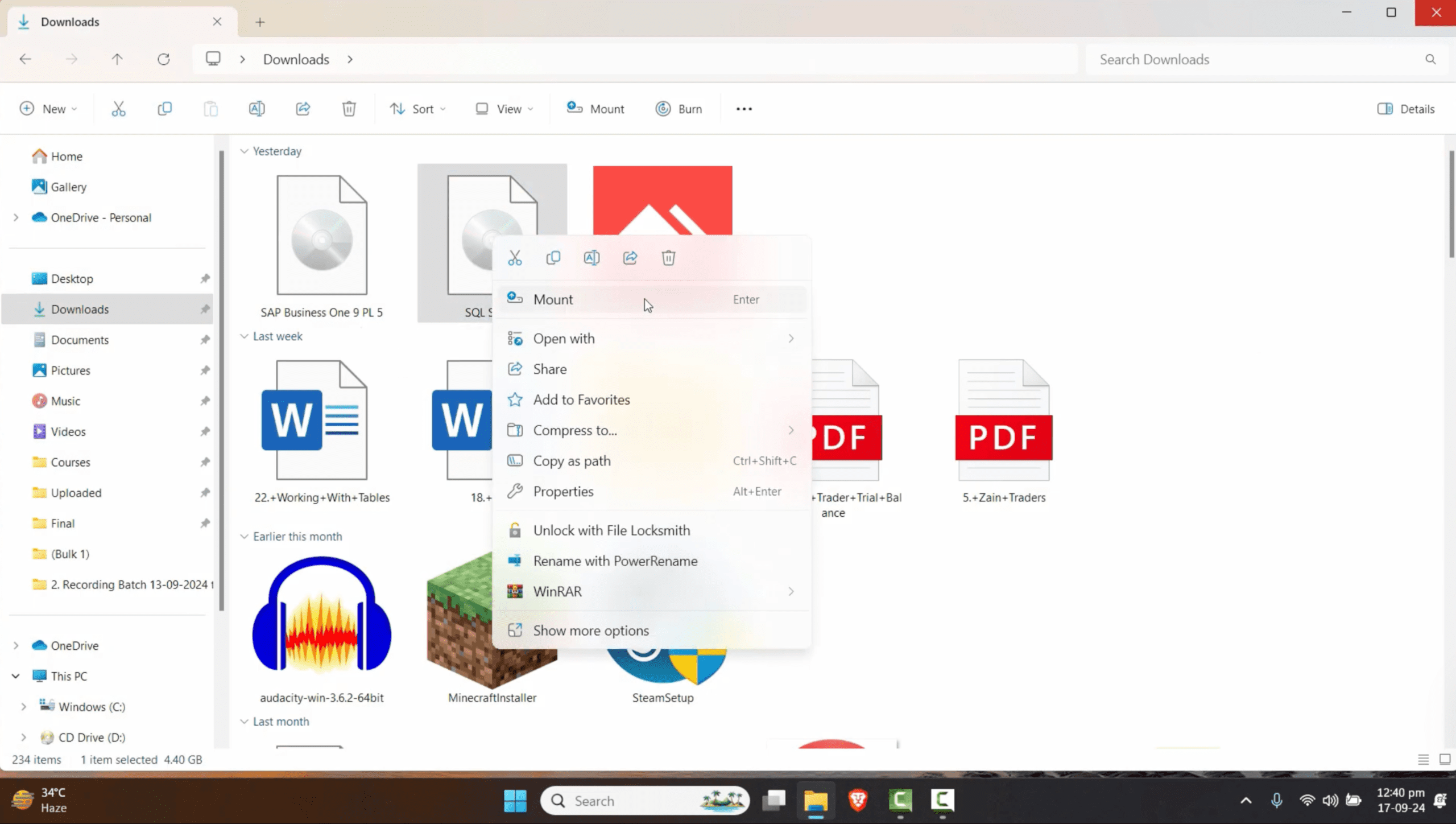
Step 1: Once you have the ISO file on your computer, double-click on it, and Windows 11 will automatically create a virtual drive and open the contents for you. Alternatively, you can right-click on the file and then select ‘Mount’ from the menu.
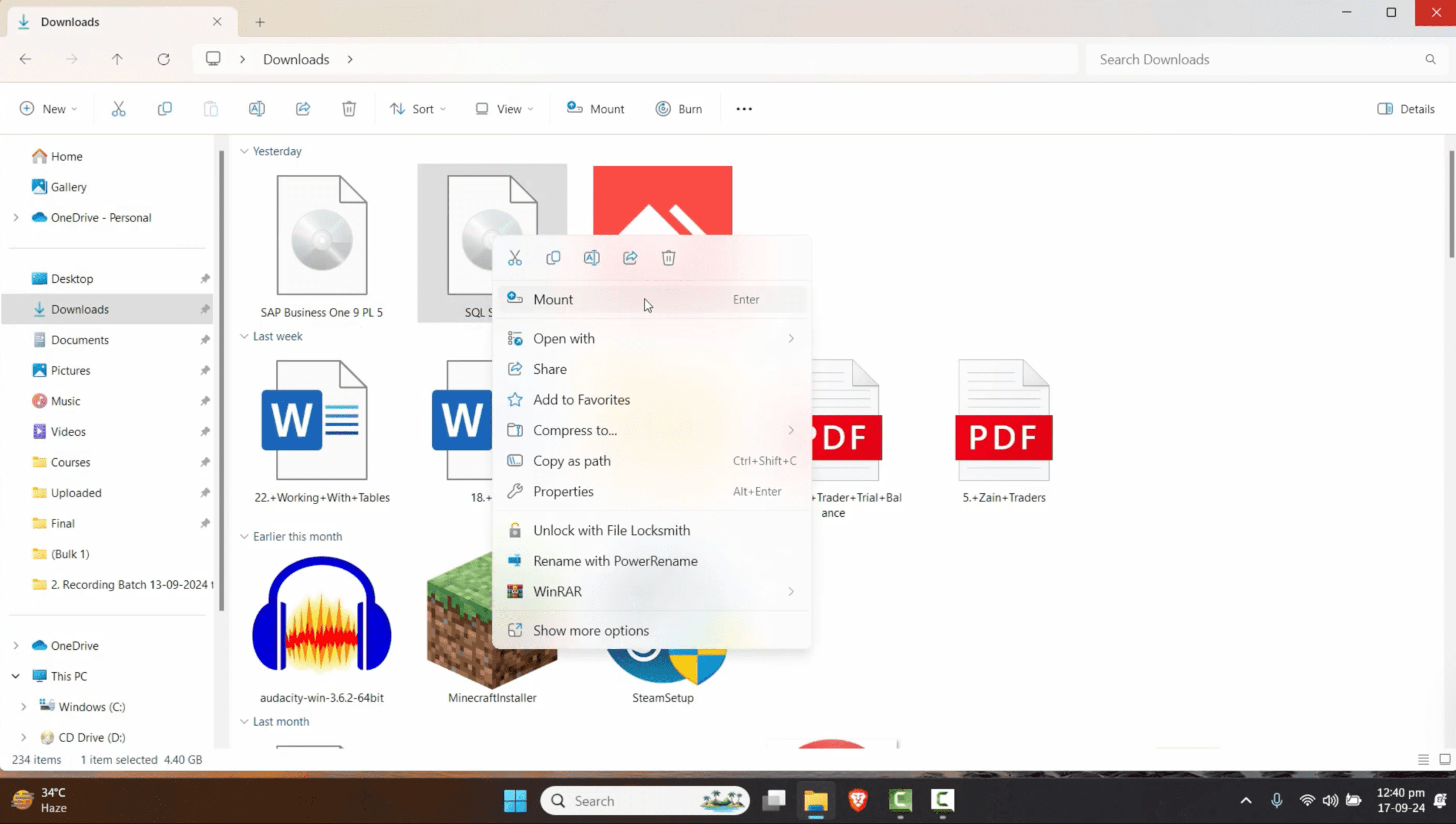
Step 2: When you have finished using the file, unmount it to free up the virtual drive by right-clicking on the file and then selecting ‘Eject’.
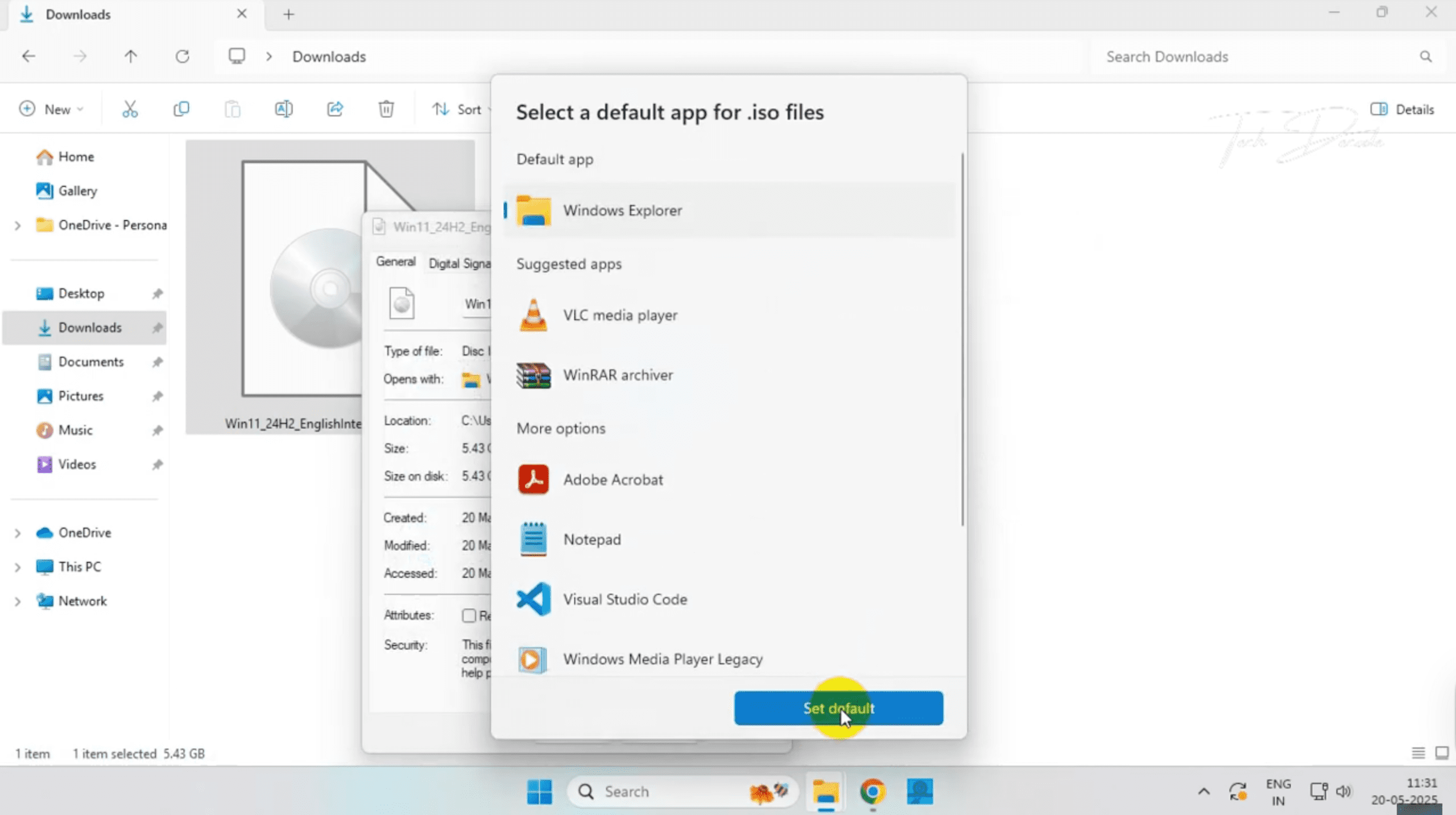
If the Mount option is missing from the menu, follow the steps to fix it:
- Step 1: Right-click the ISO file and select Properties.
- Step 2: Under the General tab, look for ‘Open with:’ and click Change.
- Step 3: Select ‘Windows Explorer’ from the list and click Set Default.
- Step 4: Click Apply and OK. The ‘Mount’ option should now appear.
2. Top 5 ISO Mounting Software for Windows & Mac
The native ISO mounting software comes as the most straightforward way to mount ISO files, but it has limitations. If ISO files have region locks or copy protection, the built-in feature won’t be able to bypass them. It allows you to read files only; you can’t edit them. In such cases, you will need a third-party ISO mount software to handle such complex tasks. Here is a list of the 5 best ISO mounting software that can work on Windows and Mac.
1. Leawo Blu-ray Player
Supported OS: Windows 7/8/8.1/10/11, macOS 10.13 and later
Pricing: Free
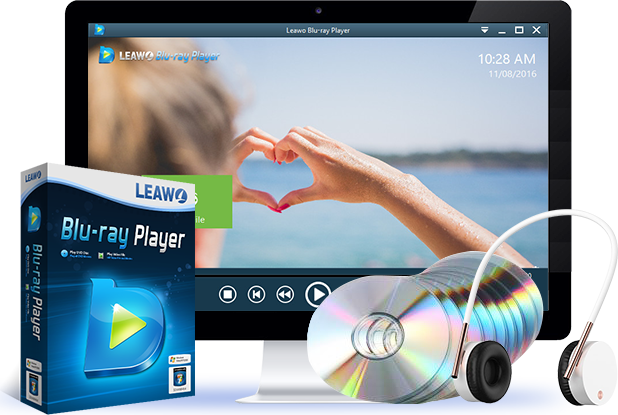
If you are looking for a premium viewing experience with your Blu-ray and DVD ISO files, Leawo Blu-ray player is your ideal choice. It can bypass region locks and copy protection, and allows you to watch a movie with the full disc menu.

-
A 100% free Blu-ray media player combo that offers totally free media playback solutions for 4K Blu-ray, Blu-ray, DVD, video and audio playback. It could play back 4K Blu-ray, Blu-ray and DVD discs regardless of disc protection and region restrictions, without any quality loss and subscription required.
Pros:
- Bypass all region codes.
- Wide file support from DVDs to 4K UHD Blu-ray ISOs.
- Free to use.
Cons:
- Potential ads pop up when playback is paused.
2. VideoByte Blu-ray Player:
Supported OS: Windows 11/10/8/7/Vista/XP, MacOS X 10.9 or above
Pricing: Paid with a 30-day free trial
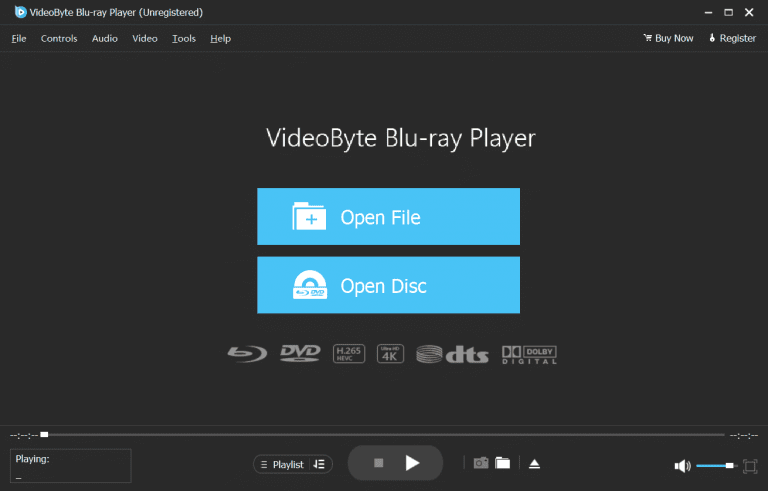
VideoByte Blu-ray Player is a professional-grade media player that can handle DVD and Blu-ray ISO files. It can bypass region codes and display the original menu. To perfect your watching experience, it even offers a screenshot tool and playlist feature.
Pros:
- Region-free playback.
- Support high-end sound formats like DTS and Dolby Digital.
Cons:
- In the free trial version, the playback page is watermarked.
3. VLC Media Player:
Supported OS: Windows, Mac, Linux
Pricing: Free
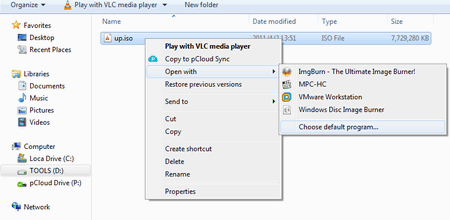
This is an open-source media player that works on all platforms. It can access DVD and Blu-ray ISO, however, with no original menu display. To play protected ISO files, additional libraries are required, which can be confusing for beginners.
Pros:
- Support all platforms.
- Lightweight and fast.
- Completely free.
Cons:
- Poor menu support.
- Not beginner-friendly.
4. DAEMON Tools Lite
Supported OS: Windows 98/2008/Vista/7/8/8.1/10/11, macOS 10.6 or above
Pricing: Free
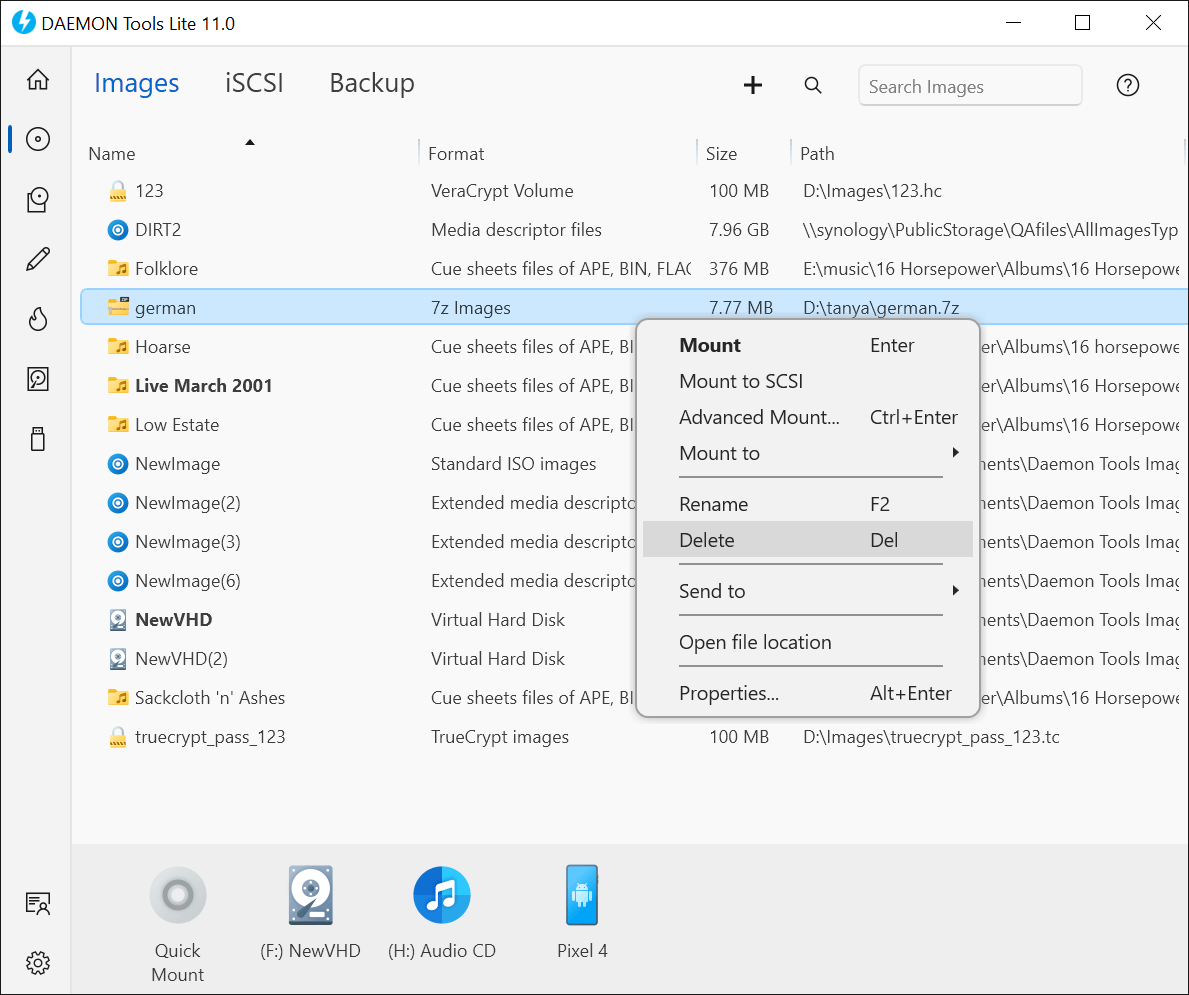
DAEMON Tools Lite is a professional ISO mount software that supports known types of image formats like ISO, MDX, MDS, and APE. It can mount up to four image files at the same time. If you are an advanced user with professional mounting needs, it is your go-to choice. But if you want to watch commercial movies, it is only half the solution; you still need a player like Leawo that handles decryption.
Pros:
- Excellent ISO mounting capability.
- Wide image format support.
Cons:
- Heavy RAM and CPU usage.
- Contains ads in the free version.
5. WinCDEmu
Supported OS: Windows 2003/XP/2008/7/8/8.1/10
Pricing: Free
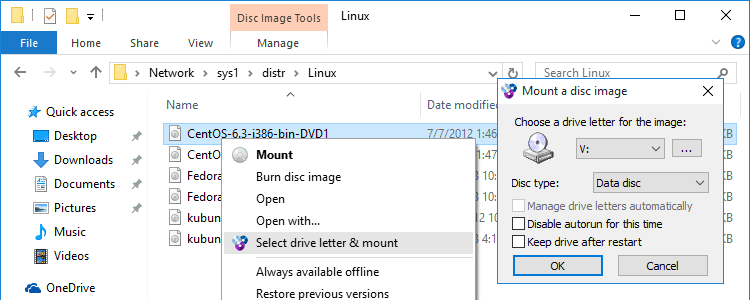
WinCDEmu is a lightweight ISO mount software designed for Windows users. The installer is less than 2MB, and it won’t take up RAM when not in use. It supports mounting of ISO, CUE, NRG, MDS/MDF, CCD, and IMG images. However, for commercial Blu-ray and DVD playback, you will need an additional dedicated player.
Pros:
- 100% free and open-source.
- Unlimited virtual drives.
Cons:
- Outdated interface.
- No technical support.
3. How to Mount and Play an ISO File: A Step-by-Step Guide
External ISO mount software is just as easy to use as the one pre-installed on your computer. Take Leawo Blu-ray Player as an example to show how to mount and play ISO files:
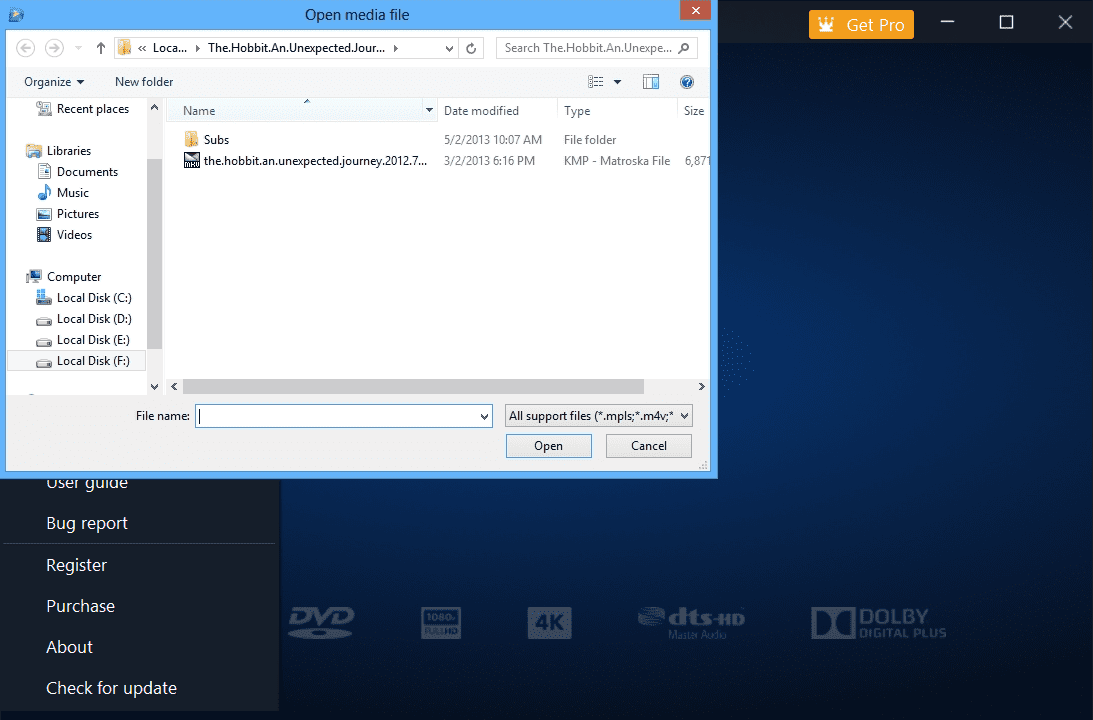
- Step 1: Launch Leawo Blu-ray Player on your computer and click Open File.
- Step 2: Select the ISO file you’d like to play and click Open. Leawo will display the original disc menu, where you can select and play the content as desired.
- Step 3: For the optimal viewing experience, you can set up subtitles, audio, and video in the player menu.
Bonus: How to Digitize Your Blu-ray/DVD Discs into ISO Files?
Essentially, an ISO file is a virtual copy of an optical disc. By saving disc files to ISO files on your computer, you not only make disc backups to save them permanently but also enjoy convenient playback anytime, anywhere.
-
- Copy Blu-ray/DVD discs in lossless quality.
- Remove Blu-ray/DVD disc protection and region restriction.
- Copy Blu-ray/DVD contents to computer or blank disc.
- Copy and back up both 2D and 3D Blu-ray/DVD movies with ease.
- 3 different copy modes for multiple Blu-ray/DVD copy purposes.

To digitize your precious disc collections, Leawo Blu-ray Copy provides a reliable solution. This software allows you to copy Blu-rays and DVDs in 1:1 quality, preserving all details in the source files. With its user-friendly interface and 1:1 disc-to-ISO conversion capability, Leawo Blu-ray Copy makes the digitization process more straightforward than ever for your media library.
Conclusion
Since the built-in ISO mount feature in Windows is a basic tool with limitations, this article introduces the five best ISO mount software for Windows and Mac for your diverse needs. If you are looking for a hassle-free watching experience with your Blu-ray ISO movies, consider tools like Leawo Blu-ray Player.
Share this post












 العربية
 繁體中文
繁體中文 Dansk
Dansk Nederlands
 Suomi
Suomi Français
 Deutsch
 Italiano
 한국어
한국어 Norsk bokmål
 Português
 Русский
 Español
 Svenska