Want to enjoy MPEG on iPod on Mac at your will? Which Mac MPEG to iPod converter is the best choice to convert MPEG to iPod for Mac? Well, I'd like to recommend you an excellent tool, Leawo Video Converter for Mac, the best Mac iPod Converter. It is a professional and powerful program which can convert popular video formats, such as MPEG, MP4, AVI, VOB, etc. to iPod flie. And I'm sure you will like its user-friendly interface and clear instructions after the MPEG to iPod for Mac conversion. This MPEG to iPod converter provides you with fluent video and excellent output quality so that you can play iPod files on your iPod, just refresh your video life.
How to transfer MPEG video to iPod for Mac?
When connected to a personal computer (PC), Windows or Macintosh, the iPod communicates with a piece of Apple software called iTunes. The iPod and iTunes work together to synchronize the songs available on iPod to those available on PC. This happens automatically, without any intervention required from the users. After getting the video converted by Leawo Mac iPod converter, connect your iPod, launch iTunes and update your library. Once you see your new videos inside the iTunes library, you can easily add them to your iPod onwards. It's pretty easy.
Full Guide
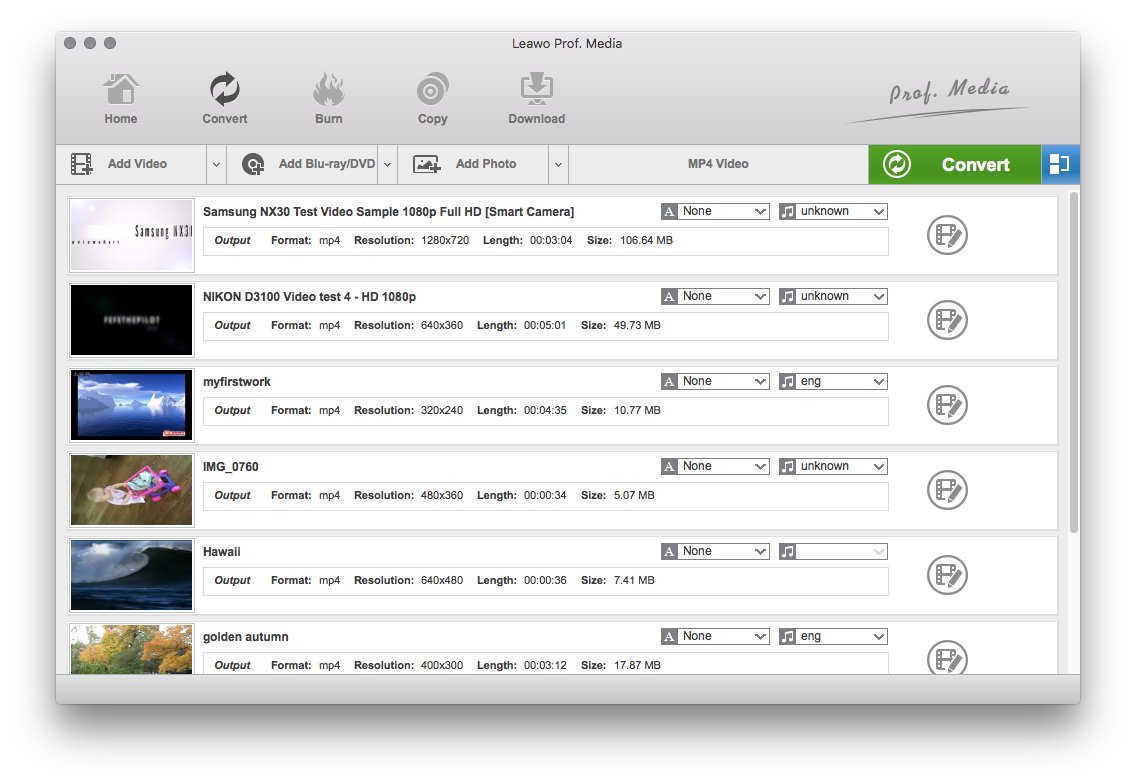
Do the essential settings
Click "Add" button to load MPEG files you want.

Select Output Profile
Select each file and choose the output format like iPod MP4 in "Profile".
Select video and audio quality that you need.
Set an output folder by "Output" for the destination files.
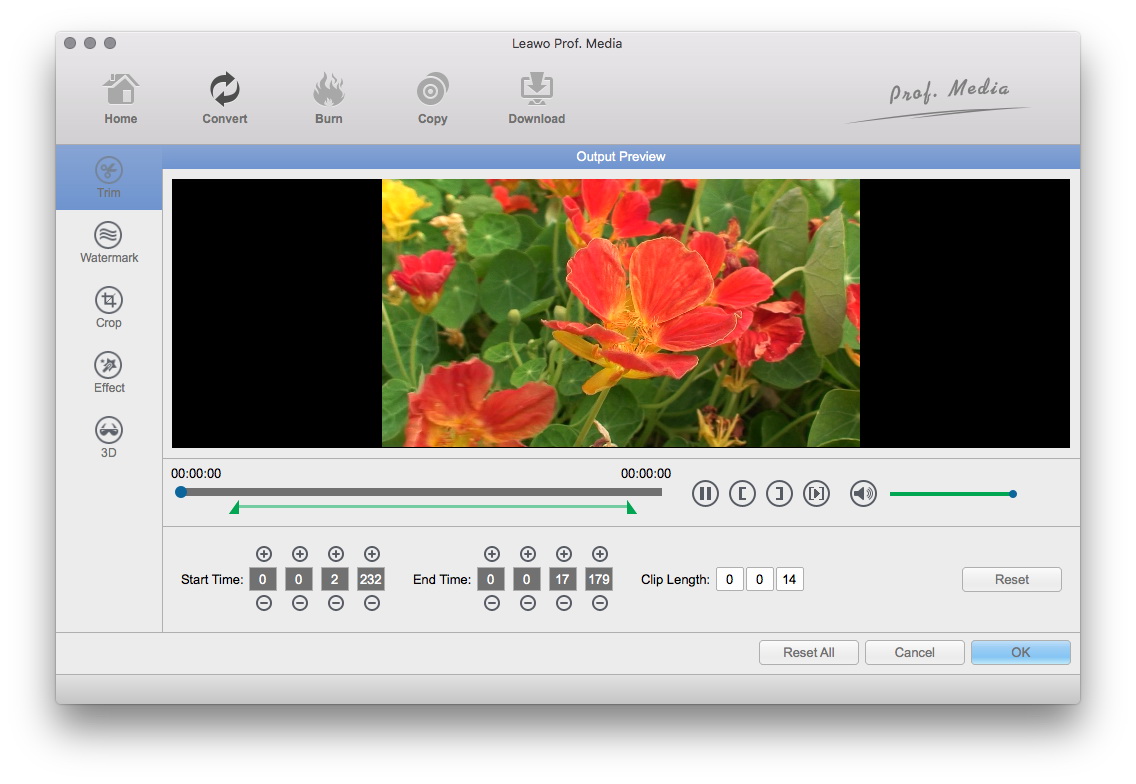
Video Effect Settings
Click "Edit" button to crop, trim, adjust and watermark video to satisfy your needs.
- Trim: Click "Trim" button. Now trim video duration by setting start time and end time to keep the segment you want.
- Crop: Click "Crop" to crop the video file to extract the black sides or unnecessary segment from the original video file.
- Rotation: Revolve the video to the needed angle. You can achieve horizontal flip & vertical flip, or realize to rotate 90° clockwise and rotate 90° counterclockwise. If the adjustment is beyond satisfaction you can reset it as well.
- Effect: Click "Effect" button to set video brightness, contrast, and saturation for better output quality.
- Watermark: Check "Enable Watermark", and click "Image Watermark" or "Text Watermark" to add watermark to the video, then adjust the Transparency, Margin, and Watermark Size.
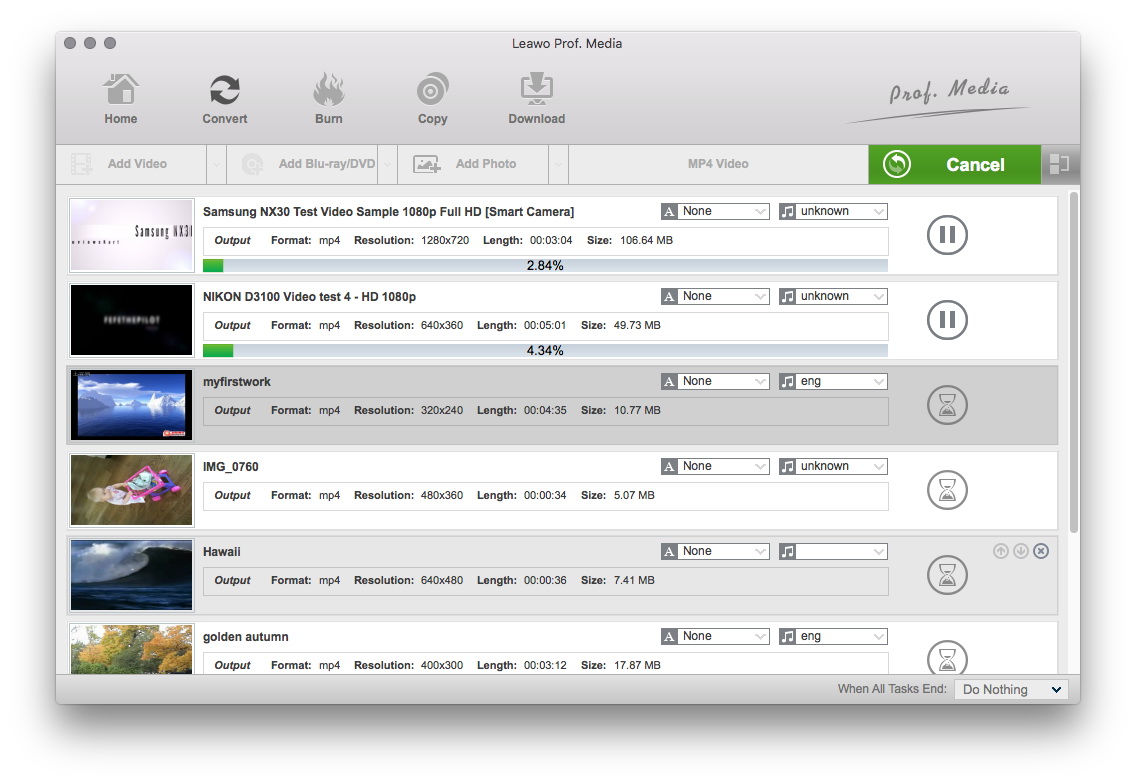
Convert Videos
When you have got ready for the settings for the added videos in the video converter program, you can click "Convert" button to start conversion. Just for a while, the conversion will be finished and you can enjoy it freely.
Extended Knowledge

iPod is a portable device for storing and playing audio files encoded by MP3 or AAC compression algorithms. Designed by Apple Computer, iPods have distinctive styling and can hold anywhere from a few hundred to ten thousand songs. Popular iPod features include a calendar, address book, to-do list, alarm clock with sleep timer, games and text reader. Currently, iPod support MP4 video file in many different resolutions and sizes.