Leawo Mac Video Converter is what you really need, especially when you want to synchronize your videos like MPEG to iPhone on Mac. The MPEG to iPhone Converter for Mac software can easily convert various of video files like MPEG, MOV, AVI, MP4, etc. to iPhone, for your digital enjoyment. The Mac MPEG to iPhone converter provides you with video editing function to help you conveniently convert MPEG to iPhone for Mac. After conversion, you will find the smart tool with user-friendly interface is your good friend indeed. Besides, its excellent output quality and easy-to-use design can also attract your eyes.
Before this tutorial, please download and install Leawo Mac Video Converter first!
Full Guide
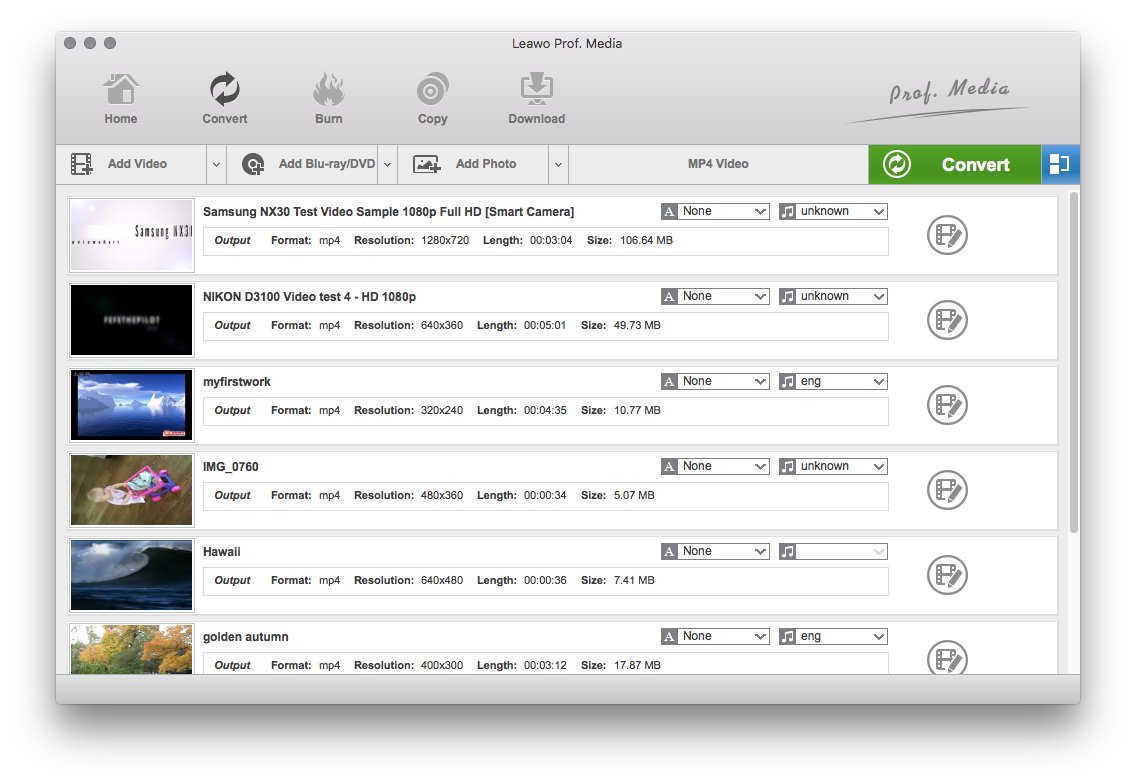
Do the essential settings
Click "Add " button to load MPEG files you want.
Select video and audio quality that you need.
Set an output folder by "Output" for the destination files.

Select Output Profile
Click on the file format of the original video on the video processing list to switch to the Profile panel. Select a target format for iPhone.
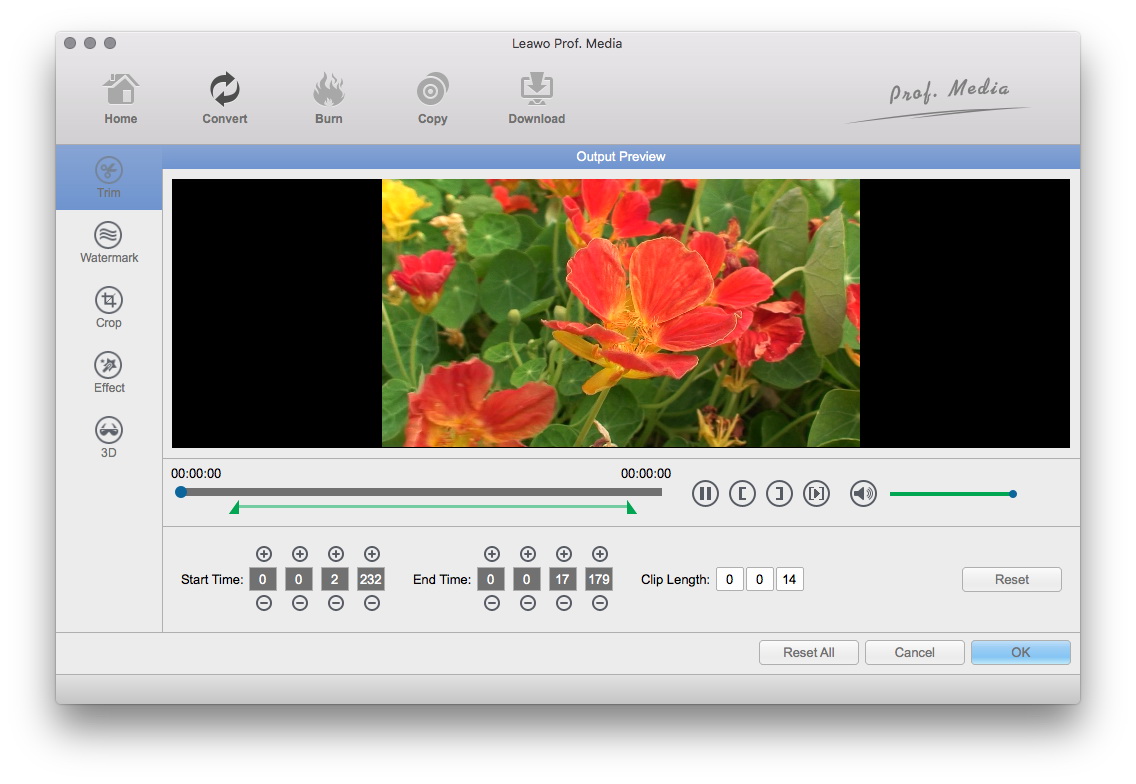
Video Effect Settings
Click “Edit” button to crop, trim, adjust and watermark video to satisfy your needs.
- Crop: Click "Crop" to crop the video file to extract the black sides or unnecessary segment from the original video file.
- Trim: Click "Trim" button. Now trim video duration by setting start time and end time to keep the segment you want.
- Effect: Click "Effect" button to set video brightness, contrast, and saturation for better output quality.
- Watermark: Check "Enable Watermark", and click "Image Watermark" or "Text Watermark" to add watermark to the video, then adjust the Transparency, Margin, and Watermark Size.
- Besides, you can set detailed parameters: Choose the file and go to "Settings" button at the bottom of the main interface to set detailed parameters for the video as you like. Such as Codec, Video Size, Bit Rate, Aspect Ratio, Frame Rate, etc.
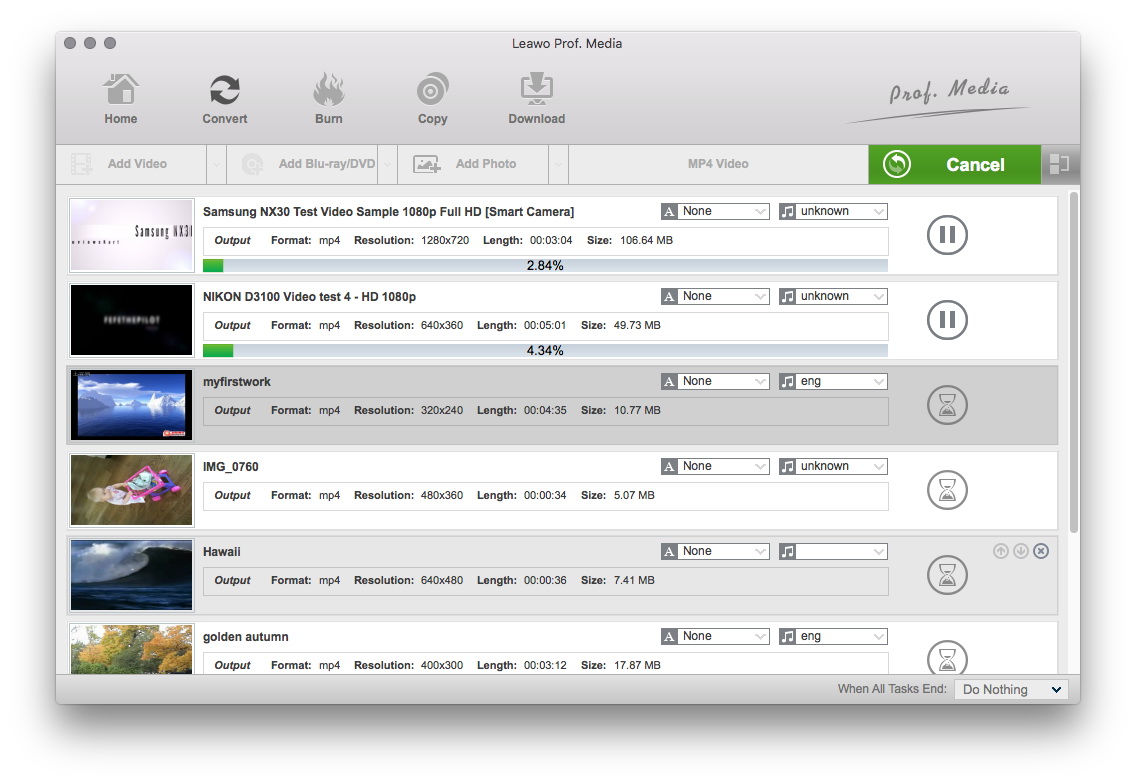
Convert MPEGs
When you have got ready for the settings for the added videos in the video converter program, you can click "Convert" button to start conversion. Just for a while, the conversion will be finished and you can enjoy it freely.
Extended Knowledge

iPhone is a smartphone made by Apple company that combines an iPod, a tablet PC, a digital camera and a cellular phone. The device includes Internet browsing and networking capabilities. The iPhone is an internet-connected multimedia smartphone designed and marketed by Apple Inc. with a flush multi-touch screen and a minimal hardware interface.