


Summary:
If you want to extract songs from your DVD collection, this post lists 4 tools to help you do the job with step-by-step instructions.
Outline
Have you ever watched an old DVD movie and heard a song that is so beautiful, and you wanted to set it as the ringtone? In such a case, you need to extract the song from the DVD. In this post, I will show you how to extract audio from a DVD. No matter what you want to listen to, an original movie soundtrack on your phone, or save a classical movie line, I will help you find the perfect tool for the job.
Why Extract Audio from a DVD
Although many movies have soundtracks available on music streaming services, there are some songs and soundtracks that have never been published, which you hear on DVDs. Having your own collection of these unreleased soundtracks requires extracting the audio from a DVD, so you can listen to the soundtrack from your favorite movie at any time on any preferred device, regardless of whether or not you have access to an internet connection.
In addition, there are additional benefits to extracting the audio. It takes up a significant amount of space to store video content, so by simply storing the audio as a small MP3 file or other formats, you can save space when you want to listen to concerts or your favorite lines from a movie while you are commuting, exercising, or travelling.
Tools to Extract Audio from DVD
Since there are so many extraction tools on the market, which one to choose? I have tested 4 tools that I think may help with this job. Let’s have a look.
1. DVD Audio Extractor
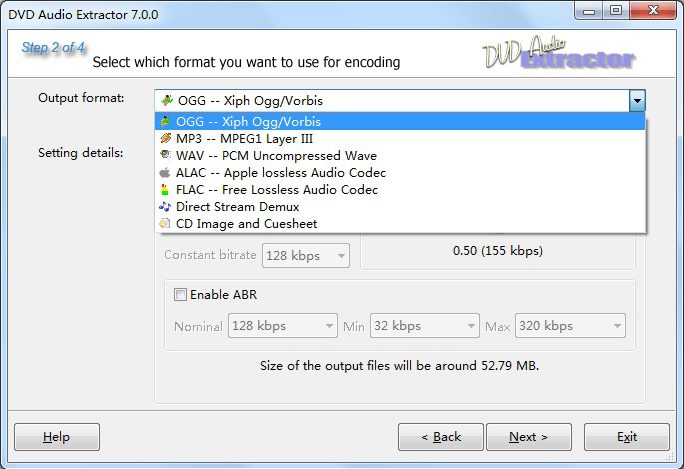
I personally tested DVD Audio Extractor, and it is absolutely a good one to try. It handles standard DV, high-quality DVD-audio, and Blu-ray discs, and even supports all the DVD audio formats, such as MP3, FLAC, and DTS. The extraction speed is also excellent, with a helpful preview feature that allows the audio to be listened to before ripping.
However, I noticed that it cannot deal with DRM-protected discs, and it cannot rip video content, so you can only use it to handle audio. Additionally, although it supports a 30-day free trial, you need to pay $38.5 after the period, otherwise it will expire. I think the price is a bit expensive for the features. If you aim to have a casual use, maybe you can have a try.
How to use it:
Step 1: Insert your DVD and open DVD Audio Extractor. This program will automatically load the disc.
Step 2: C DVD Audio Extractor will show the first title and all the chapters, and you can choose the chapter you want.
Step 3: Click on the Next button and choose the output format. You can also adjust the other parameters like sample rate, audio channels, etc.
Step 4: Click Next to begin extracting.
2. VLC Media Player
Most people have installed VLC Media Player to watch movies, but I found it is actually a great hidden tool to extract audio from DVDs. From my experience, if you want to extract audio occasionally, and you don’t want to pay any money for it, VLC is a perfect free choice since it is an open-source software.
It supports many audio formats like MP3, OGG, FLAC, etc., with a preview feature as well. However, this tool is comparably slow in extracting audio, because it is originally a player, not a dedicated audio extractor. It also might fail if your DVD has advanced copy protection.
How to use it:
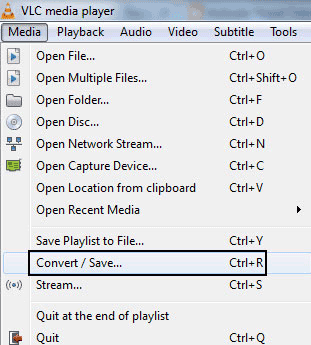
Step 1: Click the Media button on the upper left, then choose Convert/Save.
Step 2: Choose Disc and select your DVD drive (check out the No disc menus box).
Step 3: Click the Convert/Save button. In the Profile section, you can choose the output format as you want, like MP3.
Step 4: Click Browser and you can choose the folder as the output directory. Then, click Start to begin extracting audio from your DVD.
3. Handbrake
Handbrake is another famous open-source software for compressing large video files, but it can also serve as a tool for extracting audio, and it is free. But this tool cannot directly extract the file into MP3. In my test, you need to convert the DVD into MP4/MKV, while choosing only convert the audio track during conversion so that you get the audio only. This means you will need extra steps compared to other tools. Additionally, Handbrake does not support DRM-protected DVDs as well.
How to use it:
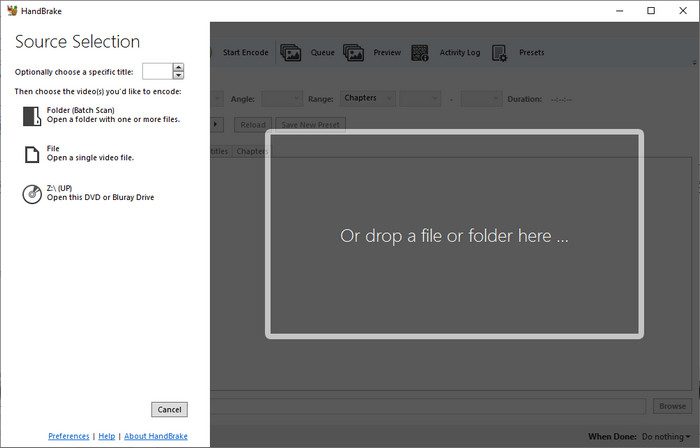
Step 1: Insert your DVD into your drive and then click Open Source on Handbrake.
Step 2: The software will automatically read your disc. Turn to the Audio tab. From here, delete all the necessary tracks you don’t need and only keep the audio you want. You can also choose the AAC, MP3, or FLAC container.
Step 3: Turn to the Summary tab and choose the output format as MP4 or MKV.
Step 4: In the bottom, choose the output directory and click the green button to start converting.
Step 5: After finishing, you will get the video file with only audio.
4. Leawo Blu-ray Ripper
I saved my personal favorite tool for last, Leawo Blu-ray Ripper, which is a professional Blu-ray ripper for ripping and converting Blu-ray/DVD to digital formats for both video and audio. After testing the other 3 tools, I found out Leawo makes up for the others’ shortcomings. Many free software programs cannot deal with discs with DRM protections, but as one of the best Blu-ray rippers on the market, Leawo has the power that can easily bypass protections and region codes, letting you rip content from discs.
You can use this tool to convert Blu-ray/DVD to MP4 and many other formats like MKV, WMV, MOV, MP3, FLAC, etc., no matter what formats you need. It also offers more control with excellent conversion speed with GPU acceleration technology. You can even edit the content before you start conversion. I feel this tool is more like a versatile tool beyond merely extracting and ripping, so if you want more features as an advanced user, this is the best one for you.

-
Comprehensive Blu-ray ripping and converting software to decrypt, rip and convert Blu-ray/DVD disc, folder and ISO image file.
- Remove multiple Blu-ray/DVD disc protections and region restrictions.
- Convert Blu-ray/DVD to video/audio in 180+ different formats.

How to use it:
Step 1: Insert your DVD into your drive. Click on Add UHD/Blu-ray/DVD > Add from CD-ROM on the main screen of the software.
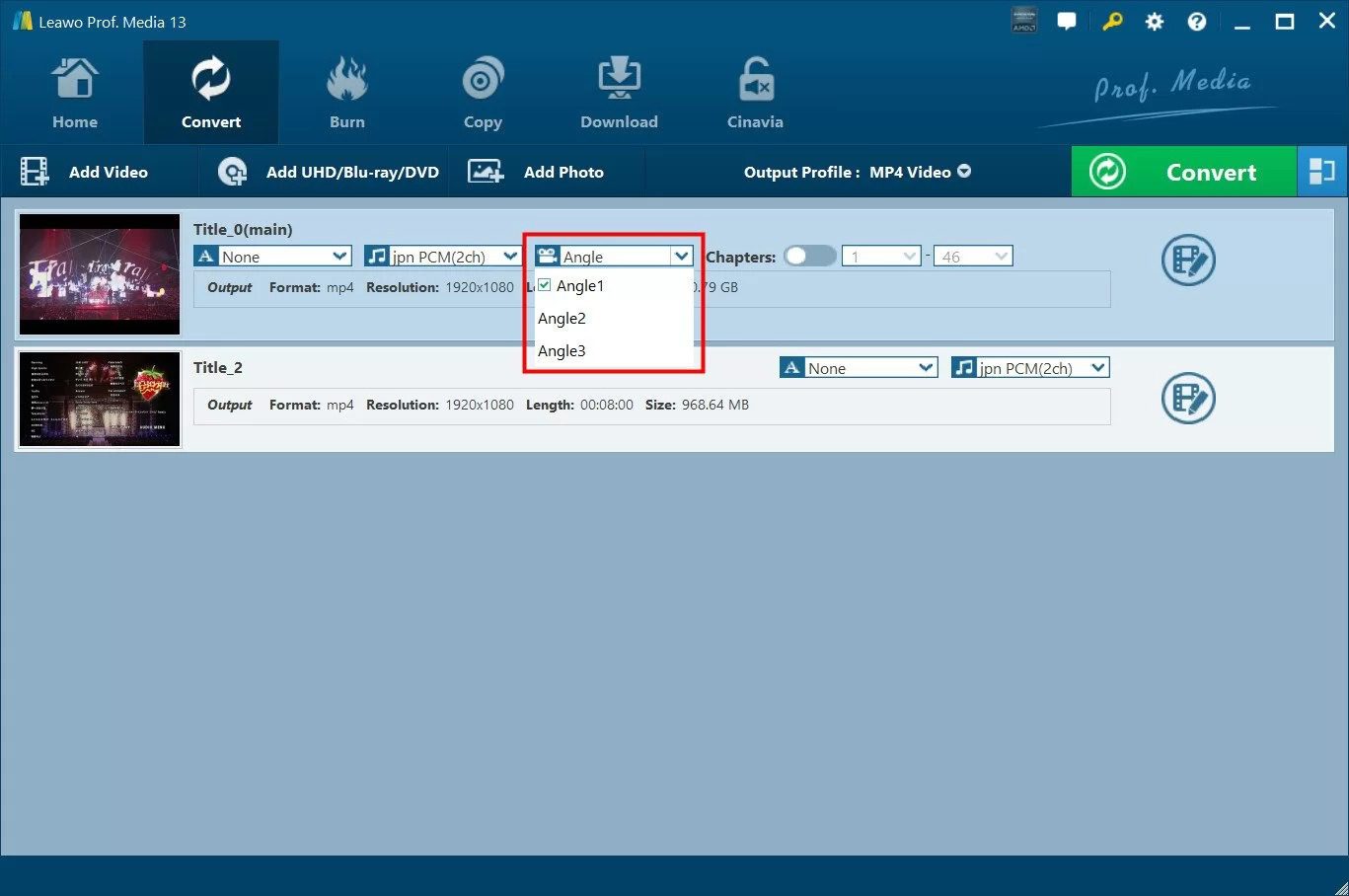
Step 2: After reading the disc, Leawo will show you all the information about the DVD. You can choose title, angle, and chapters in there, and also set subtitle, audio trackers by clicking on the thumbnail.
Step 3: Click on the Convert button to enter Profile. In the Format tab, you can set the output format to MP3 or any other audio format you need.
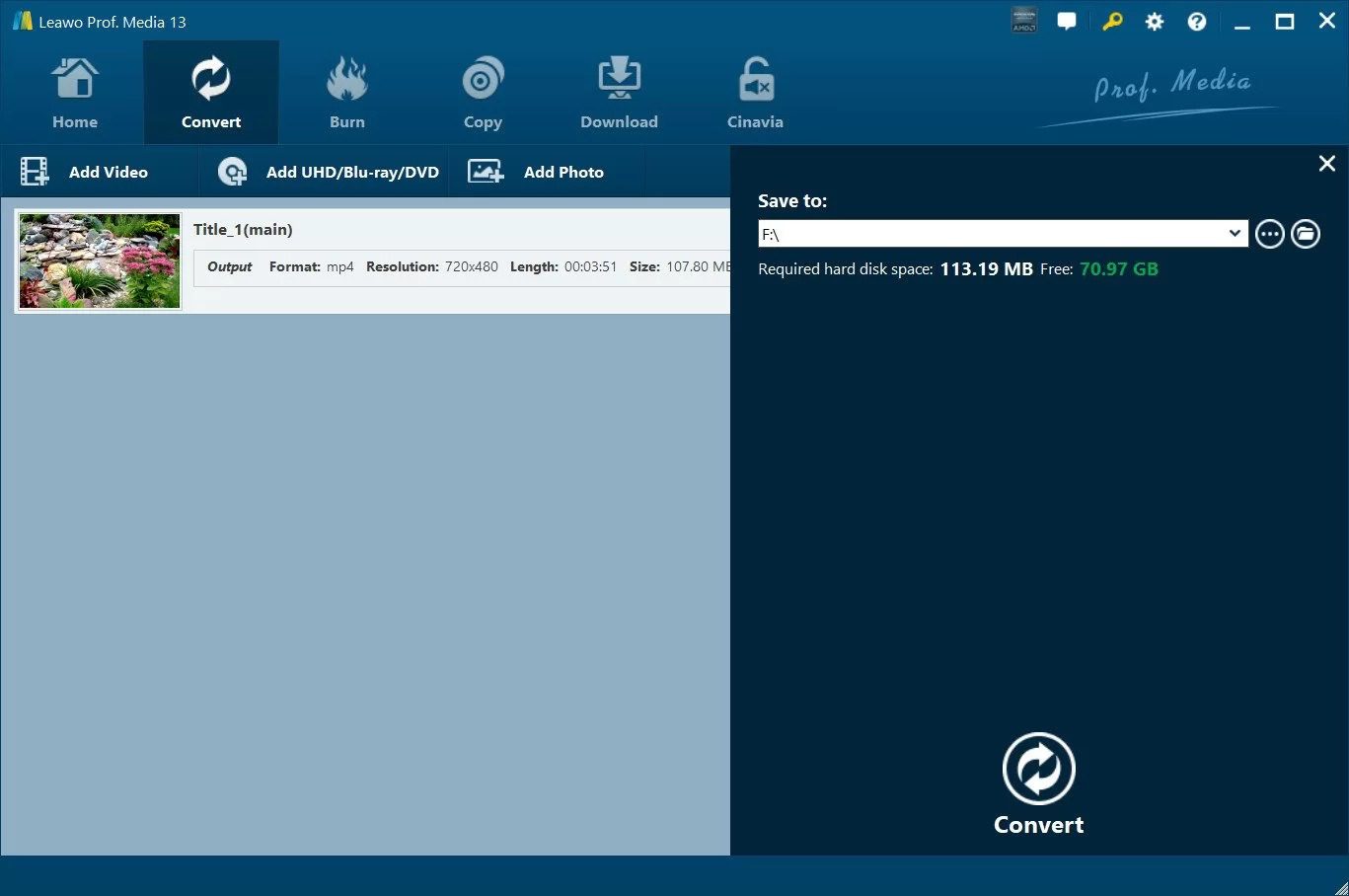
Step 4: Back to the main screen, click on the Convert button again. From Save to, you can set the output directory to store your converted audio file and then click the Convert button at the bottom to start conversion.
Comparison of These Best DVD Audio Rippers
While each can help you extract the audio you want from the DVD, in terms of using experience, like speed, ease of use, and multiple abilities are different. Here is a comparison that helps you locate the feature you require and lets you determine which one fits your needs.
|
Feature |
DVD Audio Extractor |
VLC Media Player |
Handbrake |
Leawo Blu-ray Ripper |
|
Output Formats |
MP3, FLAC, OGG, WAV |
MP3, OGG, FLAC, WAV |
MP4 / MKV only |
MP3, FLAC, AAC, WAV (180+) |
|
Direct Audio Export |
Yes |
Yes |
No (Stored in video container) |
Yes |
|
Bitrate/Sample Rate |
Yes (Professional) |
Yes (Basic) |
Yes |
Yes (Full Control) |
|
Free / Paid |
Paid ($38.50) |
Free (Open Source) |
Free (Open Source) |
Paid ($44.95/year) |
|
Support Protected DVD |
No |
No |
No |
Yes (Powerful Decryption) |
|
Select Specific Title |
Yes |
Yes |
Yes |
Yes |
|
Audio Quality |
Excellent |
Good |
Good |
Excellent (Lossless) |
|
Extraction Speed |
Fast |
Slow |
Medium |
Ultra-Fast (GPU Boost) |
FAQs
1. Is MP3 better than other audio formats when extracting audio?
This depends on your needs. MP3 is the most popular audio format because it is small and can be played on any device, especially on a phone. However, it is a lossy format that may sacrifice quality to lower the file size. If you need a lossless format, you need FLAC or WAV to keep the quality, but with a much bigger file size.
2. Can I extract audio from Blu-ray discs?
Yes. But not all software can do that. If you want to extract audio from Blu-ray discs, even with protections, you can use Leawo Blu-ray Ripper, which has professional ripping ability.
3. Are DVD rippers illegal?
In many countries and regions, extracting content from DVD discs is legal, but only for self-made discs. Bypassing DRM protection to share/sell the extracted files is illegal. So, as long as you use these extracted files for yourself are usually safe. However, for more safety, you should always check the specific laws in your region.
Conclusion
Ultimately, ripping audio off a DVD is not just about moving files. It’s about ensuring that your favorite movie moments, as well as those hard-to-find tracks, are always by your side. I’ve spent a great deal of time working with these programs, and while something like VLC is great for the casual solution, something like the Leawo Blu-ray Ripper is an absolute lifesaver if you’re working with problematic DVDs. Whichever tool you take, I hope I’ve been able to assist you in finally getting that song off the shelf and onto your phone.
-
3 Best Ways to Download All Videos from YouTube Channel
-
DVDFab DVD Creator Review: Read Before Buying
-
Windows Media Player Review: Is It Working on Windows 11?
-
6 Best Tools to Download YouTube Playlist Fast
-
Detailed Review: Is KeepStreams Safe? Is it Worth Trying?
-
How to Record a YouTube Live Stream on Any Device (Step-by-Step Guide)
-
Disney Plus HDCP Issue: Complete Troubleshooting & Fix Guide
-
How to Download Bilibili Videos? All Methods Explained
-
How to Fix OBS Not Capturing Game on Windows
-
Wondershare UniConverter Review: Answers to All Your Doubts






-
Best Twitter Porn Accounts You Shouldn’t Miss
-
How to Download Pornhub Videos? Ways to Download from Pornhub
-
Top 5 OnlyFans Viewer Tools to View OnlyFans Content for Free
-
Full Review of Savethevideo: Is Savethevideo Safe & How to Use it?
-
Netflix Download Limit: What it is & How to Avoid
-
How to Download MissAV Porn Videos in HD for Offline Viewing?
-
How to Import Bookmarks from Safari to Chrome
-
Full Guide to YouTube Members Only Videos: Watch, Download
-
How to Download Videos from Fansly with Fansly Downloader
-
4 Methods to Burn ISO Files to Blu-ray Discs Easily








 العربية
 繁體中文
繁體中文 Dansk
Dansk Nederlands
 Suomi
Suomi Français
 Deutsch
 Italiano
 한국어
한국어 Norsk bokmål
 Português
 Русский
 Español
 Svenska