Disney Plus HDCP Issue: Complete Troubleshooting & Fix Guide

Summary:
Tired of seeing black screens and HDCP errors? This guide covers how to solve HDCP issues on Disney Plus with cause explanations and multiple solutions.
Outline
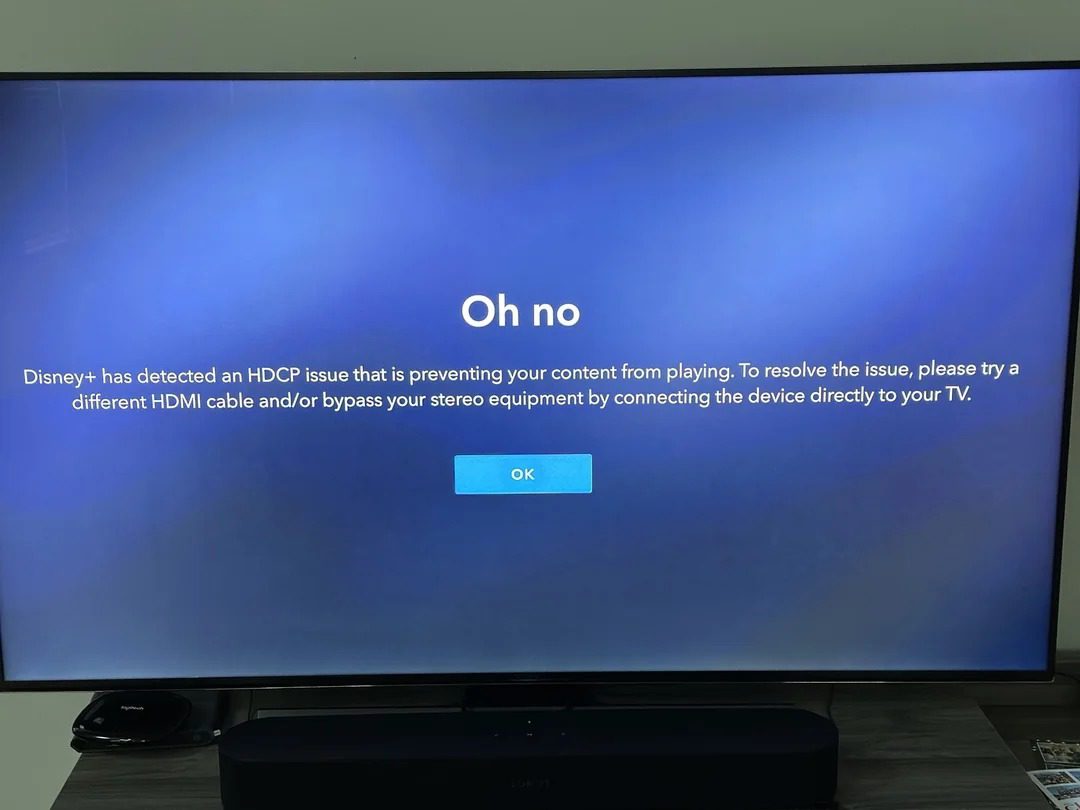
Excitedly open Disney+, ready to watch a blockbuster, only to have an "HDCP error" pop up on the screen or the screen go completely black before you even get your popcorn in your mouth. This frustrating HDCP issue on Disney+ is actually due to a broken "digital handshake" between the playback device and the TV.
Simply put, Disney+ is performing a "security check" on your HDMI cable and monitor to prevent piracy. If it deems anything insecure, it immediately stops working. Whether you’re watching with a set-top box, projector, or computer, this is quite annoying. Hence, this guide aims to help you avoid these technical pitfalls and get your picture back.
What Is HDCP and Why Does Disney Plus Use It?
HDCP (High-bandwidth Digital Content Protection) is a digital encryption technology developed by Intel. Although Intel provided the technology, its true financial backers and driving force were Hollywood studios, like Disney and Warner Bros. They worried that users could copy and steal the 4K content and make them source on the internet by connecting recording devices with an HDMI cable. So, they ask for the hardware manufacturers to support HDCP, or the content won’t play on these devices. Simpler put, HDCP is the security check between the device and the media.
Digital Handshake: When you watch movies like The Mandalorian or a Marvel movie on Disney Plus, your media service will send a message to your monitor to check: hey, bro, are you legitimate? Do you have any recorders connected?
Encryption Transmission: The TV set must reply with legitimate digital certificate to the player: hey, bro, I am legitimate and I am not connected with any recorders. Only double-check, Disney Plus will play the high-quality video.
Copyright Reliability: For big companies like Disney Plus, which has the top tier copyrights, are obsessed about prevent pirating. If the handshaking is only a second slower, Disney will cut the signal off so you cannot watch the movie.
Main Causes of Disney Plus HDCP Issues
Once you understand the principles of HDCP, you’ll realize it’s essentially a "secret code" connection between devices. If the connection fails, Disney+ will immediately give up. So what’s the reasons to cause HDCP issues? I’ve summarized these culprits for you. Let’s get straight to the point:
1. Incorrect cable or incompatible version (the core reason)
Disney Plus 4K movies have strict HDCP version requirements. If your HDMI cable or interface version is too low, the code won’t match:
HDCP 1.4 and below: This is ancient. It can only play 1080p, and while it can barely run 4K, the picture will be choppy, and it doesn’t support HDR. If you use it to watch Disney Plus’ 4K channel, it will almost crash.
HDCP 2.2 (important): This is currently the minimum requirement for watching Disney Plus. To get 4K and HDR content, your cable and interface must both support this version.
HDCP 2.3: This is the latest standard (with an HDMI 2.1 interface), offering enhanced security and backward compatibility.
Intermediate Connections: If you have an adapter, switcher, or older speakers connected between your TV and the set-top box, the entire picture will be cut off if any of these components do not support HDCP 2.2 or above.
2. Loose cable or dirty connections
Sometimes the issue is simply unstable physical connections that prevent the security handshake from being complete.
Not fully inserted: If the HDMI cable is loose or the pin is bent, data transmission becomes incomplete. Disney Plus will interpret this as tampering and black out the screen for security.
Dusty ports: Accumulated dust inside the ports can cause intermittent signal loss, leading to failed authentication.
3. TV settings are misconfigured
Sometimes, the wrong settings are not compatible with HDCP. If the TV is not set to the enhanced mode for HDMI port, it is not compatible with HDCP 2.2. Plus, if you run the TV for too long, the system may glitch, causing the handshake not to match.
4. Interference from Intermediate Devices
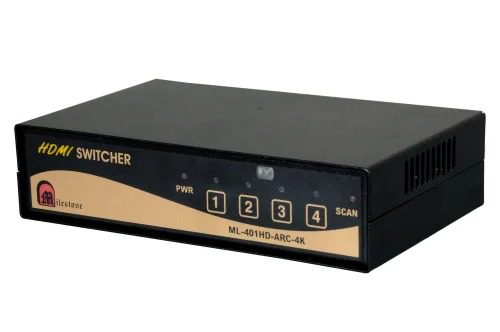
If you use any intermediate device like an HDMI switcher, splitter, or extender, and one of these does not support HDCP 2.2, the handshake will fail. Also, if the cable is too long, like over 10 meters, there is also a possibility to loss signal to cause an HDCP error.
5. Wireless screen mirroring blocked
Many users try to use AirPlay or the phone mirroring feature to project the phone movie to the TV, but only find sound without the picture. This is not a phone or TV hardware malfunction. Disney Plus blocks the wireless mirror feature to prevent pirating because the wireless signal is hard to pass stringent physical encryption verification, and they won’t allow this feature.
How to Fix Disney Plus HDCP Issues
The key to resolving HDCP errors is ensuring that all processes in the playback chain successfully pass copyright verification. Based on my testing and a compilation of various solutions on the internet, the following methods can effectively fix Disney Plus HDCP errors. It’s recommended to start with basic hardware checks and gradually work your way up to software settings.
Method 1: Restart the Device and Connection
Let’s start with the most basic method to restart your device. Unplug your TV/player, then wait for 30 seconds to plug them back in. Also, make sure your HDMI port is clean without any dust to affect the connection. This usually removes caches and resolves most errors.
Method 2: Don’t Use an Intermediate Device
Just remove this kind of device and directly connect your monitor and player. Also, notice: HDMI 1 port is better, and make sure your HDMI cable supports HDMI 2.0 or HDMI 2.1 since 4K content needs that. If you really need to use an intermediate device, do make sure the device is the latest one and support all the features.
Method 3: Enable the TV’s "Enhanced Mode"
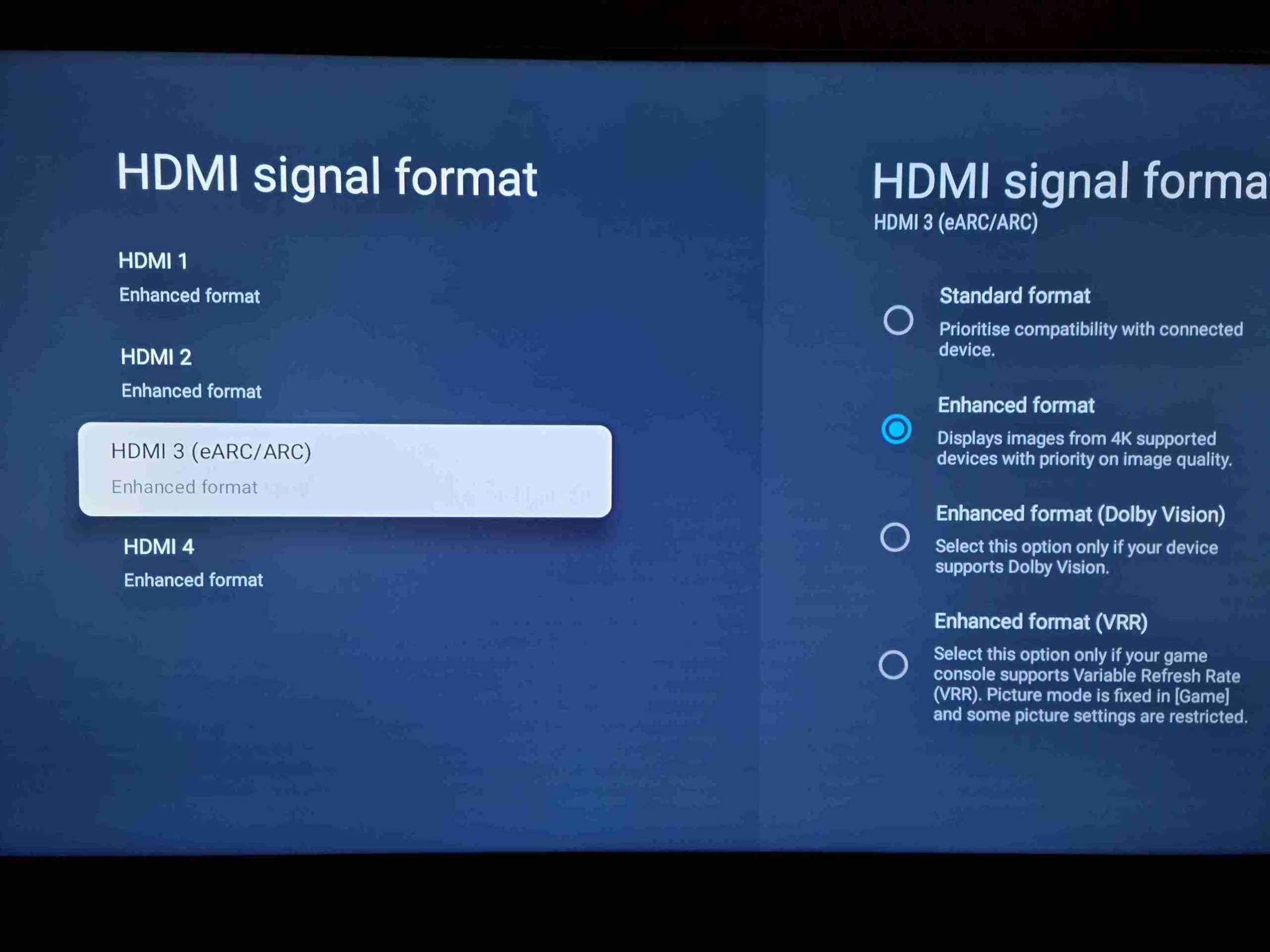
Many 4K TVs, for compatibility with older devices, default to "Standard Mode" for their HDMI ports, which can cause HDCP 2.2 verification to fail. You need to manually change this in the TV settings:
Path: Use the remote and go to Settings -> External Inputs -> HDMI Signal Format.
Switch Mode: Locate the port where you plugged the set-top box (e.g., HDMI 1), and switch its option from "Standard Mode" to "Enhanced Mode, or on some TVs, HDMI 2.0/2.1 mode.
Method 4: Download Disney Plus Videos Offline
In certain cases, you have to face the fact that some old monitors or graphics do not support HDCP 2.2. You can choose to replace your device, or you can just download the movies on Disney Plus for offline watching, which is more affordable.
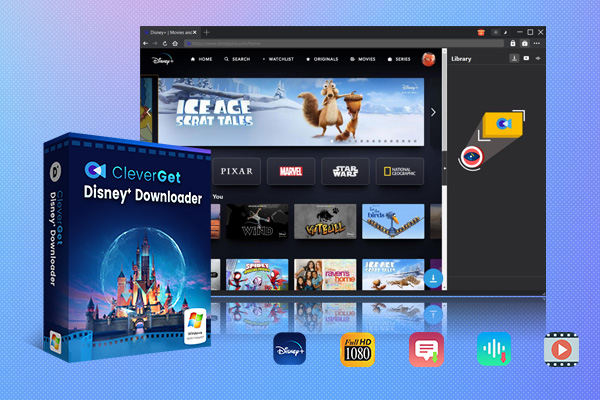
CleverGet Disney Plus Downloader is one of the best Disney Plus video downloaders that I think you should try for this purpose. It can download up to 720P quality video on Disney Plus in MP4 or MKV formats, with ads being removed during the downloading process. Once the movies are downloaded on your computer, the HDCP rule is not applied anymore. No errors or black screen. You can just transfer the downloads with a USB and watch them on your TV set. I think this is not only suitable for the HDCP error situations, but also for trips, for multiple devices watching with flexibility.

-
CleverGet Disney Plus Downloader
Professional Disney Plus video downloader to download on-demand videos like movies and series at 720P quality with selected subtitles and audio tracks.
- Download and convert Disney Plus video to MP4/MKV.
- Batch download TV episodes across seasons from Disney+.
FAQs
1. Does Disney Plus have HDCP protection?
Absolutely, and it’s the strictest. Whenever you want to watch a 4K or HDR movie on Disney+, it activates this protection mechanism. Its purpose is to monitor your device and ensure you’re not secretly recording. If your cable or monitor is even slightly substandard, it will simply black out your screen.
2. Is HDCP good or bad?
This depends on your perspective. For the film produce companies, it is good and is a lifesaver to prevent their movies from being pirated and copied. But for ordinary people like us, HDCP is annoying because it sometimes doesn’t let the picture show, which is an obstacle when watching a movie.
3. Is HDCP the same as HDMI?
No. HDMI is the security conveyor belt, and HDCP is the security guy to check you. HDMI only transfers the image and the sound while HDCP is responsible for the content legitimacy. Without HDMI, HDCP cannot be applied, but only have HDMI without HDCP you still cannot watch 4K content.
4. Do other streaming services have HDCP issues?
Yes. HDCP issues are not target for Disney Plus only. Other streaming services, like Netflix, Amazon Prime Video, Apple TV+, etc., have strong copyrights all require HDCP. If you encounter HDCP errors like this on these platforms, the solutions are also effective.
Conclusion
Disney Plus shows HDCP errors, which is not a big problem. Reboot the device, replace a good HDMI cable, or monitor may just directly solve the problem. But, instead of spending money on hardware, why not just download the movies locally? You can also watch them on TV in this way. If you want to save money, maybe CleverGet Disney Plus Downloader is the one for you. After all, the ultimate goal of solving these issues is to provide a simple and smooth viewing experience for a movie.
Share this post










 العربية
 繁體中文
繁體中文 Dansk
Dansk Nederlands
 Suomi
Suomi Français
 Deutsch
 Italiano
 한국어
한국어 Norsk bokmål
 Português
 Русский
 Español
 Svenska