

How Long Do Recordings Stay on YouTube TV? Full Breakdown

Summary:
This article provides a detailed overview of YouTube TV DVR, including its definition, how it works, the retention period for recorded content, methods for extending the retention period, and frequently asked questions, to help you fully master how to use this feature.
MenuCLOSE
As a long-time YouTube TV user, I know all too well the frustration of missing out on live shows, popular movies, or sports events I want to watch. YouTube TV’s built-in DVR feature has completely solved this problem for me. YouTube TV DVR is the official YouTube TV recording tool and is both simple to use and highly practical. However, many of you may have questions—such as how long recorded content is stored, and whether you can extend the retention period. Today, drawing on my own experience, I’ll break down everything you need to know about YouTube TV DVR.
What is YouTube TV DVR
In my opinion, YouTube TV DVR is one of the most practical core features of the platform. Essentially, YouTube TV DVR is a cloud-based digital video recording service that allows us to easily record live programs, movies, sports events, and other content on YouTube TV without needing to purchase a physical recorder or occupy local storage space. Compared to traditional DVRs, its biggest advantage is its ease of use and maintenance-free operation. We can record videos directly on YouTube TV by opening the YouTube app or website. Whether using a smart TV or computer at home, or using a mobile phone or tablet when out and about, we can view and play the recorded content anytime, perfectly adapting to our fragmented viewing habits. Simply put, it’s like a personal cloud content repository, helping us save all the exciting content we don’t want to miss.
How YouTube TV DVR Works
When I first started using YouTube TV DVR, I was curious about how YouTube TV DVR recorded and stored YouTube TV content. After delving deeper, I discovered its working logic is actually quite simple. YouTube TV DVR primarily utilizes cloud storage technology. With the help of YouTube TV DVR, we can record content without being restricted by storage space. This means that whether we’re simultaneously recording multiple live programs or accumulating a large number of movies and TV series over a long period, we don’t need to worry about insufficient storage. This is because all recorded content is stored on YouTube TV’s cloud servers, not on our personal devices. Furthermore, we can access our recording library at any time simply by logging in with our account.
As for adding YouTube TV programs or live events to the library, the process is even simpler. When I’m browsing YouTube TV, if I find something I like, I first open the program’s details page. Then I click the “+ Add to Library” button on the page. At this point, YouTube TV will automatically start recording the program. Therefore, whether it’s content that’s currently being streamed or an upcoming program, we can schedule recording with one click, and we can schedule up to 28 days in advance. I can then directly view and play it by opening the library, which is very convenient.
How Long Do Recordings Stay on YouTube TV?
This was my biggest concern when I first started using the YouTube TV recording feature. I’ve clarified the retention rules for YouTube TV DVR recordings after using. All content recorded via YouTube TV DVR, whether movies, shows, or sporting events, can only be retained in the library for 9 months.
So, what happens after 9 months? In my experience, once the 9-month retention period expires, YouTube automatically deletes the recording, and it cannot be recovered. Even content we really like but haven’t had a chance to watch will be automatically deleted by YouTube without any notification. I once missed watching a classic movie I recorded. So, I also want to remind everyone to watch out for your YouTube recordings to avoid regrets. It’s also important to note that this 9-month period is calculated from the recording date, not the date you first watch it.
Can You Keep Recordings Longer?
Since the built-in DVR for YouTube TV cannot extend the retention period, is there a way to preserve recorded content long-term? The answer is yes. After some experimentation, I found Cleverget Recorder to be a very practical tool that perfectly solves this problem, allowing our recorded YouTube TV content to be preserved indefinitely, without the nine-month limit.
CleverGet Recorder is a powerful video recording tool that supports recording content from numerous streaming platforms, including YouTube TV. Using CleverGet Recorder to record on YouTube TV, I found that its biggest advantage is that it can bypass YouTube TV’s retention period limit, saving the recorded content as local files to our computers, external hard drives, and other devices. Therefore, we can preserve our favorite YouTube content for a long time without worrying about it expiring and being deleted. In addition, CleverGet Recorder has many other useful functions.
1. High‑Definition Recording Capability
It supports high‑definition recording up to 4K resolution at 60fps, preserving the clarity and audio quality of the original video without blurring or stuttering.
2. Automatic Ad‑Skipping Function
CleverGet Recorder automatically skips commercials during recording, resulting in cleaner content and a better viewing experience.
3. Multiple Output Format Support
It supports saving recordings in various common formats such as MP4 and MKV, adapting to the playback needs of different devices.
Here are the detailed steps to record YouTube videos using CleverGet Recorder:
Step 1: Install CleverGet Recorder
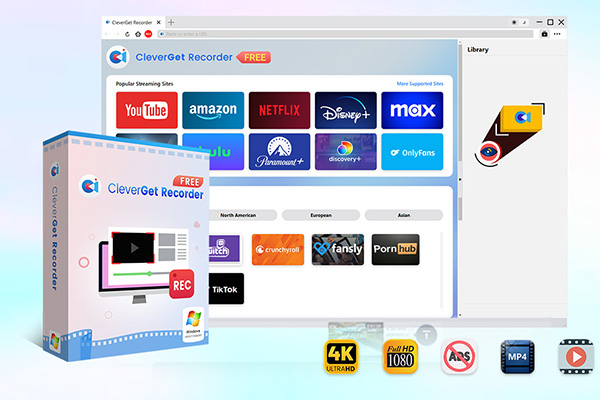
First, download CleverGet Recorder from the official website. It supports Windows and Mac systems. After installation, open the software and you can start using it directly from the main interface.

-
Professional and free streaming video recorder to record online on-demand video and live streaming video without quality loss and cost. Schedule recording upon preset length and skip ads upon preset ad filter. Save recordings to MP4/MKV file for unlimited offline viewing.
Step 2: Adjust recording parameters
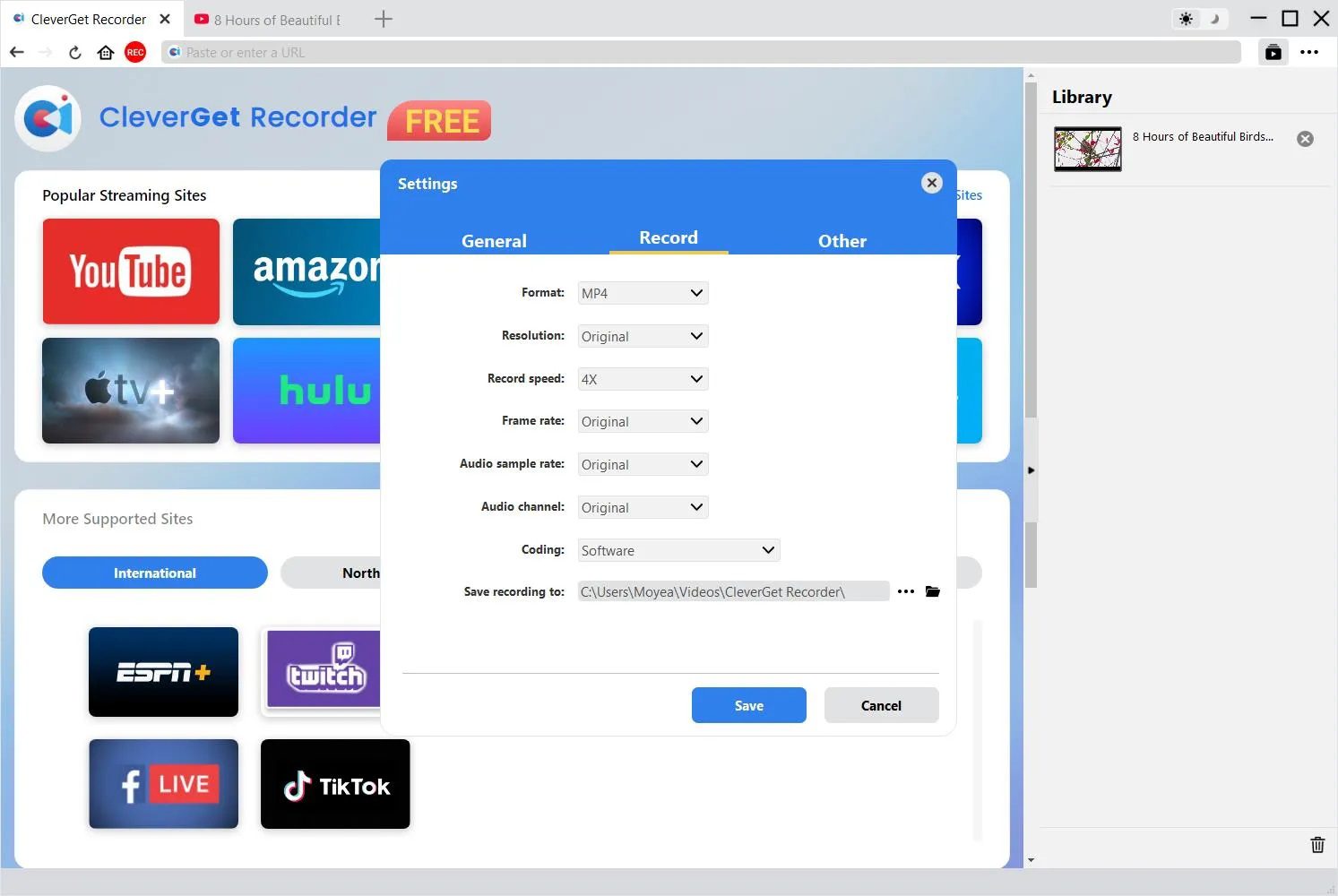
Click the More option (in 3-dot icon settings drop-down panel ) at the top-right corner to bring up the settings window. Here you can choose the recording quality, save format, and storage path.
Step 3: Open YouTube TV and play content
In CleverGet’s built-in browser, directly enter the YouTube TV URL and log in to your account. Then, find the recording or live program you want to save permanently and click play.
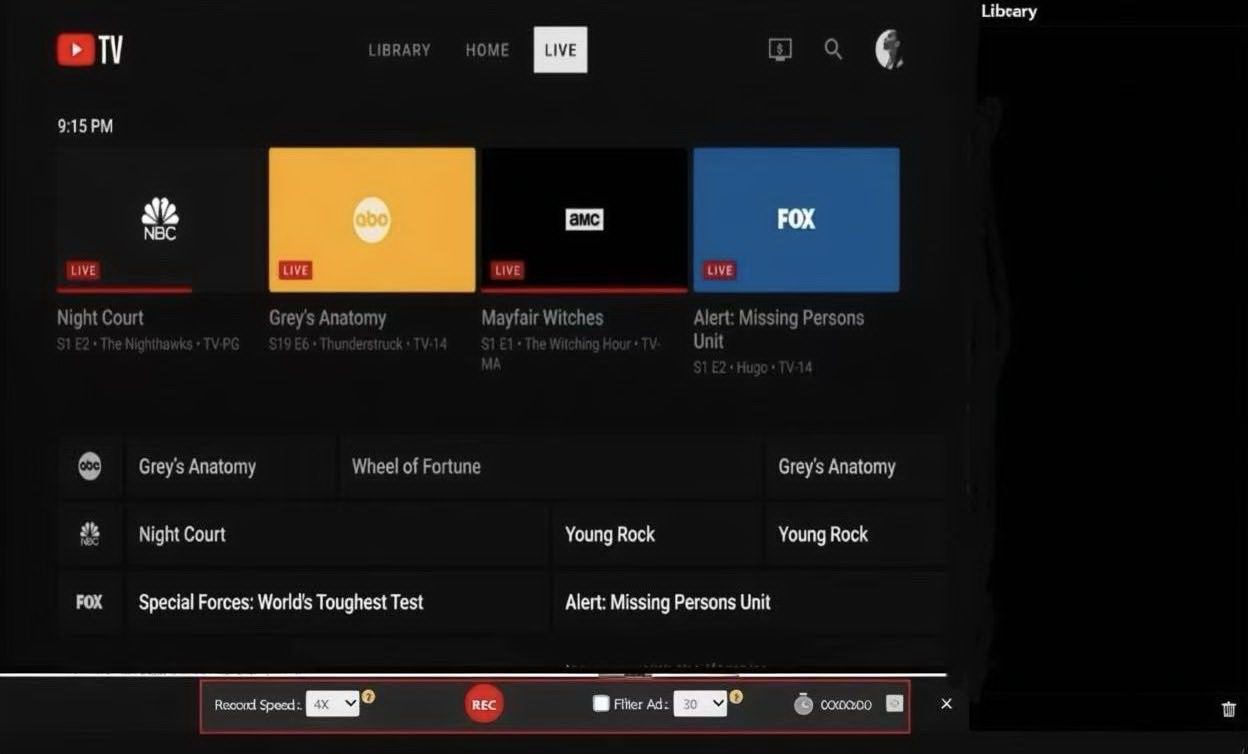
Step 4: Start recording
Click “Start Recording,” and the software will automatically capture video and audio without any manual intervention. After recording is complete, click the stop button, and the video will be automatically saved to the previously set path. You can then open the folder to see the permanently saved local file.
FAQs
1. How many people can YouTube TV support simultaneously?
Based on my experience and platform rules, a standard YouTube TV subscription account allows simultaneous streaming on a maximum of three devices. It’s important to note that this three devices refers to the entire account, not individual users. For example, if my family and I share an account and watch on a TV, phone, and tablet, we’ve already used up the three slots. Logging in on a fourth device will result in a “Streaming limit reached” message.
2. Can I manually delete recorded content?
Absolutely. If your library has accumulated too much unnecessary recording content, or if you want to delete certain content in advance, you can do so manually. After manual deletion, the content will immediately disappear from the library and cannot be recovered. Please be careful when deleting content.
3. Can I record multiple programs simultaneously?
Yes, this is a major advantage of YouTube TV DVR. Because it uses cloud-based unlimited storage technology, there is no problem with recording conflicts. Even if multiple programs are broadcast live at the same time, we can add them to the library at the same time, and YouTube will automatically record them in sync, so that no exciting moment will be missed.
Conclusion
Overall, YouTube TV DVR is a very practical feature. With its unlimited cloud storage, one-click recording, and multi-device access, it helps us avoid missing exciting content. I found YouTube TV DVR very easy to use. However, the only drawback is that recorded content is only retained for nine months. But this problem can be easily solved with the CleverGet recorder.
Share this post










 العربية
 繁體中文
繁體中文 Dansk
Dansk Nederlands
 Suomi
Suomi Français
 Deutsch
 Italiano
 한국어
한국어 Norsk bokmål
 Português
 Русский
 Español
 Svenska