


Summary:
This article introduces various methods for saving videos from Facebook on Windows, Mac, and mobile devices. Readers can choose the best solution based on their devices and needs.
MenuCLOSE
Facebook is a popular social media amongst all age groups. It not only provides users with a platform to share their daily lives, but also has abundant video resources, including user-generated original content, Reels and various entertainment programs. Although the platform has abundant content, many videos cannot be watched at any time due to network restrictions or the settings of the publishers, and. However, many users have growing needs to save videos from Facebook for future personal learning or to keep valuable images. But the platform doesn’t provide an official download feature. Don’t worry, this article will introduce several methods for saving a video from Facebook. Hope you can find the best solution after reading it.
Things to Know Before Saving Facebook Videos
Before introducing ways to save Facebook videos, there are things you may need to know. This will help you save video with high efficiency.
The videos on Facebook are mainly divided into two categories: Public Videos and Private Videos. Public Videos refer to the content that can be viewed by all Facebook users. The content can appear in search results and the public information stream, and users who haven’t followed the creator can also watch the content. Private Videos, on the other hand, adopt strict access control mechanisms. Only followers can view the content. The content will not appear in public search results and requires authorization from the creator.
Additionally, please note that when saving Facebook videos, it’s of great importance to follow the Facebook community guidelines and service terms. The saved videos are only for personal offline viewing and learning, and cannot be used for commercial purposes or redistributed.
How to Save Videos from Facebook on Windows & Mac
For desktop users, using professional third-party recording or downloading software is an efficient solution for saving Facebook videos.
Method 1: Use Screen Recording Software
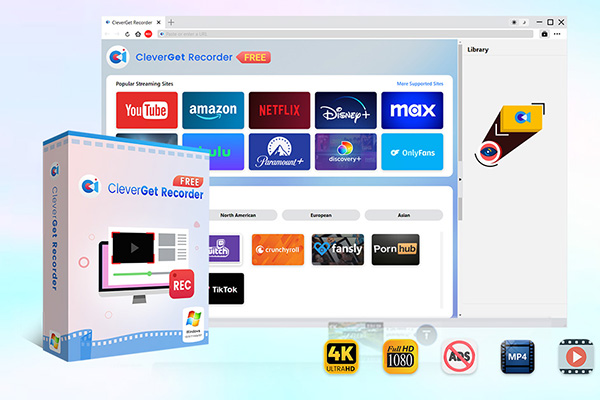
CleverGet Recorder is a free recording tool designed for capturing online videos. It supports capturing content from almost all major streaming services. You can use it to record Facebook Live, and it can even record content protected by DRM using this software. Here are steps on how to save video from Facebook via this software:
1) Launch the software, you can set the recording parameters according to your preferences before starting recording.

-
Professional and free streaming video recorder to record online on-demand video and live streaming video without quality loss and cost. Schedule recording upon preset length and skip ads upon preset ad filter. Save recordings to MP4 or MKV file for unlimited offline viewing.
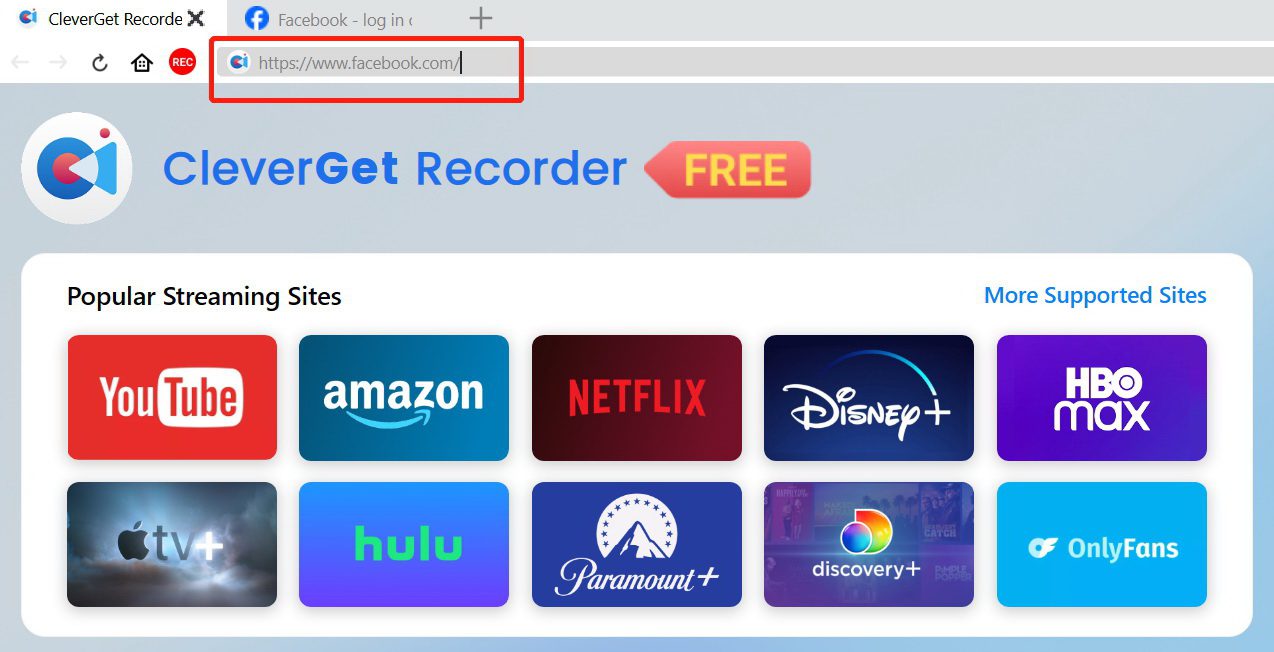
2) Use the built-in browser of CleverGet Recorder to access Facebook, log into your Facebook account, and find the video you want to record.
3) When you play the video, the system will automatically detect the player interface. After confirming the recording area, click the “REC” button to start the recording.
4) After the recording is completed, click the button again to stop. The video will be saved to the designated folder.
Method 2: Use a Facebook Video Downloader
Apart from the screen recording, using a professional video download tool can save Facebook videos in a shorter time. CleverGet Video Downloader, as a powerful video download software, can help you download videos from Facebook and over 1,000 other video websites. It also supports converting Facebook videos to MP4.
-
Batch download online videos at up to 8K resolution like Shorts videos, playlists, channels, music videos, movies, TV shows, and even live streaming videos to MP4 files from YouTube, TikTok, Instagram, Facebook, Pinterest and 1000+ other websites. Download online videos with selected subtitles and audio tracks, and ads removed.
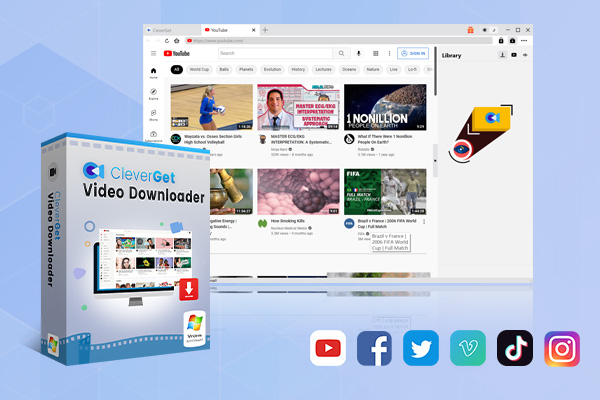
The following are steps on how to download video from Facebook through this tool:
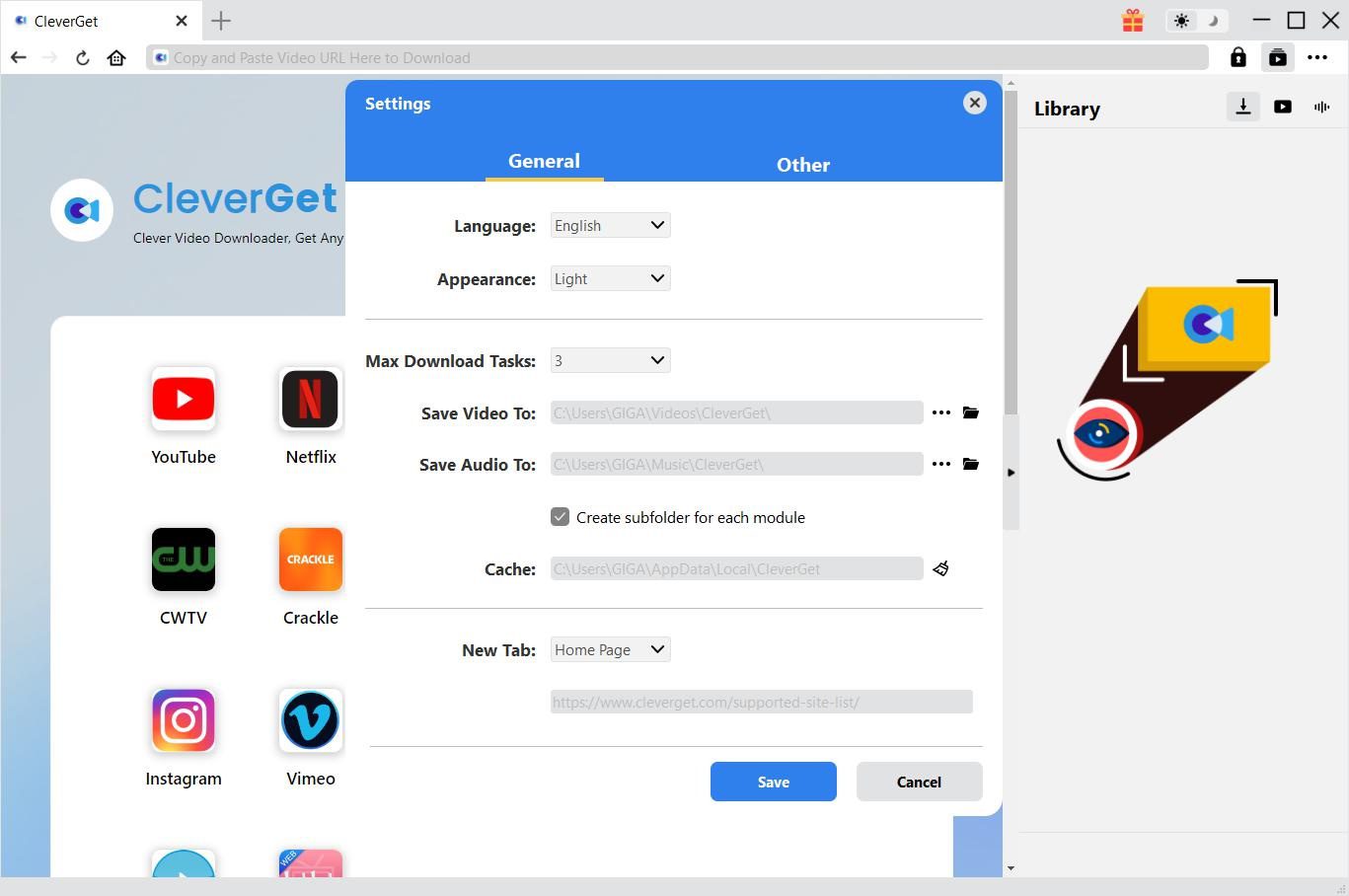
1) Before starting the download, you can set the output parameters according to your preferences in advance.
2) Visit Facebook through the built-in browser of CleverGet. Log into your account and find the video you want to download.
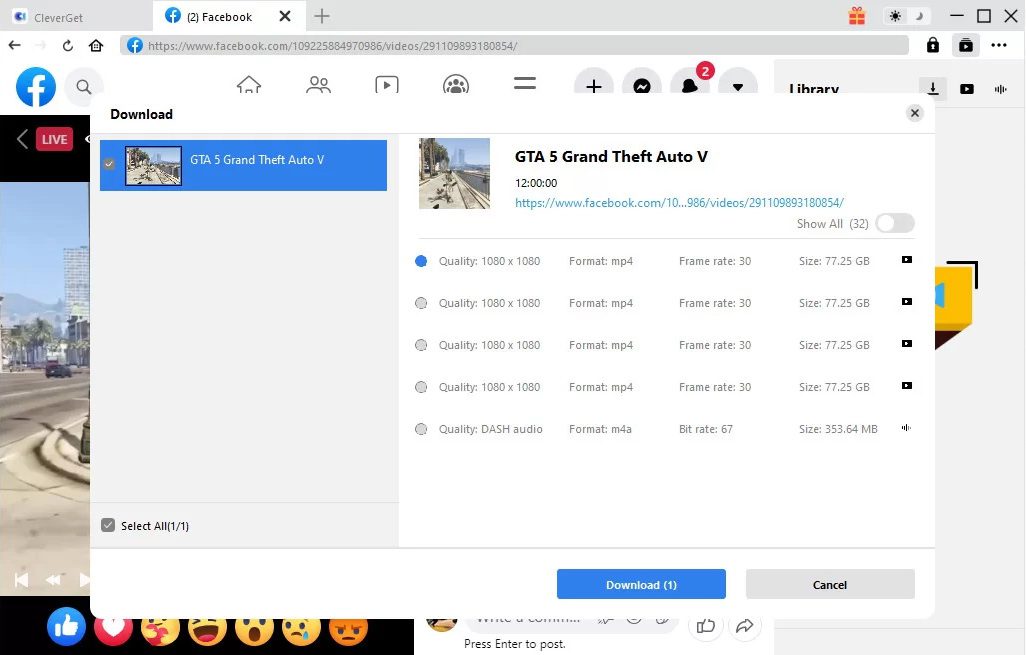
3) Open the video link, and the system will detect the available download resources. Set the download options, and then click Download.
4) After the download is completed, you can check the downloaded files in the Library.
How to Save Videos from Facebook on Mobile Devices
For mobile users, there are also solutions available for them to save videos from Facebook.
Method 1: Use Screen Recorder App
XRecorder is a professional screen recording application designed for mobile devices. It supports recording high-definition social media videos, serving as an ideal choice for mobile users to save Facebook videos. Here are the steps on how to use it:
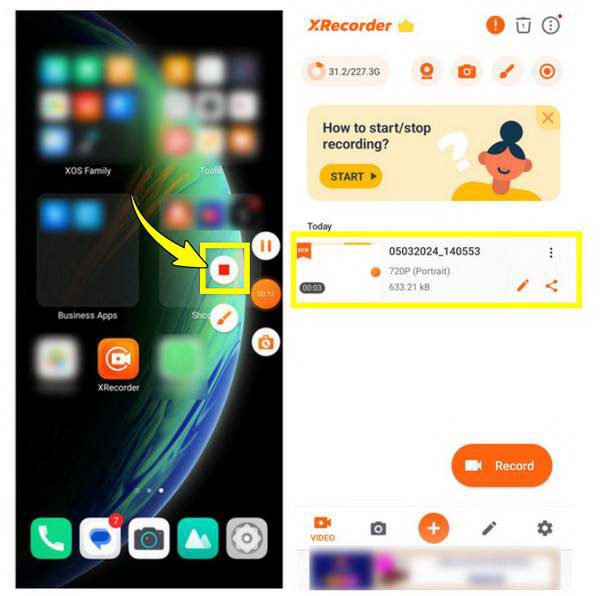
1) Before starting, you can first set the recording parameters according to your preferences. Once ready, click the Record button.
2) After the recording is completed, click the button on the floating bar again. The video will be saved in this software.
Method 2: Use Online Download Tools
Using an online download tool is a convenient solution. You don’t have to install any application. SnapSave is such a tool. Users don’t need to register an account or install any software. They can use it directly through a browser. This tool supports downloading various video content from Facebook and is an ideal choice for mobile users to save videos in a short time. The following are steps on how to save a Facebook video through this tool:
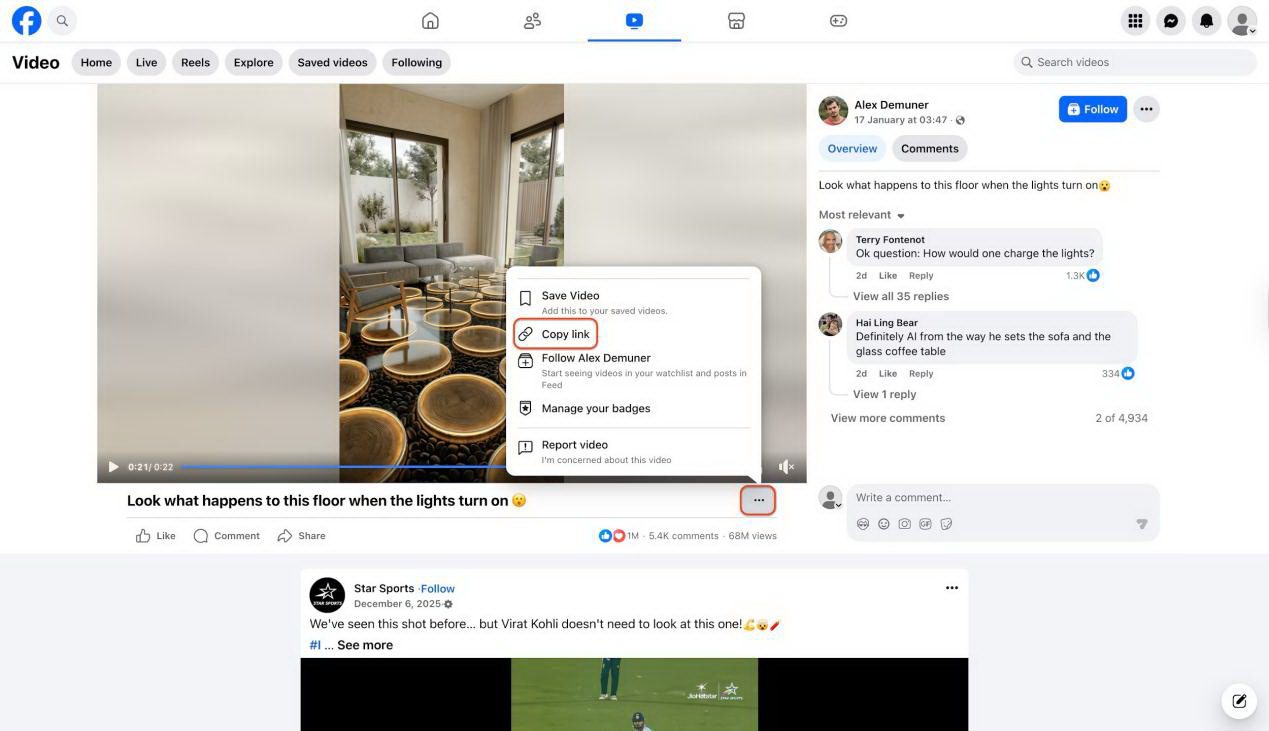
1) First, you need to copy the link of the target video in Facebook.
2) Access the SnapSave website via browser on your mobile device and paste the video link into SnapSave.
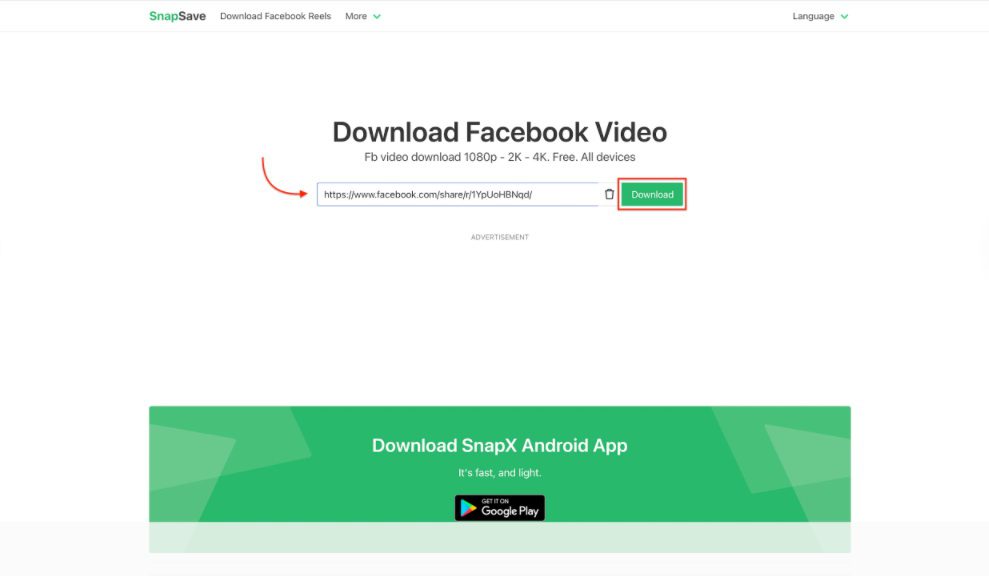
3) Select the output parameters you want, and once confirmed, you can proceed with the download.
FAQs
1. Why can’t I download some Facebook videos?
Failure to download Facebook videos may result from two reasons. The network may be disconnected while downloading. You can check your network and restart the downloading process. Or it may be caused by privacy settings, which disable the downloading process. If the conventional methods do not work, you can use third-party software such as CleverGet Recorder and CleverGet Video Downloader as alternatives.
2. Is screen recording legal for personal use?
Under the legal frameworks of most countries and regions, screen recording for personal use is generally legal. It is unlikely to constitute infringement. However, users must strictly adhere to legal boundaries and must not use the recorded content for commercial purposes or upload it to public platforms.
3. Can I save Facebook Reels safely?
Yes, with correct methods, saving Facebook Reels is safe. If you need to download it to the local device for offline viewing, you can choose well-reputed professional third-party download tools or screen recording software such as CleverGet Recorder and CleverGet Video Downloader.
4. Where are saved Facebook videos stored?
If you use third-party download tools or screen recording, the video files will be stored in the local storage space of the device. For Windows and Mac, it will be saved to the folder you have previously set. For Android and iOS devices, they are saved in the Photos. If the original video is deleted, it will be inaccessible. However, local downloads can ensure that you have a permanent offline copy.
-
TunePat VideoGo All-In-One Review: Really of Great Value?
-
YouTube TV DVR Explained: How It Works, Limits, and Tips
-
4 Easy Methods: How to Download Reddit Videos?
-
How to Watch Movies with Friends Online Together?
-
Cyberlink PowerDVD Review: Best Paid Media Player?
-
ScreenRec Review: Real Performance Test
-
Best Ways to Watch YouTube Videos Offline Without Internet
-
How Many People Can Share a Netflix Account?
-
5 Proven Methods to Watch YouTube Without Ads
-
How Long Do Recordings Stay on YouTube TV? Full Breakdown










-
Best Twitter Porn Accounts You Shouldn’t Miss
-
How to Download Pornhub Videos? Ways to Download from Pornhub
-
Top 5 OnlyFans Viewer Tools to View OnlyFans Content for Free
-
Full Review of Savethevideo: Is Savethevideo Safe & How to Use it?
-
How to Download MissAV Porn Videos in HD for Offline Viewing?
-
Netflix Download Limit: What it is & How to Avoid
-
Full Guide to YouTube Members Only Videos: Watch, Download
-
How to Import Bookmarks from Safari to Chrome
-
How to Download Videos from Fansly with Fansly Downloader
-
4 Methods to Burn ISO Files to Blu-ray Discs Easily












 العربية
 繁體中文
繁體中文 Dansk
Dansk Nederlands
 Suomi
Suomi Français
 Deutsch
 Italiano
 한국어
한국어 Norsk bokmål
 Português
 Русский
 Español
 Svenska