How to Remove DRM from Video Files?

Summary:
- While DRM protects digital media files from unauthorized use, it brings inconvenience to you even when you have purchased these files. This post will show you how to remove DRM from videos on OTT services and purchased ones. You will need different DRM converter software tools to get full access to the contents.
DRM, short for digital rights management, is applied for protecting digital media files like movies, music, eBooks and other files from unauthorized use. However, when you have purchased movies or music from various streaming services, the DRM limitations would block you from using your purchased contents properly. In such case, DRM removal tools would work. This post would show you how to remove DRM from video with top-notch DRM removal software tools.
Quick AccessCLOSE
Understand DRM and Its Limitations
Firstly, let’s make clear what is DRM. DRM, or Digital Rights Management, is all about copyright protection upon unauthorized backup, distribution, and modification of certain videos, music, eBooks, documents, games, software, etc. By adopting various technologies, the DRM could help content creators manage what their contents could be used for. Contents creators make use of DRM to control how their contents could be accessed, used and even redistributed.
There are multiple DRM types upon video, for both online streaming and local videos, as listed below:
– Widevine: mainly used by Google upon Chrome, Android, Firefox, Roku, Smart TVs.
– FairPlay: mainly used by Apple to apply on Safari, iOS, macOS, Apple TV contents.
– PlayReady: mainly used by Microsoft upon Edge, Xbox, Windows, and many set-top boxes.
How to check if a video file is DRM protected?
There are quite a few ways to identify whether a video file is DRM protected or not. You could refer to the below methods to learn how to check if a video file is DRM protected.
Ways to check:
- Local video files on Windows or Mac: For Windows, right click the target video file and then choose "Properties > Details > Protected" to see if it is protected or not. For Mac, use Quick Look to preview the target video file to see if it is DRM protected or not.
- Streaming videos: Contents on most streaming services like Amazon, Hulu, Netflix, Disney+, Crunchyroll, etc. are DRM protected.
- Programmatic/advanced checks for developers: Developers could make use of programs to check whether a video file is DRM protected or not, such as ffprobe (run ffprobe -v quiet – show format on file), mp4dump, JavaScript, etc.
Once the target streaming video is DRM protected, you then need a DRM removal software tool to get full access to the contents you have already purchased. The below contents would show you how to remove DRM from streaming videos you have purchased.
How to Remove DRM from Streaming Video?
As mentioned above, most streaming services employ DRM to protect their contents, including Netflix, Amazon, Disney+, Hulu, etc. In such case, once you have purchased a specific title, or become a valid subscriber, you should get authorization to access to your purchased contents anytime anywhere, even without internet connection. DRM converter could help you download streaming videos from these sites and remove DRM from videos on these sites. CleverGet is a top-notch DRM converter for you.
As a professional video DRM remover, CleverGet could help you download and convert DRM protected videos to MP4/MKV files at up to 1080P resolution with selected subtitles and audio tracks, with all ads and DRM protection removed.

-
- Download online video at up to 8K with an ad filter.
- Batch download movies, TV shows, playlists, clips, live streams, etc.
- Reserve multiple subtitle and audio track.
- Convert video to MP4, MKV, MP3 or other format files.
- Record videos in background at up to 5x speed and 4K resolution.
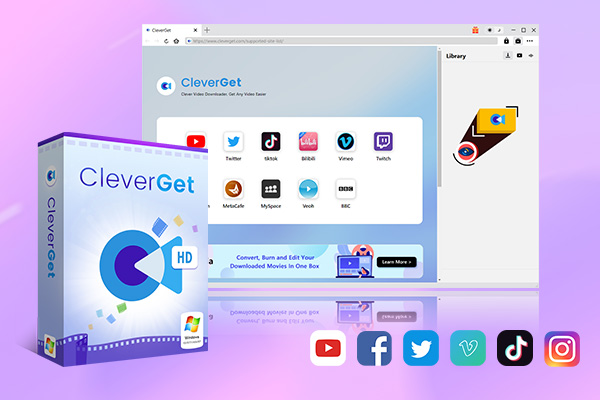
You could follow the below guide to learn how to download DRM protected streaming videos and remove DRM from video to save as MP4/MKV files:
Step 1. Download, install and kick off CleverGet on your computer.
Step 2. Open the "Settings" window by clicking "More > Settings" option at the top-right corner to set download directory.
Step 3. Open the target streaming service within CleverGet and log in.
Step 4. Play back target video within CleverGet, and then click the round icon at the bottom right corner of the playback screen.
Step 5. Once the analysis completes, there will pop up a window showing you all available download options.
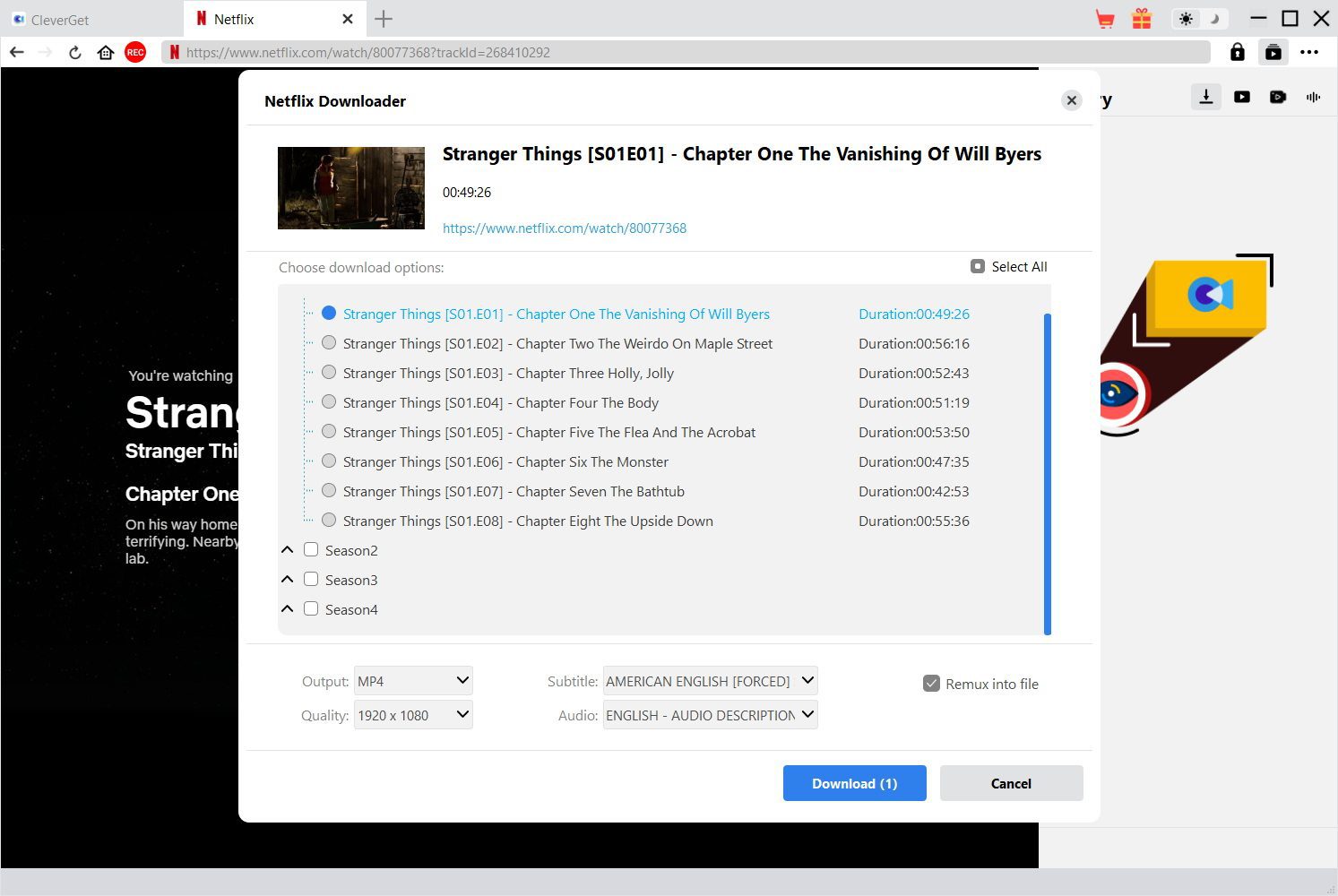
Step 6. Choose download options, output format, subtitles and audio tracks.
Step 7. Finally, click the "Download" button to start downloading streaming videos within CleverGet.
You then only need to wait for the download to complete. Once the downloads complete, you will get DRM-free MP4/MKV files for unlimited offline playback.
Note: Downloading streaming videos for personal watching is not illegal. However, downloading streaming videos for sharing, re-distributing or other purposes are illegal.
How to Remove DRM from Purchased Video Files?
What about purchased videos? How to remove DRM from purchased video files like iTunes videos? Leawo Prof. DRM Video Converter is highly recommended for converting DRM protected iTunes videos to DRM-free MP4 files losslessly, with subtitles and audio tracks selected. It’s a module of Leawo Prof. DRM program.
-
- Convert iTunes DRM-protected M4V movie and TV show to DRM-Free MP4.
- Remove DRM from M4B, AA, AAX files and convert any Audible AA, AAX file to MP3.
- Convert iTunes DRM-Protected M4P and non-DRM iTunes M4A Music to MP3.
- Convert Spotify music to universal audio format.
- Convert DRM-protected eBook from Kindle, Kobo, Adobe to DRM-free epub, mobi, azw3, txt, etc., format.
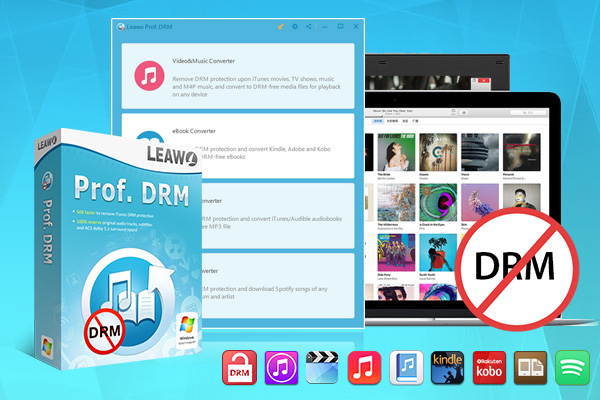
The below guide would show you how to convert DRM M4V videos from iTunes to DRM-free MP4 videos with Leawo Prof. DRM Video Converter:
Step 1. Download, install and kick off Leawo Prof. DRM on your computer.
Step 2. Make sure you have the latest iTunes installed on your computer, and authorized your computer.
Step 3. Enter the "Video & Music Converter" module.
Step 4. Click the "Add Files" button to browse and add DRM M4V videos from iTunes from the "Library > Video" tab.

Step 5. After adding source files, click the "Edit" button to choose subtitles and audio tracks.
Step 6. At the bottom, set an output directory to save output files.
Step 7. Finally, click the "convert" button at the bottom right corner to start converting iTunes DRM videos.
Then, wait for the conversion to complete. Once the conversion completes, your iTunes DRM protected M4V videos will be saved as standalone DRM-free MP4 files, which could then be played back on various media players and devices.
FAQs
1. Can all DRM protection on videos be removed?
Theoretically speaking, yes, all DRM protections could be removed, but different DRM removal tools are required. Currently, not a single DRM remover could handle DRM removing upon all videos.
2. Will quality be reduced or lost during DRM removal?
Generally speaking, no. video quality will stay the same as original, with the help of proper DRM removal tools.
3. Can I convert Blu-ray/DVD movies to DRM-free video files?
Yes, with the help of professional Blu-ray/DVD to video converter tools such as Leawo Blu-ray Ripper.
4. Can I convert audiobooks to DRM-free files?
Leawo Prof.DRM also supports removing DRM from Audible and iTunes audiobooks, as well as converting parts of free audiobook files to other formats.
Conclusion
There are quite a few DRM protection types that work on different digital media files. You could get proper DRM removal software tools to get rid of the DRM protection upon videos. However, it should be noted that removing DRM protection from video for profit or business use is not allowed. You must remove the DRM protection upon those videos you have purchased. Follow your local law upon copyright protection before removing DRM from videos.
Share this post












 العربية
 繁體中文
繁體中文 Dansk
Dansk Nederlands
 Suomi
Suomi Français
 Deutsch
 Italiano
 한국어
한국어 Norsk bokmål
 Português
 Русский
 Español
 Svenska