How to Back Up Copy Protected Blu-ray and DVD Discs in 2026? Safe Methods, Legal Considerations & Tools

Summary: Backing up a Blu-ray or DVD can involve more than simply copying files from a physical disc. Different copy-protection technologies, region restrictions, and legal requirements can affect how protected disc content can be accessed and backed up. This guide breaks down these issues and explains the available backup approaches for authorized content.
| What You Need to Know | What This Guide Covers |
|---|---|
| DVD Copy protection | CSS and other copy-control technologies |
| Blu-ray Copy protection | AACS, BD+, and other protection mechanisms |
| Region restrictions | How Blu-ray/DVD region coding differs from copy protection |
| Legal considerations | Authorization, personal backup rules, and anti-circumvention restrictions |
| Protected disc backup via copying | How to back up authorized Blu-ray/DVD content while preserving disc structure |
| Protected disc backup via ripping | How to convert authorized disc content into digital video files (MP4/MKV) |
| Free options to back up Blu-ray/DVD | What MakeMKV and HandBrake can and cannot do with protected sources |
Although the use of physical media has declined with the rise of streaming services, Blu-rays and DVDs remain indispensable for home cinema enthusiasts, archiving, and physical collections. However, Digital Rights Management (DRM) and region codes often prevent users from freely accessing their own discs or creating backup copies.
This guide explains how copy protection works on Blu-rays and DVDs, the differences regarding region codes, the legal aspects to consider, and the available methods for creating backups on Windows and Mac.
Part 1. What Is Blu-ray and DVD Copy Protection?
Blu-ray and DVD do not use the same protection systems. The following is a detailed introduction to various Blu-ray/DVD protections.
1.1 Blu-ray Disc Protections: AACS, BD+, and More
Blu-ray discs can use several layers of technical protection.
AACS, or Advanced Access Content System, is one of the major protection systems associated with commercial Blu-ray media. Some Blu-ray discs can also use BD+, an additional security technology designed for Blu-ray content.
Depending on the disc, there may also be additional encryption or protection mechanisms. This means that the exact behavior of one Blu-ray disc may be different from another.
1.2 DVD Disc Protections: CSS, etc.
DVDs use different protection technologies from Blu-ray discs. One common example is CSS, or Content Scramble System. In addition to CSS, some commercial DVDs use technologies like Sony ARccOS or Macrovision to prevent copying.
1.3 What Are Blu-ray/DVD Region Codes?
Region coding is another restriction you may encounter when working with physical discs.
For Blu-ray, the commonly used regions are:
| Blu-ray Region Codes | |
| Region Code | Countries / Regions |
|---|---|
| A | North America, Central America, South America, U.S. territories, Japan, South Korea, Taiwan, Hong Kong, Macau, and parts of Southeast Asia |
| B | Europe, Africa, the Middle East, Australia, New Zealand, and surrounding territories |
| C | Mainland China, India, Russia, Central Asia, South Asia, and most other parts of Asia |
| ABC / All Region | All Blu-ray regions; designed for playback in Regions A, B, and C |

DVDs use a different regional coding system, generally comprising regions 1 through 8.
| DVD Region Codes | |
| Region Code | Countries / Regions |
|---|---|
| 0 / ALL | Worldwide / Region Free; not an official DVD region code |
| 1 | United States, Canada, and U.S. territories |
| 2 | Europe, Japan, South Africa, the Middle East, Greenland, and surrounding territories |
| 3 | Southeast Asia, South Korea, Taiwan, Hong Kong, and Macau |
| 4 | Australia, New Zealand, Mexico, Central America, South America, the Caribbean, and Pacific Islands |
| 5 | Russia, Eastern Europe, Africa, South Asia, Central Asia, Mongolia, and North Korea |
| 6 | Mainland China |
| 7 | Reserved for future use or special purposes |
| 8 | International venues, such as aircraft, cruise ships, and other international transportation |
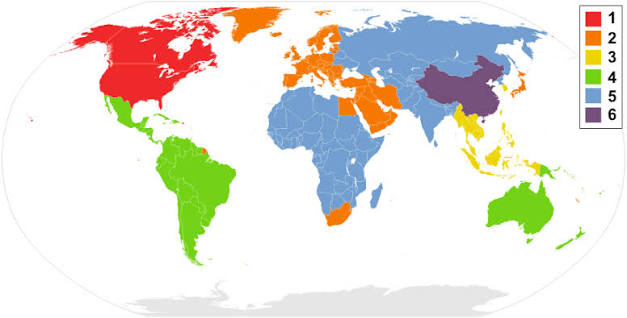
Regional coding primarily serves to determine where a disc can be played. It therefore differs from technologies such as AACS, BD+, or CSS, which are associated with copy protection. Furthermore, a disc can be “region-free” (code-free) yet still employ other forms of copy protection.
1.4 What Is Cinavia?
Cinavia is an inaudible watermark embedded directly into the audio track. Cinavia persists through digital-to-analog conversion, audio signal re-encoding, and video ripping. If a copy containing Cinavia is played on a Cinavia-compatible device (such as a PS4 or a modern Blu-ray player), the audio may be muted, or playback may stop. Completely removing it requires specialized audio editing tools or software capable of Cinavia removal, like Leawo Blu-ray Cinavia Removal.
Part 2. What Is the Difference Between Copy Protection and Region Coding?
Copy protection and region coding are often discussed together, but they solve different problems. Here are the main differences between them.
| Feature | Copy Protection | Region Coding |
|---|---|---|
| Main Purpose | Prevent or restrict unauthorized copying | Restrict playback by region |
| Common Blu-ray Example | AACS, BD+ | Region A/B/C |
| Common DVD Example | CSS and other copy-control systems | DVD Region 1–8 |
| Affects Copying | Yes | Not necessarily |
| Affects Playback | Sometimes | Yes |
2.1 Does Region Coding Mean a Blu-ray/DVD Is Copy-Protected?
No. Region codes and copy protection mechanisms serve different purposes. A region code indicates to a compatible player the geographic market for which a disc is intended. Copy protection, on the other hand, is designed to control access to the content or its reproduction.
2.2 Can a Blu-ray/DVD Be Region-Free but Still Copy-Protected?
Yes. A disc can be region-free while still using copy protection. Likewise, a disc may have regional restrictions without every possible copy-protection technology.
Part 3. Is It Legal to Back Up a Blu-ray or DVD?
Before backing up a Blu-ray or DVD, there is an important question: whether backing up Blu-ray/DVD is legal. The answer is that personal backup is allowed in some cases, but there are also restrictions, as detailed below.
3.1 Does Owning a Blu-ray/DVD Mean You Can Make a Backup?
Not necessarily in every jurisdiction. Owning a physical Blu-ray or DVD generally gives you ownership of that physical item, but copyright in the movie or other content remains separate. Your legal rights to make a personal backup can therefore depend on local copyright law.
3.2 Does Personal Use Make Blu-ray/DVD Backup Legal?
Yes, fundamentally speaking, it is legal in many places to back up Blu-ray/DVD for personal use. However, this does not automatically make every type of Blu-ray or DVD backup legal. Some countries provide exceptions for private copying or personal backups, while others impose restrictions on circumventing technological protection measures. These regulations can also change over time.
Part 4. How to Back Up Protected Blu-ray and DVD Discs on Windows and Mac?
Once the legal requirements are clear, the next question is how to preserve your disc content. There are usually two ways to back up your Blu-ray/DVD discs: copying and ripping. We have also found a free method to back up Blu-ray discs. Here is the comparison of the three methods.
| Blu-ray/DVD Backup Methods Comparison | |||
| Features | Copying | Ripping | Free Method |
|---|---|---|---|
| Main Purpose | Preserve disc structure | Convert disc content to digital files | Create digital video files |
| Output | ISO, Blu-ray/DVD Folder, Blank Disc | MP4, MKV, AVI, etc. | MKV, MP4, WebM |
| Preserve Disc Structure | Yes | No | No |
| Preserve Main Movie | Yes | Yes | Yes |
| Select Titles/Tracks | Yes | Yes | Yes |
| Compression | Supported | Supported | Supported |
| Best For | Full disc backup | Digital playback and storage | Free digital backup |
Now let’s go through all three methods to back up protected Blu-ray/DVD one by one.
4.1 How to Back Up Copy-Protected Blu-ray/DVD Discs on Windows/Mac via Copying
For users who want to preserve the disc structure or get copies of Blu-ray/DVD discs, dedicated Blu-ray/DVD copy software is generally the most suitable approach.

- Copy Blu-ray/DVD discs in lossless quality.
- Remove Blu-ray/DVD disc protection and region restriction.
- Copy Blu-ray/DVD contents to computer or blank disc.
Leawo Blu-ray Copy is designed for Blu-ray/DVD backup and supports Blu-ray/DVD discs, folders, and ISO images. It provides three main copy modes: Full Movie, Main Movie, and Custom Mode.
Here is how to back up a protected disc with Leawo Blu-ray Copy:
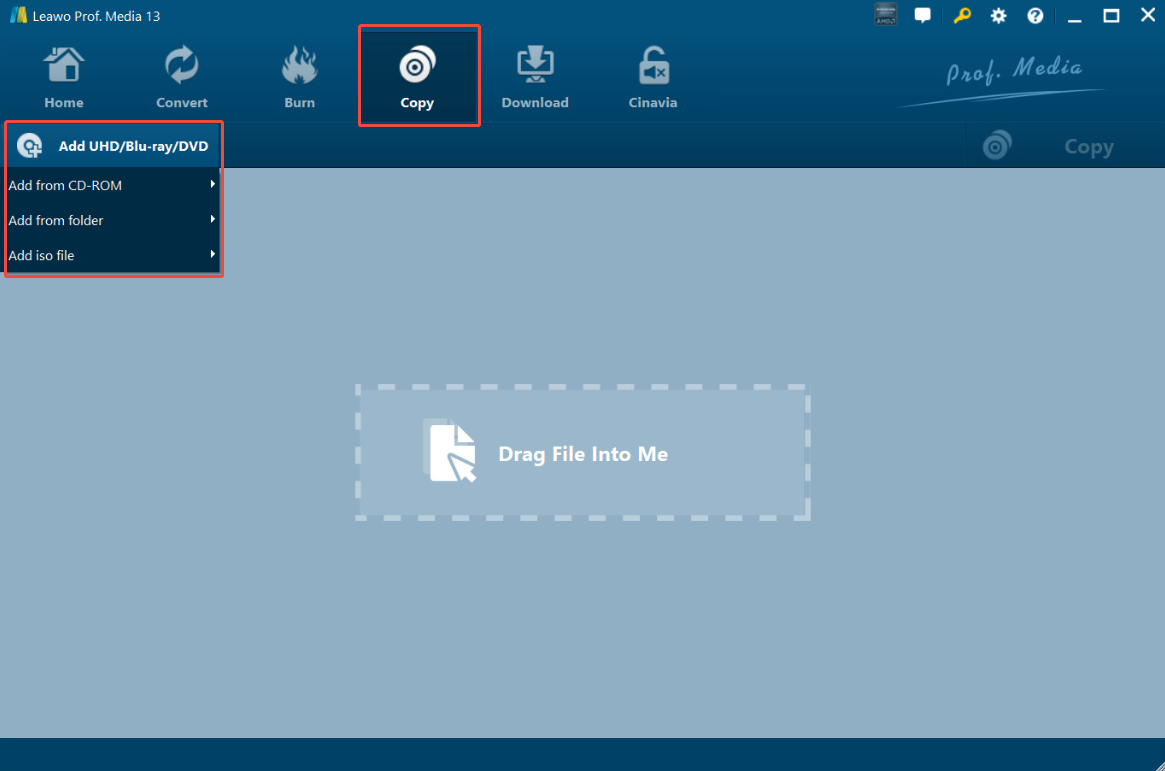
Step 1. Add Your Blu-ray or DVD Source
Insert the source disc and load it into the software.
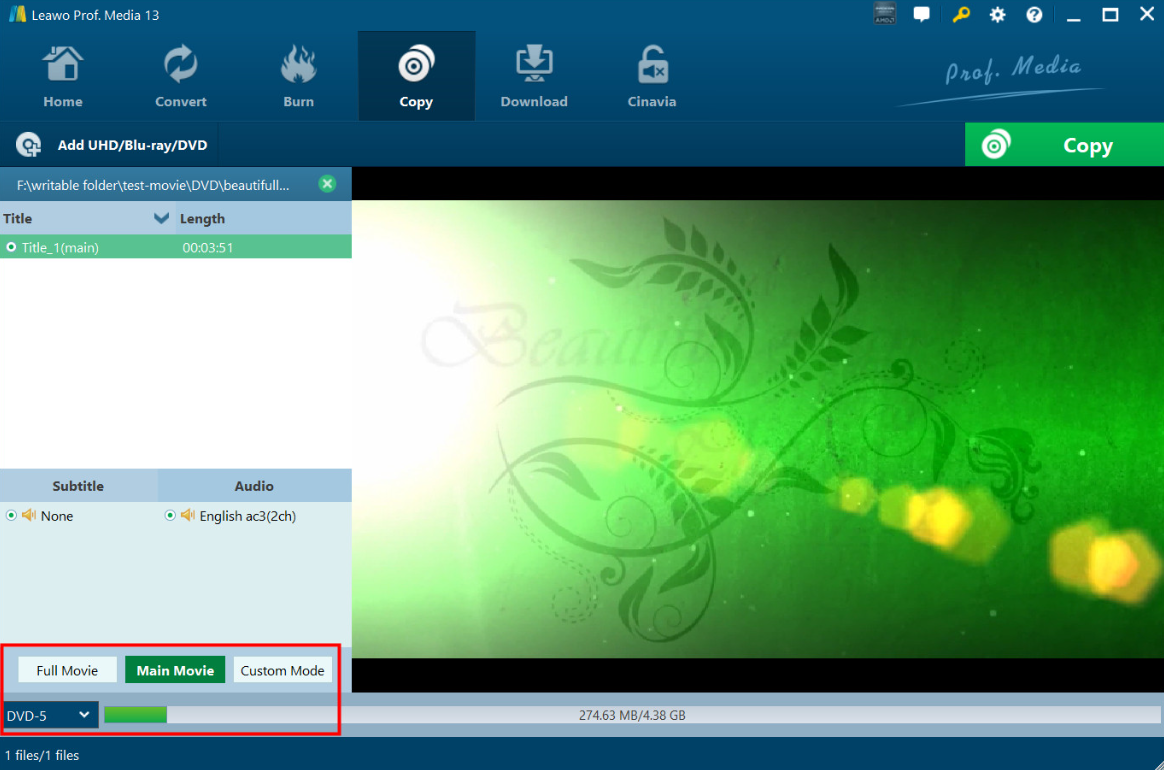
Step 2. Choose a Backup Mode
Leawo Blu-ray Copy provides three modes:
- Full Movie — preserves the complete source content.
- Main Movie — focuses on the main movie title.
- Custom Mode — lets you select specific titles and content.
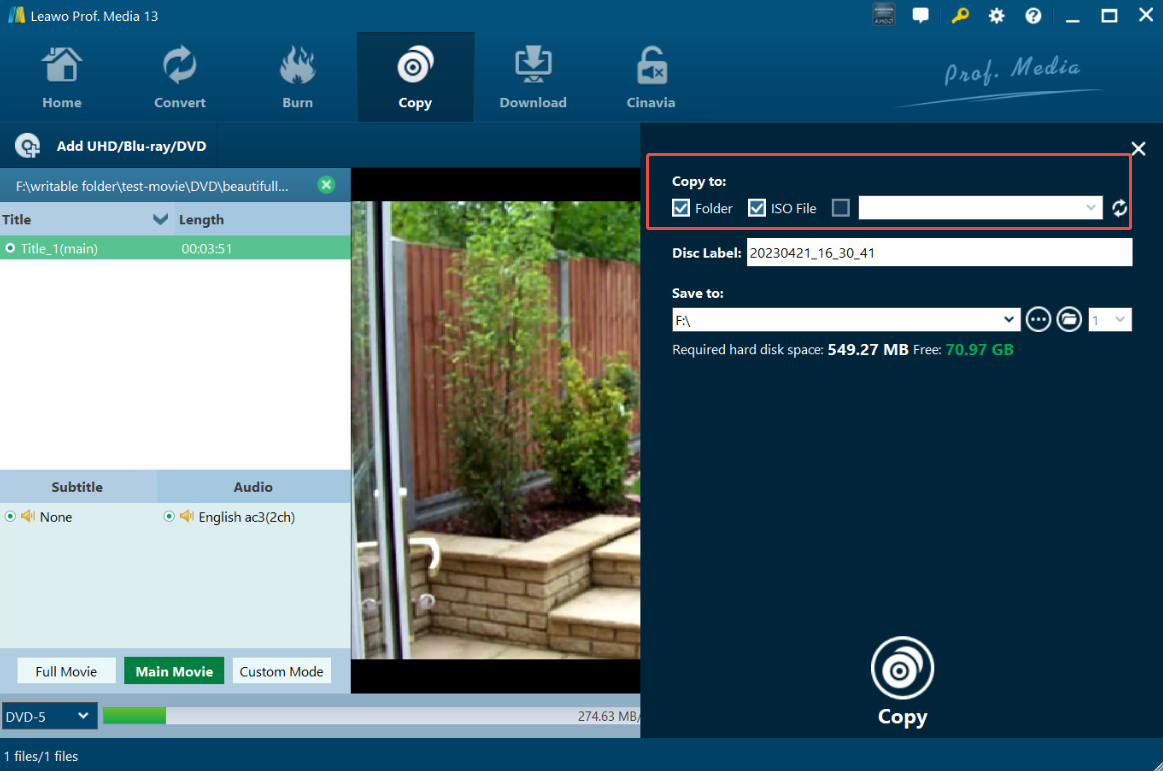
Step 3. Choose the Output and Compression Settings
You can choose to back up Blu-ray/DVD as an ISO file, a Blu-ray folder, or burn it to a blank disc.
Step 4. Start the Backup
Before starting, check the source, destination, output size, selected title, subtitles, and audio tracks. Then start the backup process and wait for it to finish.
4.2 How to Back Up Copy-Protected Blu-ray/DVD Discs on Windows/Mac via Ripping
If you simply want to keep the movie as an MP4 or MKV file to watch on a computer, media server, or other compatible device, Blu-ray copy software might not be what you need. In this case, a Blu-ray or DVD ripping program is more suitable than disc copying software. Leawo Blu-ray Ripper supports Blu-ray and DVD discs, folders, and ISO images, allowing you to convert them into formats such as MP4, MKV, AVI, and other common formats.

- Converts Blu-ray to over 180 video/audio formats
- Supports 2D-to-3D video conversion
- Removes BD-J, AACS, and other common Blu-ray protections and region codes.
Here are the steps on how to back up protected Blu-ray/DVD discs with Leawo Blu-ray Ripper:
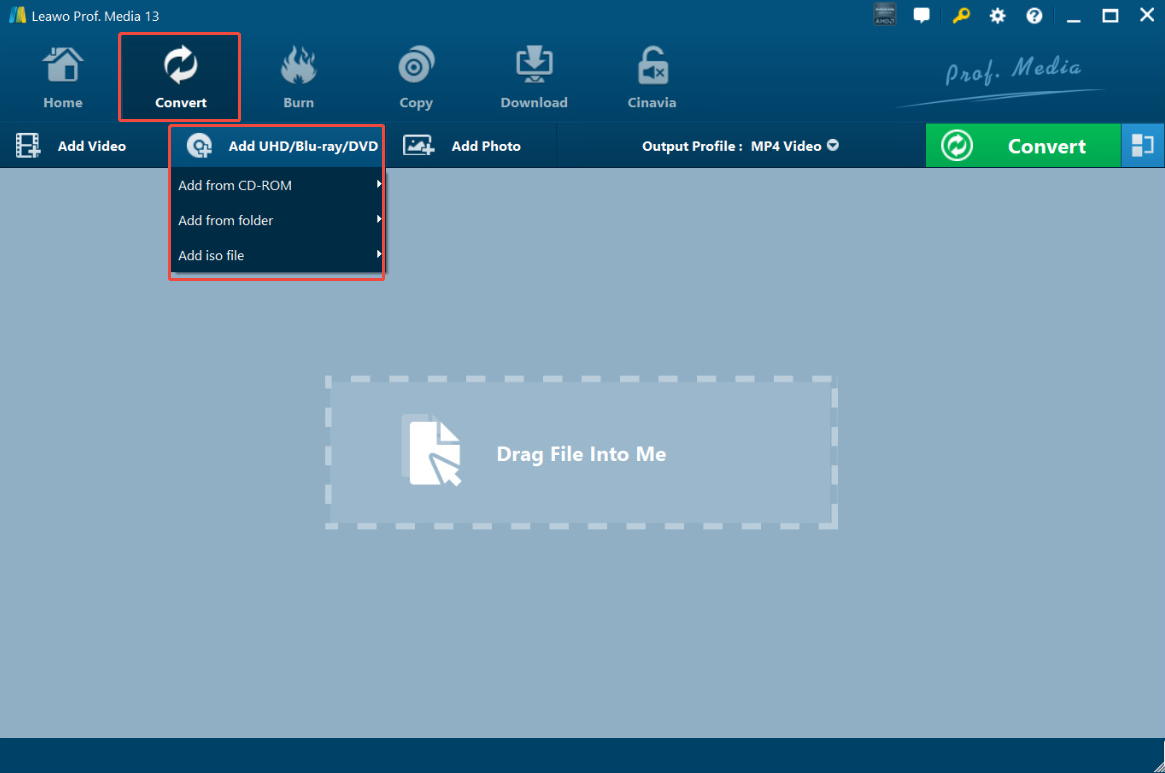
Step 1: Import Your Target Blu-ray/DVD Source
Open Leawo Blu-ray Ripper and load the disc you inserted.
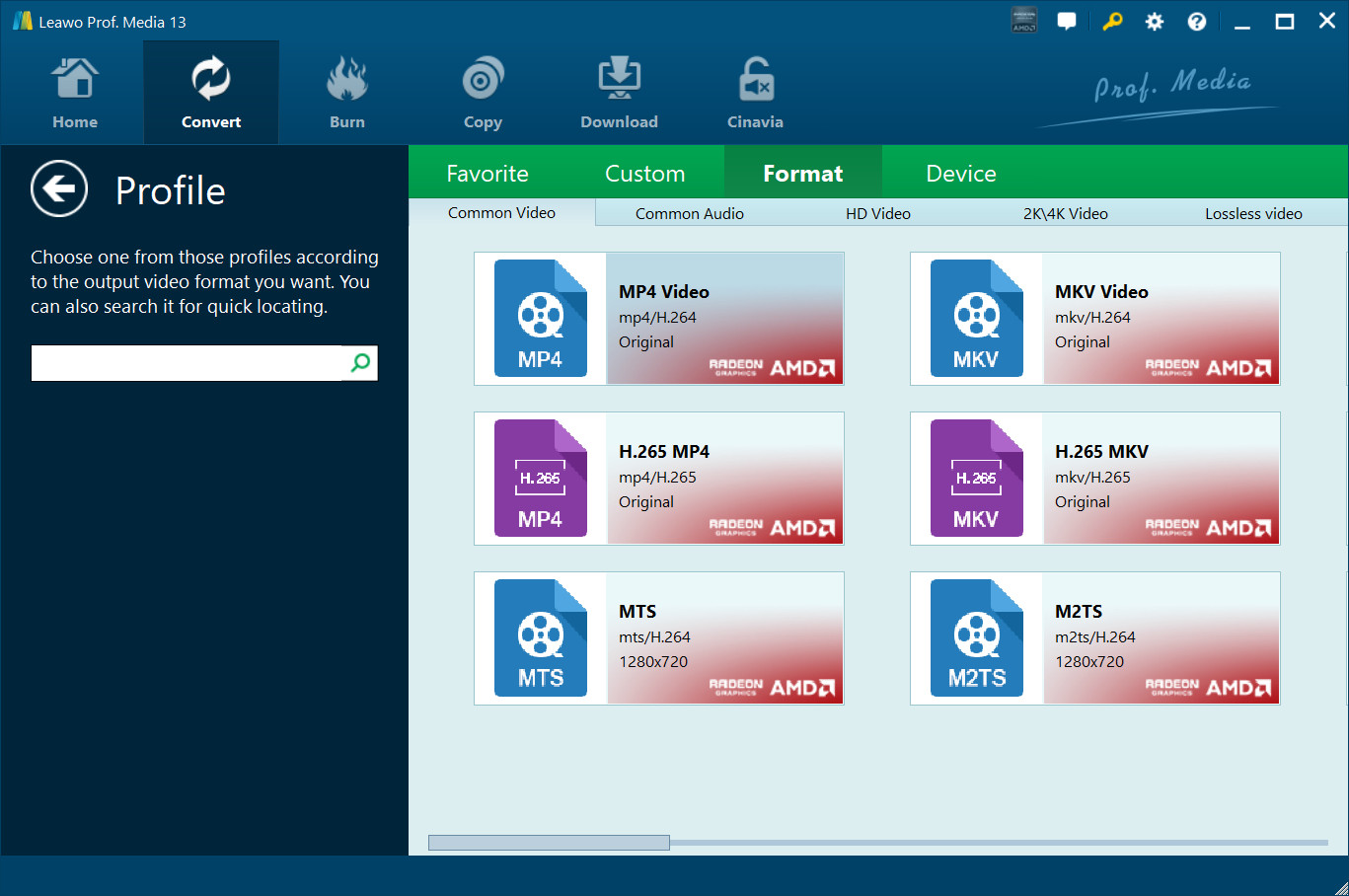
Step 2: Select Your Preferred Output Profile
Choose an output format according to how you plan to watch the file. MP4 is a broadly compatible option for computers, mobile devices, TVs, and media players, while MKV can be useful when you want to retain more of the source’s audio and subtitle options.
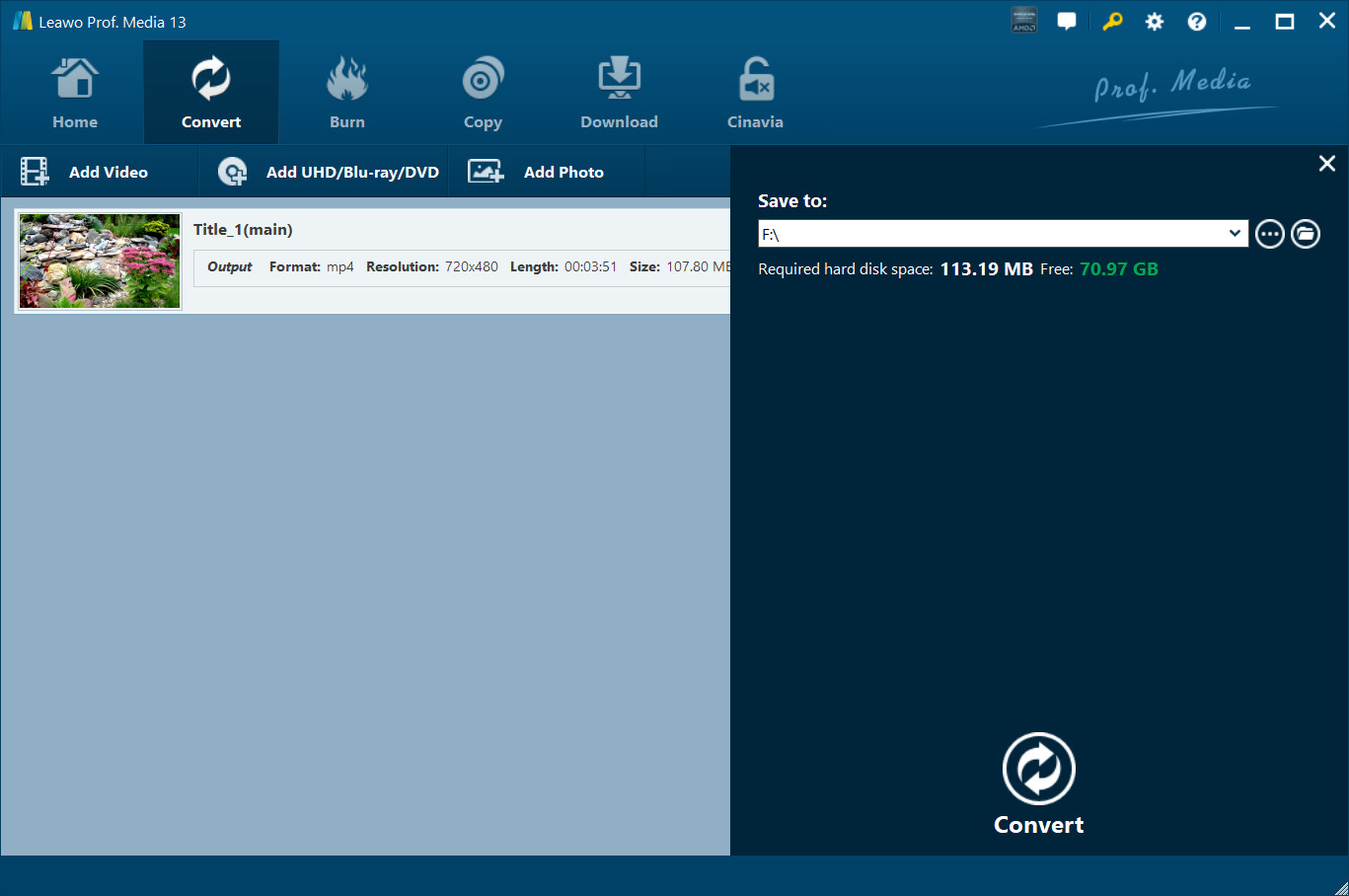
Step 3. Start the Conversion
Once the title, format, tracks, and output settings are confirmed, start the conversion. The result is a standalone digital video file.
4.3 How to Back Up Protected Blu-ray/DVD Discs for Free?
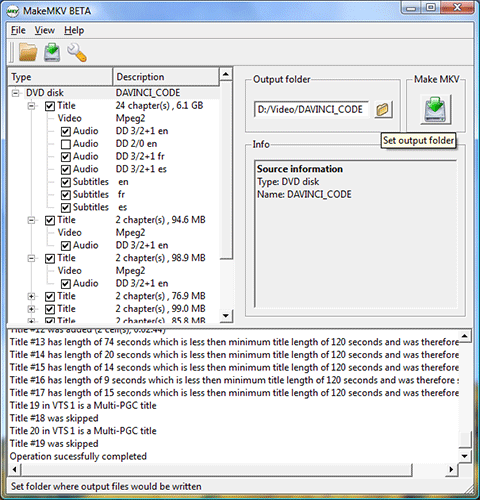
If you are looking for a free way to back up Blu-ray/DVD discs, the combination of MakeMKV and HandBrake is a widely used solution for creating and compressing digital video files from compatible discs.
MakeMKV bypasses AACS/BD+ copy protection on Blu-rays and CSS on DVDs to extract a raw video stream into an uncompressed MKV file. HandBrake cannot bypass DRM or decrypt protected discs on its own. It relies on MakeMKV to handle the copy protection first. Once MakeMKV extracts the unencrypted MKV file, HandBrake can then transcode it into smaller MP4/MKV files, adjust bitrates, or convert audio formats for broader device compatibility.
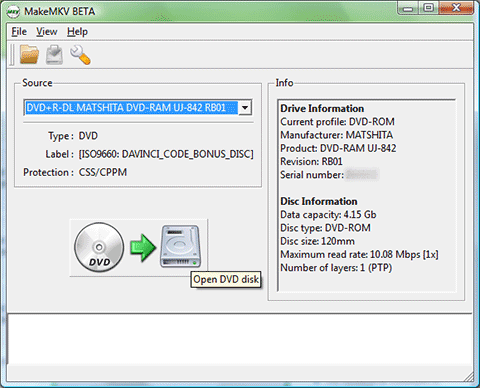
Step 1. Prepare a Compatible Source
Use a disc that you are legally permitted to copy and load it in MakeMKV.
Step 2. Create or Obtain a Compatible Video Source
MakeMKV can create MKV files from supported Blu-ray/DVD sources.
Step 3. Open the Source in HandBrake
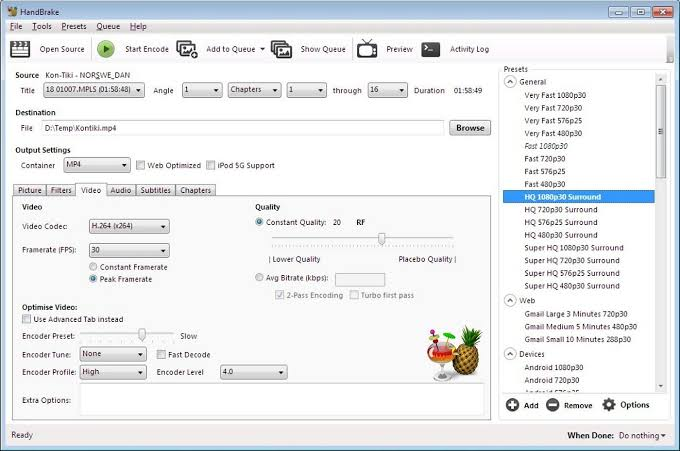
Load the MKV file from MakeMKV into HandBrake. HandBrake can convert MKV to MP4 or WebM.
Step 4. Choose MP4 or WebM
HandBrake can output MP4 and WebM files and provides presets for different playback devices and quality requirements.
Step 5. Start Encoding
Choose an appropriate preset or adjust the encoding settings, then start the conversion.
Part 5. FAQs
-
Does Blu-ray Backup Reduce Video Quality?
It depends on the type of backup. Direct bit-for-bit cloning retains the exact original video bitrates, multi-angle tracks, interactive menus, and lossless audio pass-through without any re-encoding. Compressing a dual-layer BD50 down to a single-layer BD25 forces the software to re-encode the video stream, which inherently leads to a degree of compression artifacts and loss of visual detail.
-
What Is the Difference Between Full Movie and Main Movie Backup Mode?
Full Movie copies the complete source content; Main Movie focuses on the main title. Full Movie is useful when you want to preserve menus, bonus content, subtitles, audio tracks, and other disc elements where supported. Main Movie is useful when you mainly care about the movie itself and want to avoid unnecessary content.
-
Can I Back Up a Blu-ray/DVD to an ISO file?
Yes. ISO is a common way to store a disc image on a computer. Tools that support disc imaging can convert Blu-ray/DVD to ISO files.
-
Can I Back Up a Blu-ray/DVD to a Folder?
Yes. Many Blu-ray copy programs can do that. This can be convenient when you want to inspect or access the disc structure directly or use compatible Blu-ray/DVD playback software.
-
Can I Compress BD50 to BD25?
Yes, some Blu-ray copy tools support BD50-to-BD25 compression for supported Blu-ray content. A BD50 can hold considerably more data than a BD25, so compression may be necessary when you want to fit a larger source onto smaller-capacity media.
-
Can Blu-ray Backup Preserve Subtitles and Audio Tracks?
Yes, depending on the backup mode and software. Under Full Movie mode, software can often retain the source’s subtitles and audio tracks, while other modes can provide more selective control.
-
What Is the Difference Between Blu-ray Copy and Blu-ray Ripper?
The main difference is the output. If you want to preserve your Blu-ray/DVD as a disc-style backup, choose Blu-ray Copy. If you want to turn the content into MP4, MKV, or another digital video format, choose Blu-ray Ripper.
Conclusion
If you want to preserve a Blu-ray or DVD collection, the first step is to determine whether you are authorized to copy the content and whether your local laws permit the backup method you intend to use. This is particularly important when a disc contains technical protection measures.
No matter what method you choose to back up your Blu-ray/DVD, please ensure that it is for personal use and do not violate regulations.
- This guide is intended for Blu-ray/DVD discs and content that you are authorized to copy.
- Copyright and anti-circumvention laws vary by country and use case.
- Before bypassing any technical protection measure, check the laws that apply to you.
- Nothing in this article should be interpreted as legal advice or as permission to circumvent copy protection or distribute copyrighted content without authorization.
Share this post










 العربية
 繁體中文
繁體中文 Dansk
Dansk Nederlands
 Suomi
Suomi Français
 Deutsch
 Italiano
 한국어
한국어 Norsk bokmål
 Português
 Русский
 Español
 Svenska