


Summary:
This tutorial details the meaning of Disneyplus.com/begin and the 8-digit code, and explains the activation process for Disney Plus on smart TVs, streaming devices, and game consoles step by step. Additionally, this tutorial analyzes common problems encountered during Disney Plus activation and provides targeted troubleshooting methods, as well as sharing offline viewing tips and answers to frequently asked questions.
Outline
In today’s booming digital entertainment landscape, Disney Plus, with its vast library of high-quality content from top IPs like Disney, Pixar, Marvel, and Star Wars, has become a streaming platform beloved by hundreds of millions of viewers worldwide. Whether it’s classic animated films, superhero series, or stunning documentaries, you can find it all on Disney Plus. To fully immerse yourself in this exciting content on large-screen devices such as smart TVs, streaming media devices, and game consoles, a key step is activating your account via Disneyplus.com/begin and the 8-digit code. For many users, cross-device activation can be confusing, such as not understanding the purpose of the 8-digit code, getting confused about the activation steps, or encountering code invalidation. To help you easily overcome these obstacles, I will break down the core concepts of Disneyplus.com/begin and the 8-digit code. Then, I will detail the activation process for different devices and provide practical troubleshooting solutions. Finally, I will share tips for offline viewing so you can enjoy Disney Plus smoothly.
What Is Disneyplus.com/begin and 8-Digit Code?
To successfully activate your Disney Plus across devices, you first need to understand the core functions of Disneyplus.com/begin and the 8-digit code. Disneyplus.com/begin is the official URL specifically used to activate and log in to your Disney Plus account on devices such as smart TVs, streaming media players, and game consoles. Users can create a new account through this website or enter the 8-digit code displayed on their device to link their account to the device. The 8-digit code is the Disneyplus.com/begin activation code used to verify the legitimacy of the user account. The 8-digit code ensures account security and prevents unauthorized access. Additionally, it allows you to smoothly stream Disney Plus content on designated devices without manually entering complex login credentials, making cross-platform login more convenient.
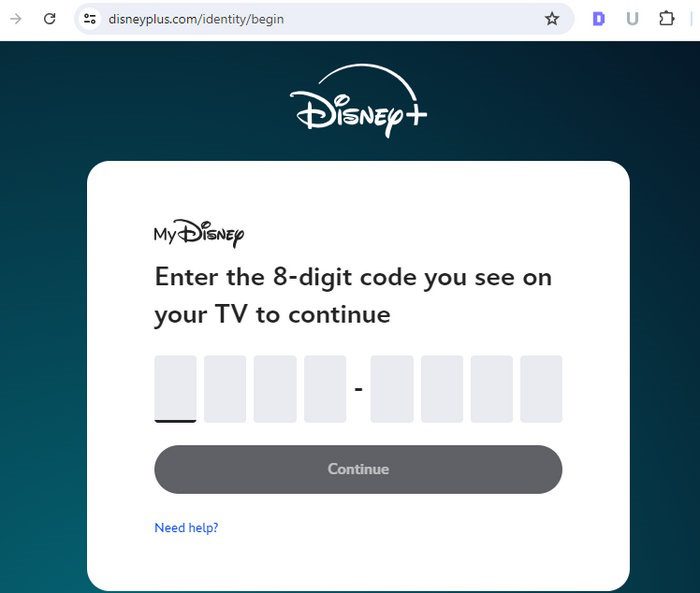
How to Activate Disney Plus with Disneyplus.com Login/Begin 8-Digit Code
Activating Disney Plus involves slightly different steps depending on the type of device. Below are detailed activation steps for various devices to help you quickly master the process.
On Smart TVs
Smart TVs are the mainstream home entertainment device. Therefore, activating a Disney Plus account on a smart TV is a skill that most Disney Plus users need to master. Before activating your Disney Plus account, you need to ensure that your smart TV is compatible with the Disney Plus app. Then, you can follow these steps to activate your Disney Plus account on your smart TV:
Step 1: Turn on your smart TV. Then go to your smart TV’s app store, search for and download the Disney Plus app.
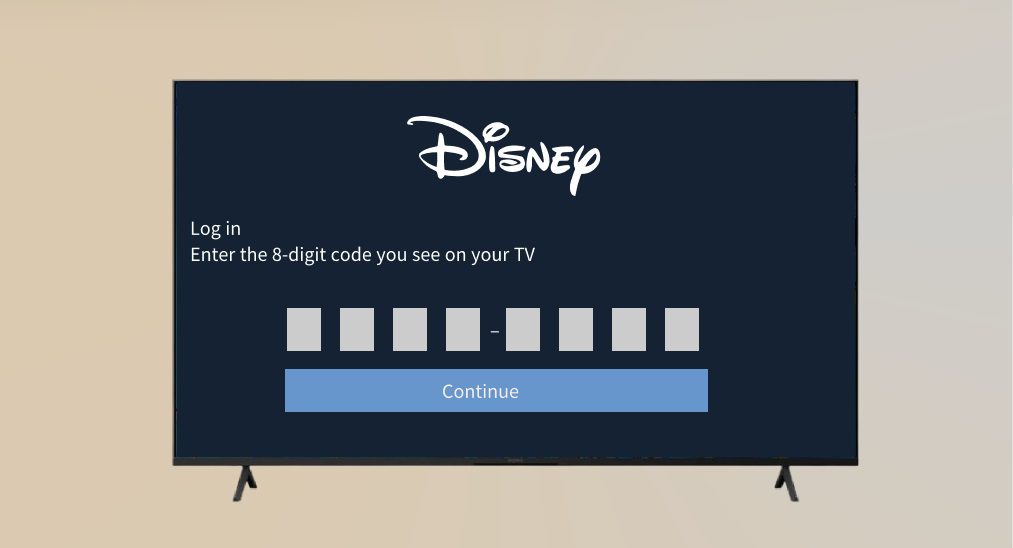
Step 2: After launching the Disney Plus app, select "Sign In". The TV screen will then display an 8-digit activation code.
Step 3: Open a browser on your smartphone or computer and visit Disneyplus.com/begin. Then, enter disneyplus.com login/begin tv code and log in to your Disney Plus account. Finally, click "Continue". Wait a moment; if the TV screen refreshes, your Disney Plus account has been successfully activated on this smart TV. Now, you can start watching Disney Plus.
On Streaming Devices
Streaming devices are favored by a wide range of users for their portability and compatibility. Currently, the process for activating a Disney Plus account on mainstream streaming devices is remarkably straightforward. By following the steps below, you will easily master the procedure for activating your Disney Plus account on your streaming device.
Step 1: Turn on your streaming device. Then, go to your streaming device’s app store. Search for “Disney Plus”, then download and install the Disney Plus app.
Step 2: Run the Disney Plus app on your streaming device and select “Sign In.” Your streaming device’s screen will then display an 8-digit activation code.
Step 3: Visit Disneyplus.com/begin in your computer browser. On this page, sign in to your Disney Plus account. Enter the 8-digit Disney Plus begin code and click “Continue.” Wait a moment; if the device refreshes automatically, the activation is complete.
On Game Consoles
Today, game consoles not only satisfy gaming needs but are also an important option for watching movies. Consoles like PlayStation and Xbox support the Disney Plus app. When connected to the internet, you can use your console to watch Disney Plus content. With just a few simple steps, you can enjoy Disney Plus on your PlayStation, Xbox, or other game consoles.
Step 1: Turn on your game console. Then, go to your console’s app store. Download and install the Disney Plus app on your game console.
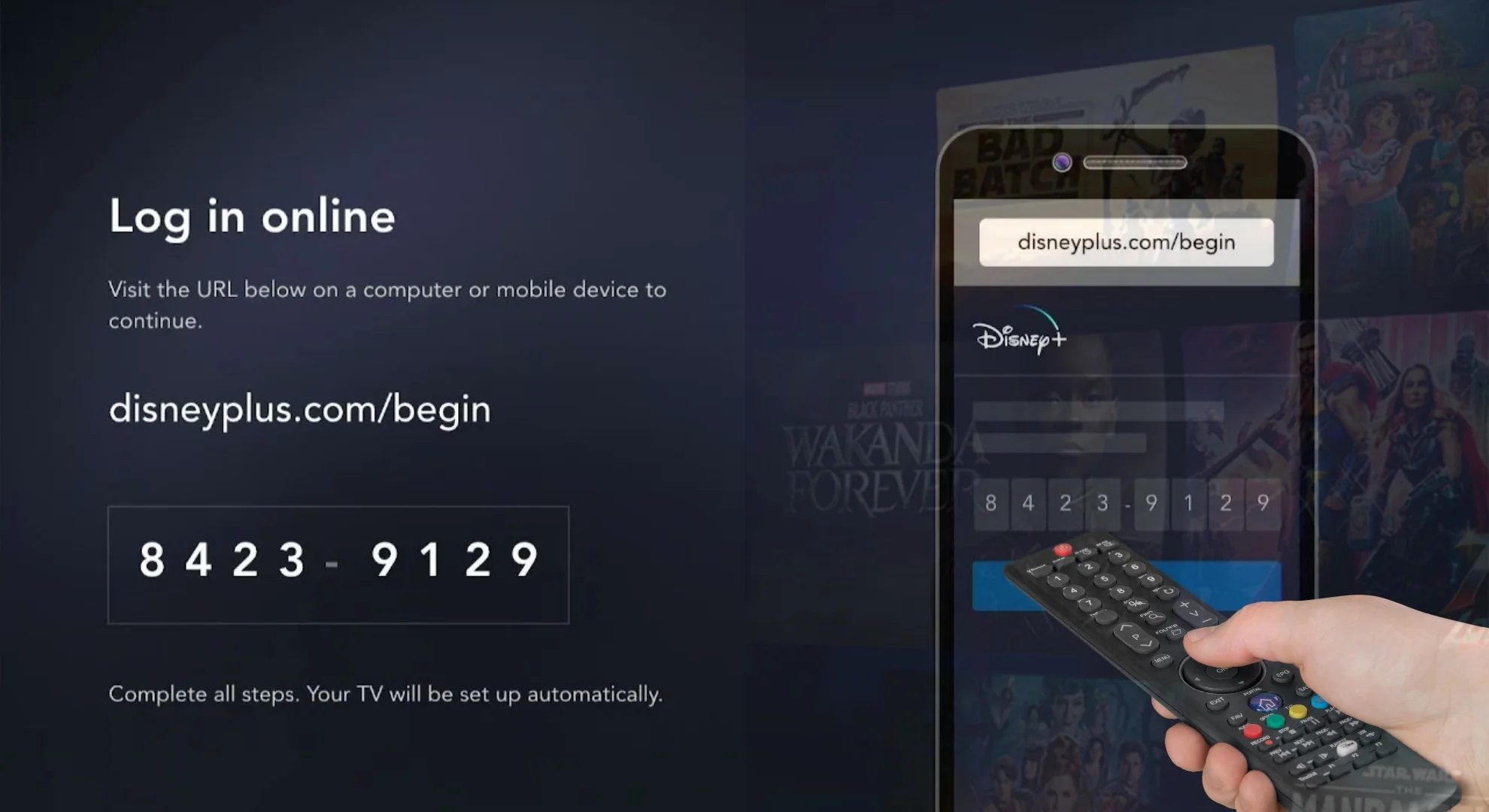
Step 2: Launch the Disney Plus app on your game console. Then, select "Sign in." An 8-digit activation code will appear on the screen.
Step 3: Use your computer browser to visit Disneyplus.com/begin and sign in to your Disney Plus account. On the Disney Plus page, enter the 8-digit code and follow the prompts. If the Disney Plus app on your game console refreshes, your Disney Plus account has been successfully activated on the game console.
Disney Plus Activation Troubleshooting
While activating a Disney Plus account isn’t complicated, you might encounter activation failures due to various factors. To help you quickly locate and resolve issues, I’ve summarized common Disney Plus activation failure scenarios and provided targeted troubleshooting methods.
1. Displaying "Invalid code"
This is likely due to an incorrect 8-digit activation code. You need to ensure the 8-digit code is entered correctly. Any incorrect digits will cause activation failure. You can carefully check the code on your device’s screen, entering it digit by digit to avoid errors. Additionally, if you still receive an error message after multiple attempts, restart the Disney Plus app to obtain a new code and try again.
2. Displaying "Code expired"
The 8-digit activation code has an expiration time. After the 8-digit activation code is displayed on the device’s screen, a countdown timer will appear (usually a few minutes). After the timeout, the 8-digit activation code will automatically expire. After the code expires, the code you entered will not be able to activate your Disney Plus account. You need to exit the Disney Plus app and restart it. Then, log in to your Disney Plus account again, and the device will generate a new 8-digit code. Finally, you can reactivate your Disney Plus account using the new 8-digit activation code.
3. Device does not display the code
First, you need to check your device’s compatibility with Disney Plus. You can check your device’s compatibility with Disney Plus in the support list on the official Disney Plus website. Then, you need to ensure that the Disney Plus app installed on your device is the latest version. If not, you need to install the latest version of the Disney Plus app. If you still cannot display the code after completing the above steps, you can restart your device to fix the problem.
Bonus: Watch Disney Plus Offline
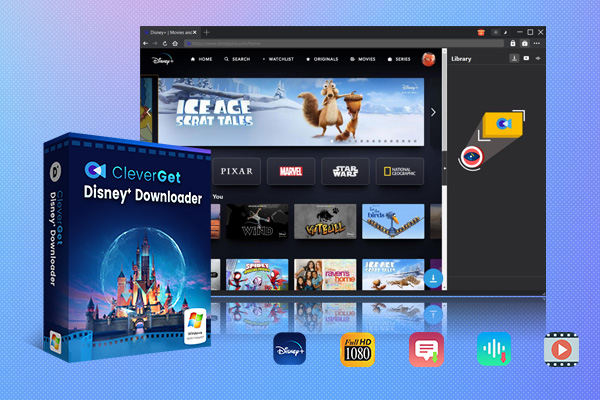
On many social media platforms, I’ve seen numerous comments expressing a desire to continue watching Disney Plus content offline, but the offline functionality offered by Disney Plus has many limitations. If you also want to watch Disney Plus offline, you’ll need the help of a best Disney Plus downloader. I often use CleverGet Disney Plus Downloader to download Disney Plus videos. CleverGet Disney Plus Downloader is a powerful, secure, and convenient Disney Plus video downloader. It can download Disney Plus movies and entire seasons of TV shows in batch. Downloaded Disney Plus videos typically retain 720p/1080p high-definition quality and various high-quality audio. Furthermore, when using CleverGet Disney Plus Downloader to download Disney Plus videos, you can freely choose the video format (MP4 or MKV) and select your preferred language subtitles. In short, CleverGet Disney Plus Downloader provides you with an unlimited, high-quality offline viewing experience.

-
CleverGet Disney Plus Downloader
Professional Disney Plus video downloader to download on-demand videos like movies and series at 720P quality with selected subtitles and audio tracks.
- Download and convert Disney Plus video to MP4/MKV.
- Batch download TV episodes across seasons from Disney+.
FAQs
Besides activation issues, you might have other questions when using Disney Plus. Therefore, I’ve compiled the following frequently asked questions and detailed answers to help you:
1. What if I forget my Disney Plus account password?
You can retrieve your Disney Plus account password through Disneyplus.com/begin. After accessing the website, you’ll need to enter your registered email address, then click "Continue" and select "Forgot Password." After receiving an email containing a 6-digit verification code, you’ll need to return to the website and enter the code to reset your password.
2. Does Disney Plus support all smart TVs?
Disney Plus does not support all smart TVs. Since its launch in 2019, Disney Plus has supported multiple platforms and devices. However, Disney Plus is incompatible with some older models, such as LG smart TVs and Samsung smart TVs from before 2016, which may result in Error 83.
3. What subscription plans does Disney Plus offer?
Disney Plus offers several subscription plans. There are three main plans: the Disney Plus Basic plan with ads ($9.99 per month), the Disney Plus Premium plan without ads ($15.99 per month), and a bundled plan with Hulu and ESPN Plus. The different plans vary slightly in terms of features, but all offer access to the full Disney Plus content library.
Conclusion
Activating Disney Plus by using Disneyplus.com/begin with the 8-digit code is the core method for using the platform across devices. Whether using a smart TV, streaming device, or game console, we follow this core process to activate Disney Plus account. If you encounter activation problems, you can first pinpoint the problem based on the error message or symptoms. Then, you can troubleshoot and resolve the issue by checking the code, updating the app, and checking network and device compatibility. For offline viewing, CleverGet Disney Plus Downloader offers even more convenience. By following this guide, you can effortlessly resolve common activation and usage issues, allowing you to fully enjoy the extensive and captivating library of films and television content available on Disney Plus.
-
TunePat VideoGo All-In-One Review: Really of Great Value?
-
YouTube TV DVR Explained: How It Works, Limits, and Tips
-
4 Easy Methods: How to Download Reddit Videos?
-
How to Watch Movies with Friends Online Together?
-
Cyberlink PowerDVD Review: Best Paid Media Player?
-
ScreenRec Review: Real Performance Test
-
Best Ways to Watch YouTube Videos Offline Without Internet
-
How Many People Can Share a Netflix Account?
-
5 Proven Methods to Watch YouTube Without Ads
-
How Long Do Recordings Stay on YouTube TV? Full Breakdown




-
Best Twitter Porn Accounts You Shouldn’t Miss
-
How to Download Pornhub Videos? Ways to Download from Pornhub
-
Top 5 OnlyFans Viewer Tools to View OnlyFans Content for Free
-
Full Review of Savethevideo: Is Savethevideo Safe & How to Use it?
-
How to Download MissAV Porn Videos in HD for Offline Viewing?
-
Netflix Download Limit: What it is & How to Avoid
-
Full Guide to YouTube Members Only Videos: Watch, Download
-
How to Import Bookmarks from Safari to Chrome
-
How to Download Videos from Fansly with Fansly Downloader
-
4 Methods to Burn ISO Files to Blu-ray Discs Easily










 العربية
 繁體中文
繁體中文 Dansk
Dansk Nederlands
 Suomi
Suomi Français
 Deutsch
 Italiano
 한국어
한국어 Norsk bokmål
 Português
 Русский
 Español
 Svenska