

Leawo PowerPoint to Video Pro
Convert PowerPoint Presentations to Video In Any Format for Multiple Usages
All-inclusive PowerPoint to video converter program to convert PowerPoint presentations to video in almost all popular video formats. This outstanding tool meets all your needs from trade shows to makeup ads, from courseware to church sermons, from in-store displays to video podcast, etc.
Convert PowerPoint to video in 180+ formats with 100% high quality
Compatible with PowerPoint 2000/2002/2003/2007/2010/2013 of 32-bit and 64-bit
Keep all features and effects of the original PowerPoint files
Detailed output video profiles for web services and end-devices like YouTube, iPad, iPhone and more
Add specific logo or background music to your output video presentation
Batch conversion for PowerPoint files with absolutely no quantity limit


Key Features
Key Features
View PowerPoint without PowerPoint tool
Convert PowerPoint for various web services
Export a PowerPoint presentation to popular web video like Audio Video Interleaved, Flash Video, Windows Media video, Apple QuickTime Movie and more, making it accessible on YouTube, Vimeo, your blogs and many other video-sharing sites.
Watch PowerPoint on diverse end-devices
Apart from specific video file format, this PowerPoint to video conversion tool also offers non-tech users with abundant of video profiles designed for various end-devices, which features Apple TV, Blackberry, Android, iPod, iPad, iPhone, PSP, PS3 (HD support), Pocket PC, Zen, Zune, XBOX, and so on.
Key Features
Customize output video
Adjust output video parameters
Besides simply selecting an optimized video profile in this PowerPoint to video convertor, you can also convert PPT to video with you own personalized settings. Video parameters including codec, bit rate, frame rate, video size (resolution), aspect ratio, channel, etc. are open for modification for best output quality.
Add Background Music
The Music feature of this cool PowerPoint to video converter allows you to add background music for the output video slideshow. You can insert as many soundtracks as you like.
Add your own watermark
You can also add watermark or logo to credit your work to protect your PowerPoint presentation from unauthorized hands and illegal usage. By adjusting the video layout with photo frame, you can create a perfect video out of ordinary PowerPoint.
Key Features
Fast and Easy-to-use
Multi-lingual interface for easier operation
 Leawo PowerPoint to Video Pro is set with a neat GUI in 8 most-spoken languages, i.e. English, French, German, Italian, Japanese, Portuguese, Simplified and Traditional Chinese, to let you easily convert PowerPoint to video without difficulty.
Batch conversion with no PPT quantity limit
 Process multiple PPT files per conversion and best of all, with no PowerPoint quantity limit. You can import as many PowerPoint files as possible into this powerful PPT converter and convert them all to videos in one click. Create a separate video for each PowerPoint file.
Process fast and precisely with timeline
Convert PowerPoint presentations to videos in no minute. Display the exact process of each PPT file with precise conversion time. You can preview the output video in real time during the PPT to video conversion process.
How Does Leawo PowerPoint to Video Pro Work
How to Convert PowerPoint to Video
 1
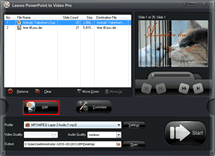
1Step 1 : Import PowerPoint files
2Step 2 : Choose output video format
3Step 3 : Convert


Pricing Plans of PowerPoint to Video Pro
Pricing Plans of PowerPoint to Video Pro for Mac
Choose Your Pricing Plan
Basic Plan
One Year
$44.95
- 1 License for 1 PC
- All Features for 1 Year
- Auto-renewal. Cancel Anytime
- 5 Days Money Back Guarantee
- Unlimited Free Upgrades
Professional Plan
Lifetime
$69.95
- 1 License for 1 PC
- All Features for Lifetime
- One-time Payment
- 14 Days Money Back Guarantee
- Unlimited Free Upgrades
Tech Specs
Microsoft PowerPoint Version :PowerPoint 2000/2002/2003/2007/2010/2013/2016/2019, PowerPoint Viewer 2007/2010
Supported OS :Microsoft® Windows 7, Windows 8, Windows 8.1, Window 10, Windows 11
Processor :1GHz Intel or AMD CPU
RAM :512MB RAM (1024MB or above recommended)
Free Hard Disk :2GB or larger of free space
Others :Internet Connection; DirectX 8.1 or above; Windows-compatible sound card
Testimonials
What Client Say About Leawo PowerPoint to Video Pro
I absolutely love this program. I spent weeks trying EVERYTHING to convert my PPT to a video format I could upload to Vimeo and nothing worked - the timing of my presentation just kept getting messed up in the conversion. Five minutes after purchasing Leawo, I had my video in the bag. I am so relieved, and impressed. Best converter on the market - totally worth the money. Highly recommended.
After searching the web and trying several different PPT to video converters that did NOT work, finally found this one. Clarity as promised, all animations and audio transferred over perfectly to MP4. Price a bit high, but worth it after hours of trying to find software to convert my 75-slide show
I have their Video authoring and dvd production products and have been very pleased with the performance. This was a nice suprise as an easy way to convert powerpoints to video without having to screen record a presentation, big time saver. Good job guys.
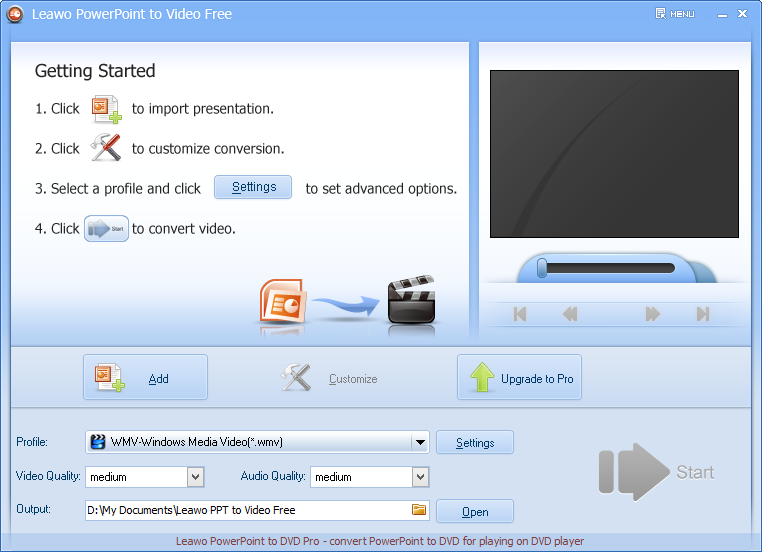
 How to Convert PowerPoint to Video Free2013-05-04
 Free Way And Best Way to Convert PowerPoint to AVI2013-04-26
 How to View PowerPoint on Smart Phone2012-11-08
 How to Create Back to School PowerPoint Slideshow2012-08-22
 How to Convert PowerPoint 2003 to Video Format2012-08-07
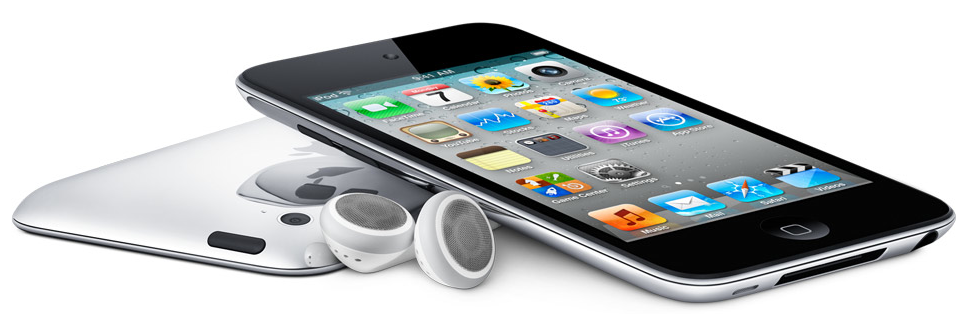 How to View PowerPoint on iPod Touch with Animati...2012-08-07
 How to Share Your PowerPoint Slideshow on Facebook2012-07-06
 2 Methods to View PowerPoint on Apple TV2012-07-05
 How to extract audio out of PowerPoint files and ...2012-06-19
 How to Play PowerPoint on Android Smartphone2012-04-26
 Latest Articles


Convert PowerPoint to Video
Convert PowerPoint to video in various formats
Support multiple PowerPoint versions as input
Keep all original PowerPoint effects