Leawo PowerPoint to DVD Pro
Burn PowerPoint presentations to DVD with chic DVD menus.More...
Download Buy Now
Leawo PowerPoint to DVD Pro Tutorial
- Create video from PowerPoint
Part II: How to Convert a PowerPoint Presentation to Video?
Leawo PowerPoint to DVD Pro is also ideal for converting PPT files to video. This section will focus on how to convert a PowerPoint 2000 or later presentation to video of 23 different formats (e.g. MPEG, AVI, MP4, MOV, 3GP) for sharing on YouTube and else social networking sites, and also for playing on the go via a mobile gadget like iPod, iPhone and iPad.
Before importing a PowerPoint file, please do the following:
Install and Launch Leawo PowerPoint to DVD Pro .exe file
Download Leawo PowerPoint to DVD Pro and install the .exe file on your computer, and you'll enter the main interface, shown as below:

1. Import PowerPoint file(s)
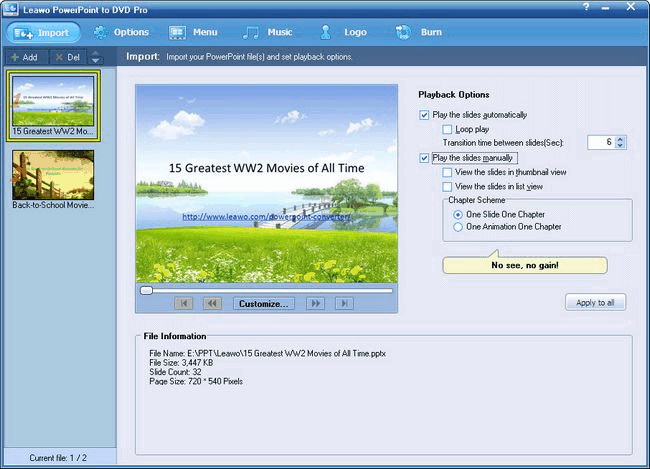
Click Add or Import to add the PPT file that you would like to convert to video from your local drive. You can have up to 12 PowerPoint files processed per conversion.

To view the details of a PPT file, click on its thumbnail on the left. You can see related File Information. If you want to modify slide properties, click Customize button.
2. Set the output options for video
Click the Options tab to shift to the output window. Under Options, check "Convert to Video File".

In the Profile dropdown, select a specific video format for your PPT presentation. 23 Video file formats, i.e. ASF, AVI, DAT, DV, FLV, MOV, MP4, MPG, 3GP, 3G2, TS, VOB, WMV, RM, RA, MKV, MKA, Wii AVI, Wii MOV, NDS DPG, NDS DPG2, NDS DPG3 and NDS DPG4, are available. You can also choose the format according to your output device for video.
To customize the video Profile, on the right of the dropdown, click
button. In the pop-up Profile interface, modify the video parameters as you need. Click OK to save your changes.

To make further settings for the conversion, return to the Options menu. Click Advanced Settings on the top right. In the prompt "Advanced Settings - Video Mode" dialog, reset embedded audio status, slide size and other conversion parameters for the output video.
3. Add music or narration to the output video
Now forward to the Music menu:

In the Playback No. - Background Music field, double click on a line to enable the "Add" button below.
Then, click
to add in a sound track, or
to record your very voice as narration for the video slideshow. To test the effect of the sound or narration, simply click
. To delete the current music, click
.
Note: The music or narration are defaulted to play in automatic mode.
4. Add watermark for the PowerPoint video

Want a special touch to your video slideshow? Then you can use the "Logo" feature. Go to the Logo menu, and click Add to add in a company trademark, unique avatar, or any graphic item you like as watermark on the video output. This may somewhat protect your PowerPoint work from infringement. You can also set the video layout by changing its margin size, fill and color.
All ready? Jump to the Burn tab.
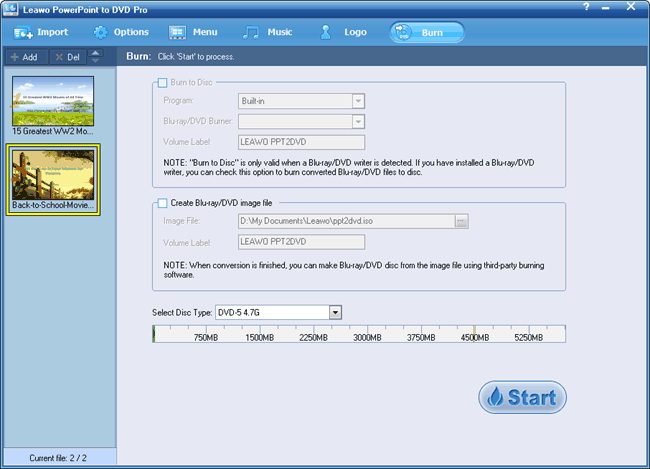
To specify a different name for the output video, on the task list, point the mouse to the file and rename it. Click Start. A warning message is prompted, shown as below:

Click OK to start converting the PowerPoint file(s) to video.
Processing
You can find the conversion progress from the Task list.

The process may take some time. It depends on the configuration of your computer, the complexity of selected PPT file(s), the working condition of your system, etc. It is highly recommended that you close all unnecessary programs that may affect the conversion.
When completed, click Finish to exit the pane. You can view the output video slideshow(s) or start another project.
Products
- MorePackage Solutions
- Total Media Converter Ultimate
- Video Converter Ultimate/Pro
- Blu-ray Video Converter
- Easy iPad Converter Suite
- Easy iPhone Converter Suite
- Easy iPod Converter Suite
- MoreVideo/HD Video Tools
- All-in-One Video Converter
- HD Video Converter
- Free AVI Converter
- Free MP4 Converter
- Free FLV Converter
- Free YouTube Downloader
- Video to DVD Creator
- Blu-ray Creator
- iTransfer
- Video Editor
- More DVD/Blu-ray Tools
- Blu-ray Ripper
- Blu-ray Copy
- Blu-ray to MKV Converter
- DVD Ripper
- DVD Copy
- DVD to AVI Converter
- DVD to MP4 Converter
- MoreUtilities
- Data Recovery for Mac
- Photo Recovery for Mac
- SWF Compressor for Mac
- MoreMac Converters
- Video Converter Pro for Mac
- Mac HD Video Converter
- Video Converter for Mac
- Blu-ray Ripper for Mac
- DVD Ripper for Mac
- DVD Creator for Mac
- YouTube Downloader for Mac
- iAm Ringer for Mac
- Mac Video to MP4 Converter
- Mac DVD to MP4 Converter
- MorePortable Device Tools
-
WinMac
- iPad Video Converter for Win
- DVD to iPad Converter for Win
- Free iPod Video Converter for Win
- DVD to iPod Converter for Win
- Free iPhone Video Converter for Win
- DVD to iPhone Converter for Win
- Mac Video to iPad Converter
- Mac DVD to iPad Converter
- Mac Video to iPod Converter
- Mac DVD to iPod Converter
- Mac Video to iPhone Converter
- Mac DVD to iPhone Converterc
- MorePowerPoint Converters
- PowerPoint to DVD Pro
- PowerPoint to DVD Std
- PowerPoint to Video (Free/Pro)
- PowerPoint to FLV
- PowerPoint to iPad
- PowerPoint to YouTube