Bookmark and Share Tell a Friend Home > download > PowerPoint converter
User Guide for Leawo PowerPoint to DVD Pro

Leawo PowerPoint to DVD Pro
Burn PowerPoint presentations to DVD with chic DVD menus.More...
Download Buy Now  
On This Page

Leawo PowerPoint to DVD Pro Tutorial- Convert PPT to DVD & Video

Part I: How to burn a PowerPoint presentation to DVD for TV?

LeawoPowerPoint to DVD Pro offers Office users of any age group an advanced ease of creating High Definition DVD as well as Standard DVD from a PPT presentation. In this section, you will learn how to burn a PowerPoint file to movie-feel DVD that can playback on a home TV attached with DVD player, and that can work well across different computers regardless of a matching PowerPoint version.

You can also get a thorough idea of how to watermark a presentation to convert, add an audio track, choose a DVD theme menu and make many other personifications with the PowerPoint to DVD Pro.

Get started: Install and Launch Leawo PowerPoint to DVD Pro .exe file
After download and installation, launch the .exe file of Leawo PowerPoint to DVD Pro, and you will get the following interface:

1. Import PowerPoint file(s)
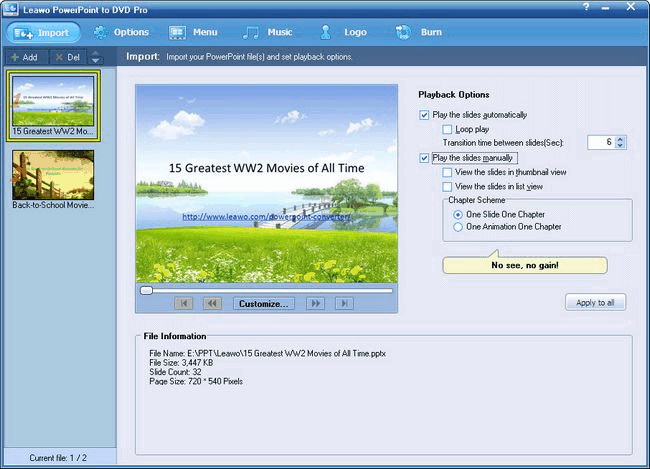
Click Add or Import to fill in a PPT file (PowerPoint 2000 or later) for converting to DVD. You can add up to 12 PowerPoint presentations at once.

On the left File column, click on a presentation to browse related info analysis (i.e. File Information). Click Customize to edit slide properties of the PowerPoint file.

Play the slides automatically: Tick to enable your PPT file on automatic mode, which means all slides of it will be advanced without stop.
Transition time between slides: It specifies how long each slide is displayed, defaulted to 6 seconds.
Play the slides manually: Tick to enable your presentations on manual mode. All the slides will be advanced by DVD remote control.  

2. Set an output to DVD
Click Options in the menu bar to choose an output format for selected PowerPoint file. Then check the Create Standard DVD box if you want average quality DVD smaller in size.

Alternatively, choose Create High Definition DVD in case you are to play the DVD slideshow on a HD TV.

Click Advanced Settings to customize the DVD slideshow.The following interface appears:

In the above interface, adjust audio status in your PowerPoint file, size of slides, layout and quality of video, audio codec, DVD language code, DVD menu parameters, and conversion status.

3. Create DVD menu
Click Menu to build a theme frame for the output DVD slideshow. Note that the Menu tab is grey if you selected the Convert to Video File option in the previous step.


Click the Menu button in the simulator to select the main menu for preview or edition.
Click Title to preview or edit a title menu.

From the Select Menu Templates drop-down list, you can choose a template for your DVD menu. 15 preset DVD themes are available under Menu. To DIY a DVD menu, press the DVD Menu Creator button on the right of the theme dropdown.


Select "Main Menu" to set background, button style, caption, and other properties for selected presentation. Choose "Title Menu" to select a playback mode for your DVD slideshow. To apply current settings to all the rest files, click Apply to all.

4. Add background music for output DVD
Click Music to add an audio file for your DVD slideshow to be generated. The Music interface pops up.

Note that manual mode will enable the icons  and . Click  to add an audio file, or  to record your own voice-cover as narration. Once completed, save it, and click  to test the sound effect.
If you are unsatisfied with the result sound file, select it and click to remove it away.

5. Add trademark or avatar as logo of DVD slieshow
To give a mark to output DVD, click on the "Logo" tab. There are two parts: Logo and Video Layout.

Under the Logo section, in the File (s) field, press "Add" button to input an image file, e.g. your company trademark, favorite avatar, as watermark (logo) for output DVD. This will personalize your PowerPoint work and protect it from prying hands.
In the "Video Layout" dropdown, resize and fill the file margin if necessary.

6. Burn PowerPoint to DVD
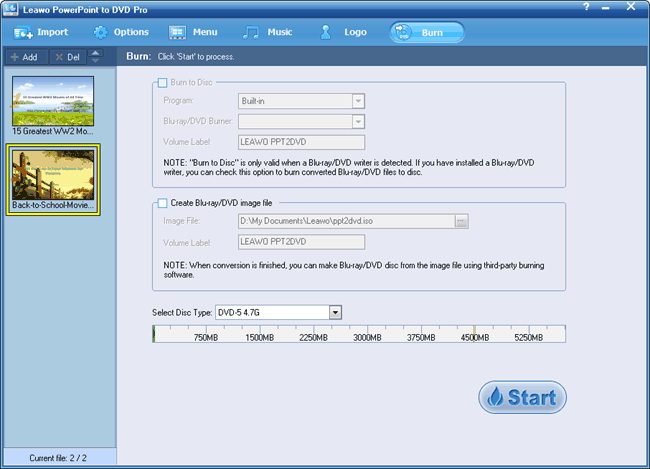
To burn the PowerPoint file(s) directly to disc, you should first have a DVD writer installed and a blank DVD inserted on your PC. Otherwise, the Burn to disc option will be NOT available. Alternatively,you can make an ISO file by ticking "Creating DVD image file". In the ISO file drop-down list, select a location for the ISO file from your local drive. In the Volume Label field, enter a label for your DVD disc.

OK. Click Start to convert your presentations to DVD and then burn the output to a disc. On the task pane, you should see Burn to disc after conversion, which means the program will burn the converted presentation to the disc you inserted in the DVD writer.

Related
How to convert a PPT file to video with Leawo PowerPoint to DVD Pro?

PowerPoint to DVD

PowerPoint converters comparison

Products

MorePackage Solutions
Media Converter Suite
Free AVI Converter Suite
Free iPod Converter Suite
Free MP4 Converter Suite
Free iPhone Converter Suite
MoreFLV Converter
Free YouTube Downloader
Free FLV Converter
Free Video to FLV Converter
Free Video Accelerator
More Video Converter
All-in-one video converter
All-in-One Video to DVD Creator
Free AVI Converter
Free MP4 Converter
Free 3GP Converter
Free iPod Converter
Free iPhone Converter
Free PSP Converter
MoreDVD Converters
All-in-one DVD Ripper
Free DVD to iPod Converter
Free DVD to iPhone Converter
Free DVD to Zune Converter
Free DVD to PSP Converter
Free DVD to AVI Converter
Free DVD to 3GP Converter
Free DVD to MP4 Converter
MorePowerPoint Solutions
PowerPoint to DVD
PowerPoint to Video
PowerPoint to FLV
MoreMac Converter
Mac Video Converter
Mac FLV Converter
Mac MP4 Converter
Mac iPod Converter
Mac iPhone Converter
Mac AVI Converter
Mac 3GP Converter
Mac PSP Converter
YouTube Downloader for Mac
DVD Ripper for Mac
Mac DVD to FLV Converter
Mac DVD to MP4 Converter
Mac DVD to iPod Converter
Mac DVD to iPhone Converter
Mac DVD to AVI Converter
Mac DVD to 3GP Converter
Mac DVD to PSP Converter
All-in-one Converter for Mac