

How to Save Your Own Twitch Live Stream: A Complete Guide

Summary:
This article introduces how to save their own Twitch streams via different ways, such as Twitch’s VOD feature and other third-party tools.
MenuCLOSE
Twitch provides a platform for gamers, content creators and streamers to communicate with those who share the same interests. For creators, each live stream is not only a real-time performance but also a digital asset. However, the immediacy of live streaming means that once it ends, the content will not be available for users to review. Therefore, it has become more important to save live streams. Once the stream is saved, users can create a wonderful highlight reel to attract new fans and provide a complete replay for viewers who missed the live stream.
Part 1: Can You Save Your Own Twitch Live Streams?
Yes, you can save your own Twitch live stream. Twitch offers a core feature called VOD, which can automatically record the live stream process. You can have your live stream stored through VOD, and retrieve it when you hope to edit your stream.
Main features of VOD:
- After you finish your live stream, the Twitch system will automatically save your live broadcast.
- Your viewers can access the VOD after the live broadcast ends, to review the missed content or the exciting moments.
- Creators can edit their videos on VOD to create a collection of highlight moments, which are convenient for sharing and attracting new viewers.
- You can download your own VOD for local backup or share it on the platform.
Part 2: How to Save Twitch Streams on VOD
You need to enable the VOD feature in Twitch to record and save your live streams. Here are steps on how to save your streams on Twitch:
Step 1: After logging into your Twitch account, click on your avatar in the top right corner of the page, and click “Creator Dashboard”.
Step 2: In the creator dashboard, click on the menu, then find “Settings”, and select “Stream” from the options below.
Step 3: Locate the “Store past broadcasts” and enable it. After that, Twitch will automatically record VODs for all your live streams.
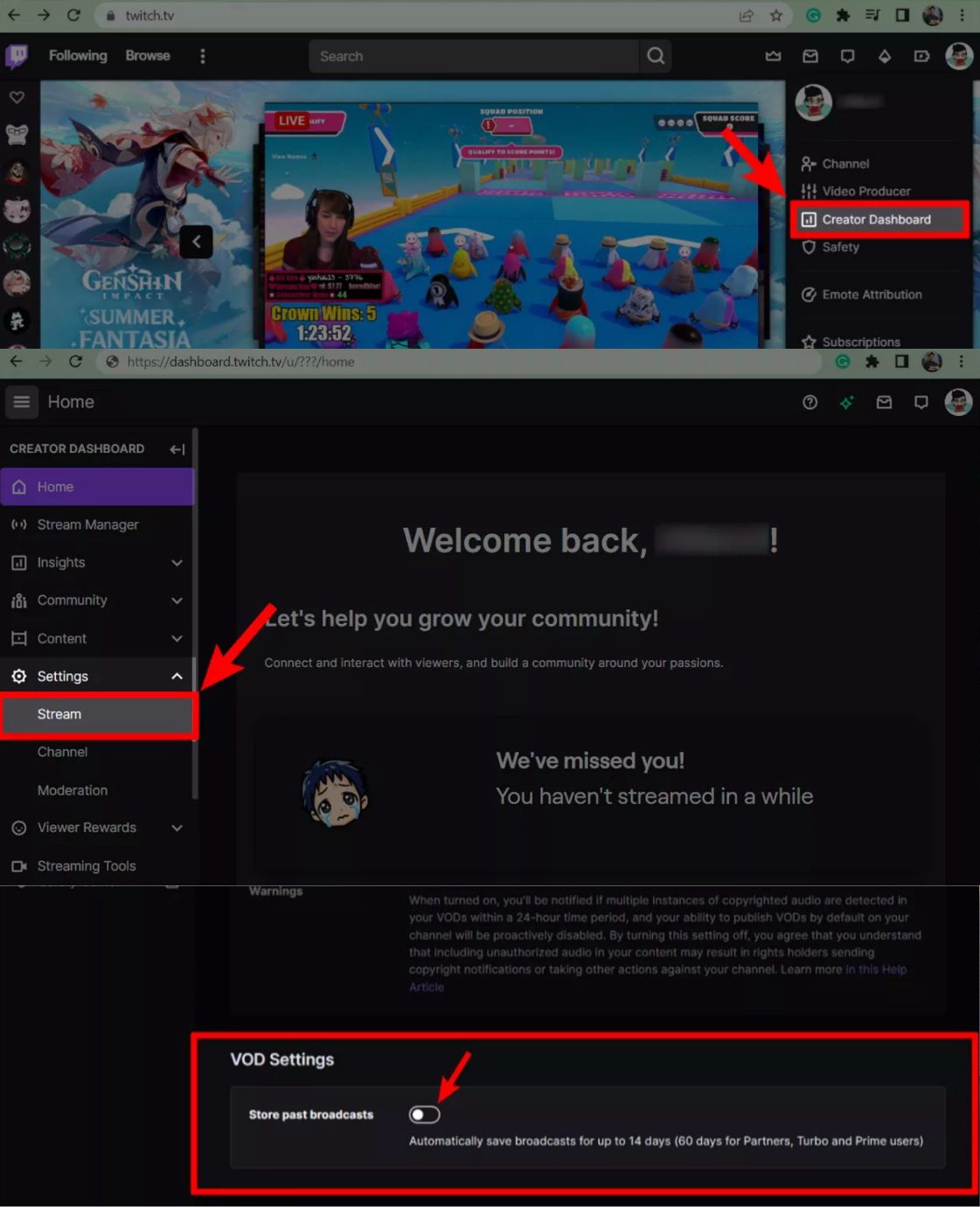
After enabling the VOD feature, please note that your content cannot be saved for a very long time. For regular users, VOD can save your streams for 14 days, while Twitch partners and Twitch affiliates can save VOD for 60 days. Once the period is exceeded, your content on VOD will be removed and cannot be restored.
Part 3: How to Record Your Own Twitch Streams Locally
If you want to save your streams for a longer time with fewer limits, then a professional third-party recording software like CleverGet Recorder is a better choice. CleverGet Recorder is a tool that can record live streams in high quality and save them locally in MP4 format. And it can record on most streaming platforms like Twitch and YouTube. Therefore, if you are also a YouTube streamer, you can save YouTube live streams through it as well. The following are steps on how to save your Twitch streams through it:
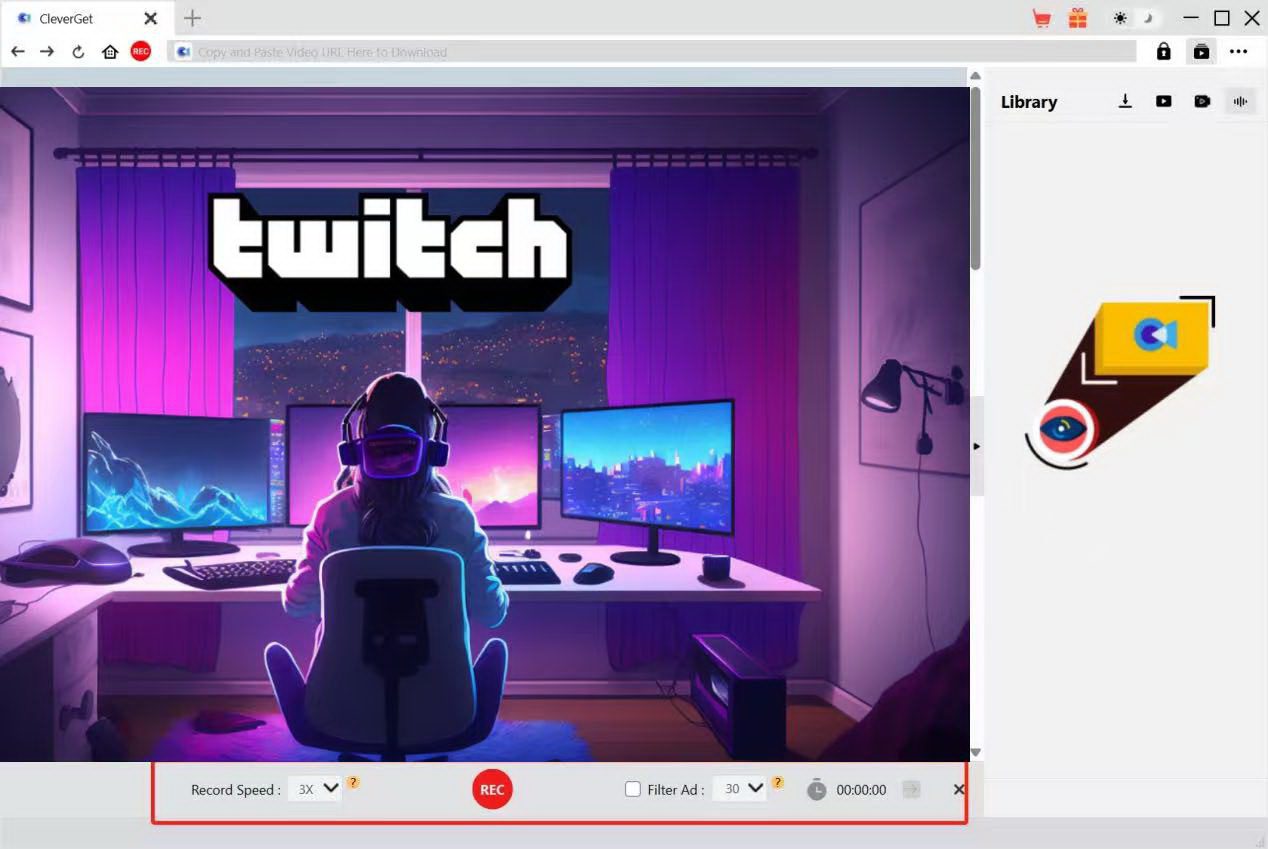
Step 1: Open CleverGet Recorder. Click on the menu at the top right corner and set up parameters according to your preferences.
Step 2: Visit Twitch through the built-in browser of the software, log in to your account, and then open the live stream you want to record.
Step 3: Click the red button to start recording, click it again to stop. After the recording is completed, it will be automatically saved.
Part 4: How to Download Your Twitch VODs from Twitch
1. Use Built-in Download Feature
Twitch also offers creators a built-in feature to download their VODs. Here are steps on how to save your Twitch streams:
Step 1: Log into your Twitch account and click “Video Producer”.
Step 2: Find the live stream you want to download from the list at the bottom. Click the ⠇ button on the right side.
Step 3: Click “Download”, the video will start downloading the content to your computer.

Tips: When using this feature, you can only download VODs from your own channel. It does not support downloading live streams from other users. Users may not be able to download streams in batches as well. Please be sure to complete the download within the storage period of the VOD (partnership/affiliates: 60 days, regular users: 14 days).
2. Use CleverGet Twitch Downloader
If you want to download streams from other channels, or download in batch, then a professional third-party download tools such as CleverGet Twitch Downloader, may meet your needs. This software can parse video links and offer high-quality download options. Here are the steps on how to save Twitch streams through it:
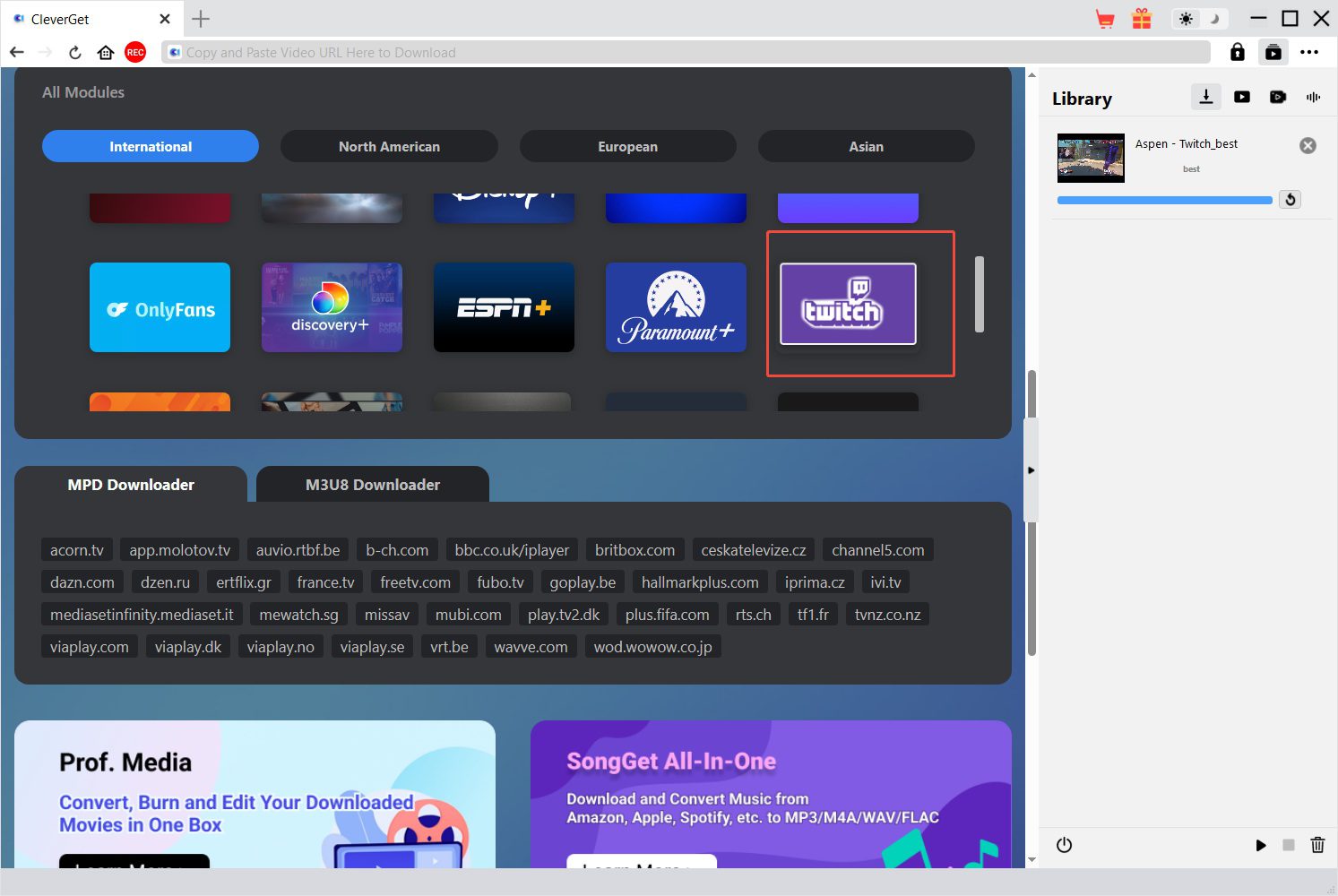
Step 1: Open the software, click the settings, and select the folder for saving your content.
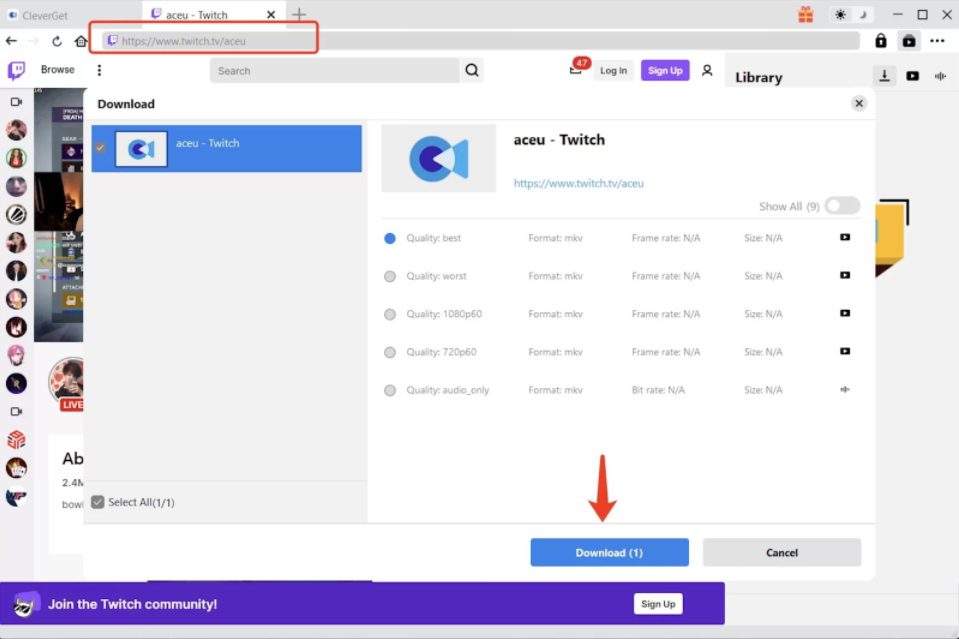
Step 2: Enter Twitch within this software. Then find the videos you want to download.
Step 3: Set the parameters according to your preference. Then click the “Download”, and the content can be saved on your computer.
Part 5: Benefits from Saving Your Own Live Streams
1. Repurposing for Other Platforms
If you save your live stream, you can edit to create shorter video content suitable for platforms such as YouTube, Instagram, and TikTok. In this way, you cannot only reach a wider audience but also make the most of the value of a single live stream.
2. Cut Highlights from Gameplay
For game streamers, there may be exciting moments of high viewing value. By saving the live stream, you can capture and edit these highlight moments, which can attract new viewers and expand the fan base.
3. Backup Your Own Content
Downloading the live streaming to local storage is a better way to ensure the security of your content as the VOD feature of Twitch may remove your streams when the storage time expires.
4. Share Full Replays with Fans
Not all fans can attend your live stream on time. By saving the live streams, you can share the replay links with those who missed the live event, allowing them to watch the entire content at any time and place.
Part 6: FAQs
1. Do Twitch streams save automatically by default?
No. You need to enable the VOD feature manually. Turn on the “Store past broadcasts” option, then the system will automatically record your live streams.
2. Why is my Twitch VOD missing?
This is usually caused by the following reasons:
- You might not have enabled the VOD feature in the settings.
- VOD has a storage time limit; after the expiration, the VOD will be automatically deleted.
- You or someone with management privileges might have deleted this VOD by mistake.
- If the live stream contains copyrighted music, Twitch may mute or delete the entire VOD.
3. Can I save Twitch live streams on mobile?
You must enable this feature through the computer, or use a third-party download tool or screen recording tool that is compatible with your mobile devices.
4. Should I rely only on Twitch to store my live streams?
Relying only on Twitch may not ensure your content security for one hundred percent. To save your streams for a long time, it’s better to use a third-party download tool like CleverGet Twitch Downloader to download VODs to your device, or use local recording software like CleverGet Recorder for backup.
5. Can I save others’ live streams on Twitch?
You cannot download it directly on Twitch. If the streamer has enabled the VOD feature and the VOD is still within its validity period, you can use a third-party download tool to save it. Or use screen recording software to record the live screen. When downloading or recording others’ content, please follow Twitch’s service terms and copyright regulations, respect the rights of the original creator, and avoid infringing on copyright.
Share this post












 العربية
 繁體中文
繁體中文 Dansk
Dansk Nederlands
 Suomi
Suomi Français
 Deutsch
 Italiano
 한국어
한국어 Norsk bokmål
 Português
 Русский
 Español
 Svenska