

How to Copy DVD to DVD: Tools, Tips & Methods

Summary: This guide breaks down the modern principles of DVD copying and provides instructions for several DVD copy software, ensuring you get a perfect 1:1 copy every time.
DVD copying, once a breeze, now seems a gauntlet of errors: the copied disc is somehow missing the menu, the DVD copy software fails to bypass protection, or the disc drive is having trouble recognizing the disc in the first place… If these problems ever bother you, you’ve come to the right place. In this guide, we’ll explain how DVD copying works today and how to copy a DVD to DVD using several tools so you can easily clone your discs. Best of all, we’ll show you how to copy a DVD with only one disc drive.
1. Basic Principles of DVD Copying
DVD copying now is not just clicking a burn button; you have to take digital security and hardware limitations into account. To get a perfect clone of your DVDs in 2026, you need to understand the DVD copying process and hardware requirements.
How DVD Copying Works
DVDs contain video, audio, and data that need to be read from the original disc and rewritten onto a blank one. Most commercial movie DVDs are locked with the evolving Content Scramble System (CSS). Unlike duplicating a video from a phone to a PC with just a click, copying DVDs is much more complex. The process requires:
Hardware Requirements and Scenarios
The DVD drive must be rewritable. Older desktops and laptops have such an internal drive with a DVD-RW logo. If yours doesn’t, you need to buy an external USB DVD Writer. Depending on the number of drives, the DVD copying process can be different:
Two DVD drives: This was once a popular approach. If your computer is still equipped with two drives, it can run a direct disc-to-disc copying in real time, which is faster and simpler.
One DVD drive: While more time-consuming, with the help of DVD copy software, this process is just as easy. The only difference is that the original DVD content is copied to your computer and saved as an ISO file or folder first, then burned the image onto a blank DVD.
Key Considerations
Apart from hardware requirements, there are a few things to consider before getting to the DVD backup.
Sufficient storage space: Since DVD-9 can hold up to 8.5GB, make sure you have at least 17GB of free space on your computer for temporary files. Or the software may crash halfway through creating the temporary ISO image.
Legal boundaries: Before you start cloning your movie collection, remember that DV copying exists in a bit of a ‘grey area’. In many places, the law forbids bypassing the digital locks on commercial discs, even if you bought them with your own money. To keep on the right side of things, do not share your movie backups or make a profit from them.
Technical hurdles: Many retail DVDs have advanced protection, like 99 Titles. Built-in computer tools can’t handle them and show an error message. To bypass these ‘digital walls’ and clone discs smoothly, you need dedicated DVD copy software. In the next part, we will break down the top software options that actually get the job done.
2. How to Copy a DVD to Another DVD Using Leawo DVD Copy
Leawo DVD Copy is a versatile tool that can handle disc-to-disc duplication and rip-and-burn discs, whether for homemade or protected DVDs. The copied disc quality is the same as the original. If you want to copy a DVD-9 to a DVD-5, the video quality will be lower because it is compressed. You can choose the Main Movie mode and cut out menus and bonus features to get the highest quality possible. It supports both Windows and macOS systems. Check out the steps on how to copy a DVD to another using Leawo DVD Copy:

- Copy DVDs in lossless quality.
- Compress DVD-9 to DVD-5 with high quality.
- Remove DVD copy protection and region restriction.
- Copy DVD between disc, folder and ISO file.
- Support 1:1 disc to disc copy with no quality loss.
- 3 copy modes for multiple DVD copy purposes.
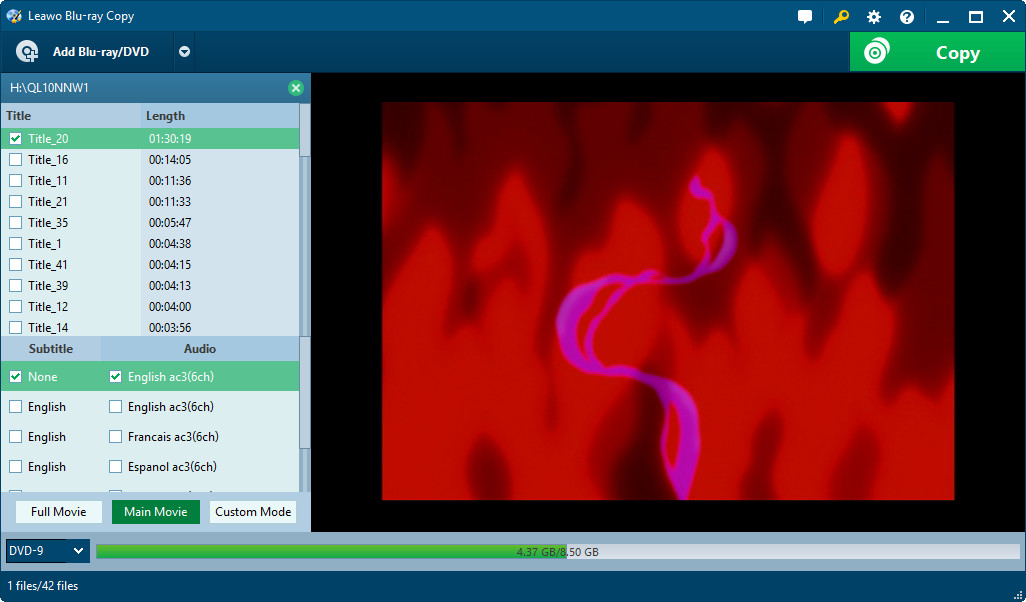
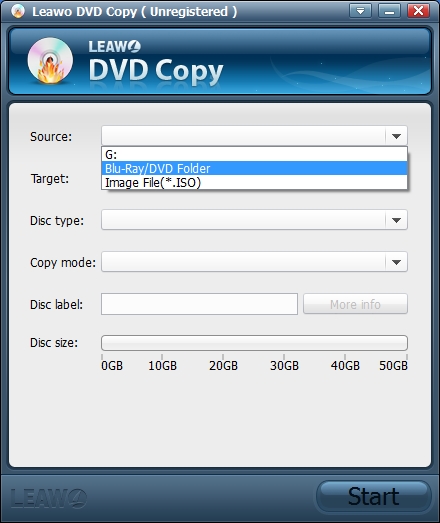
Install Leawo DVD Copy on your computer and launch it. Put the source disc in the reader and a blank disc in the burner. Click the Add Blu-ray/DVD button to load the source DVD files.
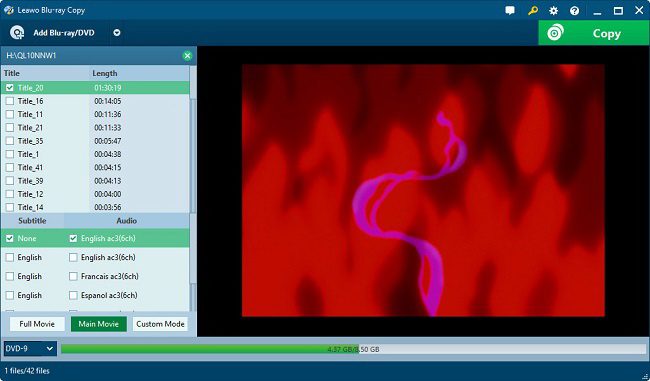
Choose the desired parts, subtitles, and audio tracks. Select the backup DVD type (DVD-9 or DVD-5). Once done, click the green Copy button to proceed.
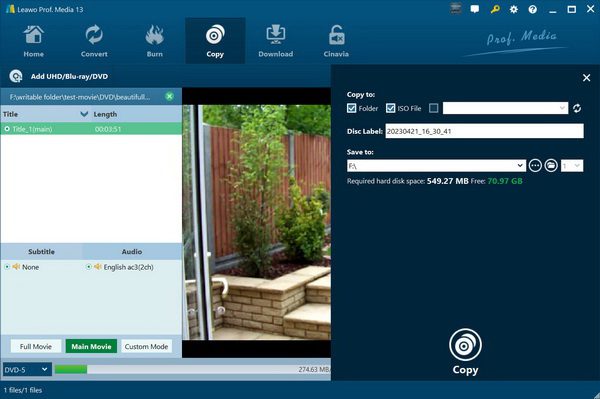
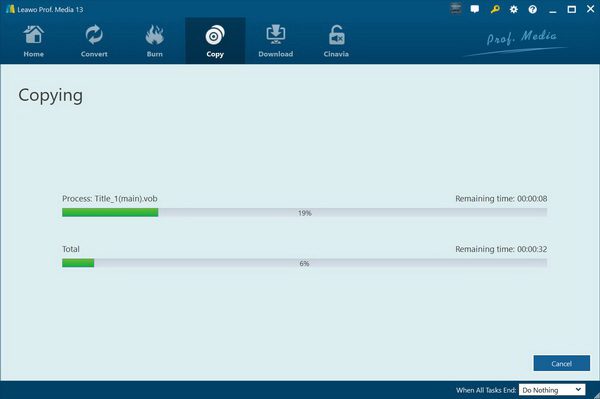
In the Copy to option, check the box of the blank disc drive. In the Save to box, select a destination for temporary files. Then click the white Copy button to start the begin the backup process.
3. How to Copy a DVD on Windows Using ImgBurn (Free Method)
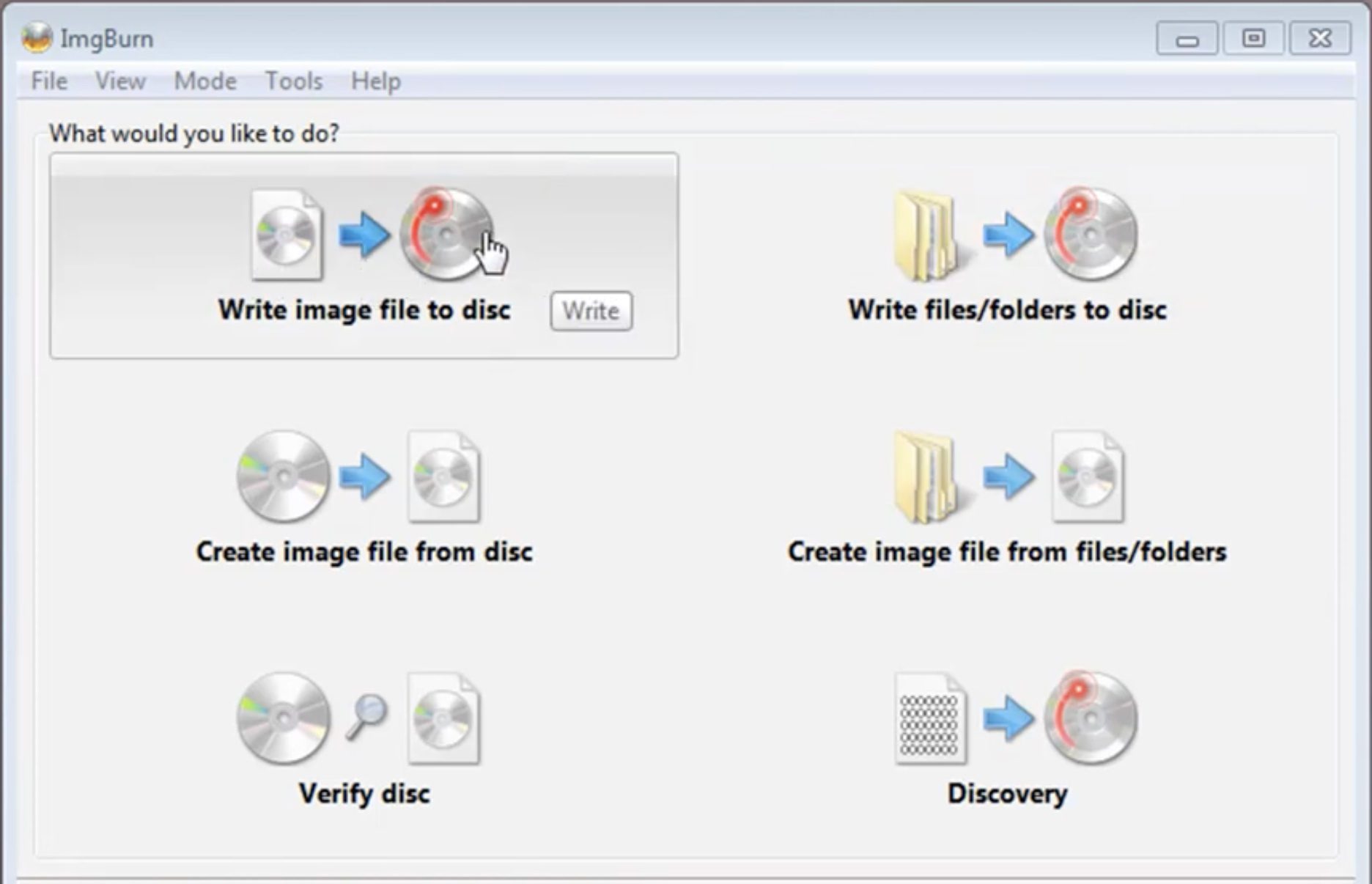
If you are looking for a free third-party tool for a one-DVD drive scenario on Windows, ImgBurn is a reliable option. It can handle unprotected DVDs such as homemade stuff. Here is how to copy a DVD with only one disc drive using ImgBurn.
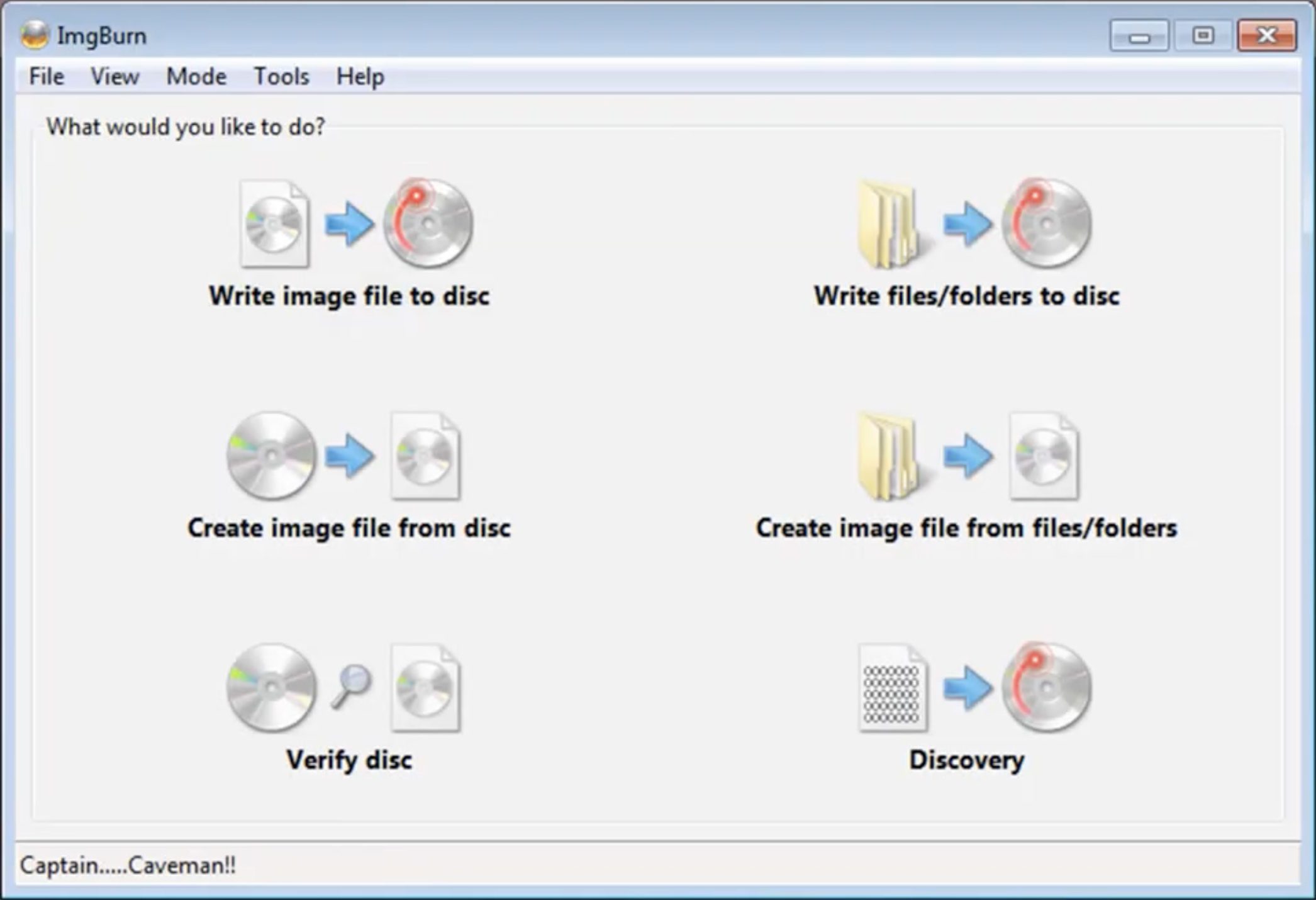
Download and install ImgBurn from its official website. Launching the program, select ‘Create Image file from disc’. Then select the source DVD you want to clone. Click the Disc icon below to begin ripping.
Once done, eject the source disc and insert a blank disc into your computer.
Go back to the main interface, select the ‘Write Image file to the disc’ option, and add the ISO file you just created. Then, click the Disc icon below to burn the ISO file into the blank disc.
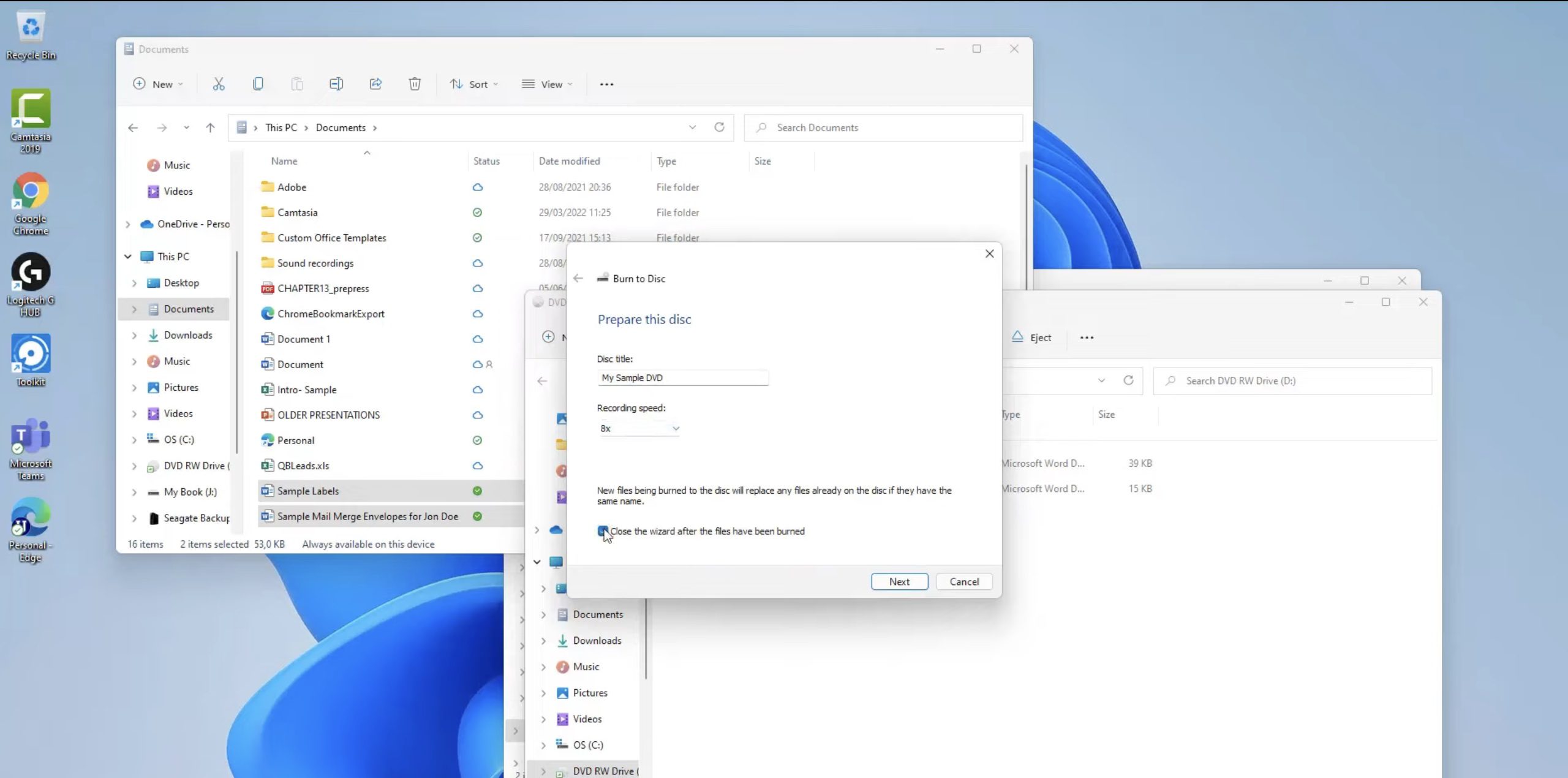
4. How to Copy a DVD Using Windows Built-in Tools
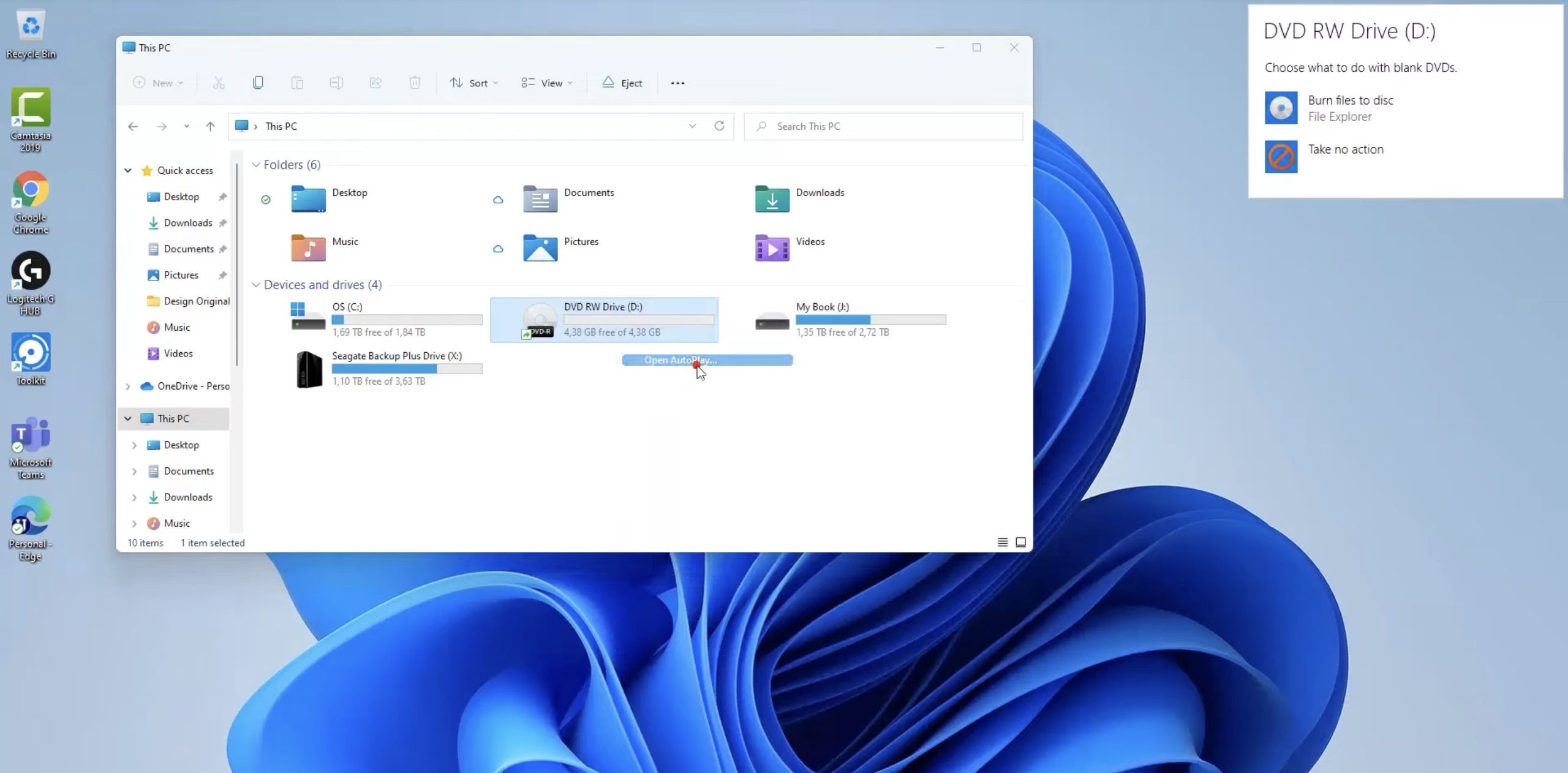
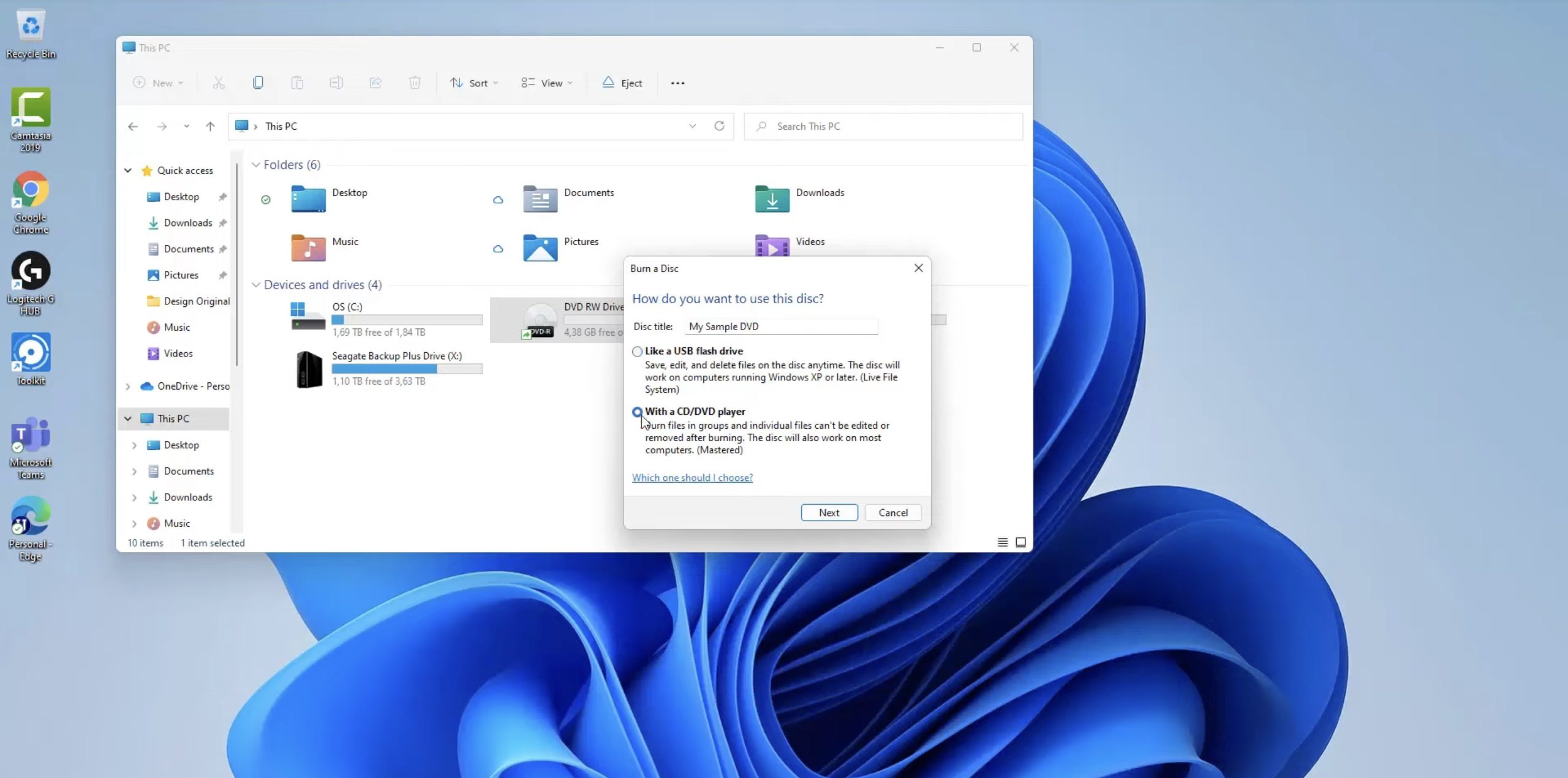
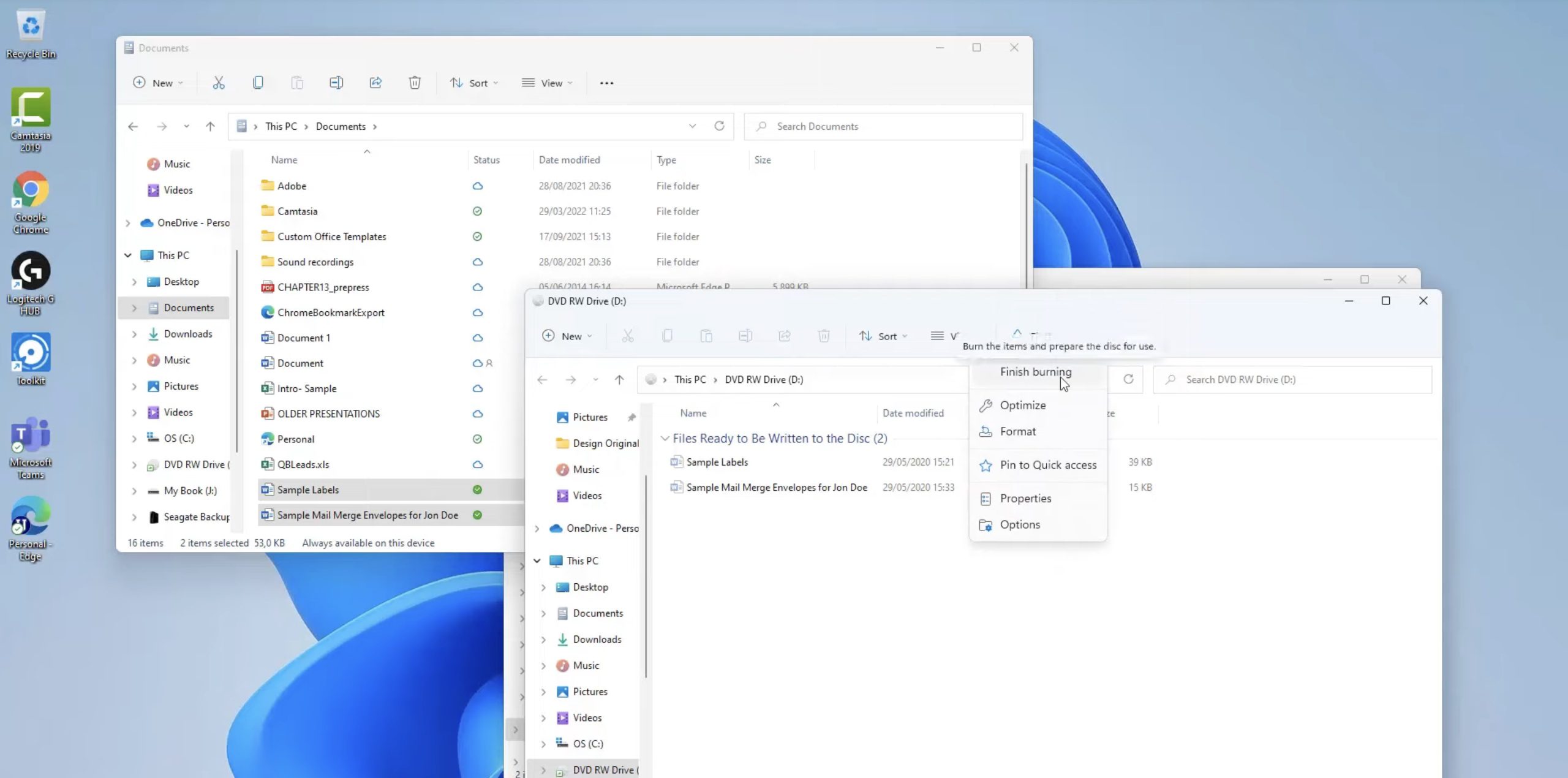
Windows 11 includes a basic disc-burning feature for unprotected data DVDs or simple backups. Unlike third-party tools, it requires a few setups. Here are the complete steps:
5. How to Copy a DVD to Another DVD Using Mac’s Built-in Tools
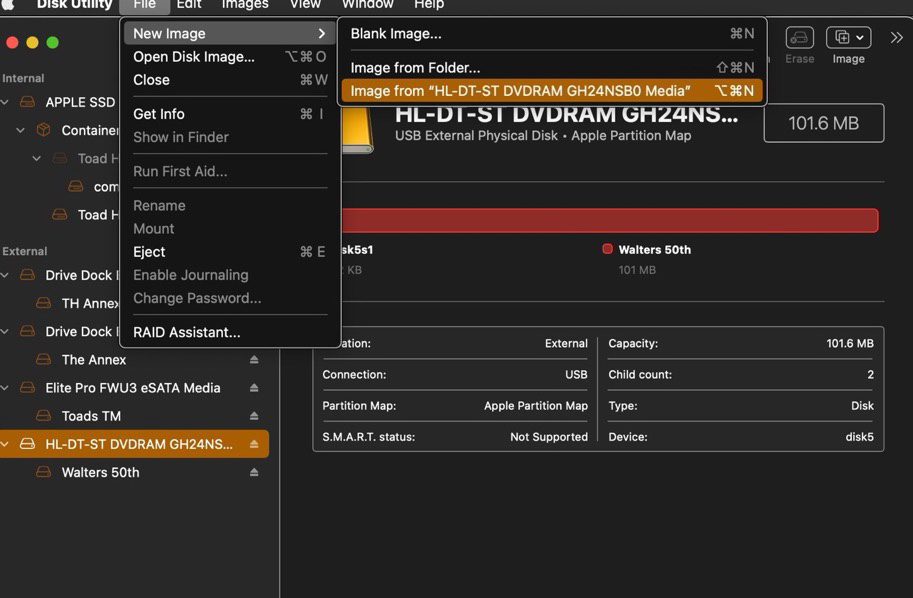
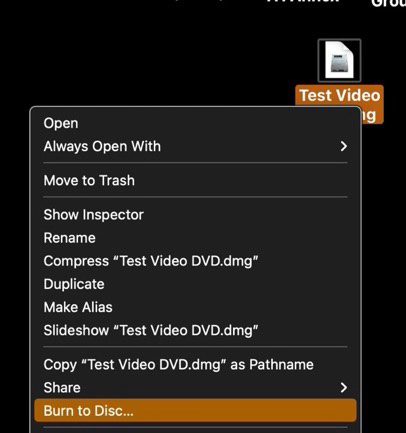
For Mac users, you don’t always need extra software to create a disc clone for self-made DVDs. macOS has a tool inside its Disk Utility. This process is quite different from Windows:
Part 6. Important Notes & Tips
When handling DVD copying, there are a few key things to keep in mind. After all, we don’t want any wasted discs.
Conclusion
Understanding how DVD copying works helps to create backups smoothly. But the right tool makes all the difference. While free methods work for basic data burning, a professional solution like Leawo DVD Copy removes the guesswork. It not only handles all kinds of DVDs well but also creates flawless 1:1 clones. Whether you want a movie library backup or to share your precious moments with beloved ones, Leawo DVD Copy gets the job done nicely.
Share this post









 العربية
 繁體中文
繁體中文 Dansk
Dansk Nederlands
 Suomi
Suomi Français
 Deutsch
 Italiano
 한국어
한국어 Norsk bokmål
 Português
 Русский
 Español
 Svenska