How to Cast Netflix to TV (Old & New Devices)?

Summary
- If you recently found that you could no longer cast Netflix to TV, that happens since Netflix recently disabled the cast feature for many TVs. In this post, we would like to help you figure out how to cast Netflix to TV in 3 methods, regardless of your TV types.
“Why can’t I cast Netflix to TV? I could do this previously”. Many Netflix users might have found that they can no longer cast Netflix to their TVs recently. Actually, this happens due to the recent change of Netflix upon content casting. Netflix recently changed its cast feature to no longer support casting Netflix from mobile devices to most TVs. Some older devices like basic Chromecasts without remotes, Google Nest Hub Smart Display, select Vizio TVs and Compal TVs, etc., might still cast Netflix to TV. If you have found that you can no longer cast Netflix to TV, this post would be helpful to you. Here we would like to share multiple methods on how to cast Netflix to TV from various devices.
Quick AccessCLOSE
Option 1: Download and Cast Netflix to TV with Third-party Tools [Best for Most Devices]
This should be the best method for nearly all TV and devices. By downloading Netflix movies and TV shows, you could then freely cast the Netflix downloads to TV of various models for playback. The only thing you need to get is a professional Netflix video downloader.
1. Download Netflix Videos to MP4 files
While Netflix download feature has multiple limits, you need to get a professional 3rd-party Netflix video downloader to help you download Netflix videos to standalone files, which could be played back offline on various media players and devices without limit. CleverGet Netflix Downloader is the ideal Netflix video downloader you could get.

-
Professional Netflix downloader to download Netflix movies and TV shows at up to 1080P and save multiple subtitles and audio tracks as needed.
- Remove ads during video downloads.
- Batch download Netflix episodes of all/certain seasons.
- Convert Netflix video to MP4/MKV files.
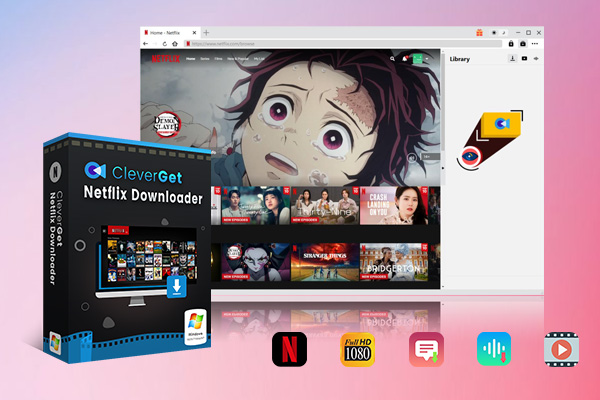
You could follow the below guide to learn how to download Netflix videos with CleverGet Netflix Downloader:
Step 1. Download, install and kick off CleverGet on your computer.
Step 2. Click the “More” option on the top-right corner to choose “Settings” option, and then set download directory.
Step 3. Open Netflix website within CleverGet and log in.
Step 4. Play back target Netflix video and click the round icon at the bottom right corner.
Step 5. Choose download options, output format, subtitles and audio tracks, etc.
Step 6. Click the “Download” button to start downloading Netflix videos.
Then, you only need to wait for the Netflix download to complete. Once the Netflix downloads complete, you could then cast Netflix to TV from your laptop.
2. Cast Downloaded Videos to Your TV
With Netflix videos downloaded, you could now freely cast downloaded videos to your TV in multiple ways. You could try to airplay to TV from your Mac computer, cast Netflix video downloads to TV via casting-enabled media players like VLC, Plex, Kodi, etc., or other 3rd-party casting apps like Miracast, Google Chrome, etc.
Here we would like to take VLC media player as an example to show you how to cast Netflix from laptop to TV. You could also cast Netflix to TV from Windows or Mac computers.
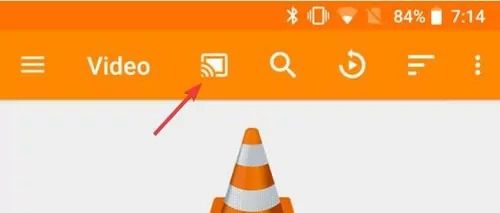
Step 1. Connect your computer and TV to the same WiFi network.
Step 2. Kick off VLC media player on your computer.
Step 3. Open and play the downloaded Netflix video within VLC media player.
Step 4. Right click on the playback video, and then choose “Playback > Renderer” to select your TV as casting target.
Step 5. Then, you could control playback via the VLC media player over the TV.
Option 2: Cast Netflix to TV with Chromecast
If your TV has been connected to a Chromecast device, or your TV gets Chromecast built in, you could try to cast Netflix to TV with Chromecast. The detailed operations differ a little upon where you cast Netflix to TV, as listed below:
1. From Laptop to TV
From your laptop, Windows or Mac computer, you could easily cast Netflix to TV by following the below steps:
Step 1. Connect your laptop and Chromecast device/TV to the same WiFi network.
Step 2. Kick off Chrome browser on your laptop. Make sure it is up-to-date.
Step 3. Open Netflix website and log in.
Step 4. Click the “Menu” option (in 3-dot icon) and then select “Cast…” option, or tap the Cast icon on the playback screen.
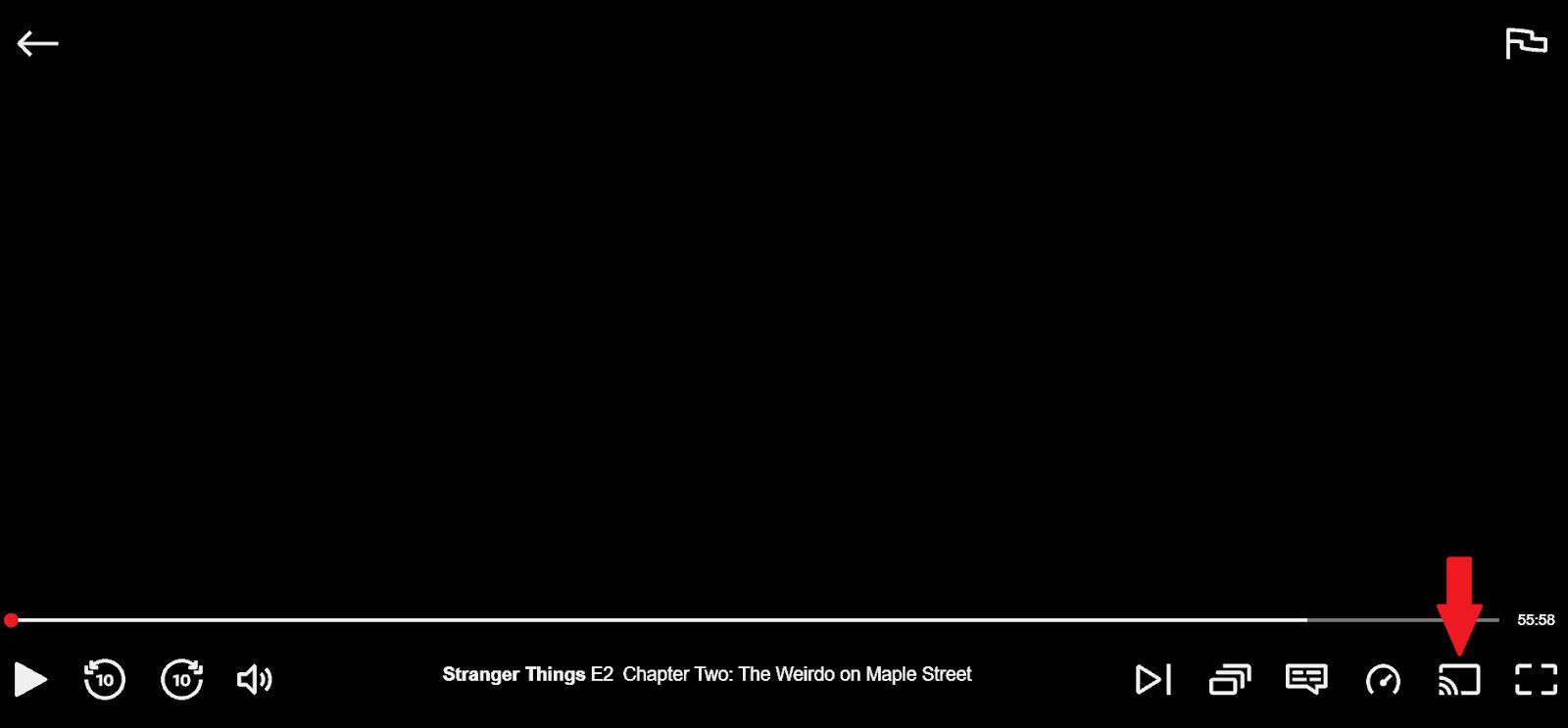
Step 5. Choose your Chromecast device from the list.
Step 6. Click the “Sources” drop-down menu and then choose “Cast tab” to choose casting source.
Step 7. After that, on Netflix website, play back target Netflix video.
Step 8. The Netflix content will automatically display on your TV.
2. From Mobile Devices to TV
If you are trying to figure out how to cast Netflix from iPhone to TV, just follow the below steps:
Step 1. Connect your phone and Chromecast to the same WiFi network.
Step 2. Kick off Netflix app on your phone.
Step 3. Click the Cast icon, a rectangle with a Wi-Fi symbol in the corner.
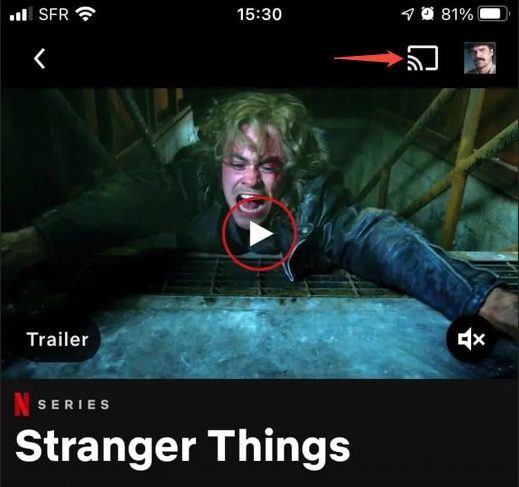
Step 4. Choose your Chromecast as casting target from the list.
Step 5. Start playing Netflix video.
Step 6. The Netflix video will appear on your TV.
If you have newer Chromecast device (with remote), you could directly download Netflix app and add it on your device for streaming Netflix on TV.
Option 3: Cast Netflix to TV Using an External Cable/Adapter
You could also try to cast Netflix to TV using an external cable or adapter, such as HDMI cable, supported adapter, etc., no matter you get a laptop or a phone/tablet.
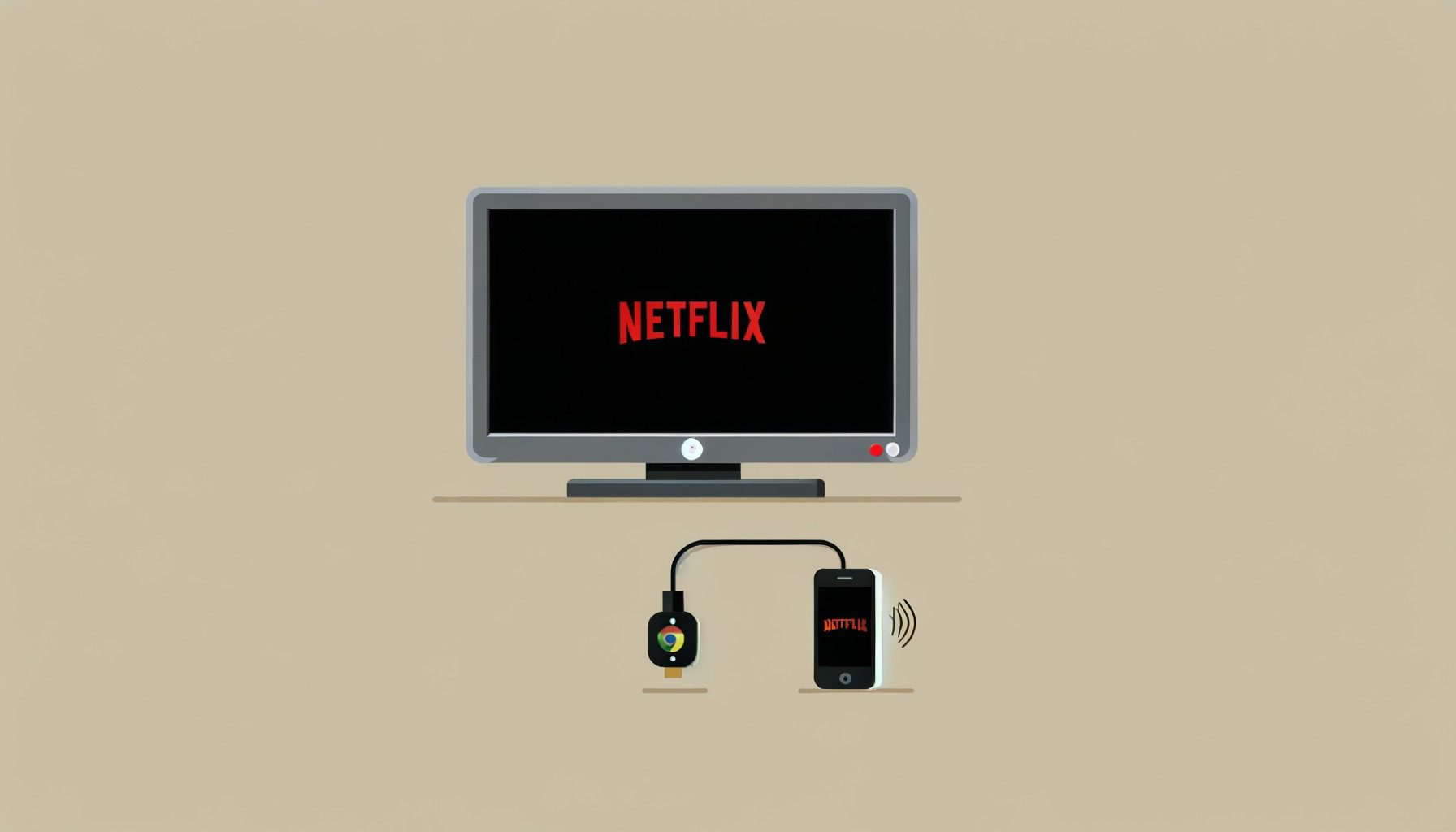
1. From Laptop to TV
Follow the below guide to learn how to cast Netflix from laptop to TV via HDMI cable.
Step 1. Connect HDMI cable with your laptop and TV respectively.
Step 2. Use TV remote to change the input source by pressing Input/Source button to match the HDMI port you use.
Step 3. Press “Windows + P” keys on keyboard and then select Duplicate or Extend on Windows, or “System Settings > Displays > Mirror” option on Mac.
Step 4. Then, open Netflix website on your browser, log in and play back target Netflix video.
Step 5. Your Netflix video will play on your TV.
2. From Mobile Devices to TV
If you are using Android, iPhone or iPad, and your TV gets available HDMI input port, you could also cast Netflix from phone to TV. Follow the below steps to learn how to cast Netflix from phone to TV via cable:
Step 1. Things you need to prepare: adapter (a USB-C to HDMI adapter or a Lightning Digital A/V adapter), HDMI cable.
Step 2. Then, connect your phone with the adapter.
Step 3. Connect the HDMI cable with your TV and adapter.
Step 4. Turn on your TV and then change the Input/Source to the HDMI port you use via remote.
Step 5. Open the Netflix app on your mobile device and play back target Netflix video.
Step 6. Your mobile device’s screen will mirror onto the TV.
It should be noted that casting Netflix to TV via cable/adapter may fail on those unofficially supported models after the policy changes. And, HDCP may block Netflix video mirroring to result in errors such as black screen or audio-only.
FAQs
1. Can I cast Netflix to TV under ad-supported Netflix subscription?
No, to cast Netflix to TV, for even those older Chromecast devices and TVs, ad-free plans (Standard or Premium) are required. The ad-supported plan has no cast feature now.
2. Why does Netflix restrict its cast feature to cast Netflix to TV?
Netflix did this mainly with the purpose of pushing subscribers to the Netflix TV app.
3. What devices support Netflix casting?
Older Chromecast models (3rd-gen, without remotes), Google Nest Hub Smart Display on ad-free plans, select cast-enabled Vizio TVs/Compal TVs that can get Netflix app installed.
4. How do I stream Netflix on my TV now?
You could try to directly download and install Netflix app on your TV, download Netflix videos for local casting to TV, cast Netflix video to TV via Chromecast, cast Netflix contents to TV via HDMI cable/adapter, etc.
Conclusion
From the above solutions, you should have been able to watch Netflix on TV, no matter what type of your TV is. The most reliable method is to download Netflix videos to standalone MP4/MKV files, which ensures you 100% feasibility of casting Netflix videos on TV. Other methods like casting Netflix to TV via Chromecast or cable/adapter might get failed due to HDMI limits.
Share this post









 العربية
 繁體中文
繁體中文 Dansk
Dansk Nederlands
 Suomi
Suomi Français
 Deutsch
 Italiano
 한국어
한국어 Norsk bokmål
 Português
 Русский
 Español
 Svenska