- Video Converter for Mac Pro
- Free Mac Video Converter
Leawo Video Converter for Mac
Convert all video and audio from one to another on Mac OS X.More... or Get Win Version
Download Intel Version
User Guide for Leawo Video Converter for Mac
How to convert videos with Leawo Video Converter for Mac? Intel/PowerPC
Leawo Video Converter for Mac is an all-inclusive Mac Video Converter that can convert video and audio in almost all popular formats for playback on various portable devices for Mac OS users. The following is the step-by-step guide which will show you how to complete the video conversion task with Leawo Video Converter for Mac.
First, download and install Leawo Video Converter for Mac.
Step 1: Install and Run the Software.
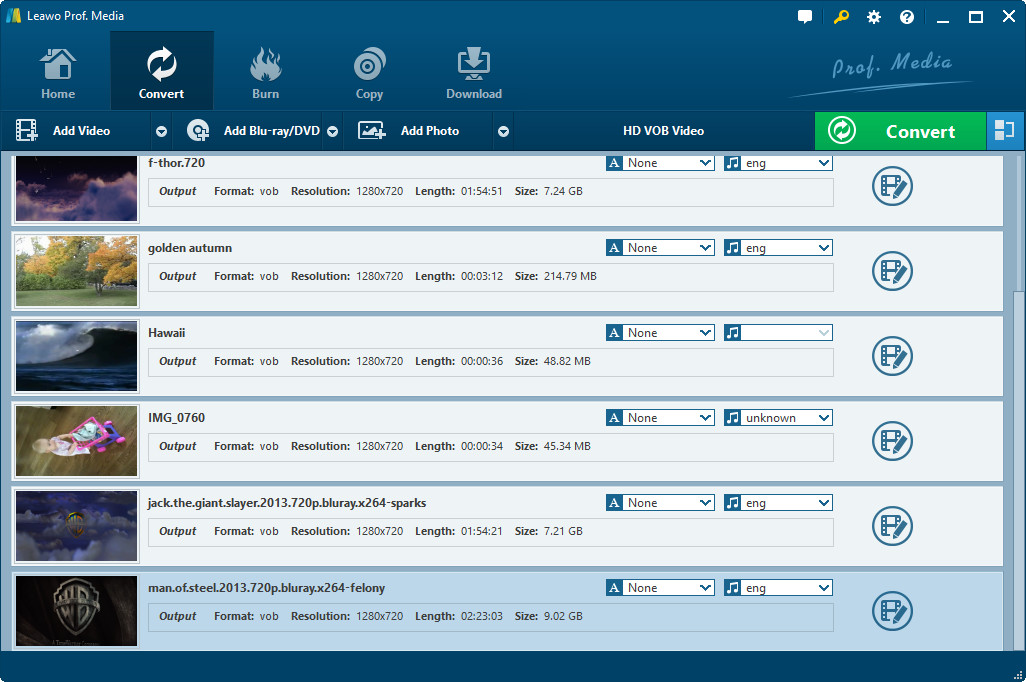
After installing and running this Mac Video Converter, you will see the following main interface.

Step 2: Add Files to the Program.
Directly drag and drop media files to the program or click on "Add" icon to import target files. The added files will be presented on the processing list. You can readjust the file order if necessary.

Note:
a. If you want to get more detail properties about the original videos, you can right-click the video files in the file list and then choose "media information".

b. Video previewing is available within this Video Converter for Mac. You can either double clicking the video file or click on the "Play/Pause" button on the video preview window. In this step you are allowed to click on the corresponding buttons to achieve the following actions: Play previous video, Play next video, Backward 5s, Forward 5s. Moreover, you can also take snapshot for further use.

c. Merge into one: Merge all the video clips into one file. Move the slider "On" or "Off" to decide to activate this function or not.
Step 3: Select Output Profile
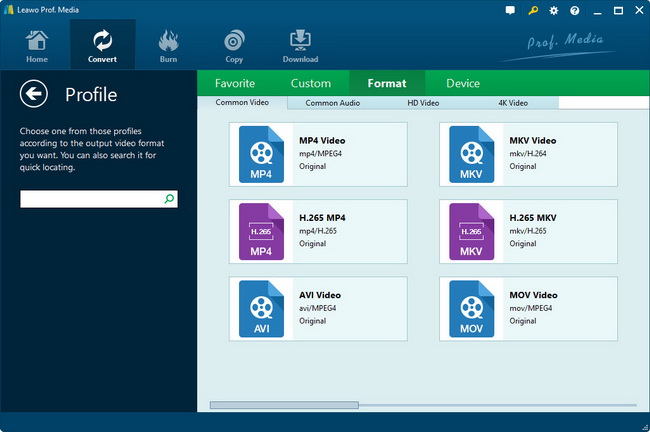
Click on the file format of the original video on the video processing list, and then it will switch to the following output file format choosing panel. Select a target format for the output according to your requirement. Or you can take advantage of the "Profile Search Function" and get access to the target format quickly.
Note:
a. Apply to all: To save your time to set multiple videos at a time, you only need to click "Apply to all", and then the settings for your previous file would be applied to all the selected video files in the file list.
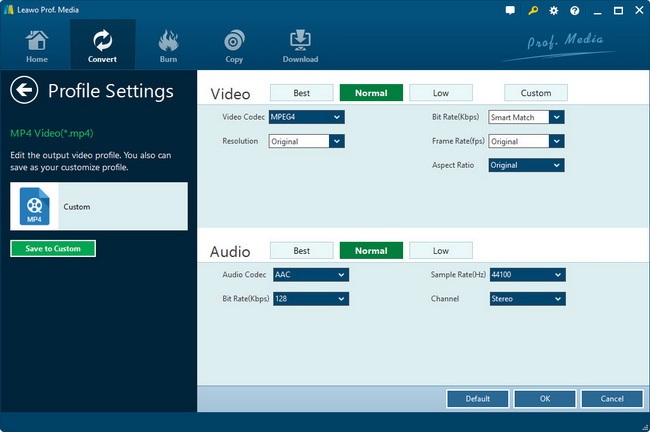
b. Add Profile: After you choose the target format, click on "Add Profile" to set video and audio parameters.

Step 3: 3D Settings
In this step you can 1). Select a 3D setting mode: Red/Cyan, Blue/Yellow, Interleaved, Side by Side, according to the 3D glasses you are using. 2). Set 3D Depth effect, choose a specific value from minus 50 to plus 50. 3). Have a real-time preview of the 3D video.

Step 4: Video editing
Trim: Modify the "Start Time" and "End time" of the converted video.

Crop: Choose "Letter Box" from "Zoom" and crop the video in "Cropped size", or directly drag the dot frame for it. Click "OK" to confirm the settings.

Rotation: Revolve the video to the needed angle. You can achieve horizontal flip & vertical flip, or realize to rotate 90° clockwise and rotate 90° counterclockwise. If the adjustment is beyond satisfaction you can reset it as well.

Effect: Adjust the video effect for a better visual effect. Simply drag the slides of "Brightness", "Contrast", "Saturation" and "Volume".

Watermark: You can easily add image or text watermark to the converted video file.

Step 5: Start to Convert.
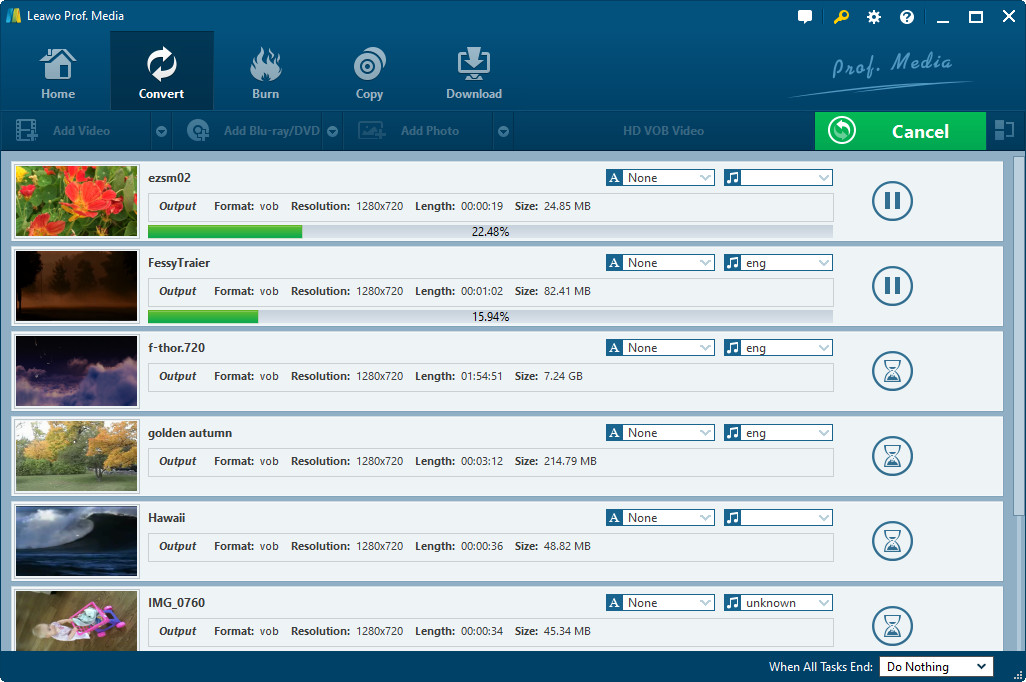
Click on the "Convert" button on the main interface to start conversion. You can choose to do nothing, shut down the program or shut down the computer after conversion.

Ok, the above is the step-by-step guide on how to use Leawo Video Converter for Mac to convert videos for Mac OS users.
Download Leawo Video Converter for Mac Intel version or PowerPC version now!
User Guide for Leawo Free Mac Video Converter
How to convert videos with Leawo Free Mac Video Converter? Intel/PowerPC
Leawo Free Mac Video Converter is a totally clean and free Mac video converter that can convert videos in all formats for the Mac OS users. The following is to show you the step by step guide on how to complete the video conversion task with Leawo Free Mac Video Converter for the Mac OS users.
First, Download and install Leawo Free Mac Video Converter Mac Intel Version.
Step 1, Install and run the software.
After installing and running the free Mac Video Converter, you will see the following main interface.
Step 2, Add File.
Click "Add Files" icon to import the videos you want to convert to the program.
Get detail info: If you want to get the detail properties of the original video file, you just need to click the icon of "Properties" or double-click the video file in the file list, and then the detail info of the video file would be shown for you.
Step 3, Settings. (Output format, Profile, and output folder)
(1) Style: Click the drop-down button next to the "Style" to select the output format for your conversion. There are abundant video formats available for you to choose.
(2) Profile: After select the output format, and then you can choose profile for your destination.
(3) Output Folder: Select an output folder to save your converted file.


Tip1: There are abundant output video formats available for you to choose.
Tip2: We provide multiple options of quality, codec, configurations for a certain output format or device: high quality, medium quality, low quality, different codec with specific resolution for different device, etc.
Tip3: To save your time to set multiple videos at a time, you only need to click "Apply to all", and then the settings for your previous file would be applied to all the selected video files in the file list.
Step 4, Convert.
Click the big "Convert" button to start conversion.

Ok, the above is the step by step guide on how to use Leawo Free Mac Video Converter to convert videos for Mac OS users. We provide more specific skills on how to convert videos.
★ How to convert video to AVI for Mac OS users?
★ How to convert video to MPEG for DVD player on Mac OS?
★ How to convert video to 3GP and 3G2 for cell phones on Mac OS?
★ How to convert video to MP4 for iPod, iPhone, Apple TV for Mac OS users?
★ How to convert video to flash video for sharing videos on YouTube for Mac OS users?
★ How to extract audio file from the video for the MP4 and MP3 player on Mac OS?
Ready to download Leawo Free Video Converter Mac Intel Version
Products
- MorePackage Solutions
- Total Media Converter Ultimate
- Video Converter Ultimate/Pro
- Blu-ray Video Converter
- Easy iPad Converter Suite
- Easy iPhone Converter Suite
- Easy iPod Converter Suite
- MoreVideo/HD Video Tools
- All-in-One Video Converter
- HD Video Converter
- Free AVI Converter
- Free MP4 Converter
- Free FLV Converter
- Free YouTube Downloader
- Video to DVD Creator
- Blu-ray Creator
- iTransfer
- Video Editor
- More DVD/Blu-ray Tools
- Blu-ray Ripper
- Blu-ray Copy
- Blu-ray to MKV Converter
- DVD Ripper
- DVD Copy
- DVD to AVI Converter
- DVD to MP4 Converter
- Utilities
-
WinMac
- SWF Encrypt
- Data Recovery for Mac
- Photo Recovery for Mac
- SWF Compressor for Mac
- SWF Encrypt for Mac
- iAm Ringer for Mac
- Tunes Cleaner for Mac
- MoreMac Converters
- Video Converter Pro for Mac
- Video Converter for Mac
- Blu-ray Ripper for Mac
- Blu-ray Copy for Mac
- Blu-ray Creator for Mac
- DVD Ripper for Mac
- DVD Creator for Mac
- YouTube Downloader for Mac
- Music Recorder for Mac
- MorePortable Device Tools
-
WinMac
- iPad Video Converter for Win
- DVD to iPad Converter for Win
- Free iPod Video Converter for Win
- DVD to iPod Converter for Win
- Free iPhone Video Converter for Win
- DVD to iPhone Converter for Win
- Mac Video to iPad Converter
- Mac DVD to iPad Converter
- Mac Video to iPod Converter
- Mac DVD to iPod Converter
- Mac Video to iPhone Converter
- Mac DVD to iPhone Converterc
- MorePowerPoint Converters
- PowerPoint to DVD Pro
- PowerPoint to DVD Std
- PowerPoint to Video (Free/Pro)
- PowerPoint to FLV
- PowerPoint to iPad
- PowerPoint to YouTube