Leawo DVD Ripper User Guide
Leawo DVD Ripper is the top-rated DVD to video converter software to help people easily convert DVD to video and audio in diverse popular formats. Far more than a DVD to video converter, Leawo DVD Ripper owns multiple functions, like free video converter, free YouTube downloader, video editor, video player, 3D movie creator, etc. Acting as free video converter, it could convert video and audio files between 180+ formats for multiple uses. While performing as free YouTube downloader, it could download and convert online videos from YouTube, Facebook, Veoh, etc. Including a video editor, Leawo DVD Ripper allows people to freely edit DVD movies via its internal Trim, Crop, Effect and Watermark video editing options. Featuring a 3D movie creator, people could easily create 3D movies out of 2D DVD sources in different 3D effects. Other useful features in this DVD to video converter include: optionally choose desired subtitle and audio track, handily preview DVD with built-in player, merge preferred DVD files to one clip, etc. This DVD converter tutorial would show you how to use Leawo DVD Ripper in details.


- Home
- >
- Leawo DVD Ripper
- Leawo DVD Ripper for Mac
- >
- User Guide
Rip DVDs to Video/Audio
Leawo DVD Ripper could convert DVD to video and extract audio off DVD movies to save in 180+ formats like MP4, MPEG, WMV, MOV, MKV, FLV, RMVB, AAC, AC3, AMR, M4A, MP3, etc. for multiple media players and portable devices like Apple iOS devices (iPhone, iPad, iPod, Apple TV, etc.), Android mobile phones and tablets, Windows phones, PS4, Blackberry devices, etc. With professional video and audio parameter editor, it even allows you to adjust video codec, audio codec, video size, bit rate, aspect ratio, frame rate, etc. for output files.
Step 1 : Load DVD content
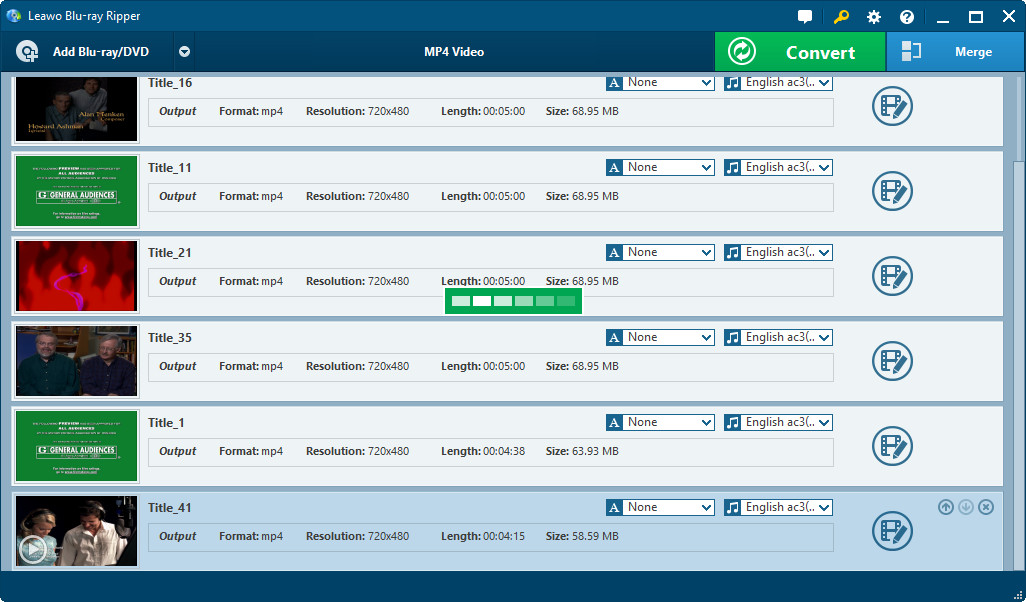
Under “Convert” section, click “Add Blu-ray/DVD” button to load sourc e DVD content. You could add DVD folders or disc for converting.
Notes:
1. 3 loading modes are selectable for you to load DVD content: Full Movie, Main Movie and Custom Mode. In Full Movie mode, Leawo DVD Ripper would load all source DVD content. In Main Movie, Leawo DVD Ripper would automatically load the longest chapter of DVD content, which usually is the main movie. While in Custom Mode, Leawo DVD Ripper allows users to select chapters for loading.
2. You could import multiple DVD sources as you like. After importing, you could play back source DVD movie, select subtitles and audio tracks, view details of source DVD files, edit source DVD movie, etc.
Step 2 : Set output profile
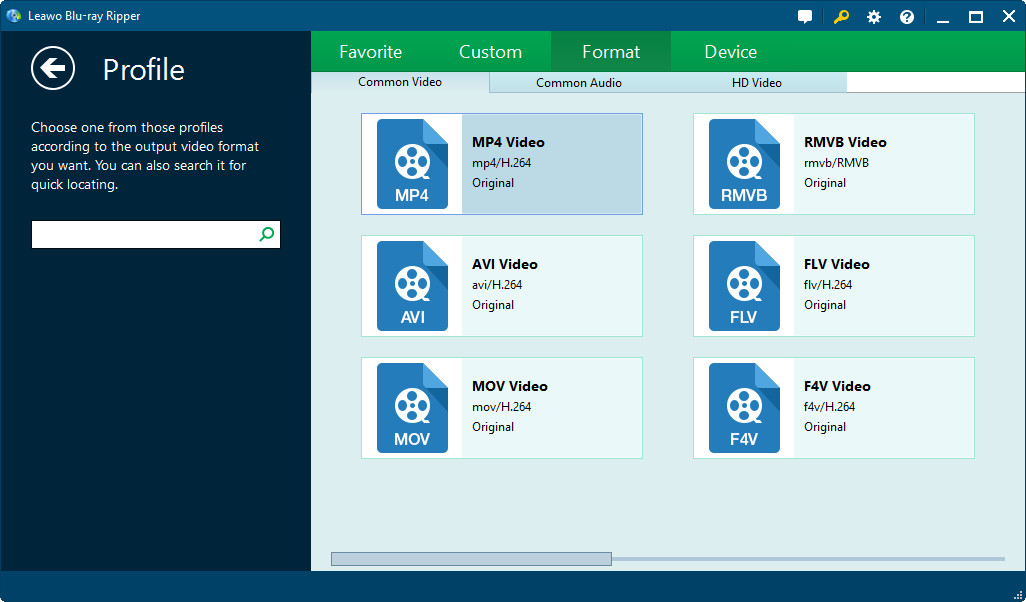
Click the drop-down box next to the “Add Blu-ray/DVD” button, and then click “Change” to select output format. Multiple Common Video, Common Audio and HD Video formats are selectable. You could even select output format according to your device under “Device” tab. By making use of the Profile Search bar on the left side, you could quickly search out desired format.
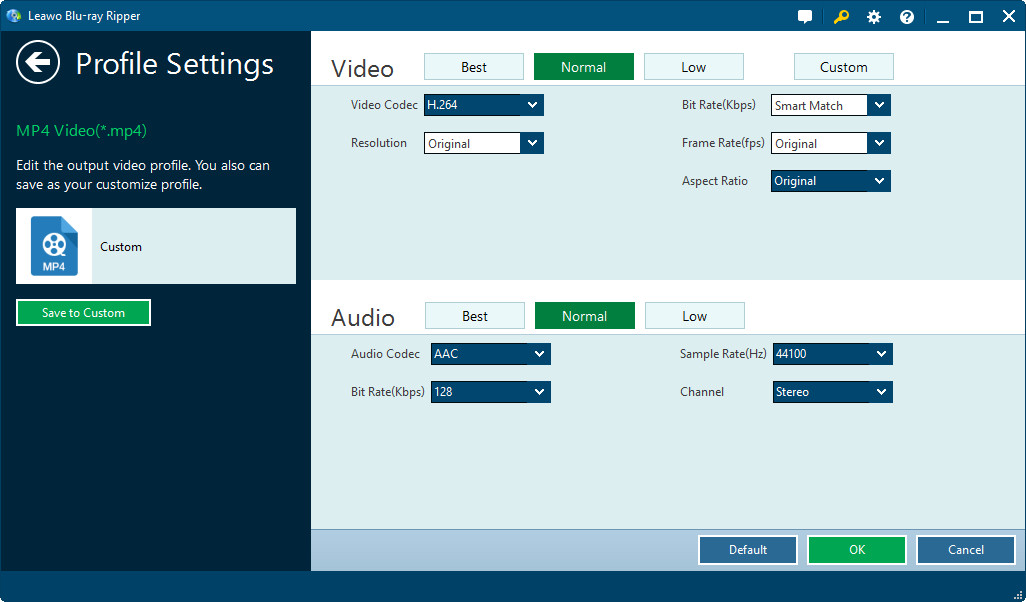
Let the mouse stay on each format option and then you could see “Edit” icon, by clicking which you could adjust video and audio parameters of output format, including: video codec, quality, bit rate, frame rate, aspect ratio, channel, audio codec, resolution, etc. You could also enter the Profile Settings panel by clicking “MP4 Video > Edit” option.
Step 3 : Start converting
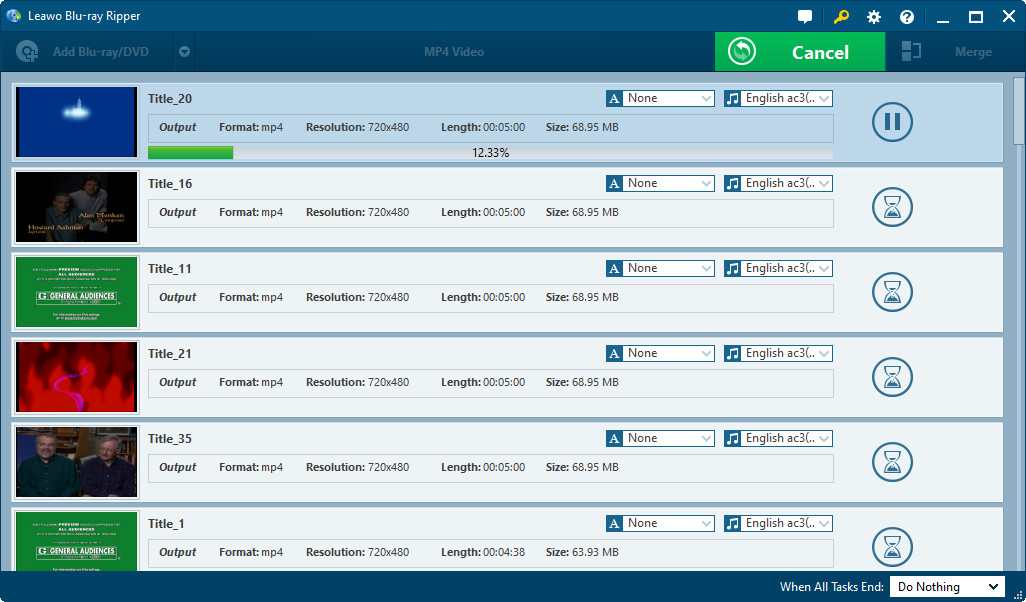
Click the big green “Convert” button to let Leawo DVD Ripper start converting DVD to video/audio. The program would then ask you to set the output directory and after-conversion settings. You could “Cancel” any conversion at any time as you like.