


Leawo DVD Creator User Guide
Leawo DVD Creator is a leading video to DVD burner program for Windows/Mac users to convert and burn video to DVD disc, folder and/or ISO Image File easily. It could burn DVD from videos in various formats like MP4 to DVD, MKV to DVD, AVI to DVD, WMV to DVD, MOV to DVD, etc. Also, this video to DVD converter also allows people to edit videos for personalized DVD contents, customize disc menu and template, convert 2D video to 3D DVD content, etc. This video to DVD converter tutorial will show how to convert video to DVD and burn DVD content with Leawo DVD Creator for storage, archiving, and media distribution.


- Home
- >
- Leawo DVD Creator
- Leawo DVD Creator for Mac
- >
- User Guide
How to Burn Video to DVD?
Step 1 : Load video files
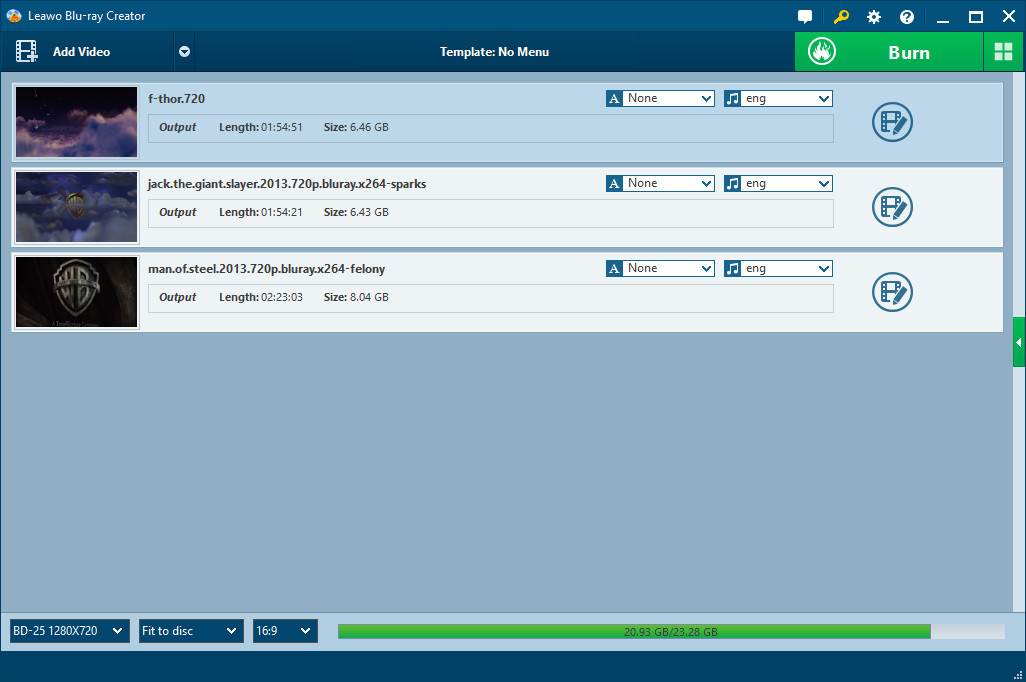
Launch Leawo Prof. Media (DVD Creator is a module built in Prof. Media). On the "Home" interface, click the "DVD Creator" option or directly click the "Burn" tab to enter the DVD Creator module interface. Then, click the "Add Video" icon to import source videos or just drag and drop source videos directly into the video to DVD burner for burning. You can adjust the order of imported video files, select subtitles and audio tracks to save in output, or even load external subtitles, preview source videos, select several files or all files to merge into one, etc. Output disc settings are available at the bottom left corner, including disc type (DVD-9/DVD-5), aspect ratio, quality, etc.
Step 2 : Do Burning Settings
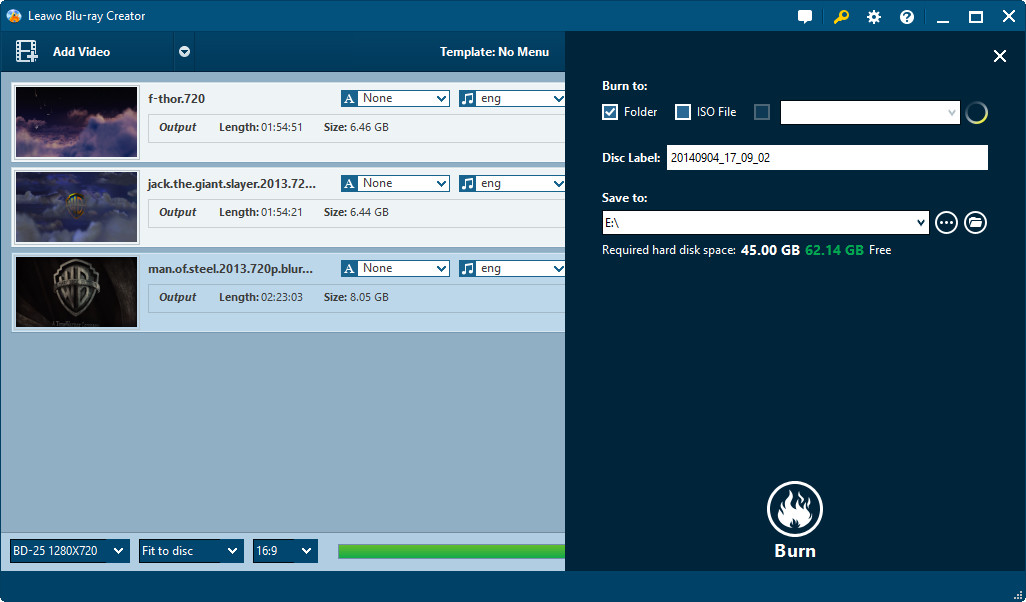
After loading source videos, click the green "Burn" button. Then this DVD Creator would pop out a panel on the right side to let you do burning settings, including: Burn to (burn video to DVD disc, ISO File and/or DVD Folder), Disc Label, and Save to (choose the destination for you to save the output file). Meanwhile, you could click the wheel icon on the upper right corner of the program interface and then open “Burn” option to select burn engine and TV standard for DVD burning.
Step 3 : Burn video to DVD
Click the "Burn" button at the bottom of the right side bar to begin video to DVD burning. All specific information regarding burning could be seen on the burning page, as well as after-completed settings.


