


Leawo Blu-ray Copy User Guide
As the best Blu-ray copy software, Leawo Blu-ray Copy provides the easiest solution to help people copy and back up Blu-ray/DVD movies without quality loss for convenient saving and playback. It could copy and back up Blu-ray/DVD movies between discs, folders and ISO image files. 1:1 disc to disc duplication with lossless quality is also supported. This Blu-ray copy software even allows people to compress BD50 to BD25 or DVD9 to DVD5 with high quality retained. With different copy modes, people could easily copy Blu-ray and back up DVD in their own will. People could even select output subtitles and audio tracks. With Leawo Blu-ray Copy, you could easily copy and back up Blu-ray and DVD movies onto computer hard drive or blank discs. The below Blu-ray copy guide would show you how to use Leawo Blu-ray Copy and how to copy and backup Blu-ray DVD movies in clicks. Before starting the Blu-ray/DVD copy process, you need to download, install and run Leawo Blu-ray Copy on your computer.


- Home
- >
- Leawo Blu-ray Copy
- Leawo Blu-ray Copy for Mac
- >
- User Guide
How to Backup Blu-ray or DVD Movies?
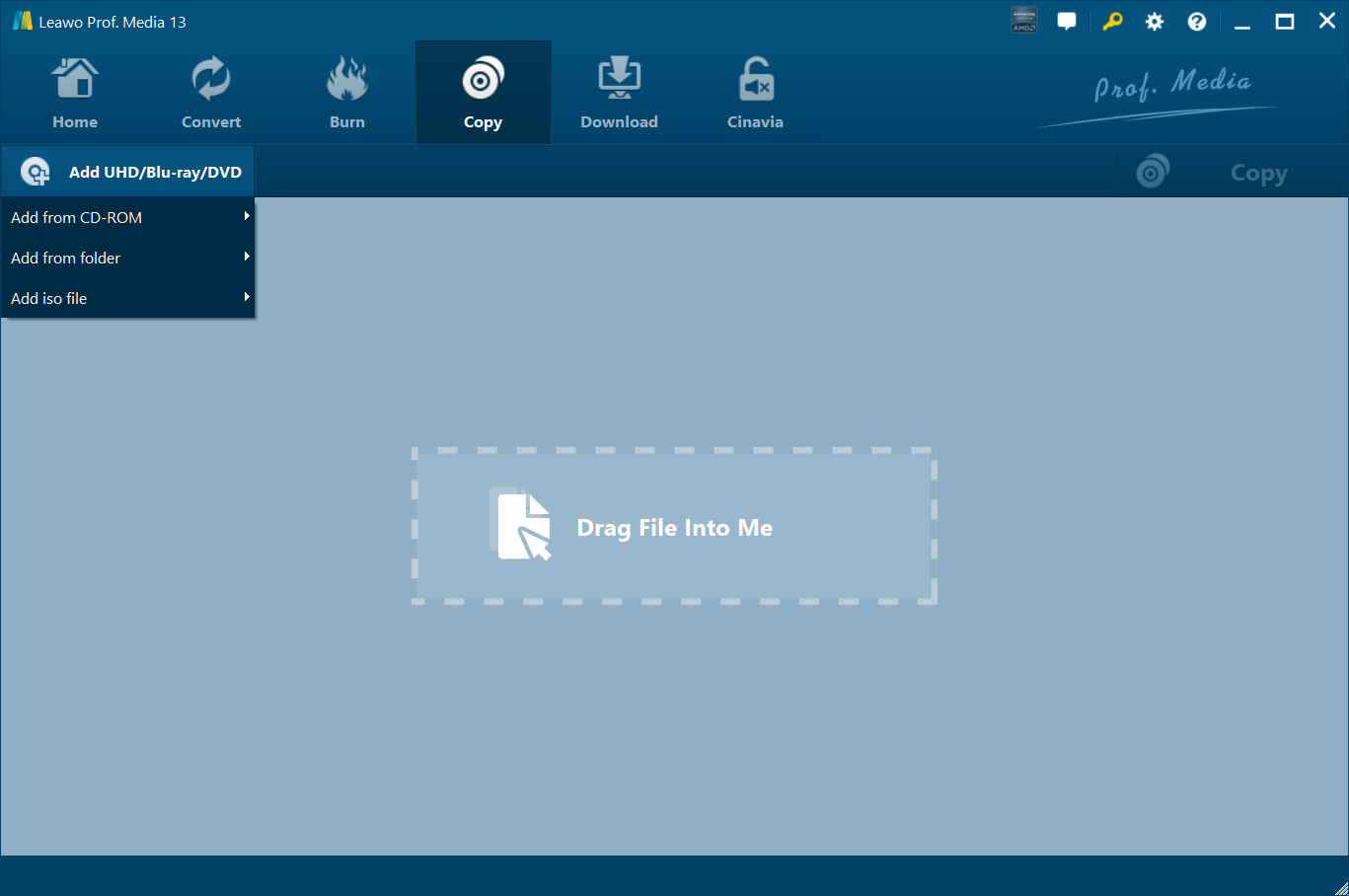
Step 1 : Import Blu-ray/DVD movies
Click "Source" drop-down button to load source Blu-ray/DVD movies to this Blu-ray copy software. Multiple Blu-ray/DVD inputs are available, including Blu-ray/DVD discs, folders and ISO image files. If you want to copy Blu-ray/DVD disc, you need to make sure your computer gets BD/DVD drive to insert source Blu-ray/DVD disc.
Step 2 : Set output Target
Click "Target" drop-down button to set output format and target destination to save output Blu-ray/DVD files on your local computer or a new blank disc. If you want to copy and back up Blu-ray/DVD disc to a blank disc, you need to get an additional BD/DVD drive on your computer to insert the blank disc.
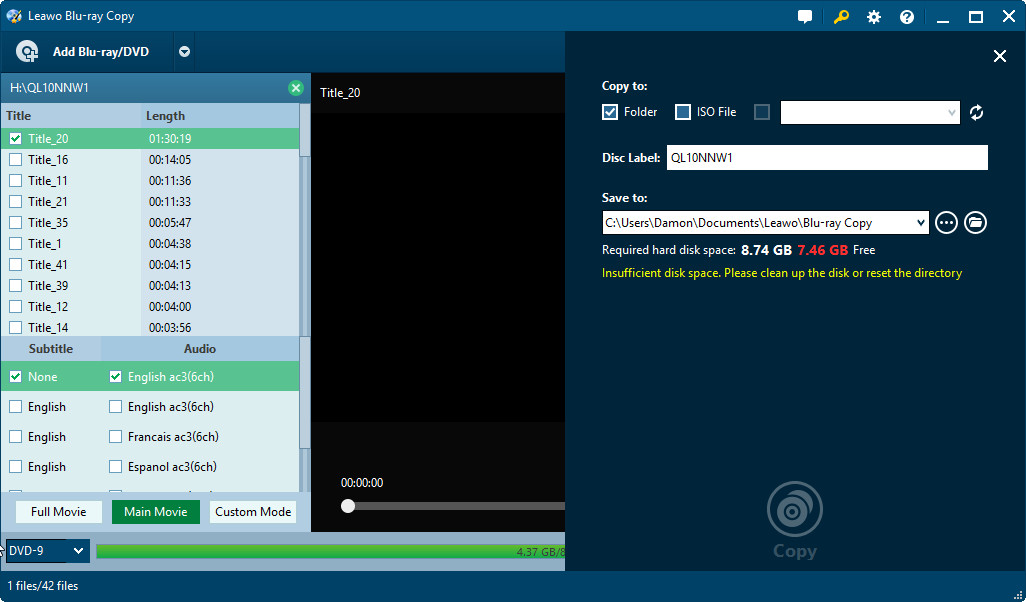
Step 3 : Do essential settings
Select output "Disc type" from provided options according to your will; pick up your desired "Copy mode" from "Full Movie", "Main Movie" or "Custom Movie"; add "Disc label" by manually inputting. Disc size for output files is also displayed below.

Tips: Within "Main Movie" or "Custom Mode", you are allowed to take an instant preview of Blu-ray/DVD source videos and choose your desired subtitles, audio tracks for backup by clicking "More info" button.

Step 4 : Start to copy Blu-ray/DVD files
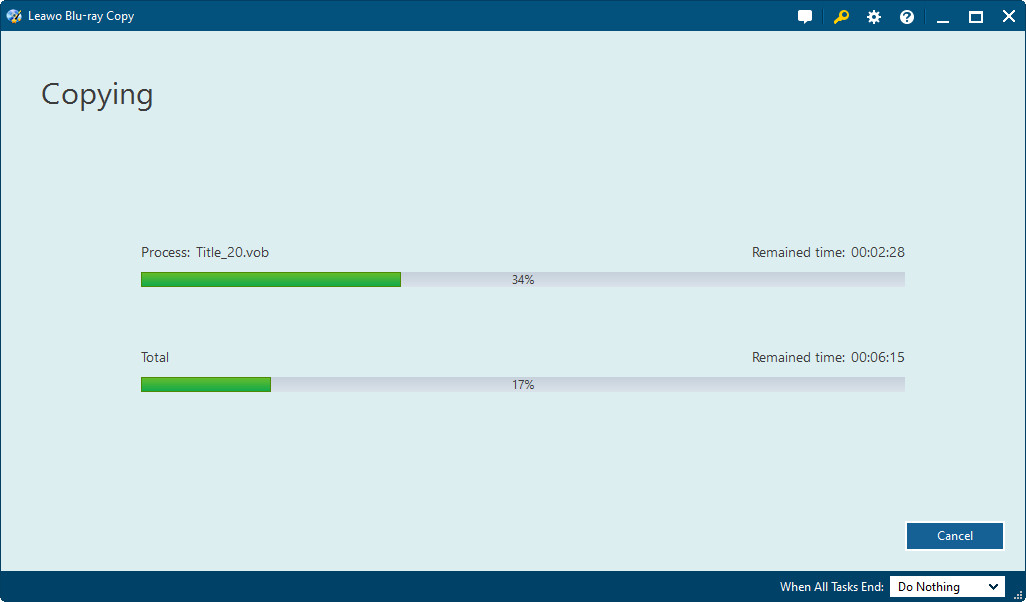
Click big "Start" button on the bottom right to start to copy Blu-ray/DVD contents within this Blu-ray Copy program. The full copying status can be viewed on program main interface.
Tips: During using this Blu-ray copy program for Blu-ray/DVD duplication, you can do some advanced settings about the program itself. Click invert triangle "Settings" button on the menu bar to set "Work space", "Update", “Connection", “Advance”, etc. Under “Advance” tab, you can select TV system.


