

Easy Guide: How to Watch Amazon Prime on Chromecast?

Summary:
Here’s how to get Amazon Prime onto your Chromecast without hassle. Follow each move carefully, then address common issues that may arise along the way. See it play smoothly on your big screen in no time.
Flicking through films or series on a tiny phone display just does not pull you in like a large monitor can – think living room television or cinema hall. For me personally, bringing Prime Video favorites straight to the television has been a long-standing wish. A bit of digging later, one tool stands out clearly: Chromecast works beautifully. You may ask yourself whether sending Amazon Prime content to your TV via that device is possible. Yes, it absolutely is. Here’s how to stream Amazon Prime using a Chromecast. Stick around to see what you’ll need, clear steps for various gadgets, fixes for common hiccups, plus replies to regular queries.
OutlineCLOSE
1. Requirements for Casting Amazon Prime Video to Chromecast
Before casting Amazon Prime Video to Chromecast, I always make sure everything is properly prepared. You need to keep these basics in place for a quick and smooth setup.
1. Chromecast Hardware
A solid choice would be any Chromecast made in the third generation or later. When it comes to older versions, they cap out at 1080p clarity – so picture sharpness takes a hit. For clearer visuals, stepping up to newer gear makes sense. Bumping into limits feels less likely that way.
2. Active Amazon Prime Subscription
An active Amazon Prime or Prime Video subscription is a must-have to stream and download Amazon Prime videos content for offline viewing.
3. Casting Device Compatibility
Starting things off right means your Chromecast needs to fit certain tech basics. A phone running Android 8.0 or newer works fine, so does an iPhone updated to iOS 14 or higher. Computers play along too – if they run Windows or Mac OS, that is. For those using a computer, Google Chrome has to be up to date. That last bit matters most when streaming through a browser.
4. Latest Prime Video App
From my experience, an outdated app is the number one reason for failed casting. I will always make sure my app is updated to the latest version.
5. Same Wi-Fi network
Both my Chromecast and casting device must connect to the same Wi-Fi network. I also avoid using VPNs while casting, since they can interfere with device detection.
6. Required Permissions (Especially on iPhone)
I myself use an iPhone, so I need to make sure the Local Network access is enabled. You can follow my setup here: Settings > Prime Video > Enable “Local Network.” Keep in mind that the app won’t detect Chromecast on the network without this permission.
2. Casting Amazon Prime Video from a Smartphone or Tablet
Ready with everything listed up top? Good. Time moves forward now. Watching Amazon Prime on TV through Chromecast comes next. My way of doing it started small – phones first, then tablets. Each step fits the iPhone just as well as it does Android or iPad. Follow along if the path suits you.
First thing I check is whether my phone and Chromecast are on the same Wi-Fi. Once that’s set, up comes the Prime Video app – after which I tap play on something saved to my Amazon watchlist. Not long after tapping, the show appears on screen through the device hooked to the TV.
Once the show starts playing, the Cast button appears top right in the app. From there, picking the Chromecast happens by tapping its name in the menu that shows up. The device list pops open after pressing that icon, making it possible to connect without extra steps.
Right away, the phone links up – suddenly it’s in charge. From there, hitting pause or playing again takes just a tap. Subtitles shift on command, no waiting. Audio tracks flip between tongues smoothly. Volume rides up or down straight through the screen. Control stays close, always within reach.
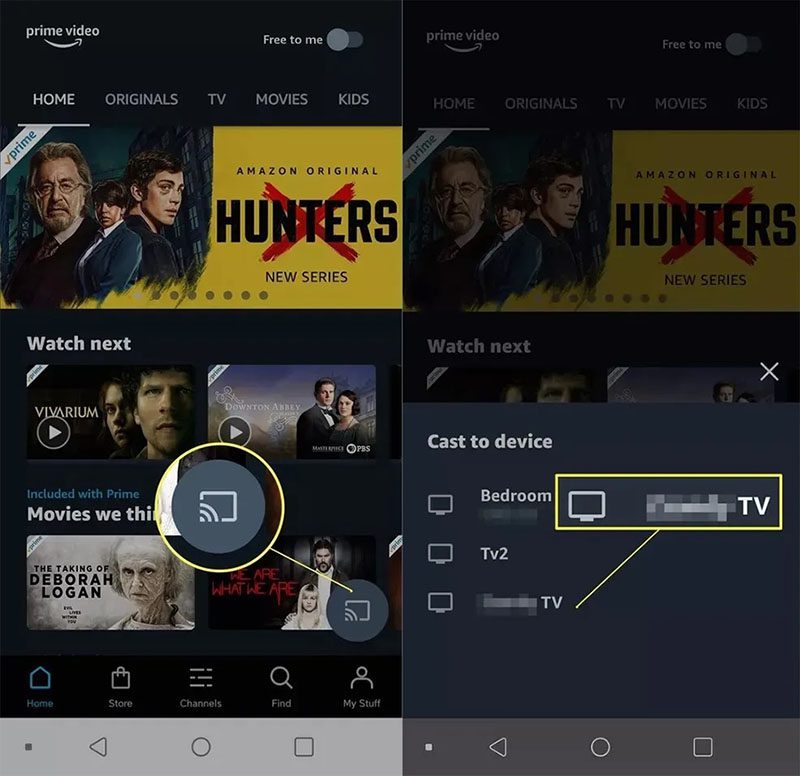
3. Casting Amazon Prime Video from a Computer (Windows or macOS)
Want to watch Amazon Prime on Chromecast using your laptop? That’s not a problem because I have tested the procedures as well. Here’s how.
- Step 1: I open Google Chrome, go to primevideo.com, sign in, and start playing what I want to watch. A tip here is that I always hit play first because Chromecast connects more smoothly that way.
- Step 2: Then I click the three dots in Chrome, choose “Cast, save, and share.” In the Cast tab, I select “Cast tab” instead of “Cast desktop.” In my experience, this delivers only the Prime Video browser tab.
- Step 3: After it shows on my TV, I close extra tabs and stop background downloads(if any) so the playback can run smoothly.
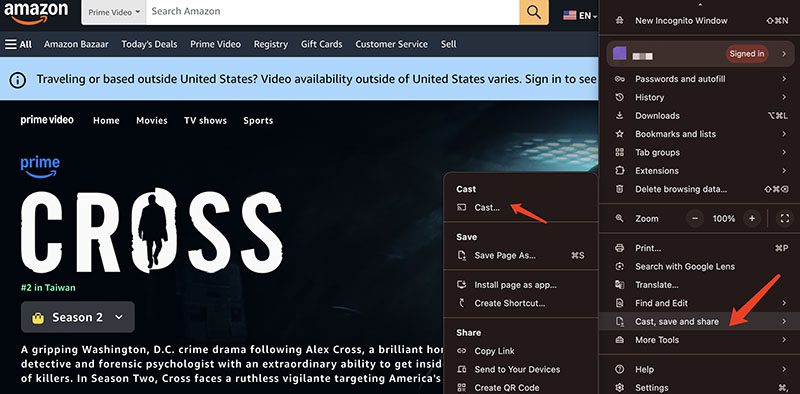
4. Using Google TV or Android TV for a More Reliable Experience
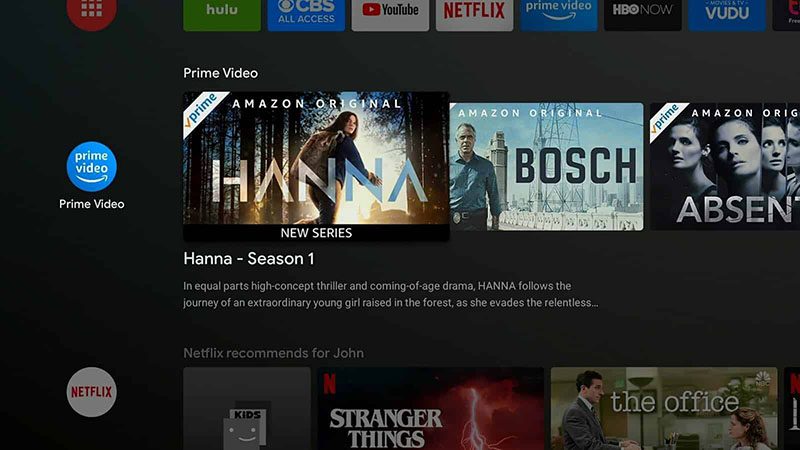
How to watch Amazon Prime on TV with Chromecast? Now you have two practical methods at hand. But after testing them, I want to share the approach I personally trust the most: the native Prime Video app directly on Google TV or Android TV.
Why so? I realized one truth with the previous methods, that is, the fewer steps between devices, the fewer things that can go wrong. Look, when we cast from a phone, there’s a small “chain” happening in the background. First, the phone has to find the TV. Then it connects. Then it has to stay connected the entire time while watching. While this might look normal, once Wi-Fi fluctuates, the phone locks, the battery runs low, or the app refreshes, the connection can drop.
5. Troubleshooting: What to Do When Prime Video Won’t Cast
Despite following all those tips, streaming to your TV can still fail. I’ve hit each snag personally, so I know exactly how to get things moving again fast.
I can not see the cast icon
Starting fresh helps – phone and Chromecast must share Wi-Fi. After that, a quick app reboot often fixes things.
It connects, but no video plays?
A quick pause fixed it – pulled the plug on the Chromecast for half a minute. The router got a fresh start shortly after. Then came the phone, power cycled into cooperation. All three steps cleared what was only ever a passing hiccup.
It just keeps disconnecting
When the signal feels weak, stepping nearer to the device helps. Sometimes switching over to the 5GHz network clears things up. Updating Chromecast through the Google Home app runs smoother later. The fix often clicks after those steps sit a moment.
Bad quality or buffering again
Sure, it gets frustrating. Yet fixes exist. Testing connection speed comes before anything else – it needs strength for steady 4K flow. Pausing active downloads follows close behind – streaming likes company, but not that kind.
Audio sounds not good
Same thing happens to me. First up, checking the sound settings on the TV. Switching the output – PCM or sometimes Auto – fixes it. Funny how that solves the problem.
Tip: If you can not fix the problem using my tips, then downloading Amazon videos for offline playback might be a better workaround.
6. FAQs
1. Amazon Prime Video and Chromecast Compatibility?
Right now, you can stream Prime Video through the app straight to a Chromecast – Amazon says so themselves. Their support pages list it clearly: the feature works on both iPhone and Android phones.
2. Why does Prime Video sometimes fail to cast to Chromecast?
Sometimes it’s just a spotty connection. Outdated software might play a role too. Try checking if the app has local access allowed on your iPhone. Other times, a running VPN throws things off. Different networks can confuse the setup. Crowded signals slow everything down. I power everything down first when this happens. Works more often than not.
3. Cast Prime Video in HD or 4K with Chromecast?
Sure. High definition tends to work just fine. When 4K enters the picture, though, things shift slightly – equipment matters more now. A gadget such as Chromecast Ultra or Chromecast with Google TV becomes necessary at that point. One thing people overlook sometimes? The streaming plan itself needs 4K access through Prime Video. That part cannot be skipped.
4. Do my phone and Chromecast need to be on the same Wi-Fi network?
Yes. Your phone must share the internet connection with the Chromecast. Otherwise, they cannot talk to each other. One depends on the other being nearby online. Without that link, casting fails every time. Connection needs alignment between both devices. Same network means smoother communication. Jumping networks breaks the handshake. Staying together on Wi-Fi keeps things working.
Share this post







 العربية
 繁體中文
繁體中文 Dansk
Dansk Nederlands
 Suomi
Suomi Français
 Deutsch
 Italiano
 한국어
한국어 Norsk bokmål
 Português
 Русский
 Español
 Svenska