Disney Plus Keeps Buffering? How to Stop

Summary:
This post offers 8 effective ways to solve Disney Plus keeps buffering problems. If you are looking for methods to fix it, watch this post to say goodbye to interruptions.
Outline
You are ready to watch Frozen on Disney Plus with friends at night, but it always buffers, plays, buffers, annoying! I’ve been in those situations, and I’ve found ways to fix this problem. If you are searching for ways to fix the Disney Plus keeps buffering problem, this article gives you full solutions.
Why Disney Plus Keeps Buffering
Before you get into the steps to fix the problem, it’s important to know the reasons. What makes your Disney Plus keep buffering? Let’s take a look.
Network problems: This is normally the most common reason to cause your Disney Plus buffering. If you have a very slow internet, your bandwidth is insufficient. The playback seems will buffer. Or, you have an adequate bandwidth, but your WIFI is not set well will also cause the problem.
App or browser issues: Sometimes, it’s not about the internet speed. Simply, your app or browser has too many caches, too old versions, etc., which can cause the playback buffer and stop frequently.
Device limitations: If you use too outdated devices to play the video, there may not be enough resources to run smooth playback, so you will likely face buffering.
Disney Plus Server Issues: This is an official problem. When Disney Plus servers go down, you will experience high traffic and face buffering.
How to Fix Disney Plus Buffering Issues
The causes above make things easier. In this section, I list 8 useful methods for these causes of buffering. These cover everything from your Internet connection to the settings on your device. You can try out each one to fix the buffering problem.
1. Check if Disney Plus Servers are Down
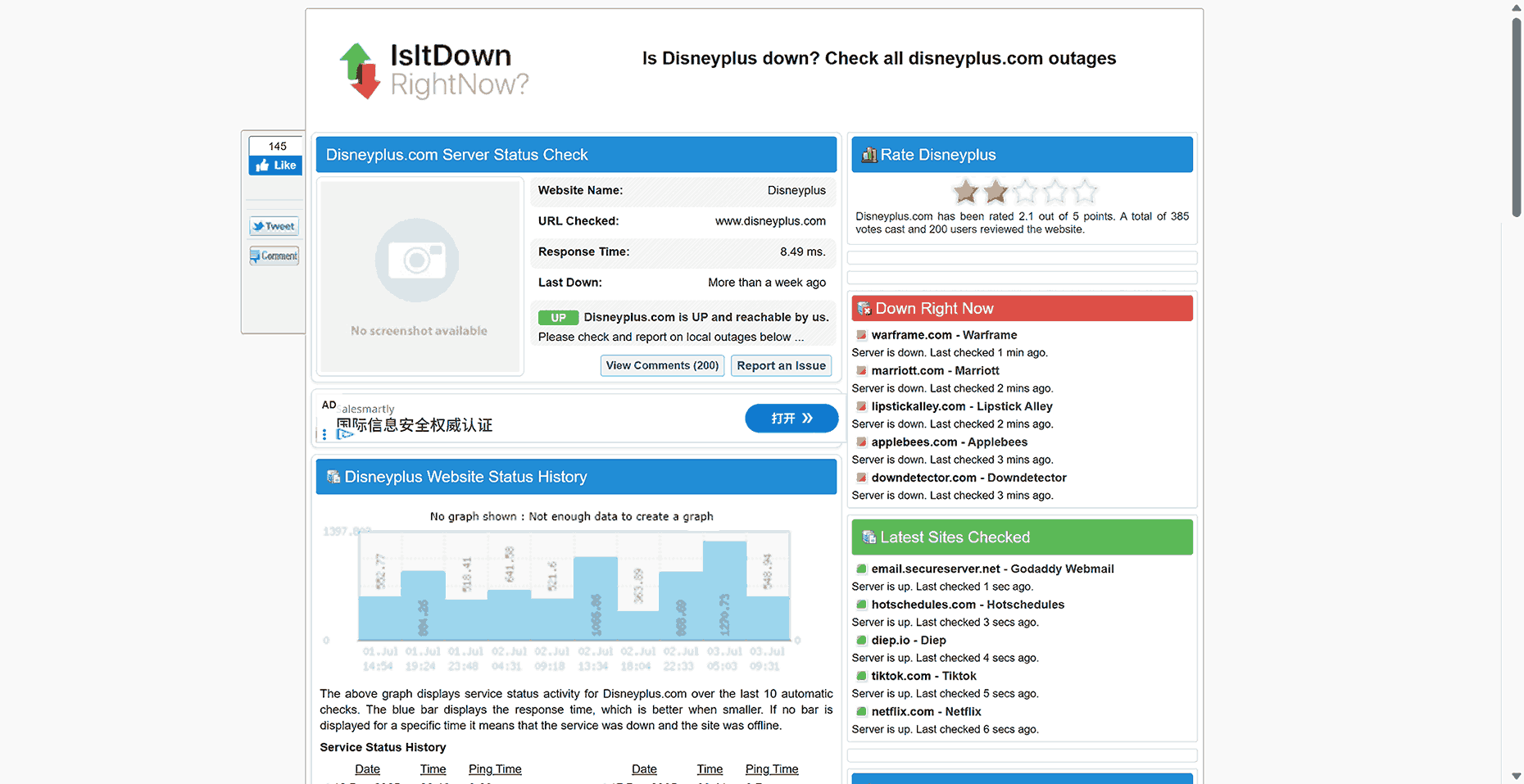
The first thing you need to do is to rule out server issues. If it is the problem that the Disney Plus server goes down, there is no more things you can do about it. Just wait. If it is your side that causes Disney Plus buffering, you can continue to the next method.
To check if Disney Plus server is down, you can visit several third-party websites, like Is It Down Right Now? or Outage Report, to see if others are experiencing the same problems.
2. Check Your Internet Speed
Disney Plus recommends watching videos with a least 5 Mbps speed, and for 4K resolution, at least 25Mbps. A fast internet speed is essential for smooth playback to avoid buffering and interruptions in the basic.
To test your internet speed, you can visit some speed test sites, like speedtestcustom, and there are also many alternatives if you Google test internet speed. If you find out your speed is slow for the basic requirements, you may consider levelling up your bandwidth plan for a better streaming experience on Disney Plus.
3. Restart Your Router or Modem
If your speed is normal, but there is still buffering, maybe there is a problem with your router. You can restart the router or modem to refresh the machine. Turn off the machine and wait for 30 seconds. You can also press the reset button to reset the router. Then, turn on and see if the playback still buffers. You can also closer to the router or use a wire to make the signal and speed more stable.
4. Clear Cache and Cookies
Accumulated caches and cookies will slow down your Disney Plus app and browser to cause the buffering problem. Clearing may help solve the problem. Here are the steps for different devices.
For Browser (similar steps on a different browser):
Step 1: Open your browser and enter settings.
Step 2: Find the privacy part.
Step 3: Choose to clear the browsing data, cookies, etc.
Step 4: Reopen the browser and see if the video is still buffering on Disney Plus.

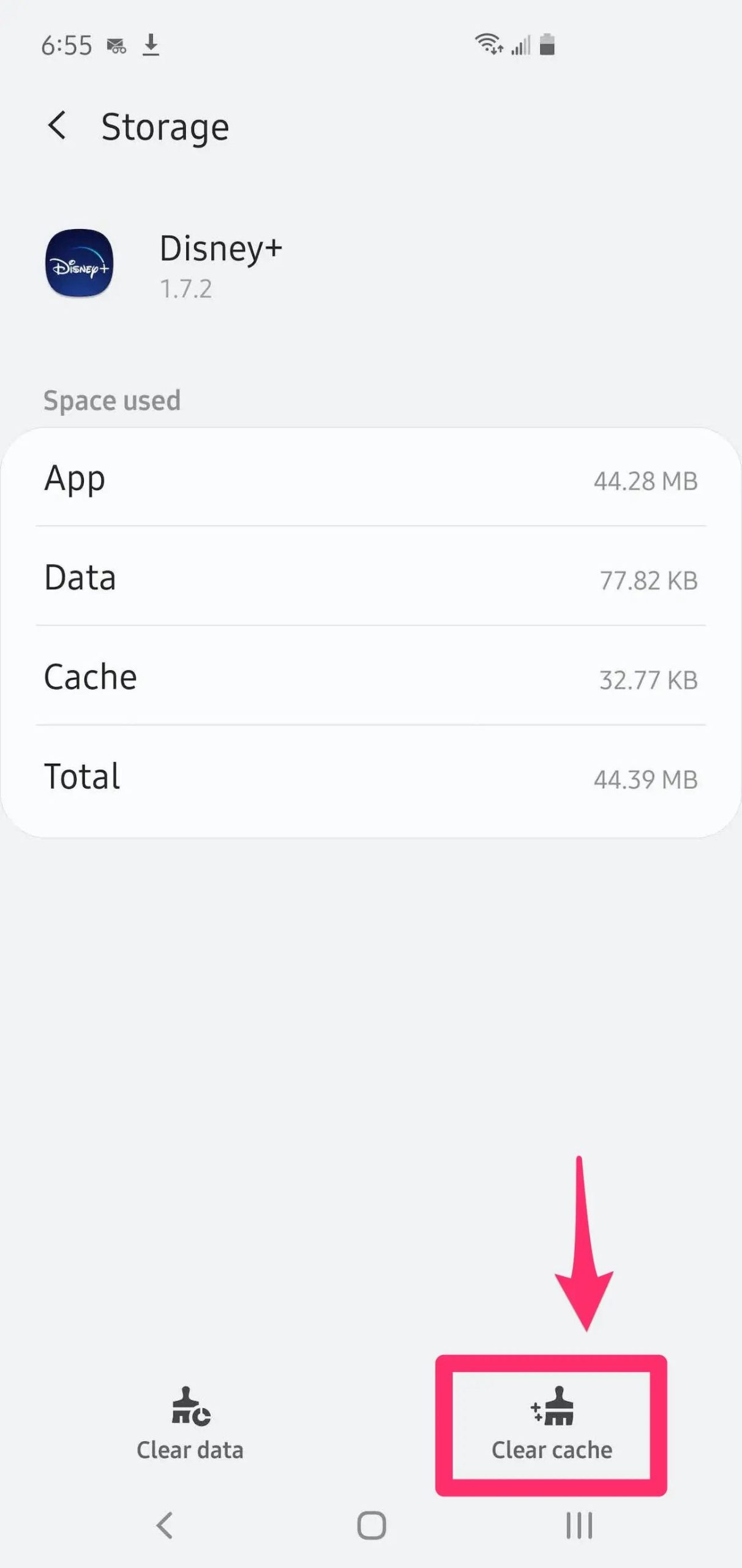
For Mobile (iOS/Android):
Step 1: Open the Disney Plus app.
Step 2: Go to your phone’s settings, find the "Apps" or "Applications" section, and select Disney Plus.
Step 3: Tap Storage, and then select Clear Cache. (For Android, you might also see Clear Data.)
Step 4: Restart the app.
Step 5: Test to see if the problem persists.
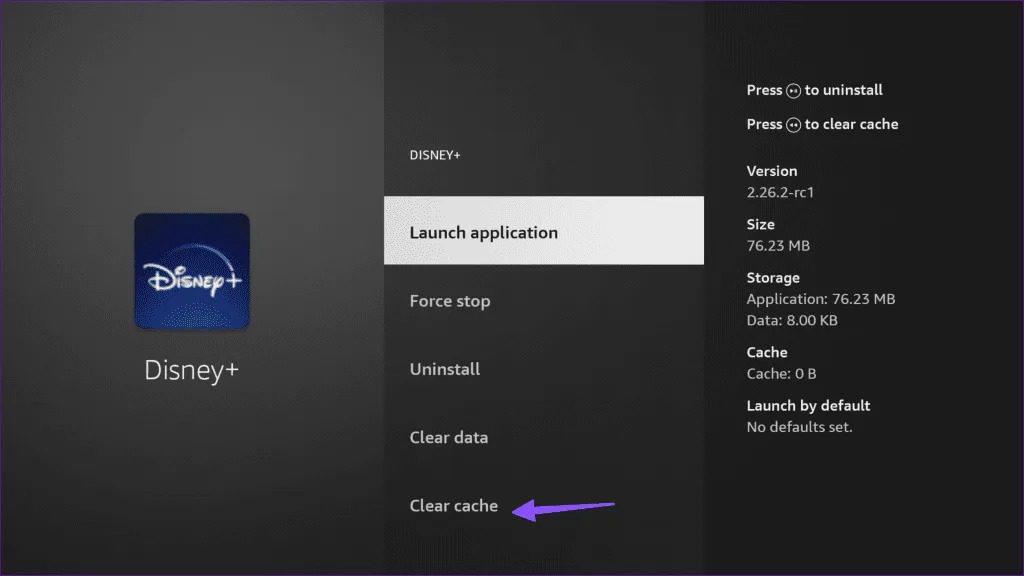
For TV (Smart TV, Roku, Apple TV, etc.):
Step 1: Go to the settings menu on your TV.
Step 2: Select applications and find Disney Plus. Find details, and choose the Storage or Cache section.
Step 3: Choose Clear Cache.
Step 4: Restart the app and check if buffering persists.
5. Close Background Apps or Devices
Too many background programs/apps and too many devices connected to the WIFI will drag the speed down. Try to close all the unnecessary programs and disconnect the devices that you don’t use temporarily from the WIFI to release the bandwidth for your Disney Plus.
6. Uninstall and Reinstall the Disney Plus App
If the buffering problem still exists, uninstalling and reinstalling the Disney Plus app may solve deeper problems. Such as files corrupted or settings mixed up. Reinstalling makes everything start over again. Since Disney Plus doesn’t have a desktop version, here is how to uninstall and reinstall it on your phone and TV.
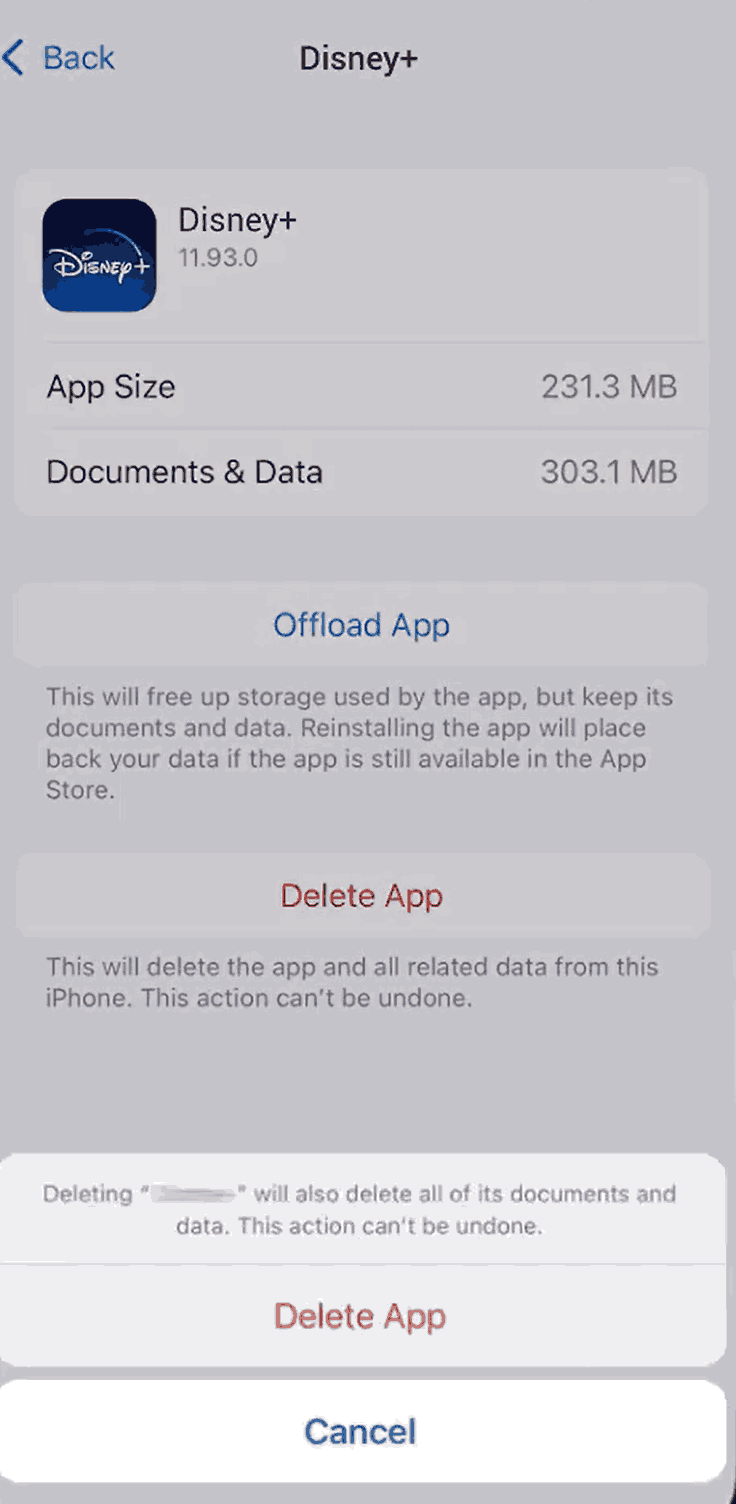
For Mobile (iOS/Android):
Step 1: Open the settings on your phone.
Step 2: Enter the Application part.
Step 3: Find Disney Plus and tap into the detailed page.
Step 4: Tap on the delete app (This is not like deleting the app from the home screen. It deletes the involved data.)
Step 5: Go to the App Store or Google Play to search for Disney Plus.
Step 6: Tap to install it. Open the app and see if the video is still buffering.
For TV (Roku, Apple TV, etc.):
Step 1: Go to settings on the TV.
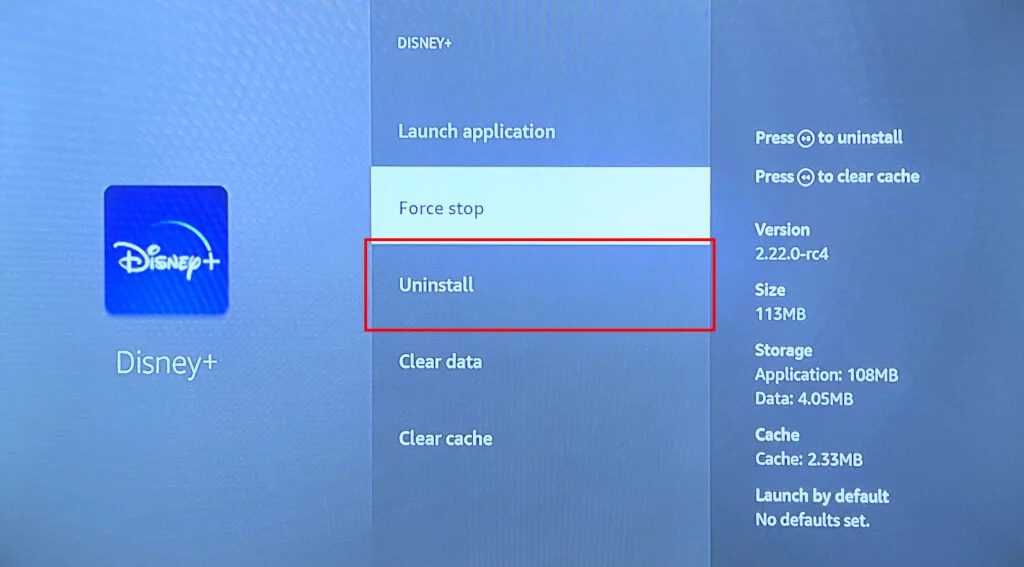
Step 2: Find installed applications and locate Disney Plus.
Step 3: Highlight the app, press the Options or Settings button, and select Uninstall.
Step 4: Go to the TV app store and search Disney Plus.
Step 5: Install it.
Step 6: Watch the video with Disney Plus to see if the problem persists.
7. Restart Your Device
Restart the devices like your computer, phone, or TV to solve the little glitches. Turn them off and wait for 30 seconds to 1 minute, then restart the devices. If your device models are too old or don’t meet the minimum requirements for Disney Plus (especially for 4K streaming), you may level up your devices to newer ones for better streaming experiences.
8. Contact Disney Plus Support for Assistance
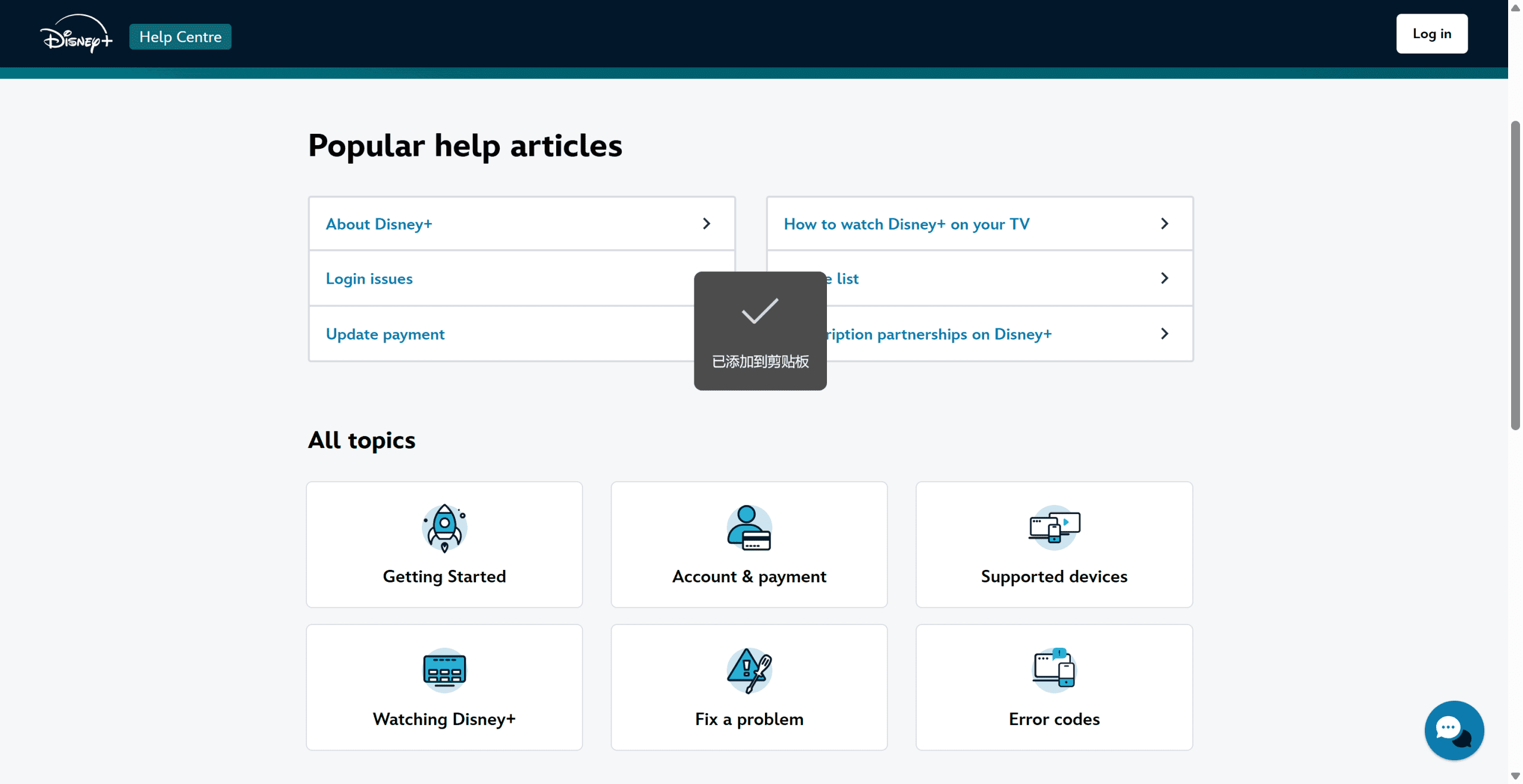
If you tried everything and things are not getting better, contacting Disney Plus support is the only thing you can do next. They can offer you the additional troubleshooting steps specifically to your account. Click Disney Plus Help Centre page and leave a message for them, or just call 1 (888) 905-7888 for direct customer services.
Alternative Way: Download Disney Plus Content
Actually, you don’t need to watch Disney Plus always online. Sometimes, you can download your favorite Disney Plus movies and shows offline, if you are on a trip, outside your home, etc. This is also a good way to avoid any buffering, and you can enjoy smooth playback on any device.
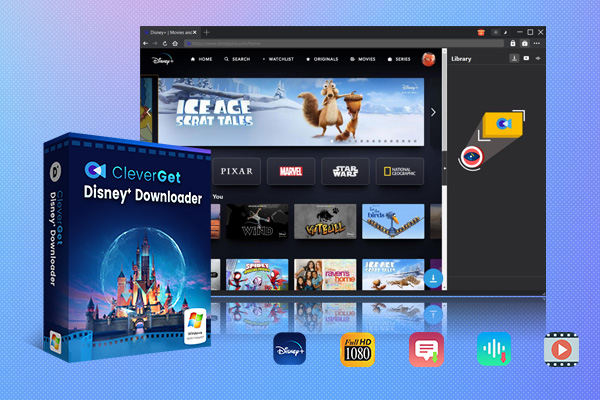
To overcome the DRM, you need a reliable third-party Disney Plus downloader, and CleverGet Disney Plus Downloader is one good example. It allows you to download movies on Disney Plus in up to 720P resolution, in MP4/MKV formats, with subtitles and audio tracks selected, and ads removed. This is one of the best Disney Plus downloaders in the market, and it is easy to use for anyone.

-
CleverGet Disney Plus Downloader
Professional Disney Plus video downloader to download on-demand videos like movies and series at 720P quality with selected subtitles and audio tracks.
- Download and convert Disney Plus video to MP4/MKV.
- Batch download TV episodes across seasons from Disney+.
Conclusion
If buffering on Disney Plus streaming ruins your day, don’t worry. Methods in this post can help you solve the problem. You can try them out. I think they are working on almost all the situations. And if you’re in a hurry and the problem is not fixed, when you are planning to go out to have a trip or something, try CleverGet Disney Plus Downloader to download videos first to watch on the road, and then to solve the problem when you come back. If you have any further problems, just contact me.
Share this post













 العربية
 繁體中文
繁體中文 Dansk
Dansk Nederlands
 Suomi
Suomi Français
 Deutsch
 Italiano
 한국어
한국어 Norsk bokmål
 Português
 Русский
 Español
 Svenska