How to Screen Record Netflix on Wins/Mac/Android/iOS?

“Can you screen record Netflix? I would like to screen record Netflix movie but found that Netflix became black screen when I did this. Why can’t I screen record Netflix? Is there any possibility to screen record Netflix and how to screen record Netflix? Please help me with this.”
You might also have these questions, which have led you here. As one of the most popular online streaming services, Netflix actually enables you to download movies and TV shows for offline watching on the Netflix app. However, you might find that when you try to screen record Netflix, it becomes black screen. And also, you can’t watch Netflix videos offline on Mac since there is no Netflix app for Mac computer. What can you do then? How to record Netflix? This page will provide you all-inclusive answers on how to screen record on Netflix.

OutlineCLOSE
How to Screen Record Netflix on Windows?
To screen record Netflix on Windows without black screen, you need a professional screen recording software tool. Leawo Free Screen Recorder is the Netflix recorder tool for you to screen record on Netflix. As a multifunctional screen recording software tool, it could could help you record or screenshot Netflix movie or TV show and save Netflix recording to MP4/MKV files for unlimited offline watching or other uses.
Follow the below steps to learn how to screen record Netflix on Windows with Leawo Free Screen Recorder. Before that, you need to firstly download and install Leawo Free Screen Recorder on your computer.

-
- Free online recorder to record window, browser tab or entire screen online.
- Free screen recorder to record screen in full-screen or custom area at up to 4K to MP4.
- Free webcam recorder to record webcam video.
- Free audio recorder to record audio from microphone or computer to MP3.
- Free screenshot snapper to snap screenshot to JPG.

Step 1: Set recording preferences
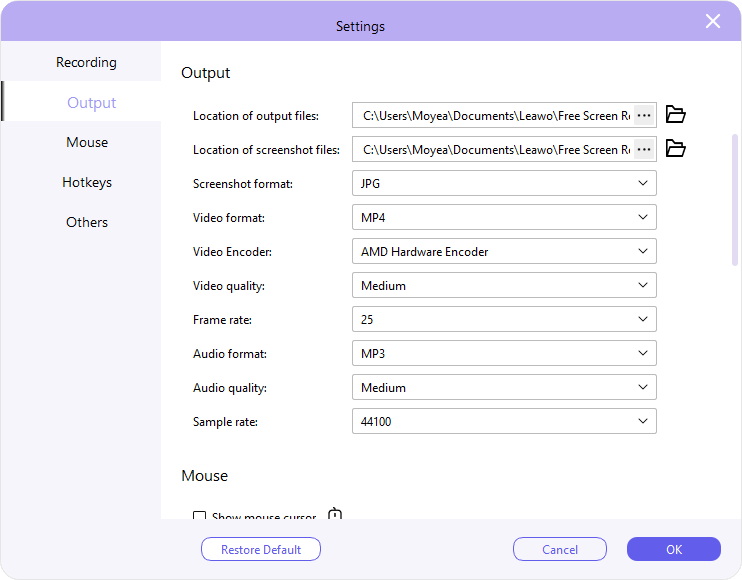
Kick off Leawo Free Screen Recorder and then click the Menu button at the top-right corner (in 3-bar icon) to choose “Settings” option on the drop-down menu. Here you could complete some recording settings like output file location, video recording format, video recording encoder, frame rate, mouse effect, etc.
Step 2: Set recording region
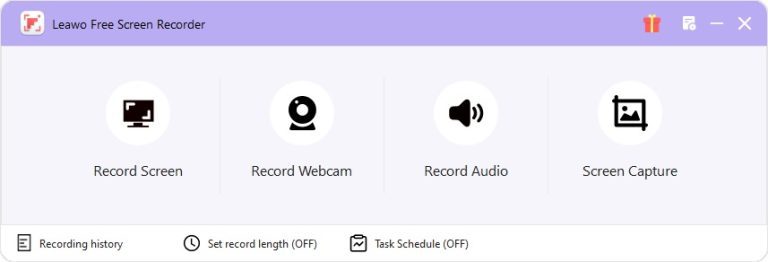
After completing recording settings, click the “Record Screen” option on the main interface. On the drop-down menu, you need to specify a recording region according to the Netflix video playback size. You could set a fixed region or manually select a region according to your needs.
Step 3: Start recording Netflix
Click the red REC button to start recording Netflix and then play back the Netflix video. To make sure you have recorded a complete Netflix movie or TV show, it’s highly suggested you start recording before playing a Netflix video.

Step 4: Manage recording
When you want to stop recording, just click the red button. All recordings will be saved to the Record History panel, where you could play back recording, rename recording, open recording file folder, delete recording, etc.

This is how to screen record Netflix on Windows computer with Leawo Free Screen Recorder. For smooth and successful Netflix recording, you are suggested use the Firefox browser.
How to Screen Record Netflix on Mac?
Can you screen record Netflix on Mac? Yes, of course. If you are using a Mac computer, you don’t even need to download and install 3rd-party screen recording software, since Mac computer has a built-in recorder for you. That’s QuickTime Player. Far more than a simple Mac media player, QuickTime Player provides multiple other features to improve its user experience. Screen recording is just one of these bonus features.

You could follow the below steps to learn how to screen record Netflix on Mac with QuickTime Player.
Step 1: Kick off QuickTime Player on your Mac computer.
Step 2: On the menu bar, click the “File” option and then choose “New Screen Recording” option from the drop-down menu.
Step 3: Then, set the recording save folder, choose system sound, and others before recording.
Step 4: After that, open Netflix.com website on your browser and log in with your account.
Step 5: Click the start recording button on QuickTime Player and then immediately play back the target Netflix video you want to record.
Step 6: You could stop recording Netflix anytime you like by clicking the Stop button.
Step 7: Once the recording completes, you will get Netflix video screen recorded and find them in the recording folder you have set previously.
If you encounter issues when using QuickTime Player to record Netflix content, another free alternative worth trying is CleverGet Recorder. It is a dedicated freeware designed for recording videos from multiple streaming platforms, offering stable performance, broad site compatibility, and flexible scheduled options.
Alternative Method to Record Netflix on PC Without Black Screen
Sometimes you might find that Netflix turns black screen when you try to record Netflix videos. This happens due to the copyright protection. The screen recorder you have chosen is blocked by the copyright protection. If you have tried all screen recorders but still this issue exists, you may try screen recorder alternatives. CleverGet is the best alternative to Netflix screen recorder tools for you to download Netflix movies and shows on Mac or Windows computer. The internal Netflix Downloader module within CleverGet could help you easily batch download Netflix movie and TV shows at up to 1080P resolution with selected subtitles and audio tracks for offline watching, with all ads being removed and no black screen issue.
-
- Download online video at up to 8K with an ad filter.
- Batch download movies, TV shows, playlists, clips, live streams, etc.
- Reserve multiple subtitle and audio track.
- Convert video to MP4, MKV, MP3 or other format files.
- Record videos in background at up to 5x speed and 4K resolution.
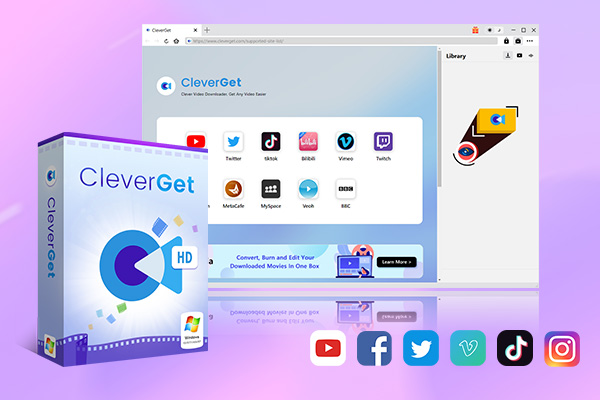
Compared to Netflix screen recording tools, CleverGet without doubt greatly shortens the processing time and could download Netflix videos for offline viewing in just a few minutes at high quality. You could check how easy it is to download Netflix videos with CleverGet.
How to Screen Record Netflix on Android?
If you are an Android smartphone or tablet owner, you will get quite plenty of screen recorders to help you screen record Netflix on Android. For those devices running Android 10 or later, there is even a pre-installed screen recorder to do this. Among all these wonderful Android screen recorders, the AZ Screen Recorder is a wonderful choice for you to screen record on Netflix on Android. It is totally free to download and install, and records video at high quality.

The below guide will show you how to screen record Netflix on Android with the AZ Screen Recorder:
Step 1: Download and install AZ Screen Recorder on your Android device.
Step 2: Open Netflix app or Netflix.com website on your Android device and then log into it with your account.
Step 3: Find the target Netflix video you want to record on Android.
Step 4: Kick off AZ Screen Recorder app and then click “Recording > START NOW” button before you play back the target Netflix video.
Step 5: You could stop screen recording Netflix anytime you like by clicking the Stop button.
Once the recording completes, you could go to your video library to find the recorded Netflix video for offline playback or other uses.
How to Screen Record Netflix on iOS?
If you are using an iOS device like iPhone or iPad, it would be even easier for you to screen record on Netflix. Apple has built in a screen recorder feature to help you record any screen activity on its iOS device. It could help you screen record Netflix video from browser or Netflix app as well.
Follow the below steps to learn how to screen record Netflix on iOS device with the built-in recorder:
Step 1: Open Netflix app or Netflix.com website and log into it with your account.
Step 2: Find the target Netflix movie or show you want to record.
Step 3: Swipe up from the bottom of the iOS device and click the Screen Recorder icon.
Step 4: Confirm to start recording the screen and then immediately play back the Netflix video.
Your iOS device will start to record Netflix video instantly. You could click the red button to start recording anytime you like.
FAQ
1. Can you screen record Netflix?
Yes, you can record Netflix screen with the help of professional Netflix screen recorder tools.
2. Is screen recording Netflix high quality?
Probably not. There might be quality loss in image and audio. Compared to original Netflix video, Netflix screen recording might be lower in both image and audio quality. There might be even missing frames.
3. How to get high quality Netflix screen recording?
Make sure your internet connection is fast enough, Netflix screen recorder is good enough and your computer storage is big enough. Or, you could make use of Netflix video downloaders to download Netflix videos other than recording Netflix videos.
4. Is it legal to screen record Netflix?
This highly depends on how you use the Netflix screen recordings. Generally, for personal use or offline viewing, it should not be illegal. However, it would be illegal if you screen record Netflix for business or profit purposes. Check out the local law before you start to screen record Netflix and other streaming videos.
Share this post









 العربية
 繁體中文
繁體中文 Dansk
Dansk Nederlands
 Suomi
Suomi Français
 Deutsch
 Italiano
 한국어
한국어 Norsk bokmål
 Português
 Русский
 Español
 Svenska