Bookmark and Share Tell a Friend Home > Guide & Tips
Guide & tips of software & computer

How to convert WMV to AVI for Mac?

Want to enjoy AVI files on Mac at your will? Which converter is the best choice to convert WMV to AVI for Mac? Well, I'd like to recommend you an excellent tool, Leawo Mac AVI Converter. It is a professional program which can convert popular video formats, such as WMV, MP4, VOB, etc. to AVI flie. Frankly, you will like the user-friendly interface and clear instructions after conversion. This Mac WMV to AVI converter provides you fluent video and excellent output quality so that you can play AVI files on popular Portable players. Now please download this tool!

What is WMV?
The Windows Media Video codec (.WMV) is a subset of Microsoft's Advanced Systems Format (ASF) container format. WMV files can be played by players such as MPlayer or Windows Media Player, the latter being only available for Microsoft Windows and Macintosh systems. WMV is a closed source, propriety codec that cannot be manipulated. It is not suggested for editing.

What is AVI?
An AVI (Audio Video Interleaved) file is a sound and motion picture file that conforms to the Microsoft Windows Resource Interchange File Format (RIFF) specification. AVI files (which end with an .avi extension) require a special player that may be included with your Web browser or may require downloading.

Tutorial of converting WMV to AVI for MAC with Mac WMV to AVI Converter
Note: Before this tutorial, please download and install Leawo Mac AVI Converter first!

Step 1: Do the essential settings
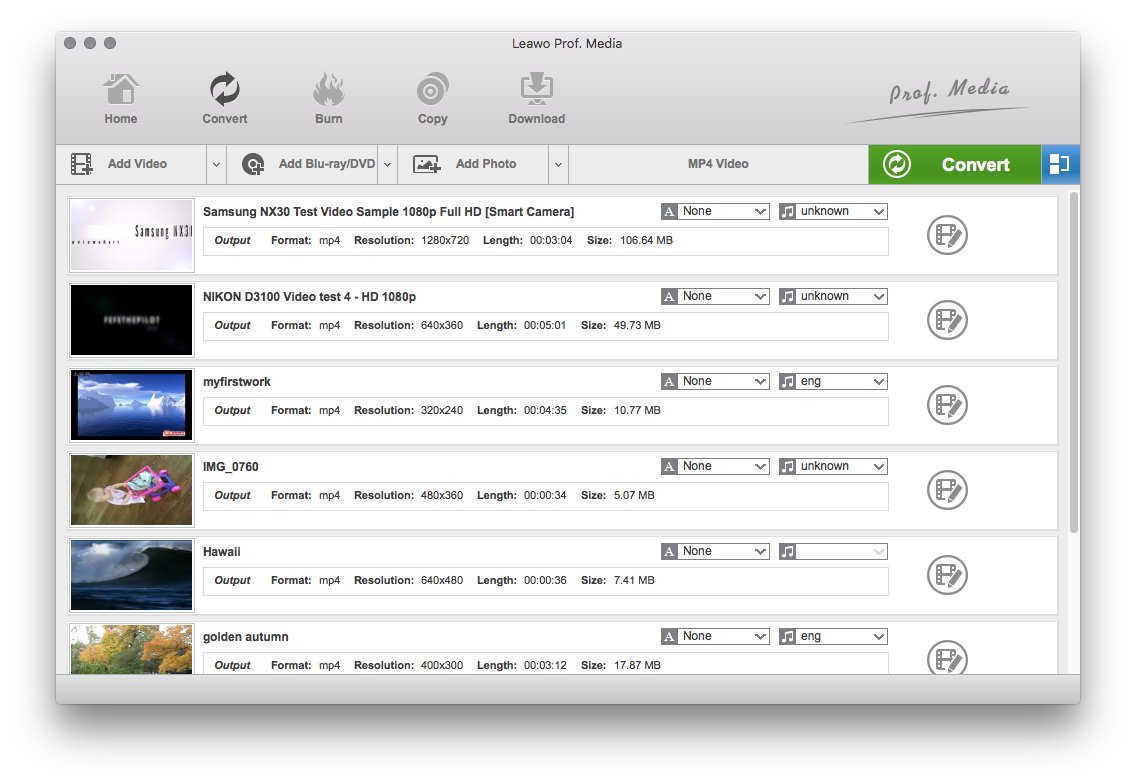
Click "Add " button to load WMV files you want.
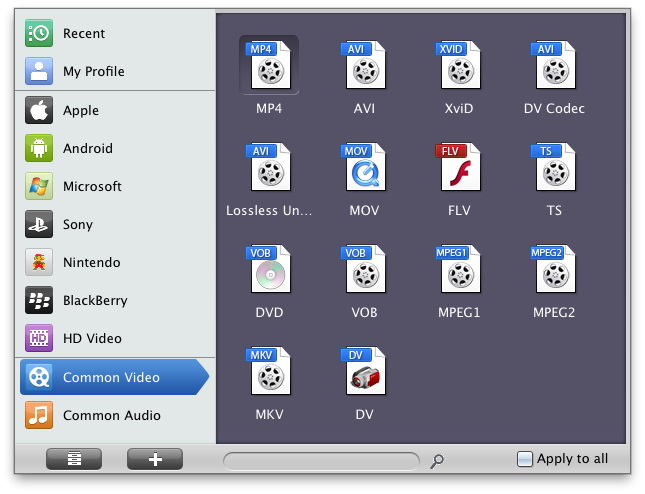
Select each file and choose the output format like AVI in "Profile".
Select video and audio quality that you need.
Set an output folder by "Output" for the destination files.
Leawo Mac WMV to AVI Converter

Step 2: Video Effect Settings
Click  button to crop, adjust and watermark video to satisfy your needs.
Crop: Click "Crop" button to crop the video file to extract the black sides or unnecessary segment from the original video file.
Crop WMV for converting to AVI for Mac
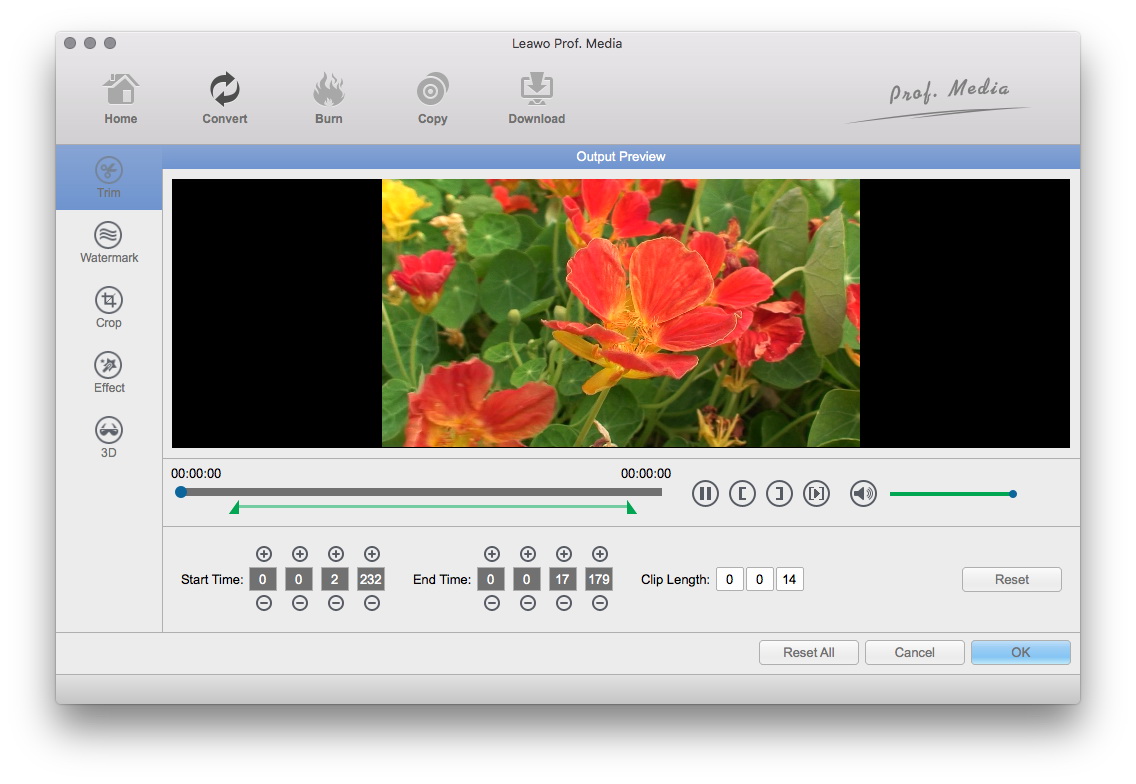
Trim: Click "Trim" button. Now trim video duration by setting start time and end time to keep the segment you want.
Trim WMV for converting to AVI on Mac
Effect: Click "Effect" button to set video brightness, contrast, and saturation for better output quality.
Specify effects for Mac WMV to AVI conversion
Watermark: Check "Enable Watermark", and click "Image Watermark" or "Text Watermark" to add watermark to the video, then adjust the Transparency, Margin, and Watermark Size.
Watermark WMV for converting to AVI for Mac
Besides, you can set detailed parameters: Choose the file and go to "Settings" button at the bottom of the main interface to set detailed parameters for the video as you like. Such as Codec, Video Size, Bit Rate, Aspect Ratio, Frame Rate, Channels, etc.
Set parameters for converting WMV to AVI on Mac

Step 3: Convert Videos
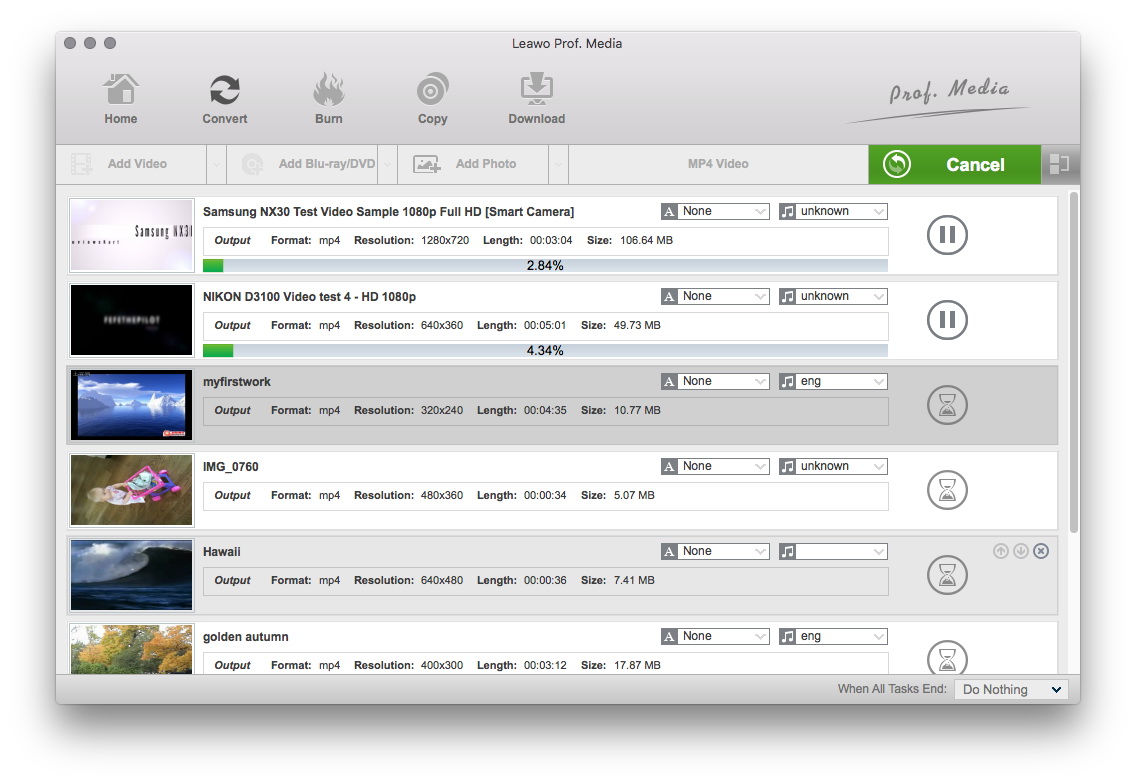
When you have got ready for the settings for the added videos in the video converter program, you can click "Convert" button to start conversion. Just for a while, the conversion would finish and be enjoyed freely.
Convert WMV to AVI for Mac

Learn more about Leawo Mac AVI Converter Now!

Guide & Tips Catalogue

Hot Tips for Windows
Convert AVI to DVD
Convert MP4 to AVI
Put WMV video to iPod
Convert DVD to AVI
Convert DVD to MP4
Sync DVD to my iPod
How to insert DVD into PowerPoint?
Convert YouTube video to MP3
Convert FLV to 3GP for cell phones
Convert FLV to AVI
Download YouTube videos
Download YouTube video to iPod
Convert PowerPoint to AVI
Promote your business using PowerPoint
Put PowerPoint to YouTube
Publish PowerPoint on web
Do mobile PowerPoint presentation
More Tips
Hot Tips for Mac
Convert video to AVI for Mac OS users?
Convert video to MPEG for DVD player on Mac OS?
Convert video to 3GP and 3G2 for cell phones on Mac OS?
More Tips