In this guide we will explain how to convert MPEG to PSP for Mac with Leawo Video Converter for Mac—Mac PSP Converter. Undoubtedly, this Leawo Mac PSP Converter can convert videos of any formats to PSP, easily and quickly. It is definitely a powerful and professional Mac MPEG to PSP converter that can convert MPEG to PSP on Mac perfectly. After MPEG to PSP video on Mac conversion, you'll appreciate the software, especially its easy-to-use design and excellent output quality. Go and happily enjoy your PSP file made from MPEG on your fashionable PSP.
Tutorial of converting MPEG to PSP for Mac with Mac MPEG to PSP Converter. Before this tutorial, please download and install Leawo Mac PSP Converter first!
Full Guide
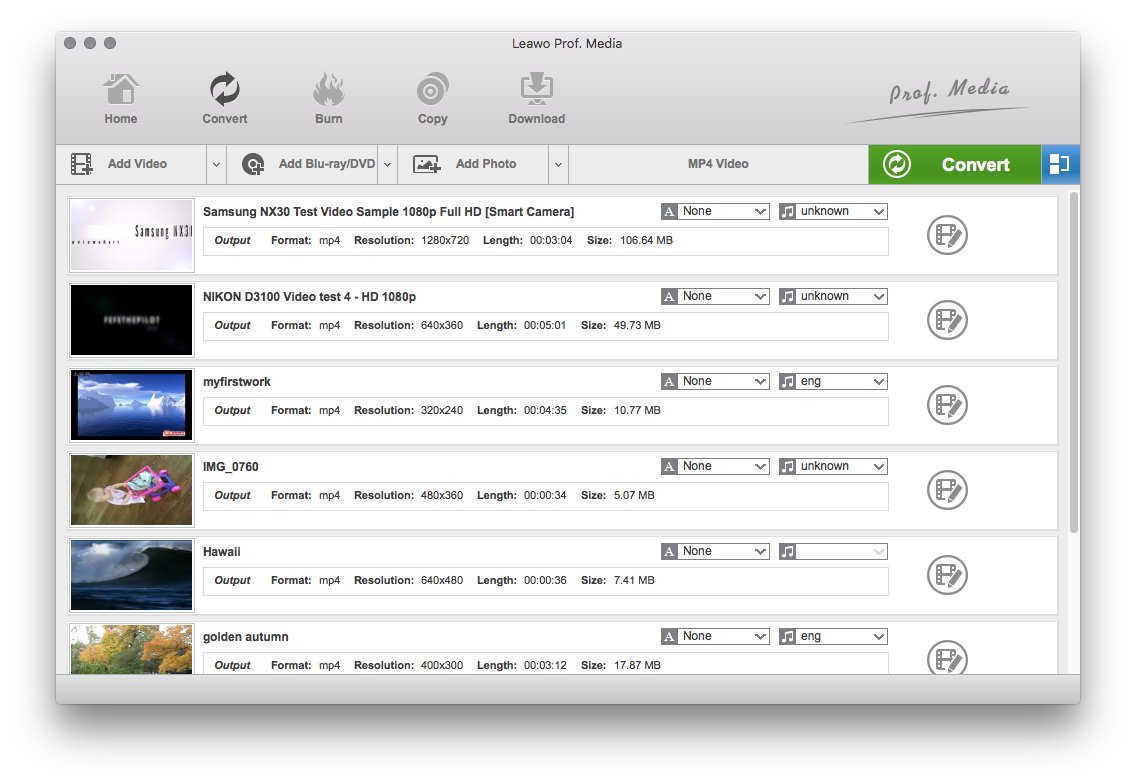
Do the essential settings
Click "Add" button to load MPEG files you want.
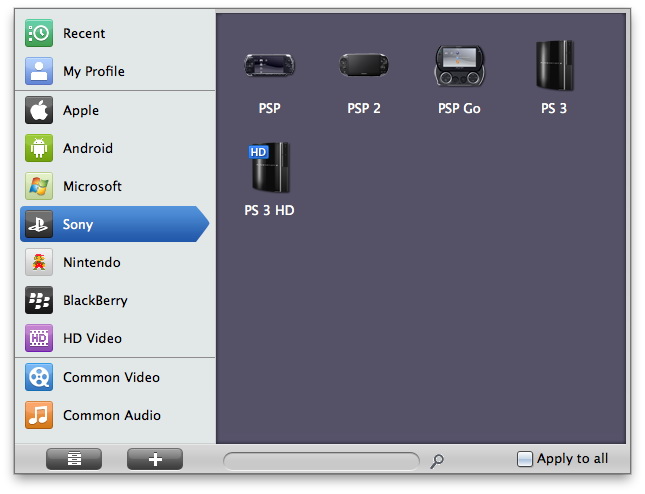
Choose output video format
Select each file and choose the output format like PSP MP4 in "Profile".
Select video and audio quality that you need.
Set an output folder by "Output" for the destination files.
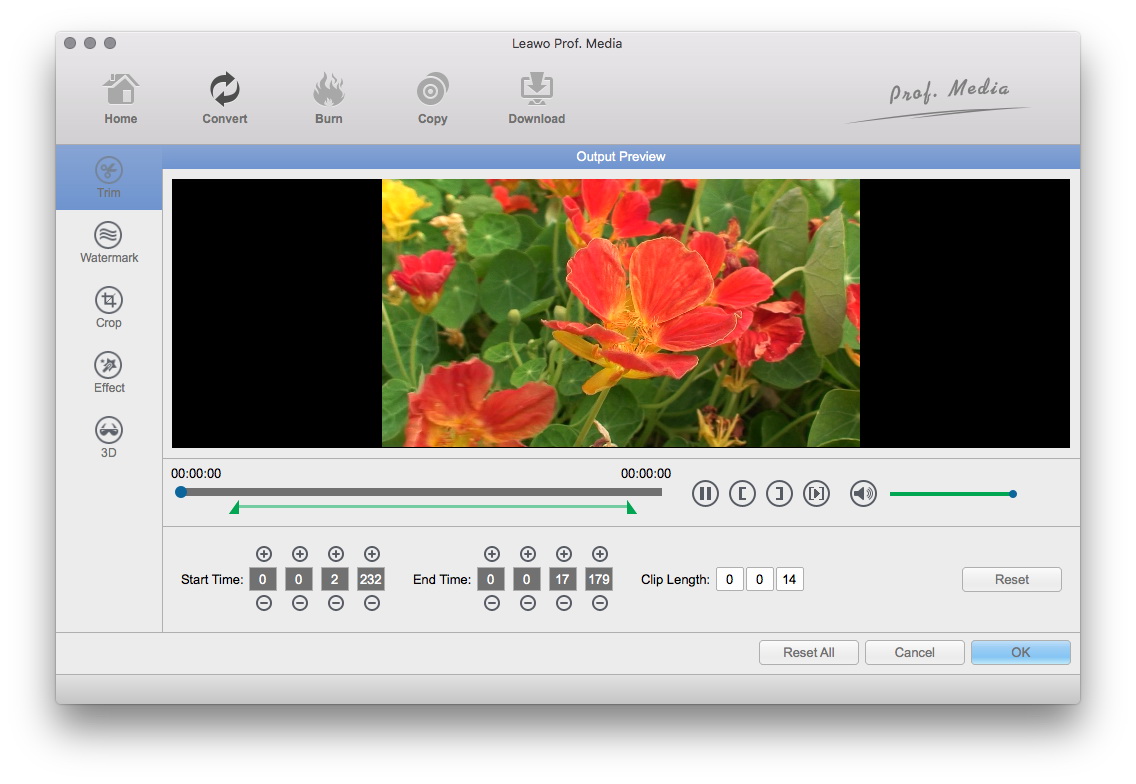
Video effect settings
Click "Edit" button to crop, trim, adjust and watermark video to satisfy your needs.
- Trim: Click "Trim" button. Now trim video duration by setting start time and end time to keep the segment you want.
- Crop: Click "Crop" to crop the video file to extract the black sides or unnecessary segment from the original video file.
- Effect: Click "Effect" button to set video brightness, contrast, and saturation for better output quality.
- Watermark: Check "Enable Watermark", and click "Image Watermark" or "Text Watermark" to add watermark to the video, then adjust the Transparency, Margin, and Watermark Size.
- Besides, you can set detailed parameters: Choose the file and go to "Settings" button at the bottom of the main interface to set detailed parameters for the video as you like. Such as Codec, Video Size, Bit Rate, Aspect Ratio, Frame Rate, etc.
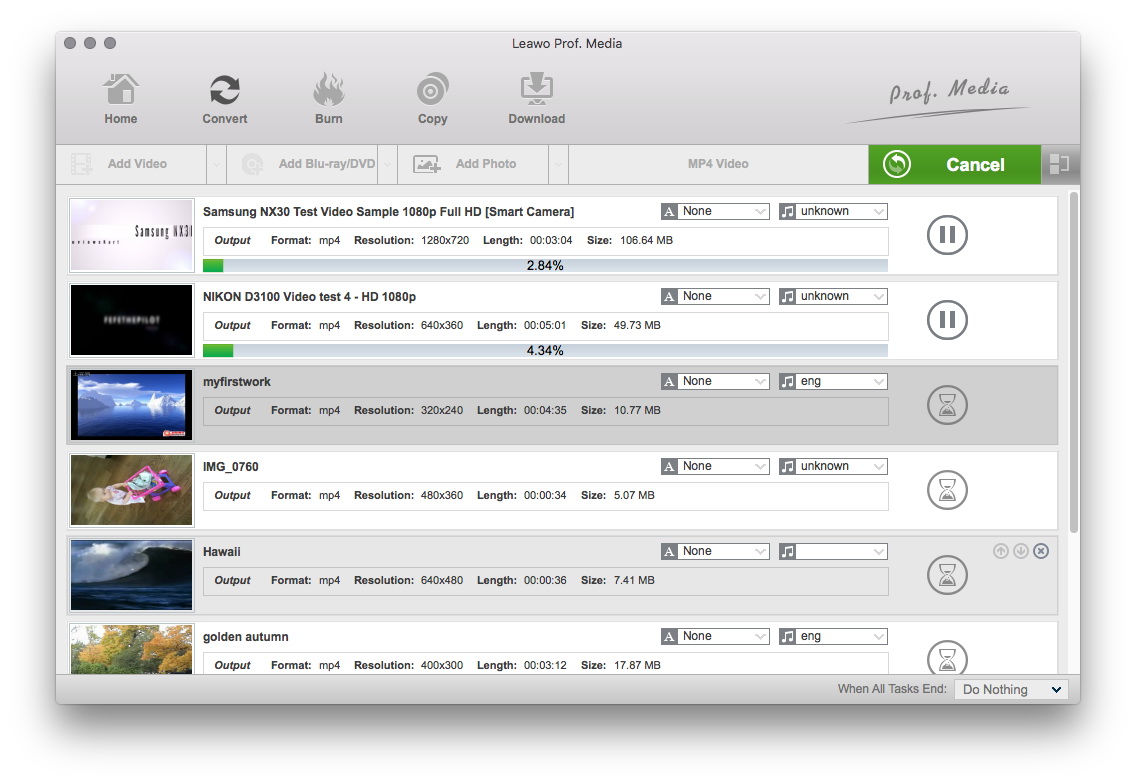
Convert Videos
When you have got ready for the settings for the added videos in the video converter program, you can click "Convert" button to start conversion. Just for a while, the conversion will be finished and you can enjoy it freely.
Extended Knowledge
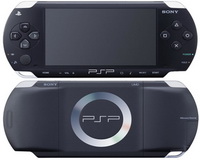
PSP is short for PlayStation Portable. The PlayStation Portable is the first handheld video game console to use an optical disc format, Universal Media Disc (UMD), as its primary storage media. Other distinguishing features of the console include its large viewing screen, robust multi-media capabilities, and connectivity with the PlayStation 3, other PSPs, and the Internet.