How to convert MP4 to MOV files on Mac with a good Mac MP4 to MOV converter? I can not help but referring to a top-rated tool, Leawo Video Converter for Mac. It is a professional program that can convert almost all popular video formats from one to another, surely including converting MP4 to MOV for Mac, 3GP to AVI, etc. After Mac MP4 to MOV conversion, You can get excellent output quality from this Mac MP4 to MOV converter. And also, the high-difinition video can refresh your enjoyment! You are able to play your MOV content on iPod, cell phone, PSP, iPhone, MP4, etc. Now download the tool at once!
Full Guide
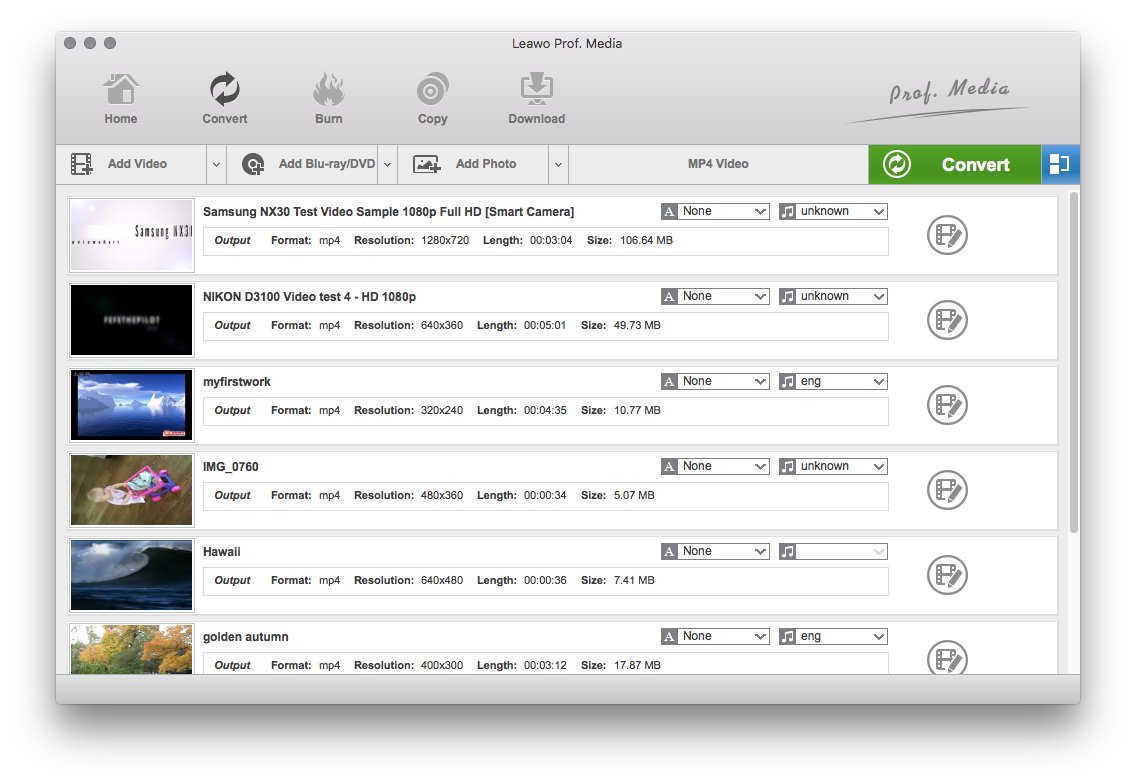
Do the essential settings
Click "Add" button on the program main interface to load MP4 files you want.
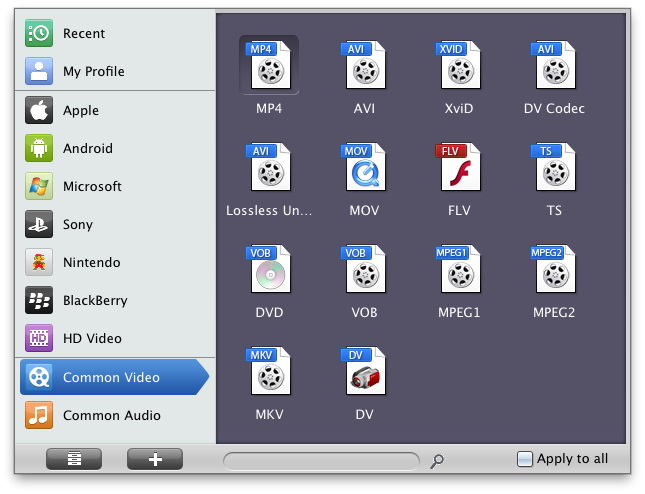
Select Output Profile
Click on the file format of the original video on the video processing list, and then it will switch to the following output file format choosing panel. Select a target format for the output according to your requirement. Or you can take advantage of the "Profile Search Function" and get access to the target format quickly.
You can set detailed parameters: Choose the file and go to "Add Profile" button at the bottom of the main interface to set detailed parameters for the video as you like. Such as Codec, Video Size, Bit Rate, Aspect Ratio, Frame Rate, etc.
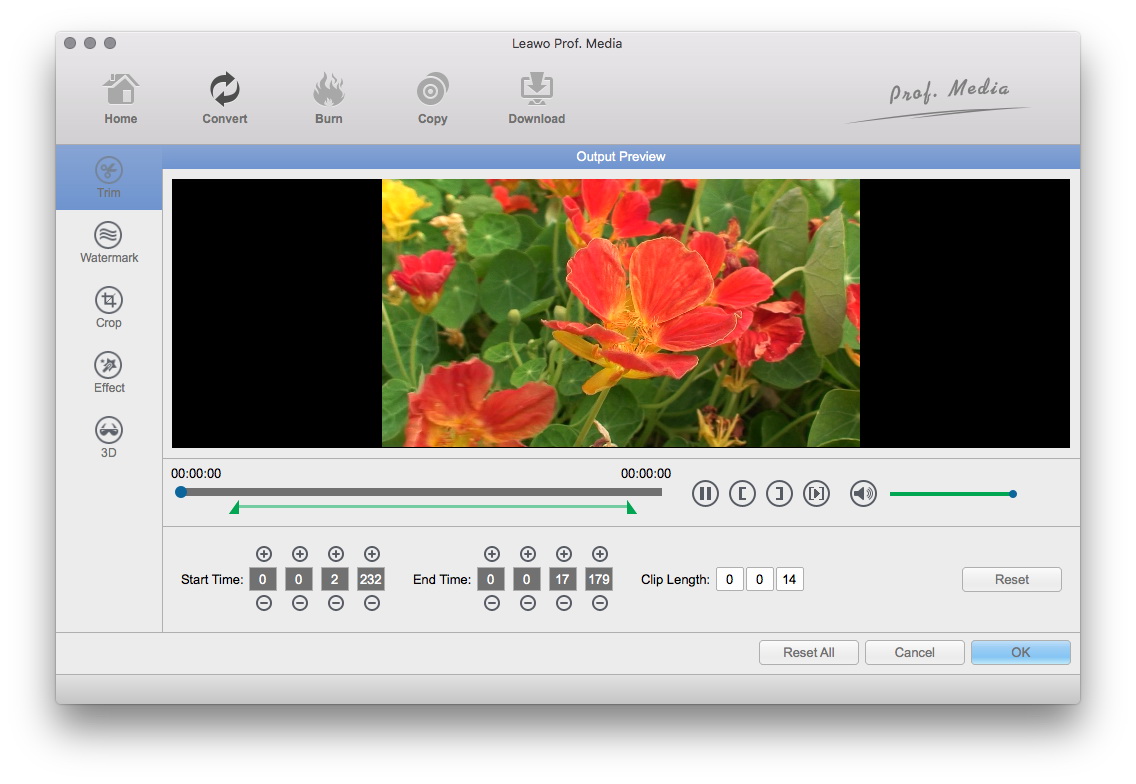
Video Effect Settings
Go to the video edit panel to add some individualized features to the output.
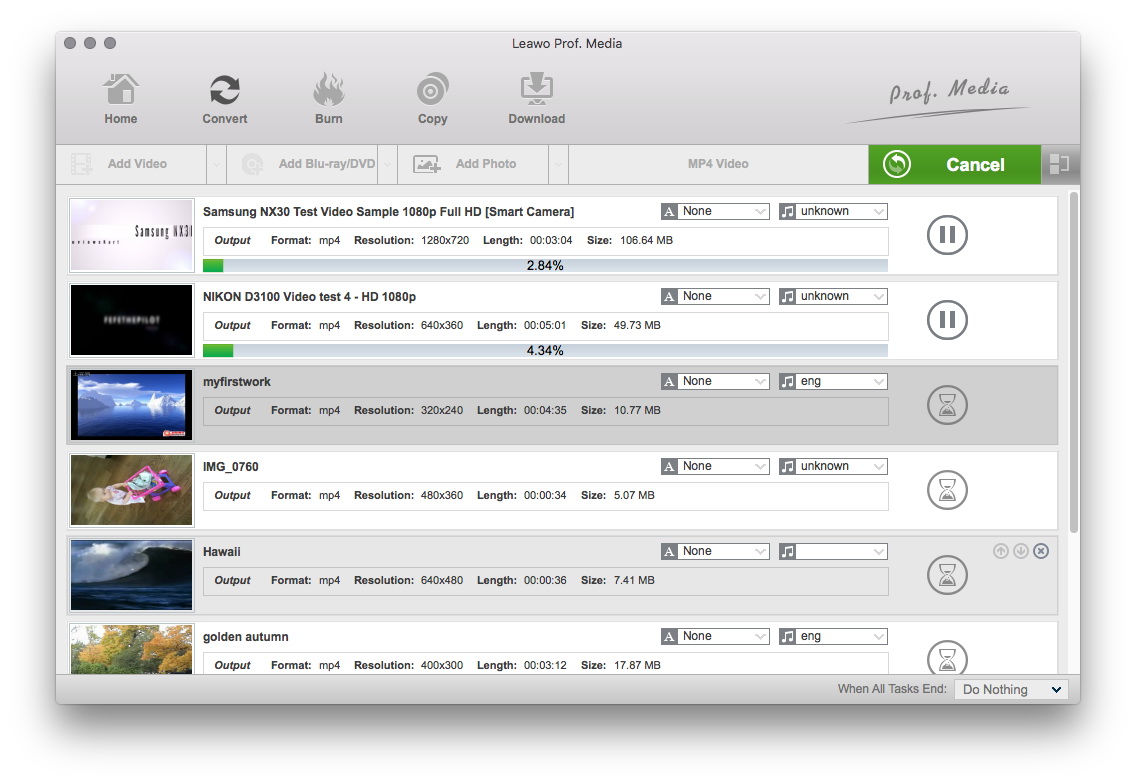
Convert Videos
When you have got ready for the settings for the added videos in the video converter program, you can click "Convert" button to start conversion. Just for a while, the conversion will be finished and you can enjoy it freely.
Extended Knowledge

MP4, short for MPEG-4 Part 14, is a multimedia container format standard specified as a part of MPEG-4. It is most commonly used to store digital audio and digital video streams, especially those defined by MPEG, but can also be used to store other data such as subtitles and still images. Like most modern container formats, MPEG-4 Part 14 allows streaming over the Internet. The official filename extension for MPEG-4 Part 14 files is .mp4, thus the container format is often referred to MP4.
MOV is a file extension used by the QuickTime-wrapped files. The format was created by Apple Computer to work with multimedia files. Though MOV files are quite often found in the web, to play them on Windows computer one has to install an extra component or convert to other format. MOV is a container format and can contain video, animation, graphics, 3D and virtual reality (VR) content or text (for subtitles, for example). The advantage of MOV files is the ability to contain abstract data references for the media data. It means that they can be easily edited - no need to rewrite all media data after editing.