I downloaded a popular video from the site, its format is MP4, but I want to view the video with Apple TV, is there a good MP4 to Apple TV converter for Mac? Facing with this situation, I can not help but recommending the Video Converter for Mac, the best Mac MP4 to Apple TV Converter from Leawo to you. Acting as Mac MP4 to Apple TV converter, it not only can convert MP4 to Apple TV on Mac, but also can convert almost all fashionable video formats to Apple TV, such as AVI, MP4, MPEG, VOB, MOV, MKV, etc. After conversion, you can get excellent output quality and high-definition video show with the help of its powerful functions.
Full Guide
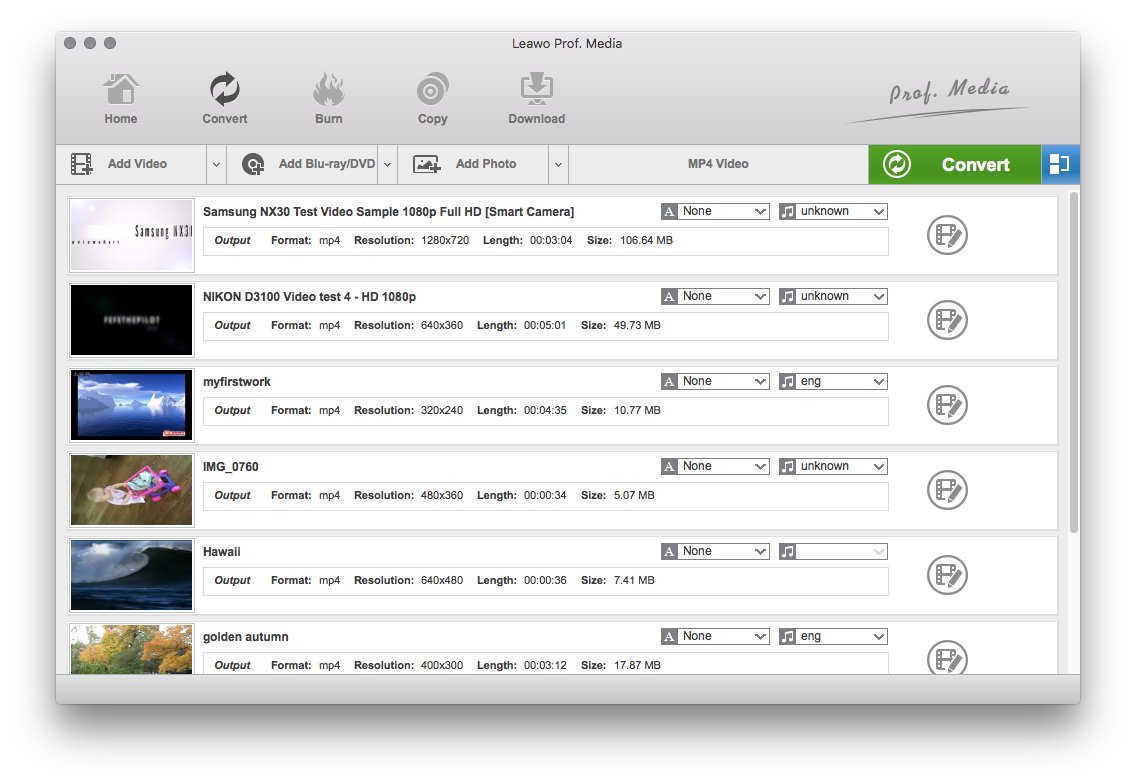
Do the essential settings
Click "Add" button to load MP4 files you want.

Select Output Profile
Click on the file format of the original video on the video processing list, and then it will switch to the following output file format choosing panel. Select a target format for the output according to your requirement. Or you can take advantage of the "Profile Search Function" and get access to the target format quickly.
Besides, you can set detailed parameters: Choose the file and go to "Add Profile" button at the bottom of the main interface to set detailed parameters for the video as you like. Such as Codec, Video Size, Bit Rate, Aspect Ratio, Frame Rate, etc.
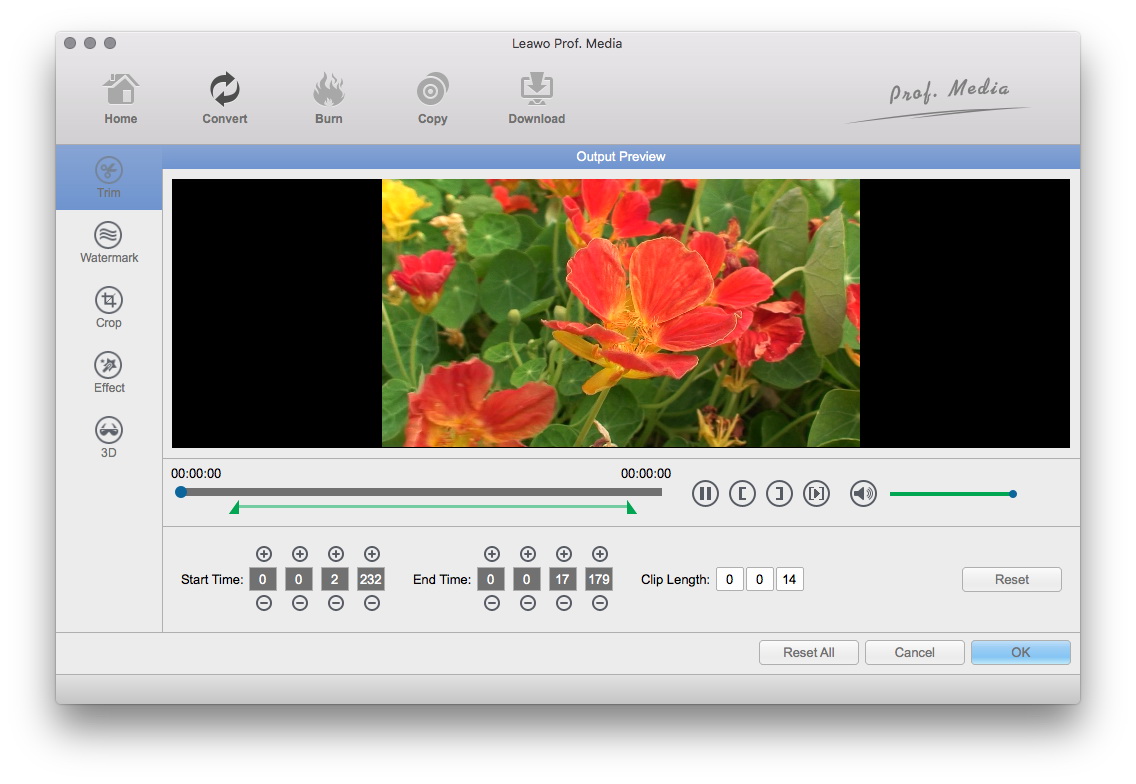
Video Effect Settings
Click "Edit" button to trim, crop, rotate, adjust and watermark video to satisfy your needs.
- Trim: Click "Trim" button. Now trim video duration by setting start time and end time to keep the segment you want.
- Crop: Click "Crop" to crop the video file to extract the black sides or unnecessary segment from the original video file.
- Rotation: Revolve the video to the needed angle. You can achieve horizontal flip & vertical flip, or realize to rotate 90° clockwise and rotate 90° counterclockwise. If the adjustment is beyond satisfaction you can reset it as well.
- Effect: Click "Effect" button to set video brightness, contrast, and saturation for better output quality.
- Watermark: Check "Enable Watermark", and click "Image Watermark" or "Text Watermark" to add watermark to the video, then adjust the Transparency, Margin, and Watermark Size.
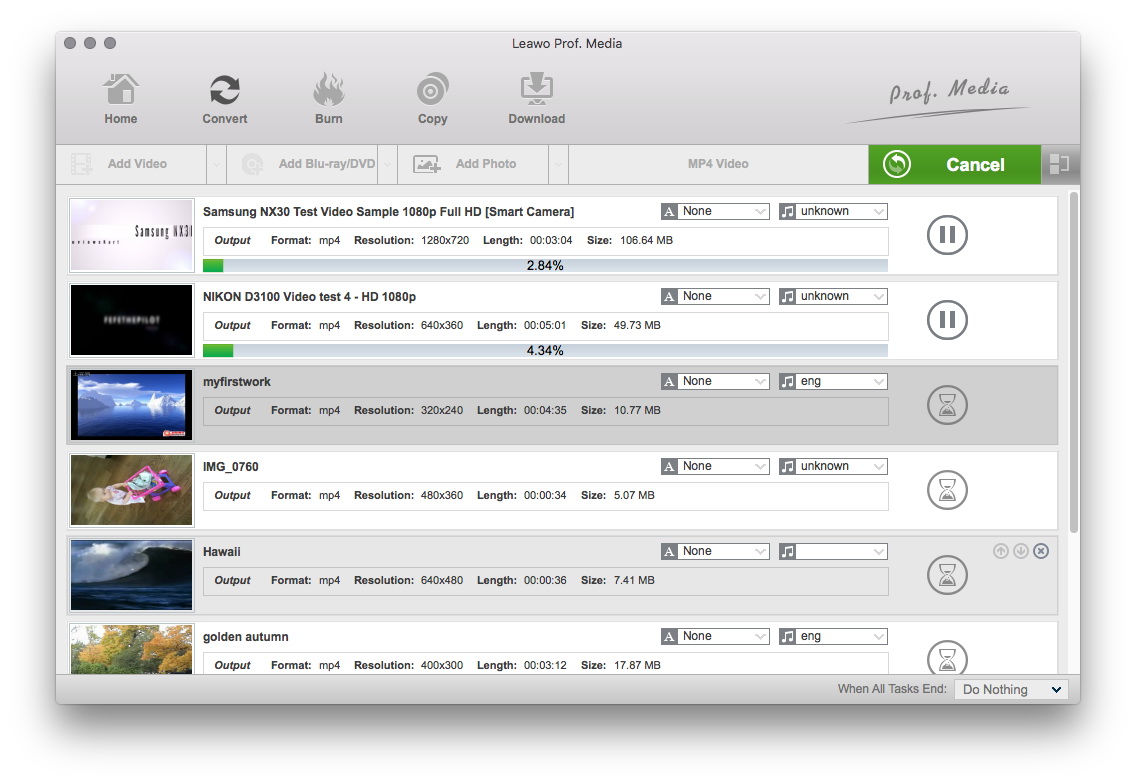
Convert Videos
When you have got ready for the settings for the added videos in the video converter program, you can click "Convert" button to start conversion. Just for a while, the conversion will be finished and you can enjoy it freely.
Extended Knowledge
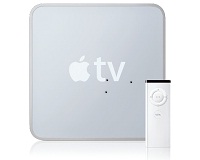
Apple TV is a digital media receiver device manufactured, marketed and sold by Apple. It is a network device designed to play digital content originating from any Mac OS X or Windows computer running iTunes to an enhanced-definition or high-definition widescreen television. Apple TV can function as either a home theater-connected iPod device or a digital media receiver, depending on the needs of the user.