Generally, cell phones support to play MP4, 3GP, 3G2 video and MP3 audio. So you can convert your video formats like MP4 to 3GP or 3G2 that your cell phone accepts. To convert MP4 to 3GP or 3G2 files on Mac, you can choose Leawo Mac 3GP Converter. Moreover, you can have your video trimmed, dimension cropped for your cell phone's need with this Mac MP4 to 3GP converter. After Mac MP4 to 3GP video conversion, you will find the excellent output quality and user-friendly interface bring you with high-definition video enjoyment on your mobile phone!
Full Guide
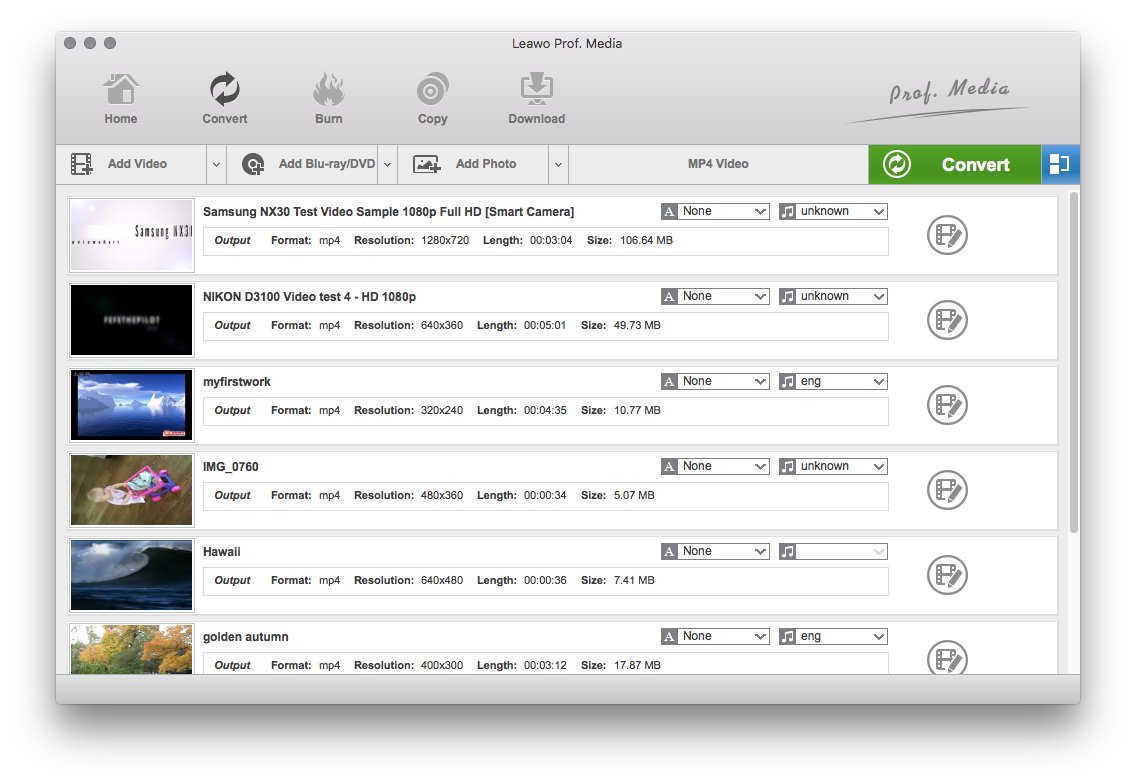
Add Video Files
Click "Add" button to load MP4 files you want.
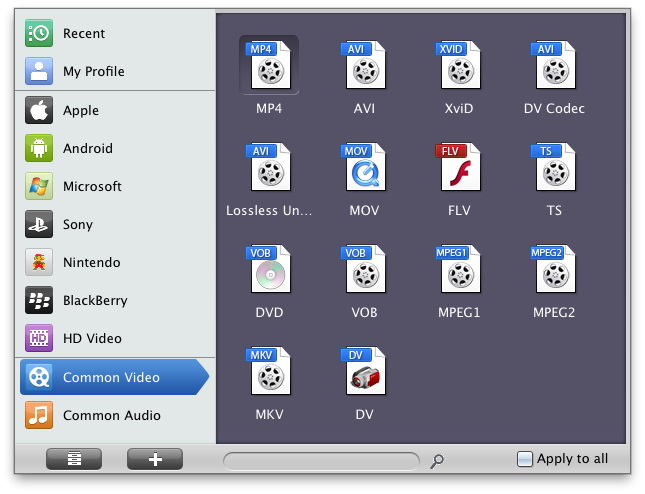
Choose Output Format
Select each file and choose the output format like 3GP in "Profile".
Select video and audio quality that you need.
Set an output folder by "Output" for the destination files.
You can set detailed parameters: Choose the file and go to "Add Profile" button at the bottom of the main interface to set detailed parameters for the video as you like. Such as Codec, Video Size, Bit Rate, Aspect Ratio, Frame Rate, etc.
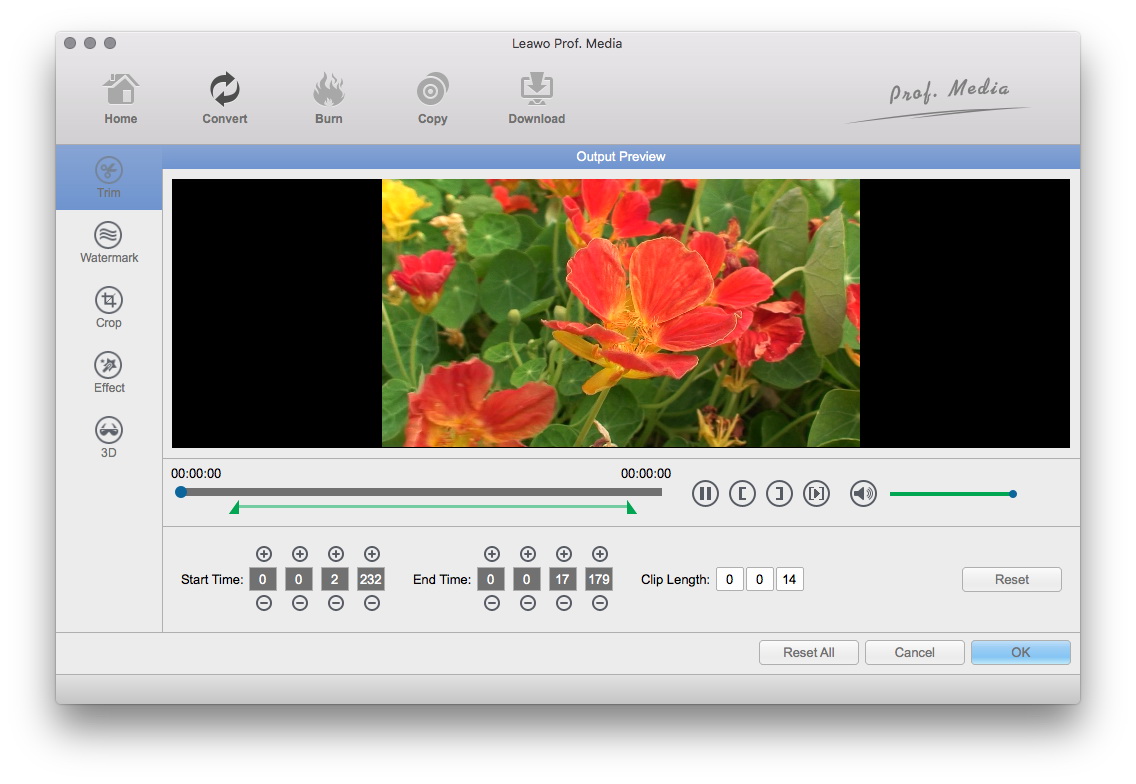
Video Effect Settings
Click "Edit" button to crop, trim, adjust and watermark video to satisfy your needs.
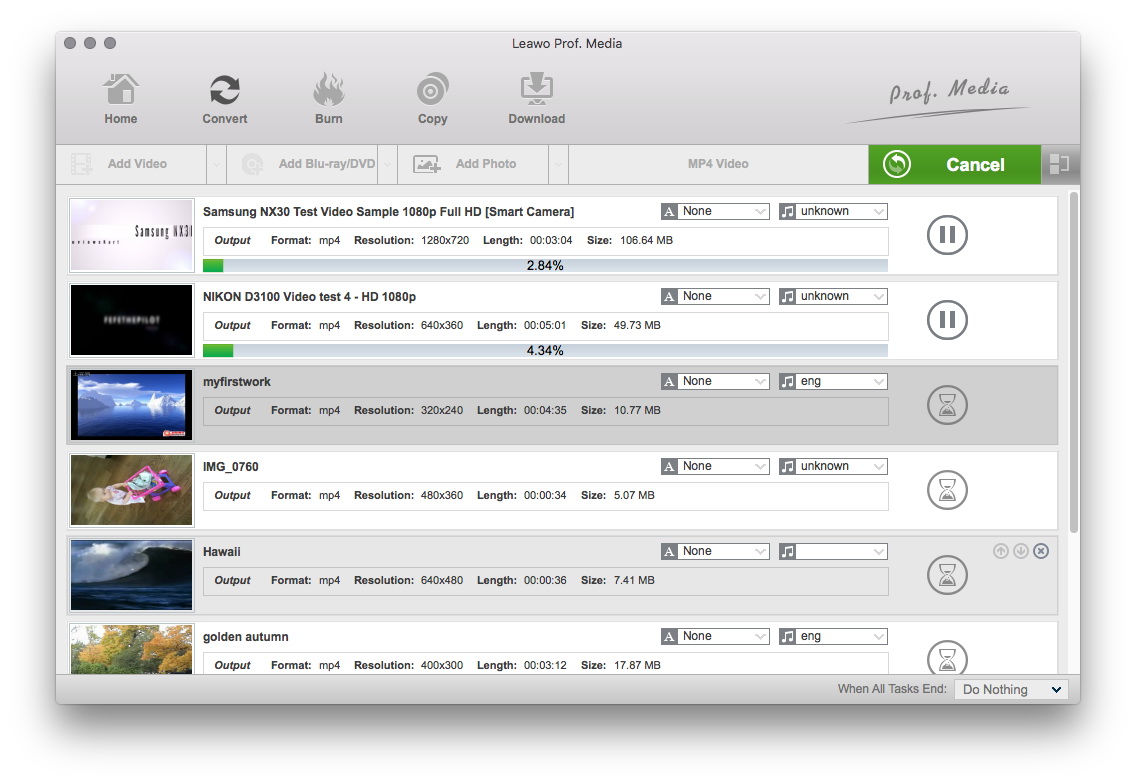
Convert MP4s
When you have got ready for the settings for the added videos in the video converter program, you can click "Convert" button to start conversion. Just for a while, the conversion will be finished and you can enjoy it freely.
Extended Knowledge

MP4, short for MPEG-4 Part 14, is a multimedia container format standard specified as a part of MPEG-4. It is most commonly used to store digital audio and digital video streams, especially those defined by MPEG, but can also be used to store other datas such as subtitles and still images. Like most modern container formats, MPEG-4 Part 14 allows streaming over the Internet. The official filename extension for MPEG-4 Part 14 files is .mp4, thus the container format is often referred to MP4.
3G stands for third generation, a generic wireless industry term for high-speed mobile data delivery over networks. 3GP is a multimedia container format defined by the Third Generation Partnership Project (3GPP) for use on 3G mobile phones but can also be played on some 2G and 4G phones.