Have you had any problem converting AVI file to to iPhone MP4 format for Mac? Admittedly, the key point is that you have to choose a program to finish the task. I do want to recommend you Leawo Video Converter for Mac (Mac iPhone Converter), which can convert AVI to iPhone video files. After video conversion, you will think highly of the easy-to-use design and high Mac AVI to iPhone conversion speed from the AVI to iPhone converter. Of course, you are able to play the converted videos on your iPhond so as to have better enjoyment. Now please download this powerful Mac AVI to iPhone Converter on the right!
What is AVI?
An AVI (Audio Video Interleaved) file is a sound and motion picture file that conforms to the Microsoft Windows Resource Interchange File Format (RIFF) specification. AVI files (which end with an .avi extension) require a special player that may be included with your Web browser or may require downloading.
Tutorial of converting AVI to iPhone for Mac with Leawo Mac iPhone Converter
Note: Before this tutorial, please download and install Leawo Mac iPhone Converter first!
Full Guide
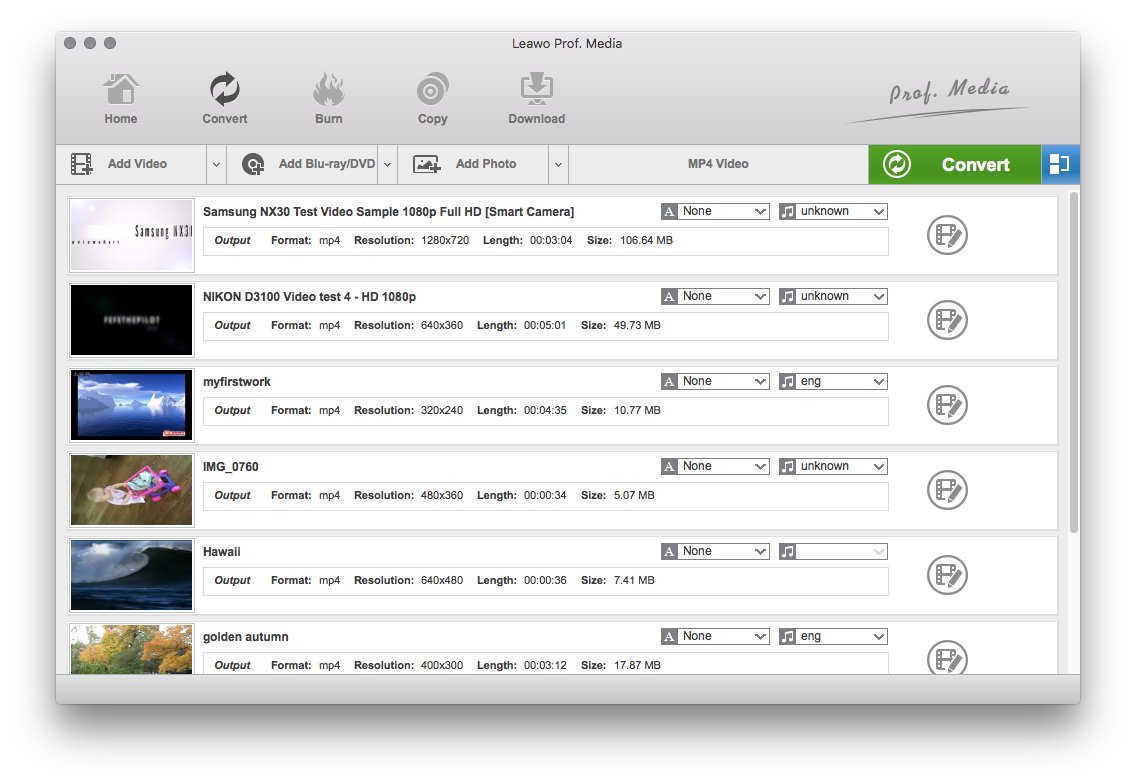
Do the essential settings
Click "Add" button to load AVI files you want.

Choose format for output video
Select each file and choose the output format like iPhone MP4 in "Profile".
Select video and audio quality that you need.
Set an output folder by "Output" for the destination files.
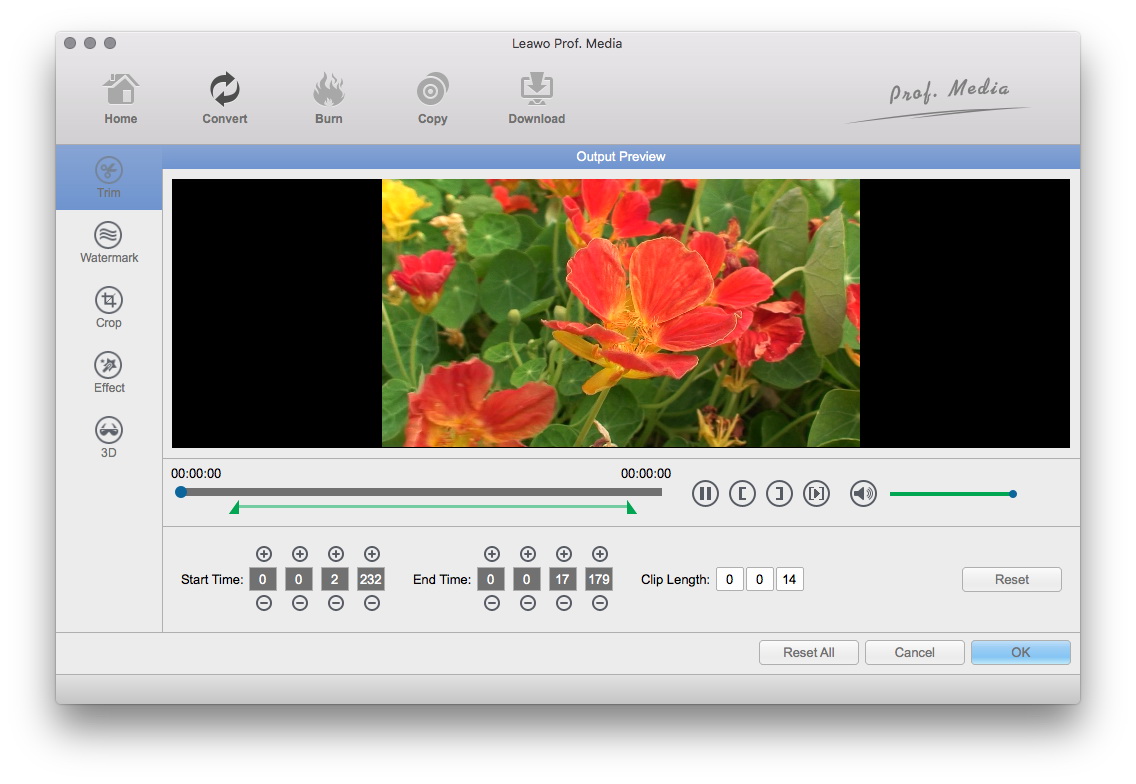
Video Effect Settings
Click "Edit" button to crop, adjust and watermark video to satisfy your needs.
- Trim: Click "Trim" button. Now trim video duration by setting start time and end time to keep the segment you want.
- Crop: Click "Crop" to crop the video file to extract the black sides or unnecessary segment from the original video file.
- Effect: Click "Effect" button to set video brightness, contrast, and saturation for better output quality.
- Watermark: Check "Enable Watermark", and click "Image Watermark" or "Text Watermark" to add watermark to the video, then adjust the Transparency, Margin, and Watermark Size.
- Besides, you can set detailed parameters: Choose the file and go to "Settings" button at the bottom of the main interface to set detailed parameters for the video as you like. Such as Codec, Video Size, Bit Rate, Aspect Ratio, Frame Rate, etc.
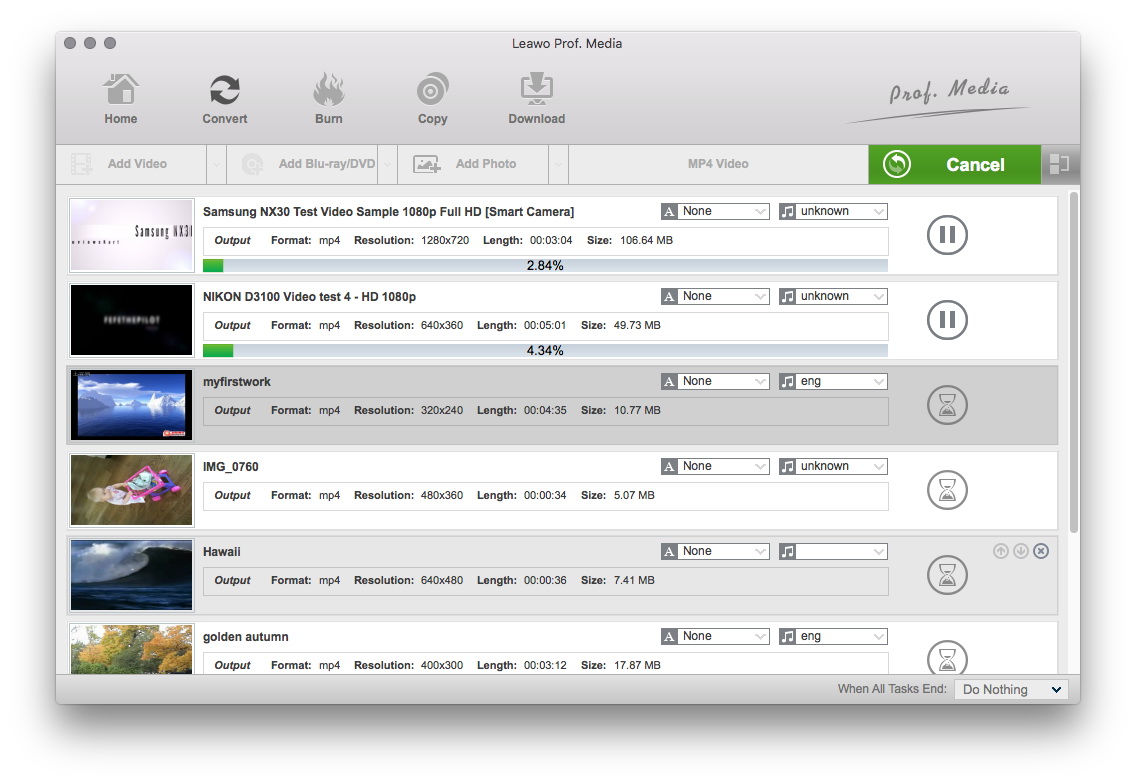
Convert Videos
When you have got ready for the settings for the added videos in the video converter program, you can click "Convert" button to start conversion. Just for a while, the conversion will be finished and you can enjoy it freely.
Extended Knowledge

iPhone is a smartphone made by Apple company that combines an iPod, a tablet PC, a digital camera and a cellular phone. The device includes Internet browsing and networking capabilities. The iPhone is an internet-connected multimedia smartphone designed and marketed by Apple Inc. with a flush multi-touch screen and a minimal hardware interface. The device does not have a physical keyboard, so a virtual keyboard is rendered on the touch screen instead. The iPhone functions as a camera phone includs text messaging and visual voicemail, a portable media player (equivalent to an iPod), and Internet client (with email, web browsing, and local Wi-Fi connectivity).