Bookmark and Share Home > PowerPoint Solutions > PowerPoint to DVD Standard
User Guide for Leawo PowerPoint to DVD Std

Leawo PowerPoint to DVD Std
Convert PowerPoint slideshow to standard DVD for playback on DVD players. More...
Download Buy Now  
On This Page

Leawo PowerPoint to DVD Standard Tutorial

How to Convert Your PowerPoint Presentation to Standard DVD?

Leawo PowerPoint to DVD Std provides you a fast and easy-to-get way to make DVD slideshows. The converter and burner makes it a piece of cake to share PowerPoint files in standard DVD, on a DVD player or a Mac, with a TV or a projector.

This guide will introduce to you how to import a PowerPoint presentation, edit and enhance it, and convert/burn to standard-quality DVD using Leawo PowerPoint to DVD Std.

Step 1 Import PowerPoint file(s) for conversion
After download and installation, run the .exe file of Leawo PowerPoint to DVD Std. The main interface of the software is displayed:

PowerPoint to dvd standard

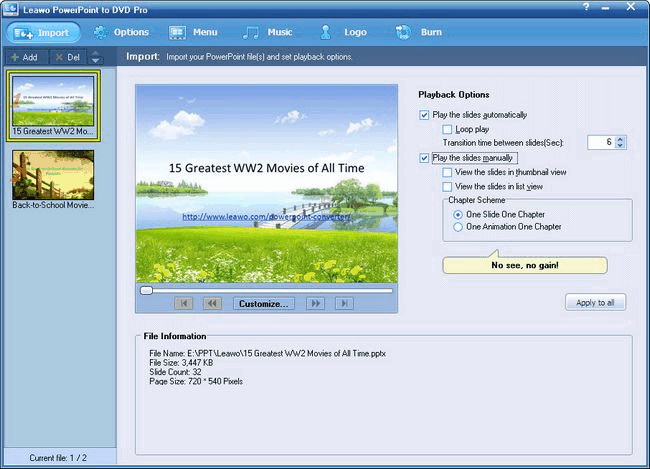
Click Add or Import to insert a PowerPoint file that you would like to convert to DVD. You can input up to 12 PPT files per conversion.

Note: If you want to make customization on slide and playback, do the following:

* To edit slide property of a selected PowerPoint file, click on 'Customize...' to enter the Edit Slide Property interface. Double click on an item to rename a slide, adjust a transition, or reset a thumbnail for the PPT file. Click 'OK' to save the settings.

PowerPoint to dvd standard

* To check playback mode of your PPT file, tick 'Play the slides automatically' and/or 'Play the slides manually' as you like.

2. Set DVD parameters for the PowerPoint file(s)
Forward to the Options menu. You can see the output format default to Standard DVD. Check the current DVD parameters to see whether they are correct.

PowerPoint to dvd standard

* Not sure which TV standard between NTSC and PAL/SECAM is applied to your country? Click on 'Help...' button in the Norm box, find your country from the following dropdown, and click 'OK'.

* To reset the DVD mode for your PPT file, click on 'More...' in the Mode box. You can choose a MPEG format from Standard DVD, 480i, and 480p.

* To change aspect ratio for the output, click on a radio check among 1:1, 4:3, 16:9.

If you want more customization on the file, in the Options menu, on the right, click on 'Advanced Settings' button.
PowerPoint to dvd standard

In the prompt Advanced Settings interface, adjust PowerPoint audio status, size of slides, layout and quality of video, audio codec, DVD language code, DVD menu parameters, and conversion status.

3. Choose or customize DVD menus
Click the Menu ribbon to select or DIY a stunning menu for your DVD slideshow.

PowerPoint to dvd standard
To change the default DVD menu, under the Select Menu Templates drop-down list, you can choose another template for your DVD slideshow, or press the DVD Menu Creator button on the right to DIY one with more makings.
PowerPoint to dvd standard
Select 'Main Menu' to set background, button style, caption, and other properties for selected presentation. Choose 'Title Menu' to select a playback mode for your DVD slideshow. To apply current settings to all the rest files, click Apply to all.

4. Add music or narration for output DVD
To insert a sound or record a narration for your DVD slideshow, go to the 'Music' ribbon.
(music)

* To play a sound/narration across all slides, add it under the auto mode.

* To insert a sound/narration to a certain slide, shift to the manual mode.

Click  to add an audio file, or  to record your own voice-cover as narration. Once completed, save it, and click  to test the sound effect. To remove an inserted sound or a recorded narration, select it and click .

5. Add trademark or avatar as logo of DVD slideshow
To add a special mark on your DVD slideshow, click on the "Logo" tab. Beside the 'Logo', you can also set the 'Video Layout'.
PowerPoint to dvd standard
Under the Logo section, in the File (s) field, press "Add" button to input an image file, e.g. your company trademark, favorite avatar, as watermark (logo) for output DVD. This will personalize your PowerPoint work and protect it from prying hands.
In the "Video Layout" dropdown, resize and fill the file margin if necessary.

6. Convert and burn PowerPoint to Standard DVD
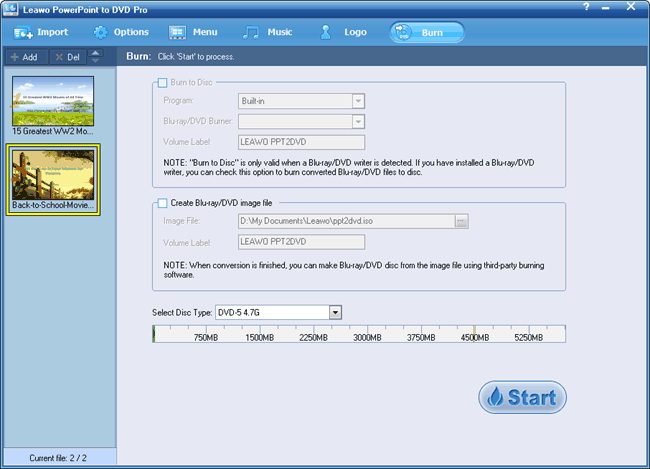
To burn the PowerPoint file(s) directly to disc, you should first have a DVD writer installed and a blank DVD inserted on your PC. Otherwise, the Burn to disc option will be NOT available. Alternatively, you can make an ISO file by ticking "Creating DVD image file". In the ISO file drop-down list, select a location for the ISO file from your local drive. In the Volume Label field, enter a label for your DVD disc.
PowerPoint to dvd standard
Voila. Click Start to convert your presentations to DVD and then burn the output to a disc.

Back to top

Ready To Try and Buy

Download Buy Now  Only $59.95

PowerPoint to DVD Std

Products

MorePackage Solutions
Easy Media Converter Suite
Blu-ray Video Converter Suite
Easy DVD Converter Suite
Easy Video Converter Suite
Easy AVI Converter Suite
Easy iPad Converter Suite
Easy iPhone Converter Suite
Easy iPod Converter Suite
Easy YouTube Converter Suite
MoreVideo/HD Video Tools
All-in-One Video Converter
HD Video Converter
AVCHD Converter
MTS/M2TS Converter
MKV Converter
Free AVI Converter
Free MP4 Converter
Free 3GP Converter
Free FLV Converter
Free YouTube Downloader
Video to DVD Creator
More DVD/Blu-ray Tools
Blu-ray Ripper
Blu-ray Copy
DVD Ripper
DVD Copy
DVD to AVI Converter
DVD to MP4 Converter
DVD to FLV Converter
MoreMac Converters
iAm Mac Total Converter
Mac HD Video Converter
Mac Video Converter
DVD Ripper for Mac
Mac FLV to Video Converter
Mac DVD to FLV Converter
Mac Video to AVI Converter
Mac DVD to AVI Converter
Mac Video to MP4 Converter
Mac DVD to MP4 Converter
Mac Video to 3GP Converter
Mac DVD to 3GP Converter
MorePortable Device Tools
Win
Mac
iPad Video Converter for Win
DVD to iPad Converter for Win
Free iPod Video Converter for Win
DVD to iPod Converter for Win
Free iPhone Video Converter for Win
DVD to iPhone Converter for Win
Free PSP Video Converter for Win
DVD to PSP Converter for Win
Mac Video to iPad Converter
Mac DVD to iPad Converter
Mac Video to iPod Converter
Mac DVD to iPod Converter
Mac Video to iPhone Converter
Mac DVD to iPhone Converterc
Mac Video to PSP Converter
Mac DVD to PSP Converter
MorePowerPoint Converters
PowerPoint to DVD Pro
PowerPoint to DVD Std
PowerPoint to Video (Free/Pro)
PowerPoint to FLV
PowerPoint to iPad
PowerPoint to YouTube