Home > Mac Products > Mac MP4 Converter
User Guide for Mac MP4 Converter

User Guide of Leawo Mac MP4 Converter

Leawo Mac MP4 Converter is an excellent MP4 converter for Mac. It can easily convert all video formats such a 3GP, FLV, MPEG, MOV, VOB, ASF,  MKV, WMV, AVI to MP4 video file, and AAC, M4A, MP3 audios with excellent output quality and high conversion speed. This powerful Mac video to MP4 converter provides you with versatile features such as batch conversion, setting video brightness, contrast, saturation, video crop, video trim, video watermark, and joining multiple files into one.

What is MP4?
MP4 is short for the Moving Picture Expert Group-4. MP4 is also known as MPEG-4 AVC, or advanced video coding. This new technology is going to make video files decrease in size so that they are easier to work with and support.  What used to be massive video files of motion and audio are now compressed versions of the same material, called MP4s.

Want to convert videos to MP4 file with Leawo Mac MP4 converter to enjoy your colorful digital life? Now here comes the step-by-step tutorial to show you how to use this Leawo Mac MP4 converter. Before this user guide, please download and install Leawo Mac MP4 Converter first!

Step 1: Do the essential settings
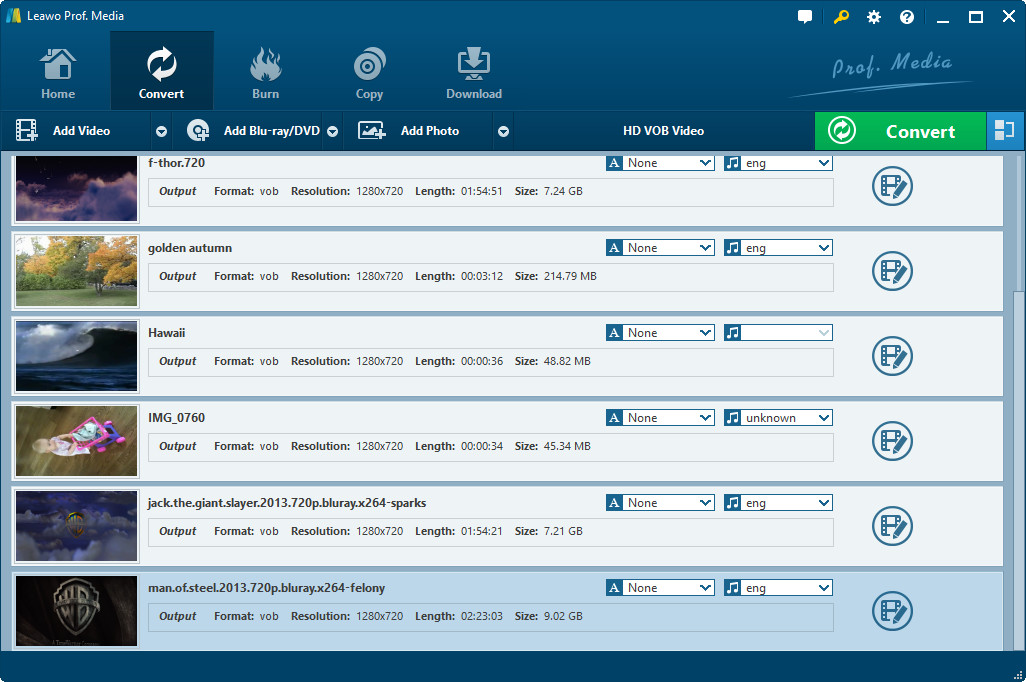
Click "Add" button to load video files you want to convert.

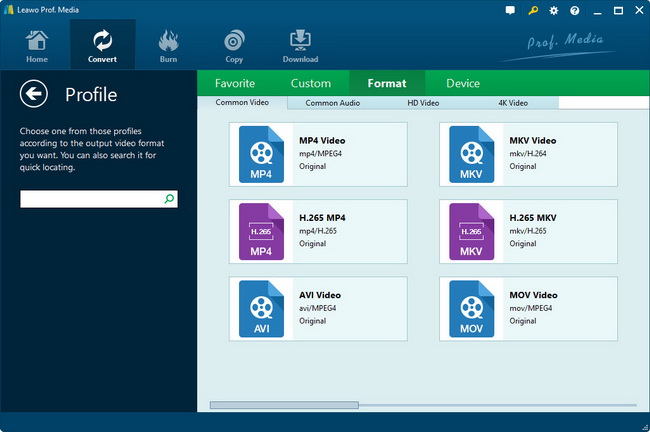
Click on the file format of the original video on the video processing list, and then it will switch to the following output file format choosing panel. Select a target format for the output according to your requirement. Or you can take advantage of the "Profile Search Function" and get access to the target format quickly.

Step 2: Video Effect Settings
Click "Edit" button to trim, crop, rotate, adjust and watermark video to satisfy your needs.
Trim: Click Trim" button. Now trim video duration by setting start time and end time to keep the segment you want.


Crop: Click "Crop" button to crop the video file to extract the black sides or unnecessary segment from the original video file.


Rotation: Revolve the video to the needed angle. You can achieve horizontal flip & vertical flip, or realize to rotate 90° clockwise and rotate 90° counterclockwise. If the adjustment is beyond satisfaction you can reset it as well.

Effect: Click "Effect" button to set video brightness, contrast, and saturation for better output quality.

Watermark: Check "Enable Watermark", and click "Image Watermark" or "Text Watermark" to add watermark to the video, then adjust the Transparency, Margin, and Watermark Size.


Step 3: 3D Settings
In this step you can 1). Select a 3D setting mode: Red/Cyan, Blue/Yellow, Interleaved, Side by Side, according to the 3D glasses you are using. 2). Set 3D Depth effect, choose a specific value from minus 50 to plus 50. 3). Have a real-time preview of the 3D video.

Step 4: Attached Video Settings
1. Click “Preferences” button to adjust the image, if necessary.

There are three buttons for you to adjust the image according to your need. They are “General” button, “Convert” button, “Thumbnail” button, “Connection” button and "Update settings" button.

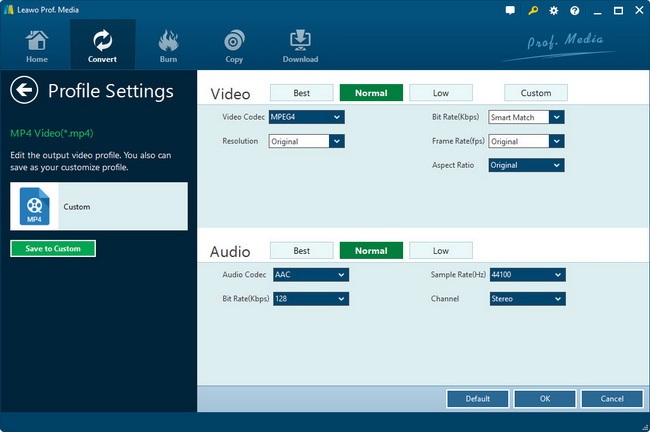
2. Click "Add Profile" button to set audio and video parameters:
Video: Set video encoding settings by selecting a video codec, a frame rate, a bit rate and a video size, etc.
Audio: Set audio encoding settings by selecting an audio codec, sample rate, an audio channel, a bit rate, etc.

3. Merge file:
If you want to join several files into one, just select the checkbox on the main interface, and then you will join videos on Mac or Windows and only get one output file instead of multiple files.
Step 5: Convert Videos
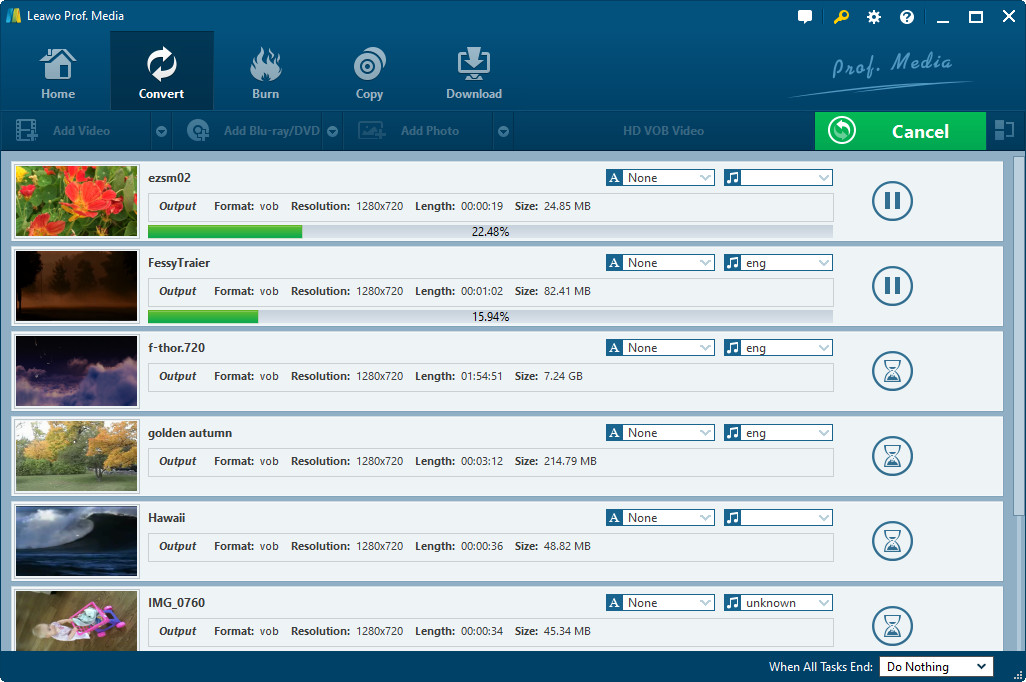
When you have got ready for the settings for the added videos in the video converter program, you can click on the "Convert" button to start conversion. Just for a while, the conversion will be finished and you can enjoy the video freely.
Download Leawo Mac MP4 Converter at: http://www.leawo.com/mac-mp4-converter

Back to top

Ready To Try and Buy

Download Intel Version Download PowerPC   Only $25.00