Bookmark and Share Tell a Friend Home > Mac Products > Mac iPhone Converter
User Guide for Mac iPhone Converter

User Guide of Leawo Mac iPhone Converter

Convert almost all popular video and audio files such as AVI, MP4, RMVB, MPEG, MOV, AAC, OGG, WAV to iPhone supported formats such as MP4, MP3, WAV, etc. Leawo Mac iPhone Converter is a professional and powerful iPhone converter for Mac. This software provides you a series of settings such as video crop, video trim, video watermark, batch Mac video to iPhone conversion, and setting video brightness, contrast and saturation, and even joining multiple files into one.

What is iPhone?
The iPhone is an internet-connected multimedia smartphone designed and marketed by Apple Inc. with a flush multi-touch screen and a minimal hardware interface. The device does not have a physical keyboard, so a virtual keyboard is rendered on the touch screen instead. The iPhone functions as a camera phone includs text messaging and visual voicemail, a portable media player (equivalent to an iPod), and Internet client (with email, web browsing, and local Wi-Fi connectivity). The first generation phone hardware was quad-band GSM with EDGE; the second generation also adds UMTS with HSDPA.

How to transfer video to iPhone for Mac?
When connected to a personal computer (PC), Windows or Macintosh, the iPhone communicates with a piece of Apple software called iTunes. The iPhone and iTunes work together to synchronize the videos available on the iPhone to those available on the PC. This happens automatically, without any intervention being required from the user.

After you got the videos converted by Leawo Mac iPhone converter, connect your iPhone, launch iTunes and update your library. Once you see your new videos inside the iTunes library, you can easily add them to your iPhone onwards. It's pretty easy.

Want to convert videos to iPhone video MP4 file with Leawo Mac iPhone converter to enjoy your colorful digital life? Now here comes the step-by-step tutorial to show you how to use this Leawo Mac iPhone converter. Before this user guide, please download and install Leawo Mac iPhone Converter first!

Step 1: Do the essential settings
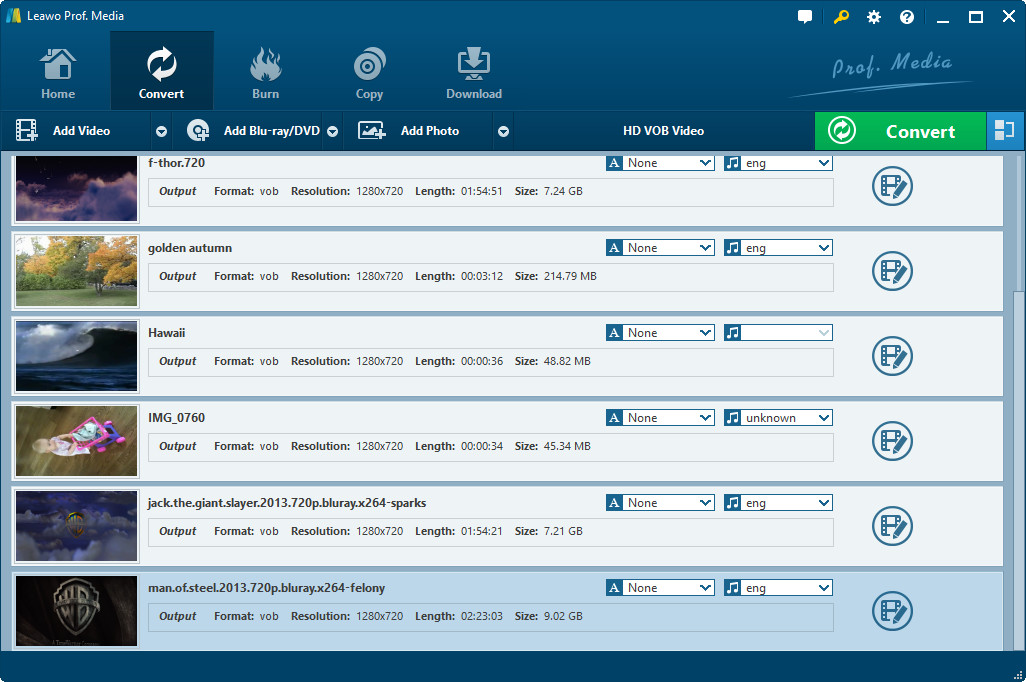
Click "Add " button to load video files you want to convert.
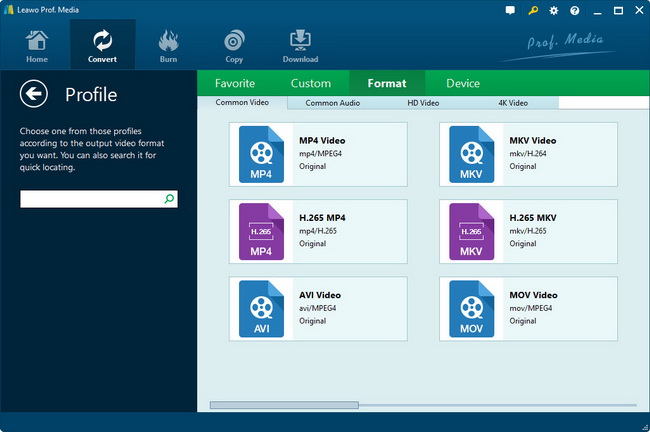
Select each file and choose the output format in "Profile".
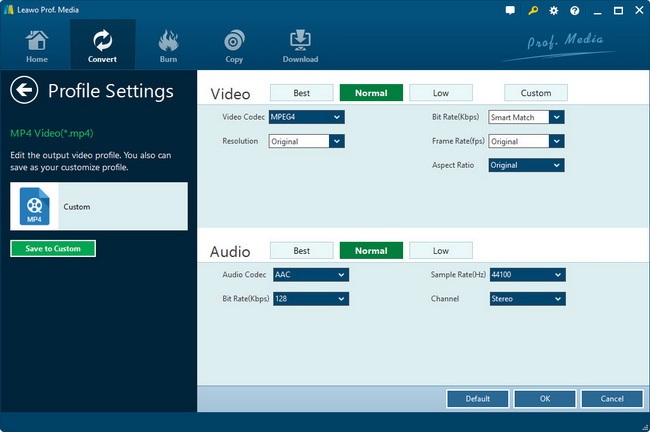
Select video and audio quality that you need.
Set an output folder by "Output" for the destination files.
Leawo Mac iPhone Converter interface

Step 2: Video Effect Settings
Click Edit button button to crop, adjust and watermark video to satisfy your needs.

Crop: Click "Crop" button to crop the video file to extract the black sides or unnecessary segment from the original video file.
Crop video frame size for video to iPhone conversion on Mac
Trim: Click "Trim" button. Now trim video duration by setting start time and end time to keep the segment you want.
Trim video duration for converting video to iPhone on Mac
Effect: Click "Effect" button to set video brightness, contrast, and saturation for better output quality.
Customize video effect for converting video to iPhone on Mac
Watermark: Check "Enable Watermark", and click "Image Watermark" or "Text Watermark" to add watermark to the video, then adjust the Transparency, Margin, and Watermark Size.
Watermark video for converting video to iPhone on Mac

Step 3: Attached Video Settings
1. Click “Options” button to adjust the image, if necessary.

There are two buttons for you to adjust the image according to your need. One is “General” button, the other is “Thumbnail” button.
Get thumbnail for converting video to iPhone
2. Click "Settings" button to set audio and video parameters:
Video: Set video encoding settings by selecting a video codec, a frame rate, a bit rate and a video size, etc.
Audio: Set audio encoding settings by selecting an audio codec, sample rate, an audio channel, a bit rate, etc.
Make detail & parameters settings for video to iPhone conversion on Mac
3. Merge file:
If you want to join several files into one, just select the checkbox Merge and convert multiple video to iPhone on Mac on the main interface, and then you will join videos on Mac or Windows and only get one output file instead of multiple files.

Step 4: Convert Videos
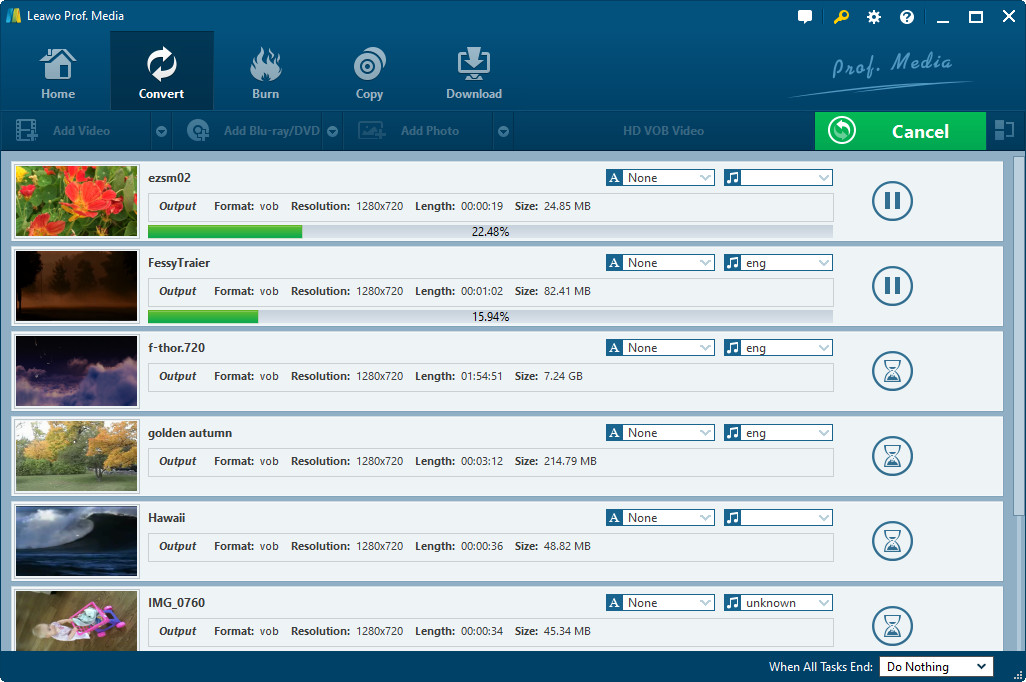
When you have got ready for the settings for the added videos in the video converter program, you can click Convert video to iPhone on Mac button to start conversion. Just for a while, the conversion would finish and be enjoyed freely.

Download Leawo Mac iPhone Converter Intel version or PowerPC version Now!

Mac iPhone Converter

Products

MorePackage Solutions
Media Converter Suite
Free AVI Converter Suite
Free iPod Converter Suite
Free MP4 Converter Suite
Free iPhone Converter Suite
MoreFLV Converter
Free YouTube Downloader
Free FLV Converter
Free Video to FLV Converter
Free Video Accelerator
More Video Converter
All-in-one video converter
Video to DVD Creator
iPad Video Converter
Free AVI Converter
Free MP4 Converter
Free 3GP Converter
Free iPod Converter
Free iPhone Converter
Free PSP Converter
MoreDVD Converters
All-in-one DVD Ripper
Free DVD to iPod Converter
Free DVD to iPhone Converter
Free DVD to Zune Converter
Free DVD to PSP Converter
Free DVD to AVI Converter
Free DVD to 3GP Converter
Free DVD to MP4 Converter
MorePowerPoint Solutions
PowerPoint to DVD
PowerPoint to Video
PowerPoint to FLV
MoreMac Converter
Mac Video Converter
Mac FLV Converter
Mac MP4 Converter
Mac iPod Converter
Mac iPhone Converter
Mac AVI Converter
Mac 3GP Converter
Mac PSP Converter
YouTube Downloader for Mac
DVD Ripper for Mac
Mac DVD to FLV Converter
Mac DVD to MP4 Converter
Mac DVD to iPod Converter
Mac DVD to iPhone Converter
Mac DVD to AVI Converter
Mac DVD to 3GP Converter
Mac DVD to PSP Converter
All-in-one Converter for Mac